MSFS 2024 Graphics & Performance Guide

Graphics & Performance

MSFS 2024 Graphics & Performance Guide: Microsoft Flight Simulator 2024 is one of the most demanding and visually impressive PC simulators ever released. It can deliver breathtaking scenery, rich cloud layers, highly detailed cockpits, realistic lighting, and a true sense of scale that few other games can match.

When everything is working properly, it feels magical. When performance is poor, however, the experience can quickly become frustrating.

Stutters on final approach, low frame rates at large airports, blurry scenery, slow-loading terrain, and inconsistent performance between aircraft are all common complaints. The good news is that most of these issues can be improved with a better understanding of how the simulator works and which settings matter most.
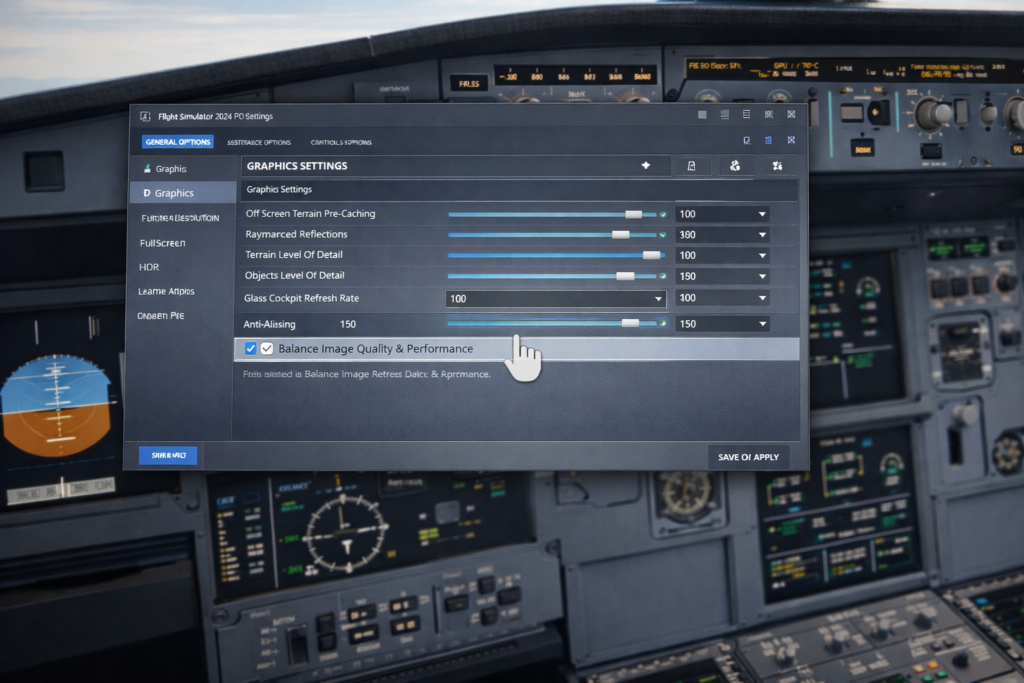
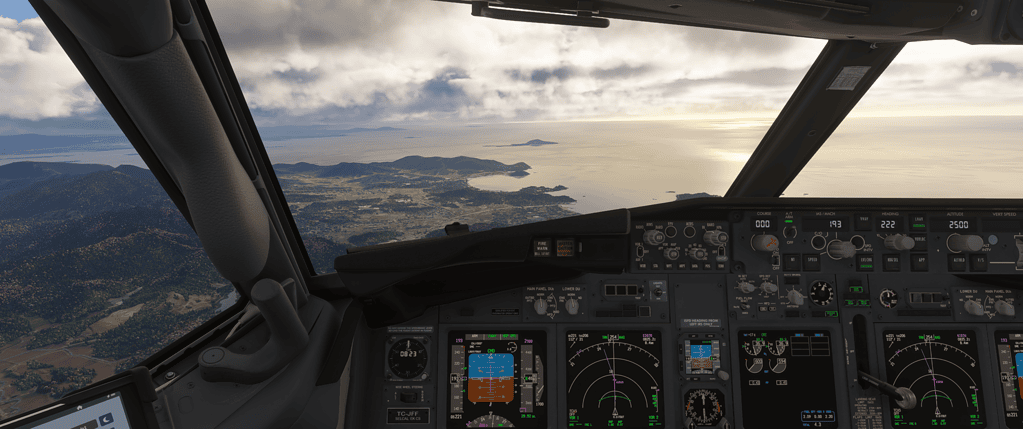
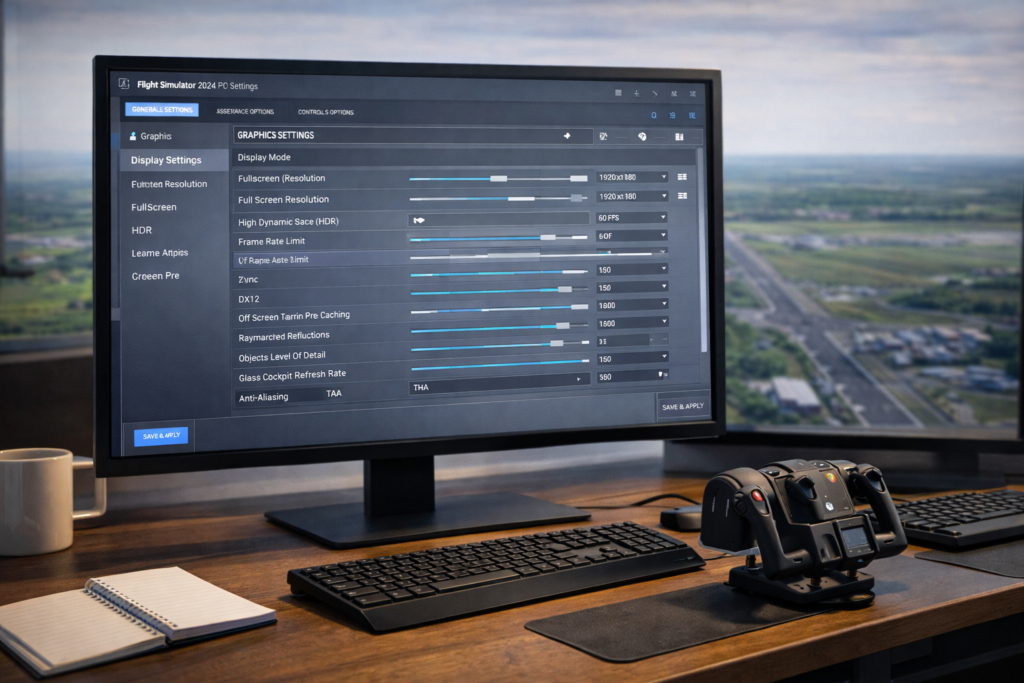
msfs-2024 Tuning graphics in the cockpit

Many users make one of two mistakes. The first is setting everything to Ultra and expecting the PC to cope. The second is lowering lots of settings randomly without understanding what each one actually does. Both approaches usually lead to disappointment.

The best results come from tuning the simulator logically, in the right order, and with your own hardware in mind.

This guide is designed to help you do exactly that. We will look at performance in a practical and easy-to-follow way, beginning with the basics and moving gradually into deeper optimisation. You will learn:

  • How Microsoft Flight Simulator 2024 uses your CPU, GPU, RAM, storage, and internet connection
  • What are the most important graphics settings actually do
  • Which settings affect the frame rate the most
  • How to reduce stutters and inconsistent frame times
  • How to tune the simulator for lower-end, mid-range, and high-end PCs
  • What Windows, NVIDIA, and AMD settings are worth checking
  • How to improve performance in VR
  • Which hardware upgrades make the biggest real-world difference

The aim is not simply to chase the highest FPS number. In a flight simulator, smoothness, stability, and responsiveness matter just as much as visual quality. A locked and steady 35 FPS often feels much better than a wildly fluctuating 55 FPS. That is why the focus of this guide is balanced performance rather than unrealistic perfection.

If you are new to the simulator, this article will help you avoid a lot of trial and error. If you already have some experience, it should help you identify the settings and hardware limits that are holding your system back.

And if you are planning future hardware upgrades, it will help you spend money in the areas that actually improve the sim.
Understanding Performance in Microsoft Flight Simulator 2024

Before changing any settings, it helps to understand what good performance actually means in a simulator like this.

Most people immediately look at frames per second, or FPS. That is understandable because it is a simple number that seems easy to judge. But in flight simulation, FPS by itself does not tell the whole story. Two systems can both show 40 FPS, yet one feels silky smooth, and the other feels rough and unpredictable.

The difference usually comes down to frame pacing, bottlenecks, scenery loading, and overall consistency.

Why smoothness matters more than headline FPS

Flight simulation is different from a fast shooter or racing game. The movement is usually slower, and the camera changes more gently, especially in cruise flight. Because of that, a lower but stable frame rate can still feel very good. What tends to ruin the experience is not always low FPS, but:

  • sudden pauses when scenery loads
  • micro-stutters while panning around the cockpit
  • frame drops close to the ground or on final approach
  • heavy fluctuations when entering a city or airport
  • laggy glass cockpit displays

That is why the real target should be consistent smoothness. In practical terms, many sim pilots are perfectly happy with:

  • 25 to 30 FPS if it is stable and smooth
  • 30 to 40 FPS is a very good real-world target
  • 40 to 60 FPS is excellent if your system can hold it consistently

Anything above that is nice, but not necessary for enjoyable flying.

FPS vs frame time

FPS tells you how many frames are being rendered every second. Frame time tells you how long each frame takes to appear. Stable frame times are often the difference between a simulator that feels fluid and one that feels choppy.

For example, if your PC renders one frame quickly, then suddenly takes much longer on the next frame, you will feel that as a hitch or stutter, even if the average FPS still looks reasonable. This is why average FPS numbers alone can be misleading.

Why flight simulators are unusually demanding

Microsoft Flight Simulator 2024 is not just drawing a small game map. It is handling an enormous amount of information all at once, including:

  • large terrain draw distances
  • weather simulation and cloud rendering
  • aircraft systems and avionics
  • AI and traffic logic
  • streamed world data
  • lighting, shadows, reflections, and atmosphere

This means your PC is being asked to do many jobs at once. One setting may hit the CPU hard, another may stress the GPU, while another may mainly affect RAM or storage usage. That is why random tweaking often produces confusing results.

CPU limited vs GPU limited

One of the most important performance concepts is understanding whether your simulator is mainly limited by the CPU or the GPU.

When you are CPU-limited

If the CPU is the bottleneck, the processor is struggling to keep up with the simulation. This often happens with:

  • complex airliners
  • glass cockpit aircraft
  • large airports
  • dense traffic settings
  • High Terrain Level of Detail
  • photogrammetry-heavy cities

In this case, lowering pure graphics settings may not help much because the real problem is the amount of simulation and scenery management your processor is trying to handle.

When you are GPU-limited

If the GPU is the bottleneck, the graphics card is under the most strain. This often happens with:

  • high display resolutions such as 1440p ultrawide or 4K
  • heavy cloud rendering
  • high render scaling
  • demanding anti-aliasing or upscaling combinations
  • VR flying

When you are GPU-limited, visual settings tend to have a more obvious effect on frame rate.
How Microsoft Flight Simulator 2024 Uses Your Hardware

To optimise the simulator properly, it helps to know what each major part of your PC is doing.

The CPU

The CPU is one of the most important components in Microsoft Flight Simulator 2024. It is responsible for much more than many users realise. It helps manage:

  • flight model calculations
  • aircraft systems and avionics
  • AI aircraft and ground traffic
  • terrain and scenery management
  • glass cockpit updates
  • parts of weather, navigation, and world simulation

This is why a sophisticated airliner with complex systems often performs worse than a simple general aviation aircraft in the same location. It is also why major airports can be demanding even before you leave the ground.

The GPU

The GPU renders the visual world. It is responsible for drawing:

  • terrain textures
  • cloud layers
  • water effects
  • shadows
  • lighting and reflections
  • ambient occlusion and post-processing

High resolutions, dense cloud scenes, strong anti-aliasing, high render scaling, and VR all place major demand on the graphics card.

RAM

RAM matters a great deal in flight simulation. Large scenery areas, detailed textures, airports, and complex aircraft all consume memory. In general:

  • 16GB is a workable starting point for many users
  • 32GB is a very comfortable target for serious simming
  • More than 32GB can help in specific heavy-use scenarios, but usually brings smaller gains

If your system is short on memory, it may have to rely more on storage, which can contribute to stutters.

VRAM

VRAM is the memory on your graphics card. It becomes more important when using:

  • high-resolution displays
  • large texture settings
  • dense airports and cities
  • VR

A graphics card with more VRAM often handles demanding scenes more gracefully, especially at 1440p, ultrawide, or 4K.

Storage speed

A fast SSD is strongly recommended for Microsoft Flight Simulator 2024. Running it from an old mechanical hard drive is not ideal for a simulator this demanding. Fast storage improves:

  • startup times
  • aircraft loading times
  • airport loading
  • terrain data access
  • rolling cache efficiency

An NVMe SSD is excellent, but even a good SATA SSD is a major improvement over a traditional HDD.

Internet connection and scenery streaming

Microsoft Flight Simulator also relies heavily on streamed data. Depending on your settings, the simulator may be pulling in:

  • satellite imagery
  • photogrammetry buildings
  • weather data
  • traffic data
  • live world information

If your internet connection is unstable, or if the servers are under load, you may notice delayed scenery, stutters, or less detailed terrain appearing later than expected.

Microsoft Flight Simulator 2024 Graphics Settings Explained

Customizing graphics settings in Microsoft Flight Simulator 2024 for optimal performance.
Adjusting graphics settings in Microsoft Flight Simulator 2024

This is the heart of the guide. Some settings have a huge impact on performance, while others can often stay high with little penalty. Understanding which is which is the key to sensible tuning.

Render Scaling

Render Scaling controls the internal resolution at which the simulator renders the image before it is shown on your display. At 100, the simulator renders at native resolution.

Lowering this can improve performance, but also makes the image softer. Raising it above 100 can make the image sharper, but it costs GPU power quickly.

Useful guidance:

  • 100 is the natural baseline
  • 90 to 100 is often an excellent range
  • Below 90 can help weaker systems, but reduces clarity
  • Above 100 is mostly for strong GPUs with spare headroom

Anti-Aliasing

Anti-aliasing smooths jagged edges and affects both image quality and performance.

TAA

TAA is often the safest and most widely recommended all-round option. It tends to offer good image stability and cockpit readability.

DLSS

DLSS uses AI upscaling on supported NVIDIA graphics cards. It can improve performance significantly, especially at higher resolutions, though some users may notice changes in sharpness or readability depending on the setting and aircraft.

DLAA

DLAA aims more at image quality than performance. It can look excellent, but it is heavier than DLSS.

FSR

FSR is AMD’s upscaling option. It can help performance on a wider range of hardware, though image quality varies depending on the exact setup.

In general:

  • TAA is a strong quality-first choice
  • DLSS is attractive if you need more FPS on an NVIDIA card
  • FSR is worth trying if you need extra performance on weaker hardware
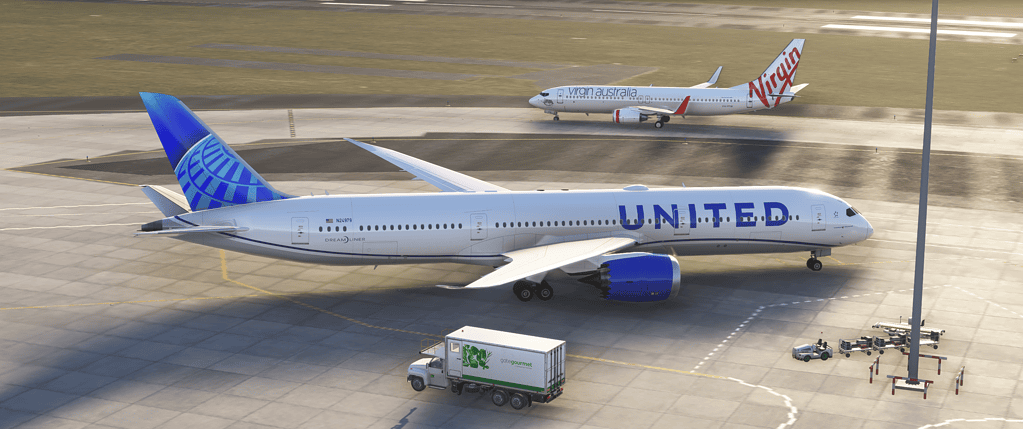
United Airlines Boeing 777 on runway with Virgin Atlantic aircraft in background.
Realistic flight simulation scene featuring United Airlines Boeing 777 and Virgin Atlantic jet on airport runway.

Terrain Level of Detail

Terrain Level of Detail, usually called Terrain LOD, is one of the most important settings in the entire simulator. It controls how far detailed terrain is maintained from the aircraft.

This has a major effect on CPU usage. Higher values increase scenery detail over large distances, but they also increase the workload on the processor.

For many systems:

  • 100 is a very sensible baseline
  • 150 looks excellent on many mid-range and strong systems
  • 200 and beyond can look wonderful, but can hit CPU performance hard

Object Level of Detail

Object LOD controls how far away buildings, trees, and various objects remain detailed. It affects both immersion and performance, especially in urban areas and around airports.

Like Terrain LOD, this setting can become expensive quickly with very high values.

Cloud Quality

Clouds are one of the visual highlights of Microsoft Flight Simulator 2024, but they are also one of the biggest GPU loads. If your system struggles in bad weather or overcast conditions, cloud quality is one of the first settings worth testing.

Typical advice:

  • High often gives an excellent balance
  • Ultra looks superb, but is more demanding
  • Medium can help weaker systems noticeably

Texture Resolution

Texture Resolution affects the clarity of aircraft surfaces, cockpits, runway markings, and scenery textures. This setting depends more on available VRAM than on raw GPU speed alone.

If your graphics card has enough VRAM, high textures are often worth keeping because they improve visual quality noticeably without always destroying performance.

Anisotropic Filtering

Anisotropic Filtering improves the clarity of textures viewed at angles, especially ground textures stretching into the distance. On many modern GPUs this setting has a relatively modest cost, so it can often stay fairly high.

Ambient Occlusion

Ambient Occlusion adds depth and shadowing where surfaces meet, helping the scene look richer and less flat. It improves visual realism, especially in cockpits and around scenery, but it does cost some GPU performance.

Reflections

Reflections affect water, shiny aircraft surfaces, and other reflective materials. They add realism, but they also come at a performance cost. If you need extra GPU headroom, reflections are a reasonable setting to reduce slightly.

Shadow Maps and Shadow Quality

Shadows are often more expensive than people expect. They affect many parts of the scene and can hit the GPU significantly. Shadow quality, terrain shadows, and related shadow settings are worth testing carefully if you are GPU-limited.

Glass Cockpit Refresh Rate

This setting is especially important for users who fly airliners and advanced glass cockpit aircraft. It controls how often the cockpit displays refresh. On CPU-limited systems, lowering this can make a noticeable difference, especially on the ground at large airports.

Traffic Settings

Traffic is not strictly a graphics setting, but it is very important for performance. AI aircraft, airport workers, service vehicles, road traffic, and boats all add life to the world, but they also increase CPU load.

If your simulator feels rough at larger airports, reducing traffic can help more than lowering a small visual option elsewhere.
Best Settings for Different PCs

There is no universal best preset because every PC is different. Still, it helps to work from sensible starting points.

Best settings for lower-end systems

If your PC is older or closer to entry-level, the goal should be a stable and enjoyable experience rather than maximum visual glory.

  • Keep Render Scaling around 80 to 90 if needed
  • Use TAA or a performance-focused upscaling mode
  • Set Terrain LOD around 70 to 100
  • Keep Object LOD moderate
  • Set Clouds to Medium
  • reduce traffic
  • Avoid very heavy shadow and reflection settings

If you fly mainly smaller aircraft in less crowded areas, you may be able to raise a few settings while still keeping the simulator smooth.

Best settings for mid-range systems

Mid-range systems are often the sweet spot for this simulator. With sensible tuning, they can look beautiful and still provide satisfying performance.

Strong starting point for many mid-range PCs

  • Render Scaling around 90 to 100
  • TAA, or DLSS on supported NVIDIA cards if you want more performance
  • Terrain LOD around 100 to 150
  • Object LOD around 100
  • Clouds on High
  • Textures on High
  • Glass Cockpit Refresh Rate lowered if needed for airliners
  • traffic reduced to sensible levels

This range usually gives a very good balance between image quality and smoothness.

Best settings for high-end systems

High-end systems can run the simulator very well, but even powerful hardware can be challenged by 4K, VR, dense weather, photogrammetry cities, advanced airliners, and large handcrafted airports all at once.

Good high-end starting point

  • Render Scaling at 100
  • TAA or DLSS Quality depending on card and preference
  • Terrain LOD around 150 to 200
  • Object LOD around 150
  • Clouds on High or Ultra
  • Textures on High or Ultra
  • Most visual settings are high, but traffic is still kept sensible

Even on strong hardware, there is still value in avoiding settings that add little visible improvement for a large performance cost.

Best settings for 4K users

4K places a heavy load on the GPU. If you fly at 4K, the most important settings to watch are usually:

  • Render Scaling
  • anti-aliasing mode
  • Cloud Quality
  • shadows
  • reflections

DLSS can be especially useful here on supported NVIDIA GPUs. At 4K, even small changes to cloud and shadow settings can recover useful headroom.

Best settings for an airliner flying

Airliner flying has a different performance profile from scenic VFR flying. It often involves:

  • large complex airports
  • busy terminal areas
  • advanced systems
  • glass cockpits
  • dense scenery and traffic

For an airliner flying, priorities should often include:

  • Glass Cockpit Refresh Rate
  • traffic density
  • Terrain and Object LOD balance
  • cloud settings if GPU is limited

It is often better to reduce a little visual excess and gain smoother taxi, approach, and departure performance.

Best settings for scenic VFR flying

If you mainly enjoy smaller aircraft, sightseeing, and scenic flights, you may care more about terrain and atmosphere than ultra-busy airports. In that case, you can usually prioritise:

  • Terrain LOD
  • cloud quality
  • lighting and atmospheric effects
  • good texture quality

How to Fix Stutters in Microsoft Flight Simulator 2024

Stutters are one of the most common complaints in the simulator. A system can show acceptable FPS and still feel unpleasant because of hitching, pauses, or uneven frame pacing.

Common causes of stutters

  • scenery streaming delays
  • CPU bottlenecks
  • memory pressure
  • VRAM limits
  • problematic add-ons
  • background applications
  • rolling cache issues
  • very high Terrain LOD

Rolling Cache

The rolling cache stores scenery data locally so the simulator can reuse it rather than downloading it again. On some systems, this helps smooth out repeated visits to the same areas.

On others, clearing or rebuilding the cache can help if it has become inefficient or corrupted.

If you notice repeated stutters in the same regions, the rolling cache is worth testing.

Reduce Terrain LOD slightly

Terrain LOD is a frequent cause of CPU-related stutters, particularly around cities and complex airports. Dropping it a little can sometimes make the sim feel much smoother with only a modest visual compromise.

Reduce traffic

Traffic settings can have a surprisingly large effect on smoothness. If the simulator stutters badly on the ground, try reducing:

  • AI traffic
  • airport workers
  • service vehicles
  • road traffic

Close unnecessary background applications

Browsers, RGB utilities, cloud sync programs, overlays, and software launchers can all consume resources or interfere with frame pacing. Before a long flight, keeping the PC tidy is a good habit.

Watch heavy add-ons

Some third-party airports and aircraft are simply more demanding than others. If performance suddenly worsens after installing a new add-on, test the simulator without it and compare the results.

Use SSD storage

Fast storage reduces loading pauses and improves general responsiveness. If the simulator is still running from a hard drive, moving it to an SSD is one of the most worthwhile improvements you can make.

Check internet stability

If stutters occur mainly when entering cities or streamed scenery areas, the problem may not be your GPU at all. It may be scenery streaming delays or server-side issues.

Best Windows Settings for Microsoft Flight Simulator 2024

Good simulator performance is not just about in-game settings. Windows also play a role.

Use an appropriate power plan

A power-saving mode is not ideal for a demanding simulator. A high-performance plan, or a balanced plan that allows full performance under load, is usually the better choice.

Enable Game Mode

Windows Game Mode is intended to prioritise gaming workloads. It is not a miracle setting, but it can help reduce background interference and is generally worth enabling.

Keep the system clean before flying

Before launching the simulator, it can help to close:

  • large browser sessions
  • unneeded launchers
  • file sync activity
  • Background monitoring tools you do not need

Install the simulator on an SSD

This is worth repeating because it matters so much. Microsoft Flight Simulator 2024 belongs on solid-state storage.

Be careful with internet “tweaks.”

There are endless tweak guides online promising huge FPS boosts. Some are useful, some are outdated, and some are simply bad advice. It is safer to make small changes one at a time and test them properly.

Best NVIDIA Settings for Microsoft Flight Simulator 2024

If you use an NVIDIA graphics card, a few sensible checks are worth making.

Keep drivers current

Up-to-date drivers can improve compatibility and stability. That said, if a brand-new driver causes an issue on your system, it is reasonable to step back and compare.

Power management

Using an appropriate power management mode can help the GPU maintain performance under load.

Low latency and extras

Low-latency features and sharpening options can sometimes help, but they are not guaranteed improvements in every setup. It is better to test them carefully than to assume they always help.

DLSS settings

If you use DLSS, try different quality modes and check cockpit readability, distant scenery, and overall smoothness rather than judging only by raw FPS.

Best AMD Settings for Microsoft Flight Simulator 2024

AMD users should follow the same general philosophy: keep drivers current, avoid stacking too many image-processing features, and test changes methodically.

Check FSR carefully

FSR can improve performance, especially on weaker systems, but image quality should be tested in real flying situations, including cockpit text and distant terrain.

Use practical, not extreme, tuning

The best results usually come from balanced settings rather than aggressive overlays or driver-level experiments.

VR Performance Tips for Microsoft Flight Simulator 2024

VR is one of the most immersive ways to experience flight simulation, but it is also one of the most demanding.

In VR, your system is typically rendering a high-resolution image for each eye while keeping head movement smooth and responsive. That means even strong PCs can struggle if settings are too ambitious.

Prioritise comfort and stability

In VR, unstable performance is more than just annoying. It can make the experience uncomfortable. For that reason, smoothness matters even more than on a monitor.

Best first settings to lower for VR

  • Render Scaling
  • Cloud Quality
  • Terrain LOD
  • shadow quality
  • reflection quality

Keep expectations realistic

VR requires a stronger PC than standard monitor flying. If you are moving from a monitor to VR, expect to reduce some visual settings in exchange for immersion.

Use motion smoothing or reprojection carefully

Depending on your headset platform, motion smoothing or reprojection features may help the experience feel smoother. They are worth testing, but results vary by headset and system.

Hardware Upgrades That Improve Microsoft Flight Simulator 2024 the Most

If you have already tuned the simulator well and still want more performance, hardware may be the next step. The key is to upgrade the part that is actually limiting your system.

Upgrade the GPU if you are visually limited

If you fly at high resolution, want stronger cloud performance, or are interested in VR, the GPU is often the most important upgrade. Signs that the GPU is the main limitation include:

  • Big performance drops when increasing resolution
  • big drops in heavy weather
  • large FPS gains when lowering cloud or shadow settings
  • 4K or ultrawide performance is struggling even in simpler areas

Upgrade the CPU if you are simulation-limited

If your simulator struggles mainly in airliners, dense airports, and glass cockpit situations, the CPU may matter more. Signs include:

  • limited gains when lowering visual settings
  • Heavy stutters on the ground at large airports
  • glass cockpit lag
  • poor performance in CPU-heavy scenarios, even with a good GPU

Move to 32GB RAM if you are still on 16GB

For serious flight sim use, 32GB is a very comfortable amount of memory and often helps with smoothness in dense scenery and complex aircraft operations.

Use SSD storage

If you have not already moved the simulator to SSD storage, do that before chasing smaller upgrades. It improves the general experience far more than many people expect.

Think in terms of system balance

The best simulator systems are balanced systems. A very strong GPU paired with a weak CPU, or a fast CPU paired with a modest GPU, can still leave performance on the table. Try to understand which component is really limiting you before spending money.

Troubleshooting Microsoft Flight Simulator 2024 Performance Problems

FPS is low everywhere

If frame rate is poor in almost all situations, begin with the basics:

  • check display resolution
  • Check Render Scaling
  • test Cloud Quality
  • Lower Terrain LOD
  • Make sure the simulator is using the correct graphics card

If performance is only bad at big airports

This often points to CPU load, heavy traffic, demanding scenery, or complex aircraft systems rather than a pure GPU problem.

If performance is mostly bad in cities

This often suggests Terrain LOD, photogrammetry load, streaming issues, or memory pressure.

If cockpit displays feel slow

Reduce the Glass Cockpit Refresh Rate and check whether the issue improves, especially in advanced aircraft.

If the image looks blurry</h3>

Check Render Scaling, anti-aliasing mode, and upscaling settings. A fast image is not always a readable image. Cockpit clarity matters.

If stutters appear after installing add-ons

Test the simulator without the newest add-on and compare. Some third-party content is simply heavier or less well optimised than others.

Frequently Asked Questions

What is a good FPS for Microsoft Flight Simulator 2024?

For many sim pilots, a stable 30 to 40 FPS feels very good. Smoothness and consistency matter more than chasing very high numbers.

Is Microsoft Flight Simulator 2024 CPU-heavy or GPU-heavy?

It is both. CPU load often matters more at major airports, in advanced aircraft, and in glass cockpit operations. GPU load often matters more at high resolutions, in heavy weather, and in VR.

What setting improves FPS the most in MSFS 2024?

Terrain LOD, Cloud Quality, Render Scaling, and traffic settings are among the most influential, though the answer depends on whether you are CPU or GPU-limited.

Should I use TAA or DLSS?

TAA is often preferred for image stability and cockpit readability. DLSS can provide very useful performance gains on supported NVIDIA cards, especially at higher resolutions.

Does more RAM help Microsoft Flight Simulator 2024?

Yes, especially if you move from 16GB to 32GB and use heavy airports, dense scenery, and advanced aircraft.

Does an SSD help Microsoft Flight Simulator?

Absolutely. It improves loading times and generally helps the simulator feel more responsive and less prone to loading-related delays.

Is VR worth it in Microsoft Flight Simulator 2024?

For many users, yes. It can be incredibly immersive. But it also requires stronger hardware and more careful tuning than standard monitor flying.

Final Thoughts

Microsoft Flight Simulator 2024 can look absolutely stunning, but the best experience does not come from blindly selecting the highest settings. It comes from balance. It comes from understanding what your system is good at, where it struggles, and which settings are worth prioritising for the way you actually fly.

For some sim pilots, the priority is smooth airliner performance at large airports. And for others, it is breathtaking VFR scenery and weather. For VR users, it is comfort and stability. There is no single preset that is perfect for everybody.

The most important things to remember are these:

  • smoothness matters as much as raw FPS
  • Terrain LOD and Cloud Quality are two of the most important settings to watch
  • CPU and GPU bottlenecks are different and need different solutions
  • glass cockpit aircraft and major airports are especially demanding
  • Traffic settings can affect performance more than many users expect
  • A balanced PC and sensible settings usually produce the best overall experience

If you tune the simulator patiently and logically, even a mid-range system can deliver a very enjoyable flying experience. Small adjustments often make a bigger difference than people expect. Once the sim feels stable and responsive, you stop thinking about settings and start enjoying the flying, which is exactly how it should be.

Whether you are exploring coastlines in a light aircraft, flying an IFR arrival into a busy city, or simply admiring the weather and terrain from the cockpit, the right performance setup can make Microsoft Flight Simulator 2024 feel smoother, more immersive, and much more rewarding.

Elegant Microsoft Flight Simulator 2024 cockpit scene in soft daylight with performance and graphics optimisation theme

Graphics, Visual Quality, and Performance Guides

These guides help you achieve the best balance between visual realism and smooth performance in Microsoft Flight Simulator 2024, covering everything from core settings to advanced visual enhancements.

Best Realistic Settings for MSFS 2024

Learn which graphics and realism options provide the most immersive experience without sacrificing performance or stability.

How to Make MSFS 2024 Look Photorealistic

Discover lighting, clarity, and rendering tweaks that dramatically improve scenery realism and overall visual fidelity.

MSFS 2024 Performance Settings Guide

Understand the key optimisation steps that improve frame rate, reduce stutters, and maintain consistent smoothness during flight.

Next article: Performance & Settings Guide

Best Short Scenic Flights in MSFS 2024

Tutorials

(Beautiful Routes You Can Fly in Under 90 Minutes)

If you’re looking for enjoyable routes while learning the simulator, our Microsoft Flight Simulator 2024 Beginner Guide explains the essential setup, controls, and flight basics that make the journeys in this Best Short Scenic Flights in MSFS 2024 guide easier to follow.

Why are Short Scenic Flights in MSFS 2024 often the most enjoyable?

Discovering the best short scenic flights in MSFS 2024 is one of the most enjoyable ways to explore the simulator’s detailed world without committing to long flight times.

If you’re still learning the fundamentals of navigation, aircraft control, and basic procedures, our Microsoft Flight Simulator beginner’s guide provides a clear starting point that makes scenic flying more relaxed and rewarding from the very first take-off.

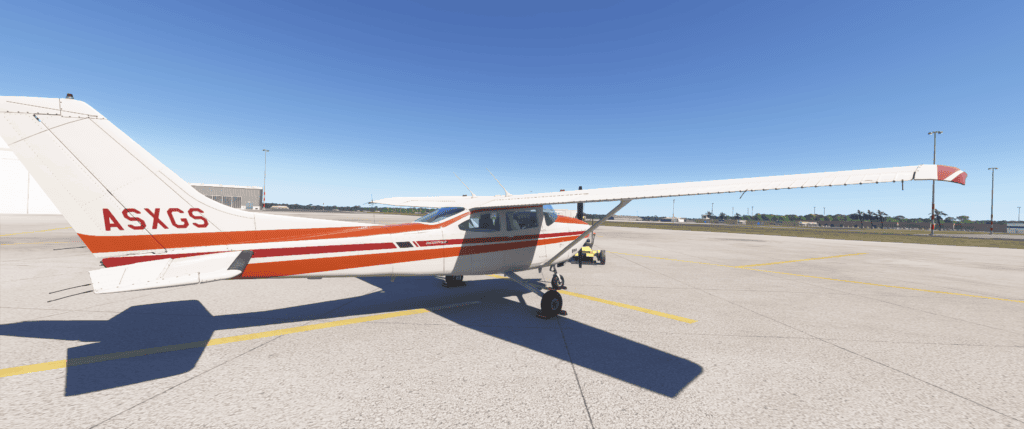
Cessna 182 RHS 5

Long airline sectors can feel realistic, but they also include:

  • Extended cruise time
  • Autopilot monitoring
  • Long stretches with little visual change

Short scenic flights are different. They deliver:

For many simmers, short scenic routes become the most frequently flown and most enjoyable part of Microsoft Flight Simulator.

What makes a scenic flight truly memorable

Not every short flight feels special.
The most memorable routes usually include at least one of the following:

  • Dramatic mountains or valleys
  • Coastlines, islands, or water crossings
  • Famous cities or landmarks
  • Challenging terrain approaches
  • Changing weather or lighting conditions

When scenery changes throughout the flight, even 30 minutes in the air can feel rich and meaningful.

The ideal length for short MSFS flights

A practical sweet spot for scenic flying is:

  • 20–40 minutes for relaxed VFR exploration
  • 40–70 minutes for turboprop regional hops
  • 60–90 minutes for short jet sectors

These lengths provide:

  • Full departure and arrival experience
  • Minimal cruise boredom
  • Easy completion in a single session

Short flights fit naturally into real daily life, which is why they remain so popular.

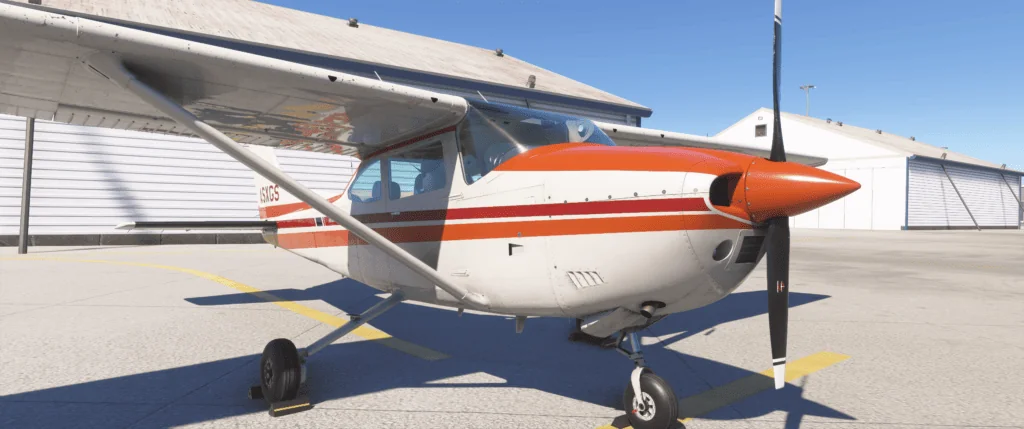
Cessna 182 RHS front close

Best aircraft types for scenic flying

Different aircraft create very different scenic experiences.

Light aircraft
Perfect for:

Turboprops
Ideal balance of:

  • Speed and visibility
  • Regional realism
  • Hands-on flying

Small jets
Best for:

Choosing the right aircraft often matters more than the route itself.

Five beautiful, short scenic flights to try

1. Queenstown to Milford Sound, New Zealand

Flight time: ~25 minutes
Aircraft: Light aircraft or turboprop

This is one of the most famous scenic flights in the simulator.
You’ll fly through:

  • Steep alpine valleys
  • Snow-covered peaks
  • Dramatic fjord landscapes

The arrival in Milford Sound feels cinematic even in clear weather.

2. Innsbruck to Salzburg, Austria

Flight time: ~40 minutes
Aircraft: Turboprop or regional jet

This route offers:

  • Dense Alpine terrain
  • Beautiful European valleys
  • A satisfying city arrival

It combines mountain flying with real-world regional realism.

3. Naples to Palermo, Italy

Flight time: ~55 minutes
Aircraft: Turboprop or short-haul jet

Highlights include:

  • Mediterranean coastline
  • Mount Vesuvius departure views
  • Island arrival over deep blue water

Perfect for golden-hour lighting and relaxed realism.

4. Vancouver to Victoria, Canada

Flight time: ~25 minutes
Aircraft: Turboprop or seaplane

A calm coastal hop featuring:

  • Forested islands
  • Ocean crossings
  • Gentle regional atmosphere

Short, peaceful, and visually rich from start to finish.

5. Las Vegas to Grand Canyon, USA

Flight time: ~45 minutes
Aircraft: Light aircraft or turboprop

This flight delivers:

  • Desert landscapes
  • Hoover Dam flyover
  • One of the world’s most dramatic natural wonders

Ideal for sunrise or sunset lighting.

How lighting transforms scenic routes

The same route can feel completely different depending on the time of day.

For the most photorealistic experience:

  • Fly early morning for soft haze and calm colour
  • Choose late afternoon for long shadows and depth
  • Use golden hour for cinematic warmth

Lighting often matters more than graphics settings when creating beauty.

Adding weather for atmosphere, not difficulty

Scenic flying does not require storms or extreme conditions.
In fact, the most realistic atmosphere usually includes:

  • Light haze
  • Broken cloud layers
  • Gentle wind
  • Soft overcast light

These conditions enhance:

  • Depth perception
  • Colour realism
  • Sense of scale

Subtle weather almost always looks more real than dramatic weather.

Turning short flights into meaningful experiences

A short flight becomes memorable when you:

These simple habits transform MSFS from a time-waster into true experience.

Why short scenic flying never gets old

Unlike long procedural flights, scenic routes offer:

  • Endless global variety
  • Quick satisfaction
  • Continuous discovery
  • Easy repetition with new lighting or weather

Because of this, short scenic flying often becomes the most enduring joy in the simulator.

Final thought

Microsoft Flight Simulator gives you the entire world,
but short scenic flights let you truly experience it.

You don’t need hours in the air to feel immersed.
Sometimes, the most memorable journeys last less than one hour
Yet stay with you far longer.

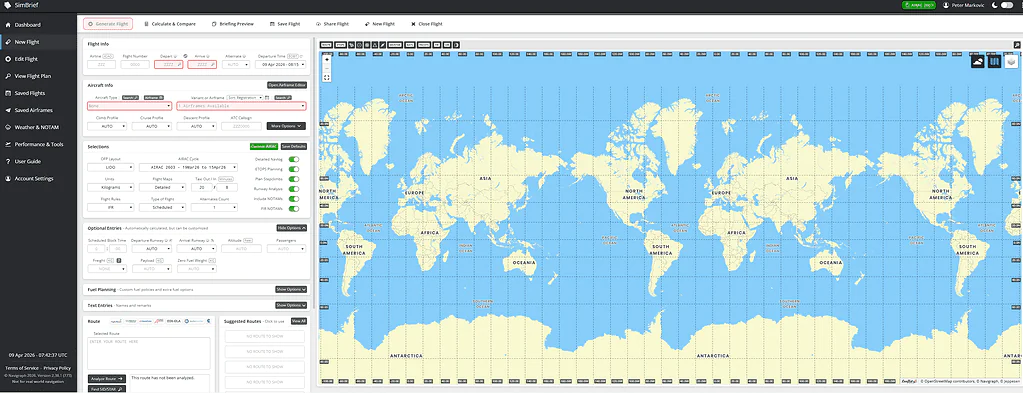
Planning short scenic routes becomes even more immersive when real-world routing and fuel calculations are used. Many flight simulation pilots rely on professional planning tools such as SimBrief to create realistic routes that integrate smoothly with Microsoft Flight Simulator, helping transform a simple scenic hop into a believable aviation experience.

How to Make MSFS 2024 Look Photorealistic

Graphics & Performance

To achieve the best overall visual quality and smooth performance, our MSFS 2024 Graphics Settings Guide explains the key settings and optimisation steps that support the enhancements described in this How to Make MSFS 2024 Look Photorealistic guide.

A simple guide showing how to make MSFS 2024 look photorealistic using the best graphics settings, lighting adjustments, and visual tweaks for stunning, true-to-life flying. Learn how to make MSFS 2024 look photorealistic with the best graphics settings, lighting tips, and visual tweaks to keep visuals smooth and stutter-free. How do we do that without turning the sim into a slide show? Read on.

Microsoft Flight Simulator is already one of the most visually impressive simulations ever created.
But there is a noticeable difference between:

  • Graphics that look good
    and
  • Visuals that feel real

Photorealism is not about pushing every setting to Ultra.
It is about creating realistic settings that enhance visuals and a world that feels natural, believable, and immersive while still running smoothly enough to enjoy flying.

When the balance is right, the simulator stops looking like software and begins to feel like real aerial footage.

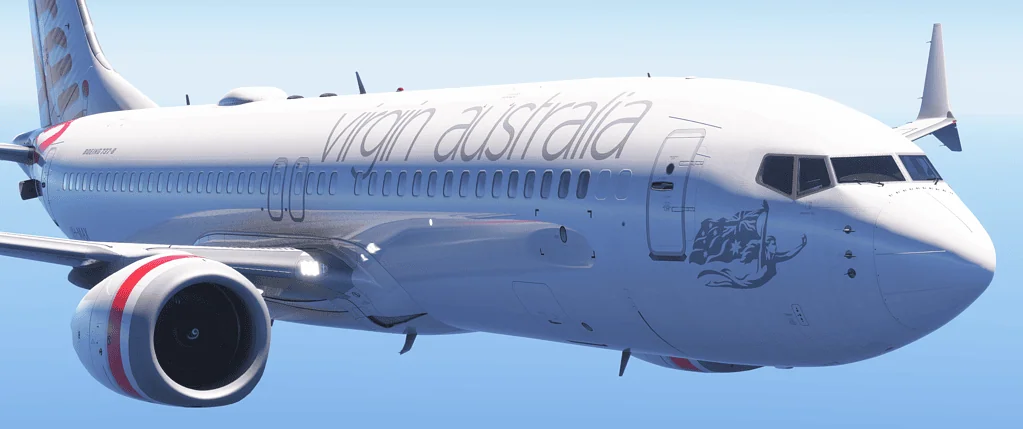
Boeing-737-MAX-

The biggest myth: Ultra settings equal realism

Many simmers assume the path to realism is simple:

Set everything to Ultra.

In practice, this often creates:

  • Sharpened, artificial textures
  • Heavy performance drops
  • Stutters near airports
  • Lighting that feels too clean or clinical

Real flight rarely looks like a perfectly sharp screenshot.
It looks soft, atmospheric, and alive.

True realism is about balance, not maximum sliders.

The three foundations of photorealistic visuals

Every convincing MSFS scene depends on three elements working together:

Lighting — believable brightness, colour temperature, and shadow softness.
Atmosphere — haze, moisture, and depth that create distance.
Smooth motion — stable frame delivery so the world feels continuous.

If any of these fail, realism disappears instantly.

Time of day: the fastest way to improve realism

Real aerial photography rarely happens at midday.

The most convincing lighting occurs during:

  • Early morning
  • Late afternoon
  • Golden hour before sunset

These moments create:

  • Long, soft shadows
  • Warm but subtle colour tones
  • Natural contrast and depth
  • Cinematic atmosphere without filters

Simply changing the sun position often improves realism more than any graphics setting.

Atmospheric haze: the secret ingredient most simmers miss

Crystal-clear visibility from horizon to horizon may look impressive, but it rarely looks real.

Real air contains:

  • Dust
  • Moisture
  • Light scatter
  • Gradual visibility fade

Adding light haze makes the scenery feel:

  • Larger in scale
  • More distant
  • More natural
  • Closer to real-world flight footage

Perfect clarity is beautiful.
Imperfect air is realistic.

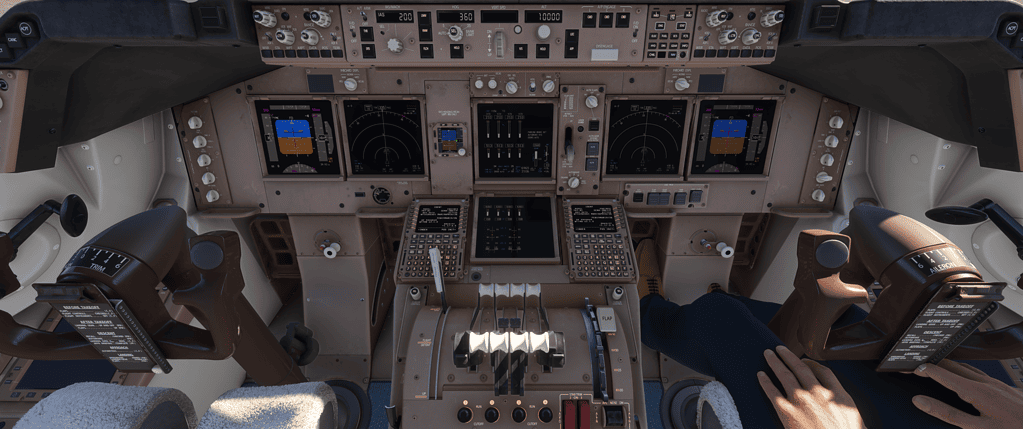
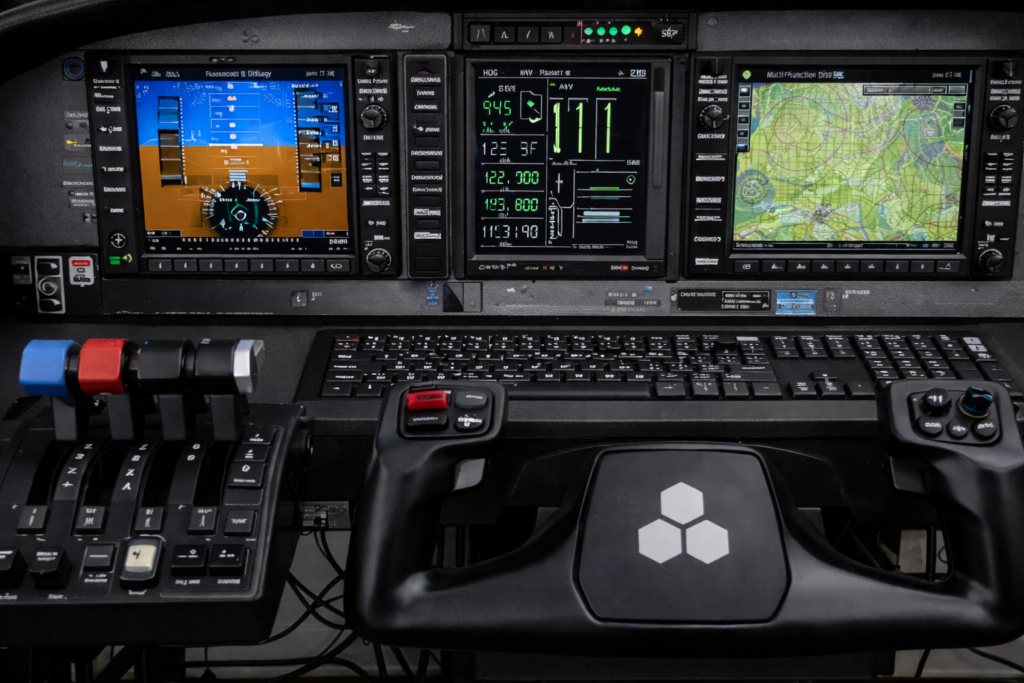
Realistic cockpit view of a flight simulator with detailed controls and instruments.
Experience immersive flight simulation with advanced cockpit visuals and realistic scenery.

Cloud choice and realism

Clouds define the mood of the entire sky.

For photorealism:

  • High cloud quality often looks more natural in motion than Ultra
  • Broken cloud layers feel more believable than dramatic storms
  • Subtle overcast lighting produces realistic ground colour

Extreme weather is exciting.
Ordinary skies are authentic.

Terrain detail versus believable distance

Very high terrain detail can:

  • Improve distant sharpness
  • Increase CPU load
  • Create shimmering or unnatural clarity

Moderate terrain detail usually provides:

  • Natural horizon softness
  • Stable performance
  • More convincing scale perception

Real landscapes are rarely razor-sharp from altitude.
Softness often increases realism, not reduces it.

Colour balance and saturation

True photorealism avoids:

  • Over-bright greens
  • Deep artificial blues
  • High-contrast sharpening

Natural scenes tend to show:

If an image looks like a travel brochure, it is usually less realistic than a softer, calmer scene.

Camera perspective and field of view

Photorealism is strongly affected by camera setup.

For believable scale:

  • Avoid an extremely wide field of view
  • Keep cockpit perspective natural
  • Use slow, steady camera motion
  • Minimise exaggerated head movement

A calm viewpoint feels far closer to real cockpit footage.

Performance: the invisible half of realism

Even perfect visuals lose realism if motion is unstable.

Stutters break immersion instantly because:

  • Real flight is smooth
  • Camera movement is continuous
  • The world does not pause or jitter

A stable 30–40 FPS almost always feels more realistic than an unstable higher frame rate.

Smoothness is not separate from realism.
It is part of realism.

Add-ons and visual enhancement

Some addons can enhance realism through:

But realism still depends primarily on:

  • Lighting
  • Atmosphere
  • Smooth performance

Addons refine the picture.
They do not replace the fundamentals.

A simple photorealistic baseline setup

For a natural, believable look:

  • Use early morning or late afternoon lighting
  • Add light atmospheric haze
  • Keep clouds on High
  • Maintain moderate terrain detail
  • Avoid extreme saturation or sharpening
  • Prioritise stable, smooth performance

This combination delivers visuals that feel cinematic yet authentic.

The moment MSFS begins to look real

Photorealism does not arrive from a single setting.
It appears when:

  • Light feels natural
  • Distance feels atmospheric
  • Motion feels smooth
  • Colours feel believable

At that point, screenshots start to resemble real aerial photography,
and flying begins to feel like being there, not just observing a simulation.

Final thought

Finding the best graphics settings for photorealism is not about chasing perfection.
It is about creating a world that feels calm, natural, and believable while remaining smooth enough to enjoy every moment in the air.

When those elements come together, the simulator stops looking like a game
and starts feeling like a real flight captured on camera.

Next article: MSFS 2024 Controls and Hardware Setup

VFR vs IFR in Microsoft Flight Simulator

Tutorials

Learn the difference between VFR and IFR in Microsoft Flight Simulator, including how each flight style works, when to use them, and which is best for beginners. One of the first confusing moments in Microsoft Flight Simulator is seeing the terms VFR and IFR.

They appear in:

Yet many new simmers continue flying for months without truly understanding the difference.

The good news is that the concept is much simpler than it first appears, and once it clicks, the entire simulator begins to make far more sense.

Understanding VFR and IFR is one of the biggest steps from casual flying toward real aviation thinking.

Boeing 747-8i  cockpit

The simplest possible explanation

At its heart, the difference is this:

VFR means flying mainly by looking outside the aircraft.
IFR means flying mainly by following instruments and procedures.

That single idea explains almost everything.

What VFR really feels like in the simulator

VFR, or Visual Flight Rules, is the most natural and relaxing way to fly in MSFS.

Typical VFR flying involves:

  • Clear or mostly clear weather
  • Navigation using landmarks, rivers, coastlines, and towns
  • Lower altitudes with visible ground detail
  • Flexible routing and freedom to explore
  • Minimal cockpit workload

This is the style of flying most beginners experience first, even if they don’t realise it.

VFR is about seeing the world rather than managing complex procedures.

When VFR is the perfect choice

VFR is ideal when you want:

  • Scenic exploration
  • Short relaxing flights
  • Sightseeing around famous locations
  • Practice with takeoffs and landings
  • Low-stress flying sessions

It is also the best learning environment for understanding how aircraft move and respond.

For many simmers, VFR remains the most enjoyable way to use the simulator long-term.

The natural limits of VFR

VFR depends on one critical factor:

You must be able to see outside clearly.

Poor visibility, heavy cloud, or night conditions quickly make VFR difficult or unsafe in real aviation.

This is where IFR becomes essential.

Cessna 182 RHS front close

What IFR really means

IFR, or Instrument Flight Rules, is structured flying based on:

Instead of looking outside for direction, the pilot follows a planned system in the sky.

IFR is less about scenery and more about precision and planning.

How IFR feels different in MSFS

Compared to VFR, IFR flying usually includes:

  • Higher cruise altitudes
  • Flying through cloud layers
  • Following navigation waypoints
  • Using autopilot systems
  • Communicating regularly with ATC
  • Structured arrivals into airports

The experience becomes calmer in one way, yet mentally richer in another.

It feels closer to real airline operations.

When IFR becomes enjoyable rather than intimidating

At first, IFR can seem complex.

But once you understand:

it transforms from confusing to deeply satisfying.

Many simmers eventually discover that IFR provides:

  • Purposeful long-distance flying
  • Real-world realism
  • A strong sense of achievement after landing

It becomes a different kind of enjoyment from VFR, not a replacement.

VFR and IFR are not rivals

A common misconception is that you must choose one style.

Real pilots — and experienced simmers — use both, depending on:

  • weather
  • distance
  • aircraft type
  • mood
  • available time

Some of the most enjoyable simulator sessions mix:

  • VFR departure in clear skies
  • IFR cruise above clouds
  • VFR arrival into scenic terrain

The two systems are partners, not opposites.

Which should a beginner learn first?

The most natural path is:

Start with VFR.
Learn:

  • aircraft control
  • takeoffs and landings
  • basic navigation
  • reading the outside world

Then, gradually explore IFR once flying feels comfortable.

This progression mirrors real aviation training, and it keeps learning enjoyable instead of overwhelming.

The moment IFR suddenly makes sense

Every simmer reaches a turning point where:

At that moment, the simulator expands dramatically.

Airports that once seemed distant become reachable destinations, and flights gain clear purpose.

How does this knowledge change your entire simulator experience?

Understanding VFR vs IFR transforms MSFS from:

a beautiful world to explore

into:

a realistic aviation system to participate in

You begin thinking like a pilot rather than just a player.

And that shift is one of the most rewarding moments in the whole simulator journey.

Final thought

VFR offers freedom, scenery, and relaxation.
IFR offers structure, realism, and achievement.

Neither is better.
Both are essential parts of flight.

Learning when to use each one is the moment Microsoft Flight Simulator truly begins to feel like real aviation rather than just a game.

MSFS 2024 Controls and Hardware Setup

Tutorials

MSFS 2024 Controls and Hardware Setup. Do it the right way with simple steps, recommended devices, and sensitivity tips for smoother, more realistic flight simulation. If you haven’t already, check out our beginner overview of controls.

Why controls matter more than graphics

When people first launch Microsoft Flight Simulator, they often focus on visuals, scenery, or aircraft.
But the real connection to flying comes from something much simpler:

How does the simulator feel in your hands?

Good controls create:

  • Smooth, precise movement
  • Natural aircraft response
  • Better landings
  • Greater immersion
  • Faster learning

Poor controls do the opposite, no matter how beautiful the graphics look.

That’s why controls and hardware setup are one of the most important foundations in the entire simulator. Make sure that you check and be sure that you have performance settings that match your hardware.

MSFS 2024 Controls and Hardware Setup. The three levels of control realism

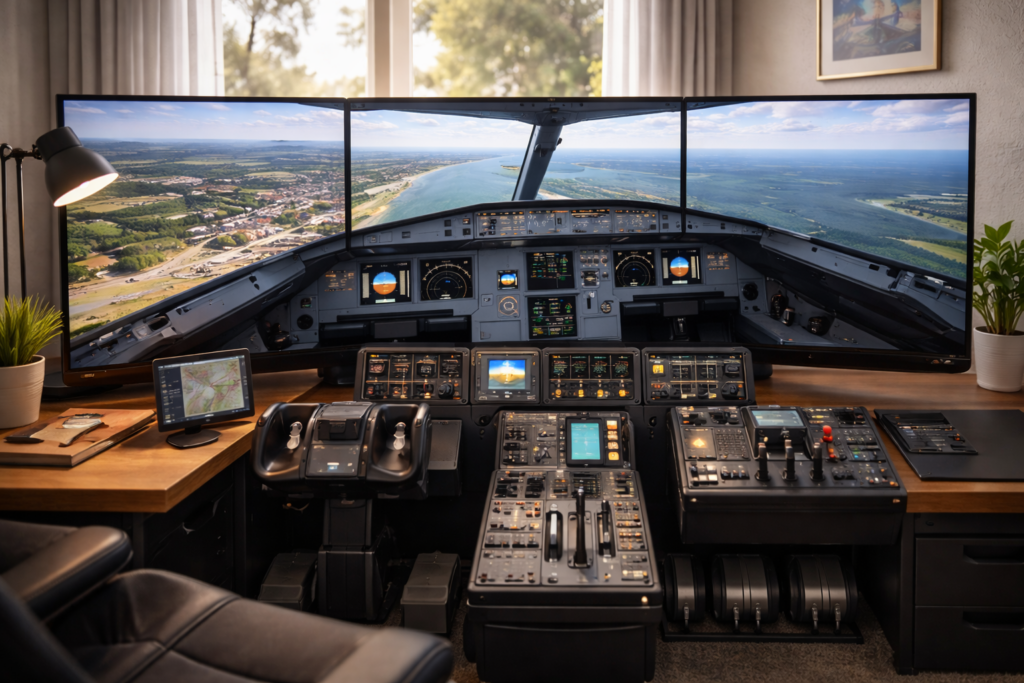
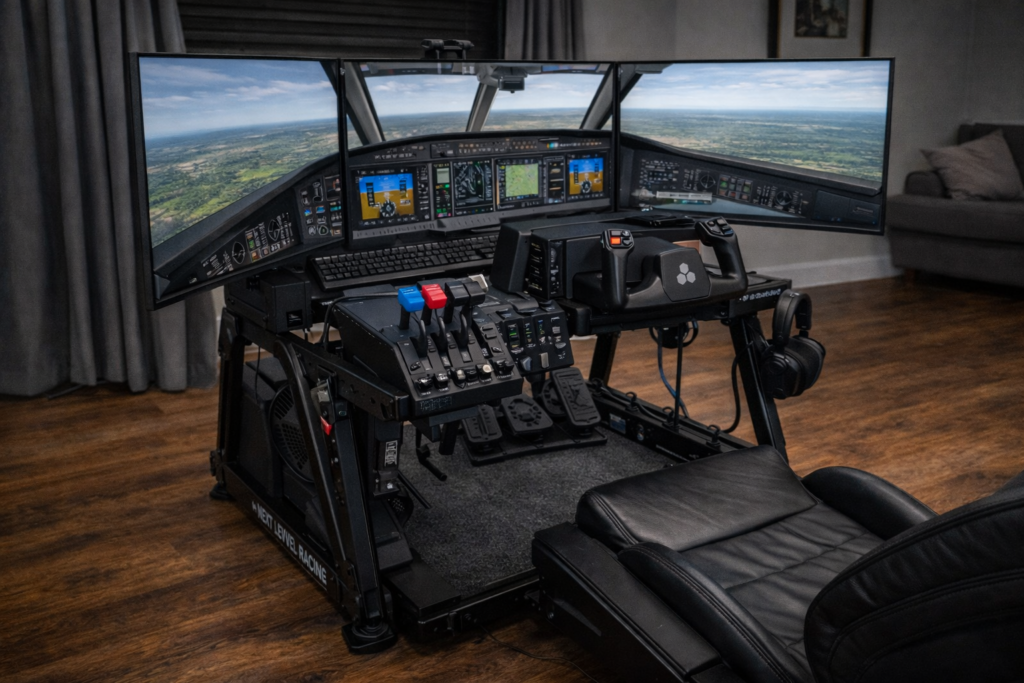
Realistic flight simulation cockpit with three large screens for immersive MSFS 2024 experience.
High-quality flight simulation cockpit featuring triple monitors for enhanced MSFS 2024 graphics and performance.

We need to be sure that you have set your controls for realistic flying. Every simmer naturally moves through three stages.

Level 1 — Basic controller flying

Most beginners start with:

This is completely valid.
You can learn navigation, landings, and aircraft behaviour perfectly well at this stage.

The goal here is comfort and familiarity, not realism.

Level 2 — Entry flight hardware

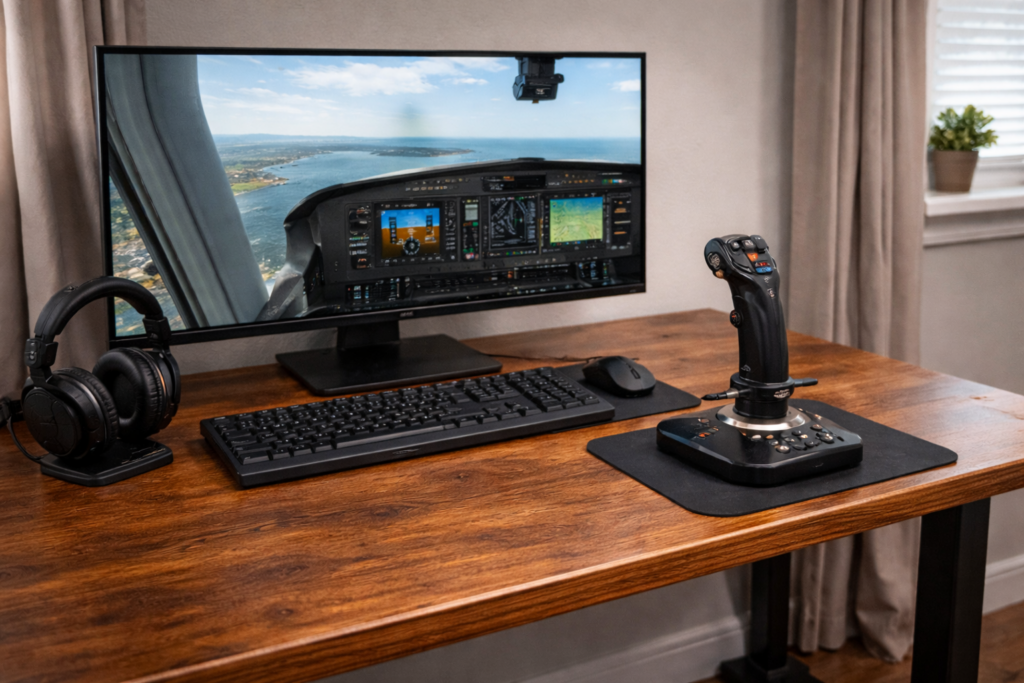
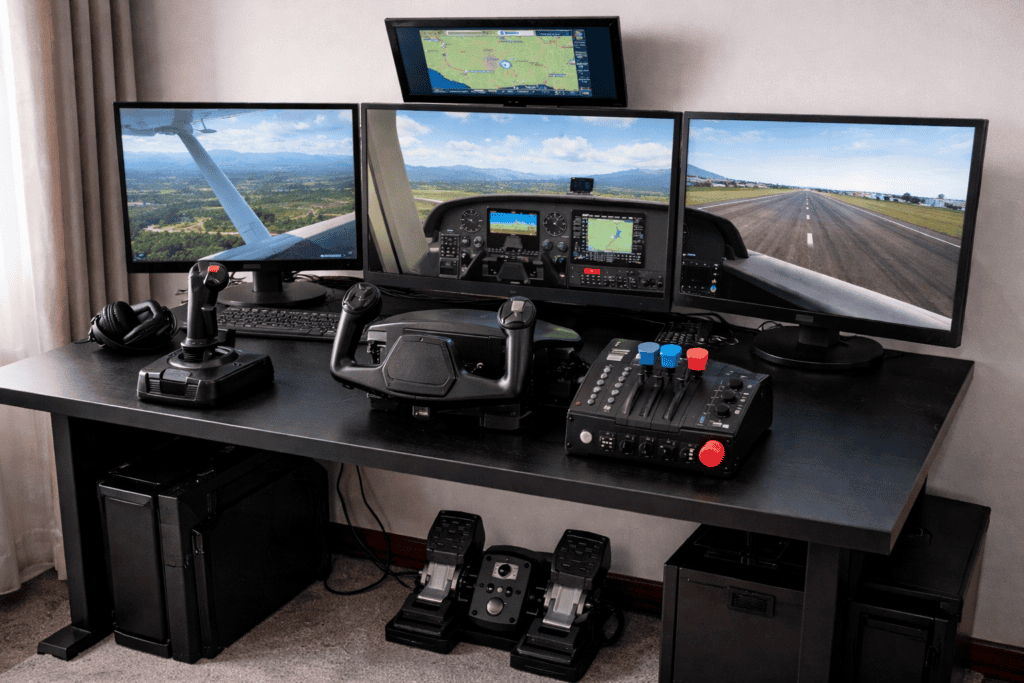
Flight simulator setup on wooden desk
A flight simulation setup featuring a large monitor and a joystick.

The next step usually introduces:

This dramatically improves:

For many simmers, this level already feels fully satisfying.

Level 3 — Full simulation hardware

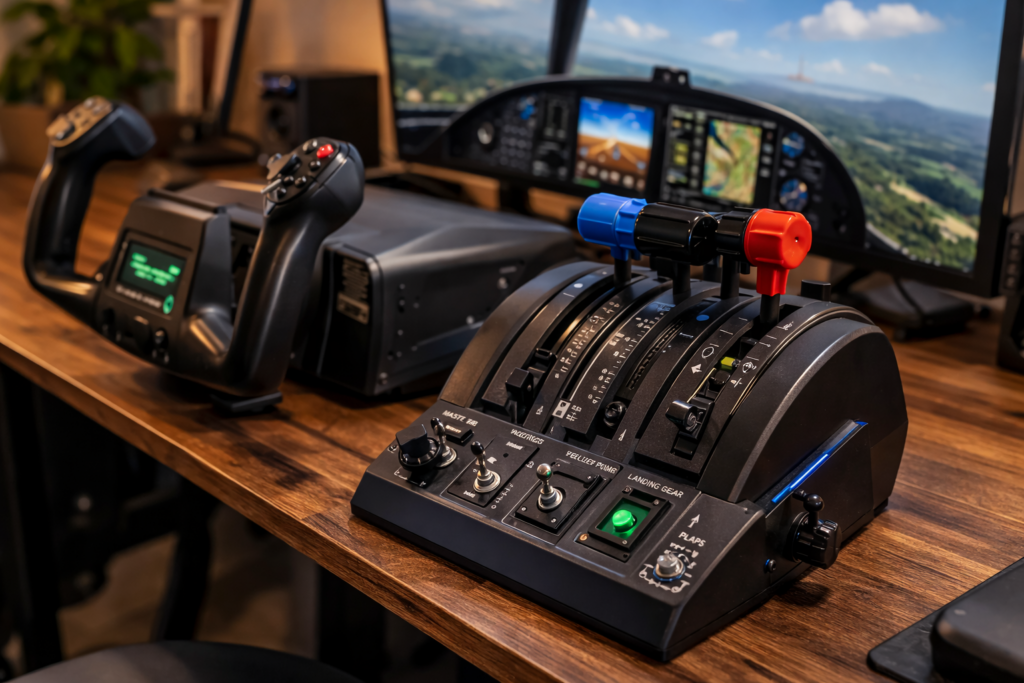
Flight Yoke and Throttles
A flight simulation setup featuring a monitor, yoke, and throttle quadrant.

Advanced setups may include:

This stage focuses on procedure realism and immersion, not just flying skill.

But it’s important to remember:

You do not need advanced hardware to enjoy MSFS.

Progression should always feel natural, never forced.

Choosing between controller, joystick, and yoke

Each control style suits a different flying experience.

Game controller

Best for:

Limitations:

  • Less precision
  • Harder fine landing control
  • Less immersion

Still perfectly usable.

Joystick/flight stick

Best balance for most simmers:

  • Compact
  • Precise
  • Affordable
  • Excellent for GA and jets

For many people, a good joystick is the ideal long-term solution.

Advanced home flight simulator setup
Showcasing advanced flight simulation hardware with triple monitors and professional controls for immersive flight training.

Yoke system

Best for:

  • Airliner realism
  • General aviation immersion
  • Stable two-hand flying

Trade-offs:

  • Larger desk space
  • Higher cost
  • Less suited to fast jets

A yoke is about experience, not necessity.

Do you really need rudder pedals?

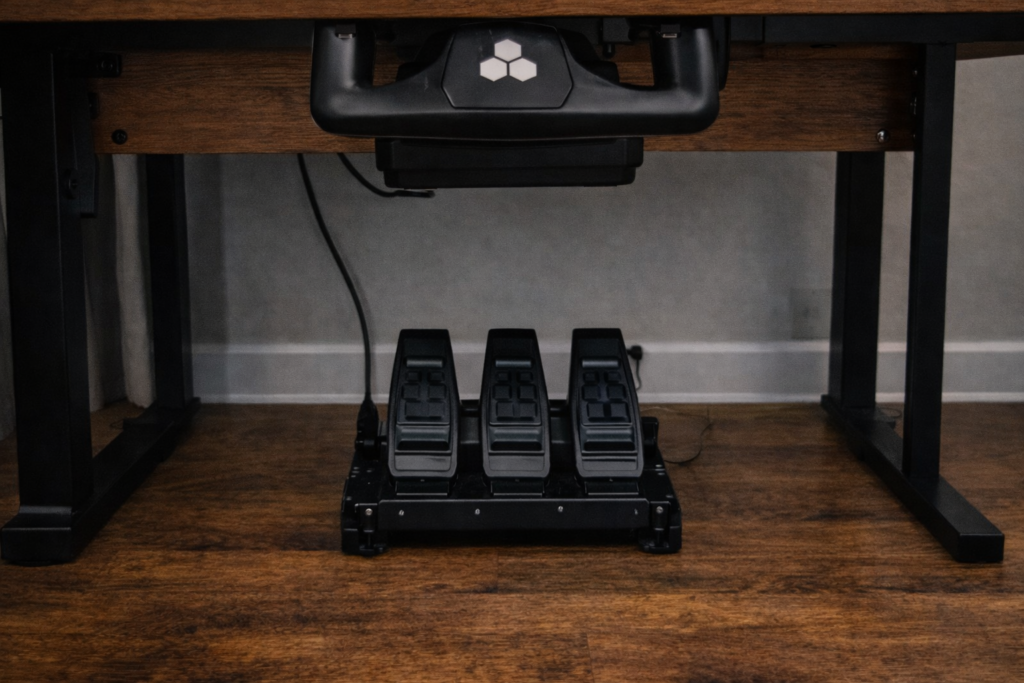
High-quality flight simulation rudder pedals for immersive flying experience.
Enhance your flight simulator with precise pedal controls for better realism.

Short answer:

No, but they help a lot.

Pedals improve:

Without pedals, the simulator is still fully flyable.
With pedals, it simply feels more natural.

High-end flight simulator cockpit with multiple screens and controls.
Ultimate home flight simulation setup with triple monitors and realistic controls.

Sensitivity settings: the hidden key to smooth flying

Many control problems are not hardware problems.
They are sensitivity curve problems.

Incorrect sensitivity causes:

Good sensitivity settings create:

  • Smooth control response
  • Gentle centre precision
  • Predictable aircraft behaviour

This single adjustment can transform the entire simulator experience.

Dead zones and why they matter

Dead zones prevent tiny unwanted inputs near the centre of a control axis.

Too little dead zone:

  • Aircraft drifts
  • Constant micro-corrections needed

Too much dead zone:

  • Sluggish response
  • Poor precision

A small, balanced dead zone usually feels most realistic.

Instead of chasing perfection, focus on:

  • Smoothness over sharpness
  • Consistency over realism claims
  • Comfort over complexity

If the aircraft feels easy to control,
You are doing it right.

Camera and view controls

Realism also depends on how you look around the cockpit.

Helpful habits:

  • Smooth camera movement
  • Natural field of view
  • Avoid extreme zoom levels
  • Keep horizon visibility comfortable

A calm, human-eye perspective always feels more believable than dramatic motion.

Hardware upgrades: when they make sense

High-quality flight simulation cockpit with advanced controls and displays for realistic flying expe.
An immersive flight simulation hardware setup featuring multiple screens, controls, and instruments for realistic pilot training.

Upgrade hardware only when a real limitation appears, such as:

  • Difficulty landing smoothly
  • Trouble controlling the throttle precisely
  • Wanting deeper immersion

Upgrading too early often leads to:

  • Wasted money
  • Frustration
  • Complexity before readiness

Let your experience guide upgrades, not marketing.

The most important truth about MSFS hardware

Great flying does not come from expensive equipment.

It comes from:

Hardware supports skill.
It never replaces it.

Simple starter setup that works beautifully

A perfectly good beginner setup is:

  • One quality joystick
  • Optional rudder pedals later
  • Carefully tuned sensitivity curves

This alone can provide years of satisfying flying.

Final thought

The goal of controls and hardware is not to impress anyone.
It is to make flying feel natural, smooth, and enjoyable.

When the aircraft responds gently and predictably to your hands,
the simulator stops feeling like software
and starts feeling like real flight.

And that is where true immersion begins.

Next article: MSFS 2024 Graphics Settings Guide

Best Realistic Settings for MSFS 2024

Tutorials

Discover the best realistic settings for MSFS 2024 to improve visuals, performance, and immersion. A simple step-by-step guide for smooth, true-to-life flight simulation.

For the complete picture on visual quality and performance, our MSFS 2024 Graphics Settings Guide explains the most important settings and optimisations that support the tweaks covered in this Best Realistic Settings for MSFS 2024 guide

Why realistic settings matter more than “max settings.”

One of the most common mistakes in Microsoft Flight Simulator 2024 is assuming that Ultra settings automatically mean realism.
They don’t.

Ultra often means:

  • Heavier performance load
  • Inconsistent frame timing
  • Visual effects that look impressive in screenshots but unnatural in motion

True realism is different.
Realism is about believability, balance, and smoothness.

A simulator that feels stable, natural, and convincing will always feel more real than one that simply pushes every slider to the maximum.

This guide shows you how to achieve convincing visual realism while keeping the simulator smooth and enjoyable to fly.

msfs-2024 Tuning graphics in the cockpit

The three pillars of visual realism

Graphics settings that improve realism in MSFS come from three things working together:

Lighting
Natural brightness, believable shadows, and correct time-of-day tone.

Atmosphere
Haze, visibility, clouds, and colour depth that match real flying conditions.

Stability
Smooth motion and consistent frame delivery so the world feels solid instead of jittery.

If any one of these is wrong, realism breaks instantly.

The most important rule: smoothness equals realism

In real flight, the world does not stutter.
Motion is continuous and calm.

Because of this, a stable 30–40 FPS often feels far more realistic than an unstable 60 FPS that jumps or pauses.

If you’re planning more realistic flights than before, chasing visual perfection, always secure:

Without stability, realism cannot exist.

Terrain Level of Detail: the realism sweet spot

Terrain Level of Detail controls how far detailed terrain is drawn.

Higher values:

  • Increase distant clarity
  • Improve mountain definition
  • Enhance horizon realism
  • Costly CPU performance

For most systems, the realistic balance is:

LOD 100–200

This range:

Going far beyond this rarely improves realism in motion.

msfs-2024 Flight simulation setup with settings screen

Object Level of Detail: realism near the ground

Object LOD controls buildings, trees, and scenery density.

Too low:

Too high:

  • Heavy stutters near terminals
  • Reduced smoothness on approach

A balanced, realistic range is:

Object LOD 100–150

This keeps:

  • Airports believable
  • Cities populated
  • Approaches smooth

Which is exactly what realism requires.

Clouds: the biggest visual impact in the sim

Clouds define the atmosphere more than any other setting.

Ultra clouds:

  • Look dramatic in screenshots
  • Heavy GPU performance
  • Sometimes appear overly sharp or artificial

High clouds:

  • Still looks volumetric and natural
  • Improve smoothness significantly
  • Often appear more believable in motion

For realism, High is usually the best choice.

The goal is not spectacle.
The goal is convincing sky behaviour.

Lighting and time of day: where realism truly lives

Real-world flying rarely happens in perfect noon sunlight.

The most realistic lighting conditions are:

  • Early morning
  • Late afternoon
  • Light atmospheric haze
  • Long, soft shadows
  • Warm but subtle colour tones

These conditions create:

  • Depth
  • Scale
  • Natural contrast
  • Cinematic realism without artificial effects

Simply changing the time of day can improve realism more than any graphics slider.

Visibility and haze: the secret to believable distance

Crystal-clear air from horizon to horizon looks impressive but rarely realistic.

Real atmospheres contain:

  • Moisture
  • Dust
  • Light scatter
  • Gradual visibility fade

Adding light haze often makes scenery feel:

  • Larger
  • More distant
  • More atmospheric
  • Closer to real flight conditions

Perfect clarity is beautiful.
Imperfect air is realistic.

Traffic settings and believable world activity

Real airports and skies are active, but not chaotic.

Too much traffic creates:

  • Performance drops
  • Unrealistic congestion
  • Visual clutter

Too little traffic feels empty.

For realism:

  • Use moderate AI traffic
  • Keep airport vehicles low to medium
  • Avoid extreme road traffic density

The aim is subtle life, not noise.

Shadows and reflections: realism versus distraction

Ultra shadows and reflections:

  • Look striking in still images
  • Add a heavy GPU load
  • Often go unnoticed during flight

Medium or High settings usually:

  • Preserve believable depth
  • Maintain smooth performance
  • Look identical in normal flying conditions

Realism is what you notice while flying, not what looks best paused.

Render scaling and sharpness

Higher render scaling increases clarity but can reduce performance quickly.

For most systems:

100% render scale
with good anti-aliasing
delivers the most natural result.

Pushing far beyond this often gives:

  • Minimal visible improvement
  • Large performance cost

Balanced clarity always beats extreme sharpness.

Camera realism and field of view

Visual realism is not only about graphics settings.
Camera setup matters just as much.

For believable scale:

  • Avoid an extremely wide field of view
  • Keep cockpit perspective natural
  • Use gentle camera movement
  • Avoid exaggerated motion effects

A calm, human-eye perspective instantly feels more real.

Weather realism versus dramatic weather

Storms are exciting, but most real flying occurs in:

  • Broken cloud
  • Light overcast
  • Gentle wind
  • Moderate visibility

Flying frequently in normal weather creates:

  • More believable experience
  • Better lighting conditions
  • Stronger sense of realism

Extreme weather is memorable.
Ordinary weather is authentic.

A simple, realistic settings baseline

If you want a clean starting point for realism:

  • Terrain LOD: 100–200
  • Object LOD: 100–150
  • Clouds: High
  • Traffic: Moderate
  • Shadows/Reflections: Medium to High
  • Render Scale: 100%
  • Light haze enabled
  • Early morning or late afternoon lighting

This combination delivers:

  • Strong visual believability
  • Smooth flight experience
  • Realistic atmosphere
  • Reliable performance

Exactly what a simulator should provide.

The biggest realism mistake to avoid

The most damaging misconception is:

“Higher settings always equal more realism.”

In practice:

Realism is balance, not maximums.

How realism evolves as your system improves

As hardware improves, realism should increase gradually, not instantly.

Raise:

  • LOD slowly
  • Cloud quality carefully
  • Traffic in moderation

Always protect smoothness first.
Realism built on instability never feels convincing.

Last but not least, make sure to adjust all your controls setup for realistic flying.

Final thought

True realism in MSFS 2024 is not about pushing sliders to the limit.
It is about creating a world that feels calm, believable, and alive while remaining smooth enough to enjoy.

When visuals, atmosphere, and performance work together, the simulator stops looking like software and starts feeling like flight.

And that is where real immersion begins.

Next article: How to Plan Better Flights

Home » Tutorials » Page 6

How to Plan Better Flights in MSFS 2024

Tutorials

If you’re learning how to fly more confidently, our Microsoft Flight Simulator 2024 Beginner Guide covers the essential setup, controls, and navigation basics that support the techniques explained in this How to Plan Better Flights in MSFS 2024 guide.

Why flight planning changes everything

Learn how to plan better flights in MSFS with simple flight planning steps, realistic routing tips, and tools that make every virtual journey smoother and more enjoyable. In Microsoft Flight Simulator, it’s incredibly easy to fall into random flying. You pick an aircraft, choose two airports that look interesting, take off, cruise for a while, land, and repeat. At first, that feels exciting. The world is huge, everything is new, and simply being airborne is enjoyable. But over time, random flights often begin to feel empty or forgettable.

What keeps most sim pilots engaged long-term isn’t better graphics or more addons. It’s meaningful flights — flights that feel intentional, memorable, and satisfying from start to finish. Good flight planning doesn’t mean complicated planning. It means flying with purpose.

What “planning a flight” really means

Flight planning is not just entering a route into the world map or a flight computer.

At its simplest, planning answers a few key questions:

  • Why am I flying this route?
  • Why am I using this aircraft?
  • What kind of experience do I want today?
  • What will make this flight different from the last one?

Once those answers are clear, everything else becomes easier and more enjoyable.

SimBrief Page view

Start with a reason, not an airport

Start with the beginner’s guide. A very common beginner habit is choosing airports first and thinking about the experience later. This often leads to flights that feel random.

A better approach is to begin with a reason to fly.

For example:

  • A short evening flight to relax after dinner
  • A scenic coastal hop at sunrise
  • A challenging mountain approach
  • A realistic regional airline sector
  • Recreating a real-world route
  • Testing windy or rainy weather conditions
  • Capturing screenshots or video footage

When you start with a reason, the route naturally follows, and the whole flight feels more intentional.

Match the aircraft to the purpose

Choose the right aircraft addons. Aircraft are tools; choosing the wrong tool makes a flight feel awkward.

A fast jet works against slow sightseeing.
A tiny trainer feels out of place on a long airline route.

As a simple guide:

When the aircraft matches the intent, the flight immediately feels more natural and rewarding.

Keep flight length realistic for your time

Performance tips for longer flights. One of the fastest ways to lose motivation is planning flights that are too long for the time you actually have.

A practical guideline:

  • 20–40 minutes is ideal for relaxed GA flying.
  • 40–90 minutes is perfect for turboprops and short regional jets.
  • 1–2 hours is comfortable for narrow-body jet flights.
  • Longer than two hours is only enjoyable if you truly like long cruise times.

Short, satisfying flights flown regularly are far more enjoyable than long flights that feel rushed or unfinished.

Use geography to make flights memorable

Geography is one of the simplest ways to add interest to any flight.

Look for routes that include coastlines, islands, mountain ranges, valleys, rivers, deserts, or changing terrain and weather. Even a short flight becomes memorable when the landscape evolves along the way.

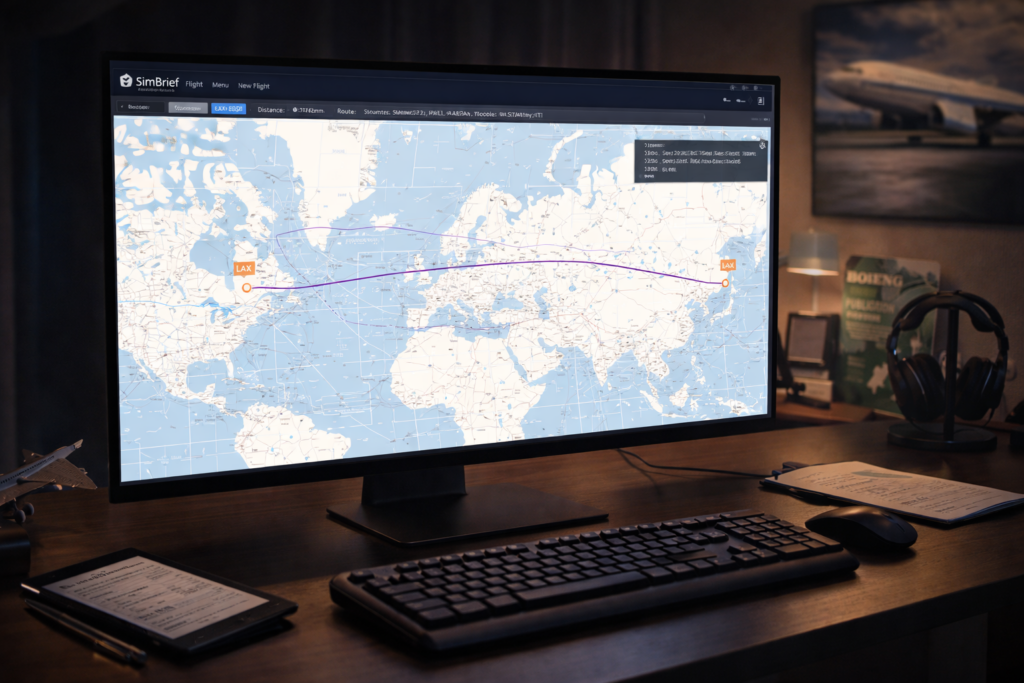
Flight simulation software displaying global flight routes on a computer screen.
A computer setup showing a flight simulation program with a world map and flight path, ideal for aviation enthusiasts and flight training.

Make the arrival the highlight

Beginners often focus on takeoff and treat landing as an afterthought. In reality, the arrival is where most of the challenge and satisfaction live.

When planning, consider runway length and direction, surrounding terrain, likely wind conditions, and whether the approach is visual or instrument-based. A thoughtfully chosen arrival can transform an ordinary flight into a truly satisfying one.

Plan your weather intentionally

The weather does not need to be random. Weather can be part of the experience you are designing.

Clear skies suit sightseeing. Light haze adds atmosphere. Broken clouds create a gentle VFR challenge. Overcast rain supports realistic airline operations. Gusty winds sharpen landing skills.

Subtle, believable weather often feels more immersive than dramatic storms.

Understanding VFR and IFR in simple terms

Flight planning becomes clearer when you understand the two basic flying styles.

VFR, or Visual Flight Rules, means navigating mainly by looking outside. It suits scenery, low altitude, and exploration, and is common in small aircraft and short flights.

IFR, or Instrument Flight Rules, means following instruments, procedures, and airways. It is used in poor weather or airline flying and feels more structured and procedural.

You don’t need deep technical knowledge to enjoy either style. Simply knowing the difference helps you choose the right kind of flight for your mood.

Using real-world routes for instant realism

Real airline and regional routes give flights immediate context. The aircraft choice makes sense, the distance feels realistic, and the airports feel naturally connected.

You don’t need perfect realism or full procedures. Even loosely following real routes makes flights feel purposeful and believable.

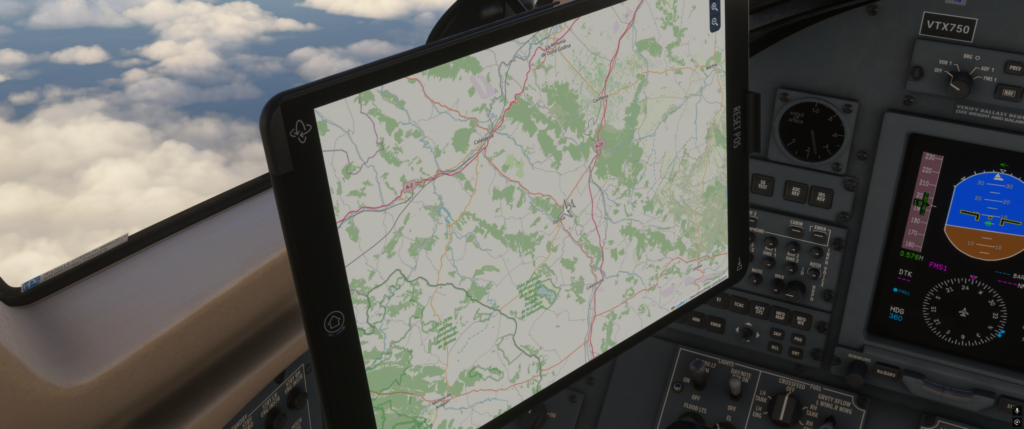
Flight simulator cockpit with navigation screen and controls for realistic flying experience.
Detailed cockpit view showing navigation tools and controls in Microsoft Flight Simulator 2024.

A simple step-by-step planning workflow

You can plan almost any enjoyable flight using this repeatable process:

  1. Decide on your reason for flying today.
  2. Choose an aircraft that matches the experience.
  3. Pick a realistic flight length.
  4. Select a scenic or interesting route.
  5. Choose the weather that supports the mood.
  6. Make the arrival meaningful or slightly challenging.

This entire process can take less than five minutes, yet it completely changes how the simulator feels.

Three ready-to-fly beginner examples

Here are simple flight ideas you can try immediately.

A short scenic GA flight: choose a coastal airport, fly 25 minutes along the shoreline at low altitude, and land at a nearby strip just before sunset. Focus on smooth control and enjoying the view.

A one-hour turboprop regional hop: depart a medium-size airport, climb through scattered clouds, cruise briefly, then descend into an airport surrounded by terrain or water. Let the arrival be the highlight.

A realistic short airline sector: pick two real cities about an hour apart, use the correct aircraft type, follow the basic route in the world map, and concentrate on a calm, stable landing rather than perfect procedures.

These small, achievable flights build confidence quickly.

Your first complete planning walkthrough

Try this simple walkthrough once:

  • Open the world map and choose a departure airport you recognise.
  • Select an aircraft suited to a 45-minute flight.
  • Pick a nearby destination with interesting terrain.
  • Set light cloud and gentle wind.
  • Note the runway direction before takeoff.
  • Fly the route calmly and focus on the landing.

That’s real flight planning in its simplest, most enjoyable form.

Helpful planning tools for beginners

You don’t need advanced tools to plan good flights.

The MSFS world map handles routing and distance perfectly.
In-game weather presets provide fast control of conditions.
Real-world maps or satellite imagery help you discover scenic routes.

More advanced tools can come later, but they are not required to enjoy meaningful flying.

Common beginner flight-planning mistakes

Avoiding a few simple traps makes a big difference:

  • Choosing flights that are too long
  • Using aircraft that don’t match the purpose
  • Ignoring the weather entirely
  • Picking flat, featureless routes
  • Treating landing as an afterthought
  • Constantly switching aircraft instead of learning one well

Fixing even one of these often makes the simulator feel dramatically better.

How flight planning evolves as you improve

Early on, planning is simple: short routes, clear weather, easy landings.

With experience, you may begin adding:

  • Real-world schedules
  • Instrument procedures
  • More complex weather
  • Longer routes with purpose

The key is letting complexity arrive naturally, never forcing it too soon.

Why repetition actually improves enjoyment

Flying the same route more than once is not boring. It is how real progress happens.

Repeating flights improves landings, refines approaches, reveals scenery details you missed, and builds genuine confidence. Real pilots repeat routes constantly. Familiarity creates depth, not boredom.

Turning flights into memories

After a satisfying flight, pause for a moment.

  • Take a screenshot.
  • Notice what worked well.
  • Remember the scenery or the landing.

Flights blur together when rushed. They become meaningful when you reflect on them.

A simple habit to use before every flight

Before loading into the simulator, ask yourself:

  • What kind of flight do I want right now?
  • How much time do I really have?
  • What aircraft fits that mood?
  • What will make this flight interesting?

These four questions alone can transform the entire experience.

Final thought

The simulator already gives you the entire world. Flight planning gives the world meaning.

When flights have purpose, you stop chasing addons, stop feeling lost, and start enjoying the simple pleasure of flying again.

Next article: Return to Microsoft Flight Simulator Beginner’s Guide

MSFS 2024 Performance Settings Guide

Tutorials

For a balanced combination of smooth performance and strong visual quality, our MSFS 2024 Graphics Settings Guide explains the most important optimisation steps that support the tuning described in this MSFS 2024 Performance Settings Guide.

It’s important to balance graphics and performance in MSFS 2024. In so doing, it can completely transform your flying experience. This guide explains the most important settings, optimisation tips, and practical adjustments that help reduce stutters, improve frame rates, and keep Microsoft Flight Simulator running smoothly.

In Microsoft Flight Simulator, performance is the foundation on which everything else sits. You can have the best aircraft and scenery in the world, but if the sim stutters, pauses, or feels inconsistent, the experience quickly becomes frustrating.

For beginners, especially, performance issues are the number one reason enjoyment drops off. This guide explains smooth flying essentials for beginners in plain language and shows you how to get a smooth, stable simulator without endless tweaking.

The goal is not maximum FPS. The goal is consistency.

msfs-2024 Flight simulation setup with settings screen

The most important concept: smoothness beats FPS

Many beginners chase a high FPS number because it feels like the obvious goal. In MSFS, that’s often the wrong target.

A steady 30–40 FPS with consistent frame timing feels far smoother than 60 FPS that constantly jumps, pauses, or stutters. MSFS streams scenery, simulates weather, AI traffic, and a full world in real time. Stability matters more than peak numbers.

Once you accept this, performance tuning becomes far less stressful.What actually causes stutters in MSFS

Stutters are usually not caused by “weak hardware” alone. They’re almost always caused by a bottleneck.

Common causes include:

  • CPU overload, especially at airports
  • GPU overload from clouds, shadows, or high resolution
  • scenery loading while flying
  • photogrammetry streaming
  • AI traffic and ground vehicles
  • running out of system memory or VRAM
  • conflicting or poorly balanced settings

Most performance problems are about balance, not raw power.

CPU-limited vs GPU-limited (this explains almost everything)

MSFS constantly splits work between your CPU and GPU.

If the CPU can’t prepare frames fast enough, the GPU waits.
If the GPU can’t render frames fast enough, the CPU waits.

This is why you might see:

  • low GPU usage but poor performance
  • high-end hardware that still stutters
  • One small setting change that fixes everything

Understanding which side is limiting you is the key to fixing performance properly.

Use the built-in FPS display

Developer Mode and turn on the FPS display. This shows:

  • Your current FPS
  • Whether you are CPU-limited or GPU-limited
  • frame-time behaviour

You don’t need to understand every number. You only need to know which side is the bottleneck. This removes guesswork and prevents random setting changes.

msfs-2024 Flight planning

The settings that matter most

A320 Airbus

Terrain Level of Detail

This controls how far out detailed terrain is rendered.

This is one of the biggest performance hits in the sim. Lowering Terrain LOD often produces immediate improvements with minimal visual loss, especially at altitude.

Object Level of Detail

This controls how far out buildings, trees, and objects are rendered.

This heavily affects performance around cities and airports. If ground performance is poor, this is one of the first settings to reduce.

Clouds

Cloud quality affects both GPU load and smoothness.

Ultra clouds look great, but are expensive. High clouds often look almost as good and perform significantly better.

Traffic (AI, ground vehicles, airport traffic)

Traffic is CPU-heavy.

Reducing AI aircraft, airport vehicles, and road traffic can instantly fix stutters at busy airports.

Shadows and reflections

These primarily affect the GPU and often go unnoticed during normal flying.

Medium settings usually look very similar to Ultra once airborne.

Settings, beginners often overestimate

Some settings sound important, but are rarely the main performance issue:

  • texture resolution (unless VRAM-limited)
  • anisotropic filtering
  • ambient occlusion (within reason)
  • texture supersampling

If your GPU has enough memory, these can often stay relatively high.

Airports and cities: why performance drops on the ground

Many beginners notice that the sim runs smoothly in cruise, but struggles badly on the ground.

This is normal.

On the ground, MSFS is rendering:

  • dense scenery objects
  • terminal interiors and lighting
  • AI aircraft and vehicles
  • complex airport geometry
  • high-detail textures

Once airborne, much of that load disappears. Always tune performance at a demanding airport, not at cruise altitude.

Photogrammetry: beautiful but demanding

Photogrammetry cities can look incredible, but they place heavy demands on:

  • CPU
  • memory
  • internet bandwidth
  • consistency

If you experience micro-stutters over large cities, photogrammetry is often the cause. Turning it off or using it selectively is a perfectly valid choice, especially early on.

MSFS streams terrain and scenery continuously.

If your connection struggles, the SIM may pause briefly while waiting for data.

Helpful steps include:

  • using a wired internet connection
  • avoiding downloads while flying
  • clearing the rolling cache if problems persist
  • not oversizing the rolling cache unnecessarily

These issues often look like performance problems but are actually data-streaming delays.

FPS limiting and why it helps

Running unlimited FPS often creates instability.

Locking your FPS:

  • smooths frame timing
  • reduces CPU and GPU spikes
  • improves overall consistency

Many systems feel far better locked at 30 or 40 FPS than running unlocked.

Addon-ons

Most addons will affect performance, from noticeable to minimal. In fact, many addons won’t hurt performance or subtract from your flying experience.

Weather and performance

Weather is not just visual.

Cloud density, wind, turbulence, and visibility all increase simulation load. Bad weather combined with a large airport and heavy traffic creates a worst-case scenario.

If performance drops during storms, that is expected. Tune for realistic conditions, not perfect conditions.

VRAM: the hidden limiter

Running out of GPU memory causes:

  • sudden stutters
  • texture pop-in
  • pauses when changing views

If this happens, reducing texture resolution or render scaling can dramatically improve stability.

A simple, beginner-friendly tuning order

For a reliable approach, tune in this order:

  1. Test at a demanding airport
  2. Enable the FPS display and note the CPU or GPU limitation
  3. Lower Terrain LOD
  4. Lower Object LOD
  5. Reduce traffic
  6. Adjust cloud quality
  7. Lock FPS
  8. Fine-tune shadows and reflections

Stop when the sim feels smooth. Do not chase perfection.

Why perfect performance doesn’t exist

MSFS simulates the entire planet in real time. There will always be situations where performance dips.

The goal is not to eliminate every stutter. The goal is a simulator that feels consistently enjoyable across most situations.

Once you accept that, performance tuning becomes straightforward instead of frustrating.

Final thought

Smoothness creates immersion. Consistency builds confidence.

well-tuned simulator makes every aircraft, every airport, and every flight more enjoyable.

With the right aircraft and scenery in place, the final step is turning simple flights into meaningful experiences.
Read How to Plan Better Flights to learn how to create routes with purpose, memorable arrivals, and flights you’ll genuinely enjoy.

Next article: How to Plan Your Flights

MSFS 2024 vs MSFS 2020

Tutorials

Comparing MSFS 2024 vs MSFS 2020 helps pilots understand how the simulator has evolved in terms of graphics, performance, aircraft systems, and overall realism. If you’re deciding which version best suits your flying style or hardware capability, our MSFS 2024 performance settings guide explains how optimisation, system requirements, and configuration choices influence the overall experience in the newer simulator.

MSFS 2020

MSFS 2020 remains a very mature and stable platform. After years of updates, it benefits from a massive ecosystem of add-ons, aircraft, scenery, and utilities. Many complex third-party aircraft were originally developed for MSFS 2020 and have reached a high level of polish.

MSFS 2020 still performs well

For simmers who value stability, compatibility, and a proven setup, MSFS 2020 still performs very well and continues to be a reliable choice. However, considering the advancements in MSFS 2024 vs MSFS 2020, users may find new features enticing.

Understanding the distinctions between MSFS 2024 vs MSFS 2020 can help new users make informed decisions regarding their flight simulation experience.

MSFS 2024

MSFS 2024 was designed to expand the simulator beyond traditional point-to-point flying. It places a stronger emphasis on immersion, career-style activities, and dynamic world interactions. This includes features such as missions, specialised aircraft roles, and a more detailed simulation of environmental and ground-based activities.

For users who enjoy structured gameplay and varied flying experiences, MSFS 2024 offers something that MSFS 2020 was never designed to focus on. The ongoing debate of MSFS 2024 vs MSFS 2020 highlights the evolving nature of flight simulation.

When weighing the options, the differences between MSFS 2024 and MSFS 2020 become more apparent, influencing many simmers’ decisions.

Performance

Performance is often a deciding factor. On many systems, MSFS 2024 can feel more demanding, especially when using its newer features and higher world detail. MSFS 2020, by contrast, is well understood and often easier to optimise on a wide range of hardware. For users with older or mid-range systems, MSFS 2020 may deliver smoother and more predictable performance.

Add-on compatibility

Add-on compatibility is another important consideration. While many developers now support both platforms, not all MSFS 2020 add-ons are immediately compatible with MSFS 2024. Some aircraft and utilities may require updates, and a few may never transition fully. If your current setup relies on specific aircraft or tools, MSFS 2020 may remain the better choice until compatibility is guaranteed.

Flying style

Flying style also plays a major role. Simmers who primarily fly airliners on scheduled routes, use online networks, or replicate real-world airline operations often find MSFS 2020 more than sufficient. Its stability and established workflows suit long-haul flights and complex procedures very well.

MSFS 2024, on the other hand, appeals strongly to users who enjoy variety, bush flying, rescue missions, and hands-on interaction with the simulated world.

Flying style

Another factor is the Flying style. MSFS 2020 offers a more traditional simulator experience that many long-time simmers are familiar with. MSFS 2024 introduces new systems and concepts that may take time to learn. For newcomers, this can be exciting, but for those who prefer a familiar environment, MSFS 2020 may feel more comfortable.

Which version?

So which should you fly in 2026? There is no single correct answer. MSFS 2020 remains an excellent, stable platform with deep add-on support and proven performance. MSFS 2024 offers newer ideas, more immersive activities, and a broader definition of what flight simulation can be.

Keeping both versions?

Many simmers choose to keep both installed and switch depending on the type of flying they want to do.

If you value stability, mature add-ons, and traditional airline-style flying, MSFS 2020 is still a strong choice. If you enjoy immersive activities, varied missions, and a more dynamic world, MSFS 2024 may be the better fit.

In conclusion

Feature differences between simulator versions are often clarified through official announcements and development updates. The Microsoft Flight Simulator official website regularly publishes news, feature breakdowns, and platform updates that provide authoritative insight into how each simulator version continues to evolve.