
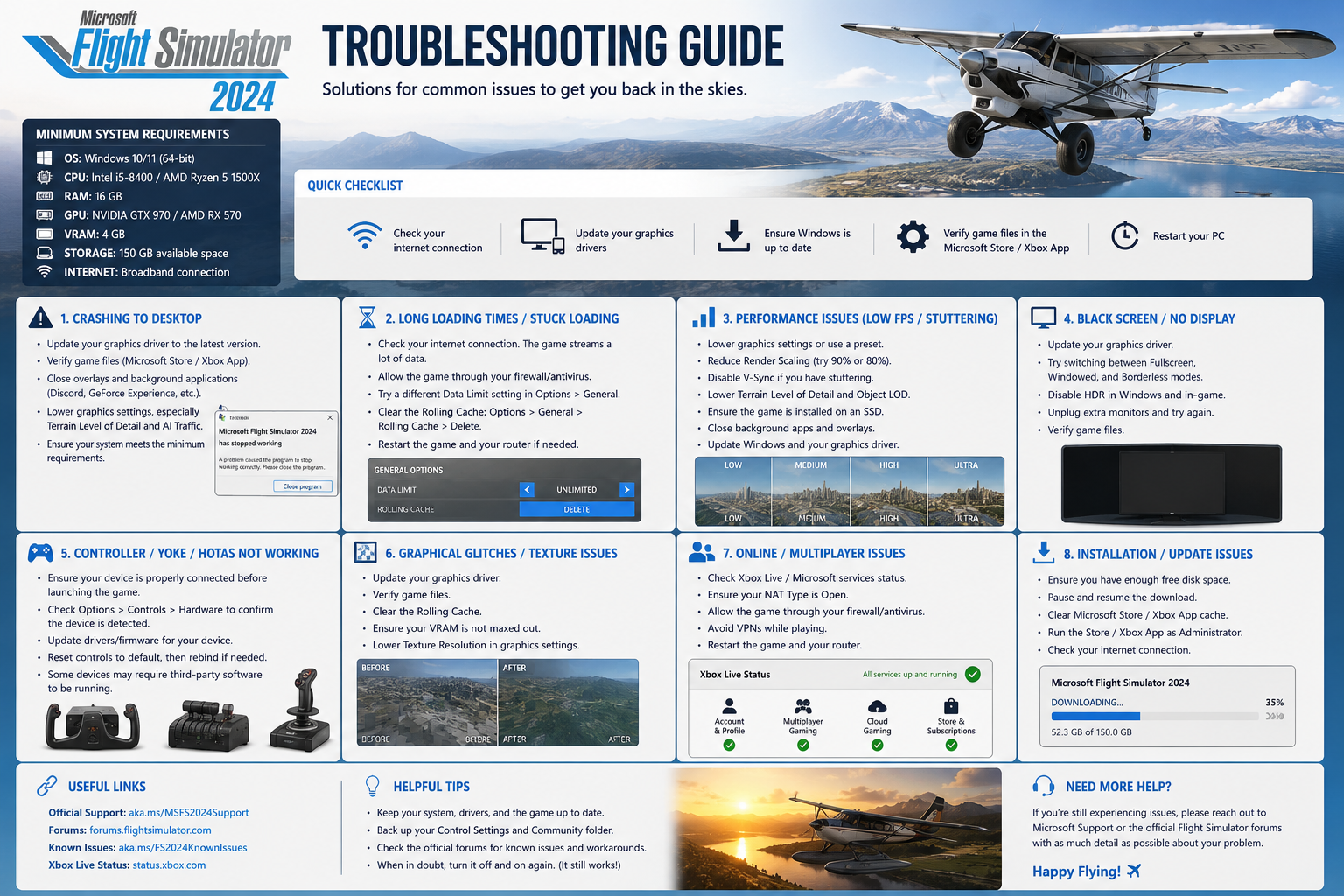
Fix Common Problems Fast and Get Back in the Air
Microsoft Flight Simulator is one of the most advanced consumer simulators available today. With real-time data streaming, detailed aircraft systems, and complex graphics, issues can occasionally appear—even on high-end systems.
The good news is that most problems are predictable and fixable once you understand the cause.
Before diving into specific issues, start with these quick checks:
- Update your graphics drivers
- Restart the simulator and your PC
- Temporarily empty the Community folder
- Clear the rolling cache
- Lower Terrain Level of Detail (LOD)
- Close background apps
- Ensure Windows and MSFS are fully updated
These steps alone solve a surprising number of problems.
The Most Common Microsoft Flight Simulator Problems
Rather than repeating the same explanation, let’s break things down properly.
Crashing to Desktop (CTD)
Crashes are usually caused by:
- Add-on conflicts (very common)
- Outdated drivers
- Memory or VRAM limits
- WASM issues (you’ve seen this yourself)
What to do:
- Empty Community folder first (always step one)
- Update GPU drivers
- Disable overclocks
- Test with a default aircraft
Low FPS and Performance Problems
If performance is poor, the cause is usually settings vs hardware balance.
Common culprits:
- Terrain LOD too high
- CPU bottleneck (main thread limited)
- Background apps
- Heavy airports or aircraft
Fixes:
- Lower Terrain LOD (this is the big one)
- Use balanced settings, not Ultra everywhere
- Monitor CPU vs GPU usage
Stuttering During Flight
This is different from low FPS.
- Smooth but “jerky” → streaming issue
- Stutter spikes → CPU / data loading
Fixes:
- Check internet stability
- Reduce photogrammetry if needed
- Clear rolling cache
- Use a wired or powerline connection (you’ve already gone this route
Simulator Stuck on Loading Screen
Usually caused by:
- Corrupt cache
- Add-ons
- Server sync issues
Fixes:
- Clear rolling cache
- Remove the Community folder
- Sign out/in of the Xbox account
Installation and Update Problems
Common causes:
- Interrupted downloads
- Microsoft Store/Xbox sync issues
Fixes:
- Restart install process
- Check that Xbox services are running
- Ensure correct install path
Add-on Conflicts and Community Folder Issues
This is the number one cause of problems.
Symptoms:
- CTDs
- Missing aircraft
- Broken avionics
Fix:
- Empty Community folder
- Reintroduce add-ons one at a time
Internet and Server Problems
Because the sim streams data, connection matters.
Symptoms:
- Blurry scenery
- “Melting buildings” (you’ve described this perfectly before)
Fixes:
- Increase bandwidth if possible
- Use a stable connection (Ethernet/powerline)
- Check server status
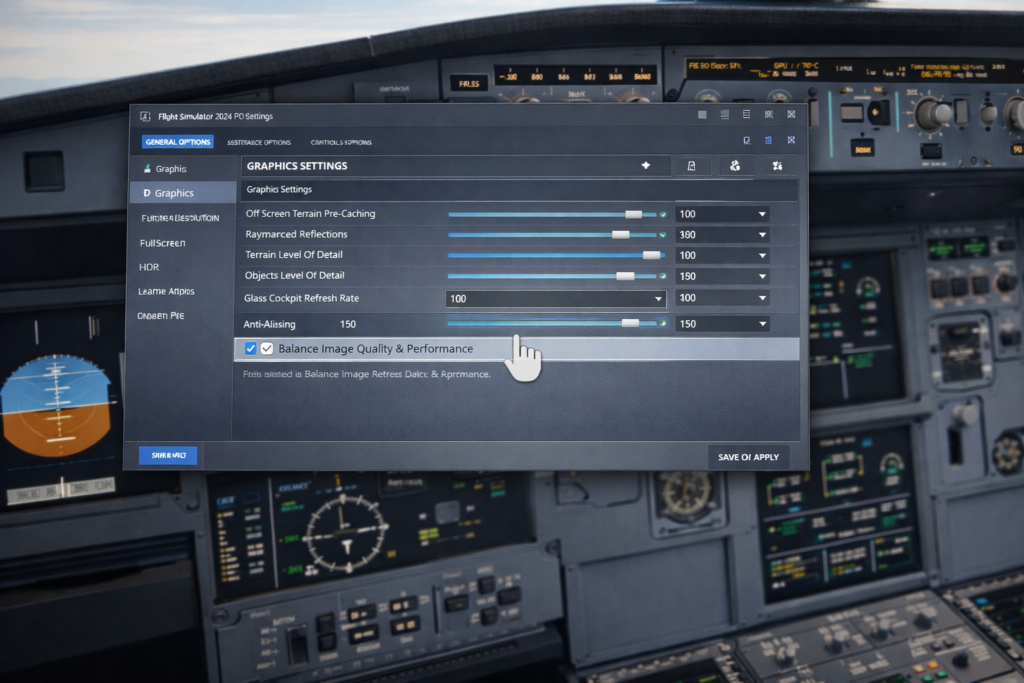
Graphics Settings That Cause Problems
Ultra settings are not always your friend.
Problem settings:
- Terrain LOD
- Object LOD
- Glass cockpit refresh rate
Tip:
Balanced settings = smoother sim than maxed-out sliders.
Controller and Hardware Issues
Usually caused by:
- Duplicate bindings
- Incorrect profiles
Fixes:
- Reset to the default profile
- Remove duplicate bindings
- Check sensitivity settings
Rolling Cache and Streaming Problems
A corrupted cache causes all sorts of strange behaviour.
Fix:
- Delete and rebuild the rolling cache regularly
VR Performance Troubleshooting
VR is extremely demanding.
Fixes:
- Lower resolution scale
- Reduce LOD
- Disable unnecessary effects
Audio and Sound Problems
Often overlooked.
Fixes:
- Check the Windows sound device
- Verify in-sim audio settings
- Restart the SIM after device changes
Black Screen on Startup
Usually:
- Driver issue
- Corrupt config
Fix:
- Update GPU drivers
- Reset graphics settings
Marketplace Download Issues
Fixes:
- Sign out/in of Xbox
- Restart sim
- Check the content manager
A Simple Method That Fixes Almost Anything
This is the most important part of the entire article.
- Change ONE thing at a time
- Test with the default aircraft
- Empty Community folder
- Restart after every change
This removes guesswork and quickly finds the real cause.
How to Prevent Problems
Good habits make a huge difference:
- Don’t install lots of add-ons at once
- Keep everything updated
- Use balanced graphics settings
- Keep the Community folder organised
Final Thoughts
Almost every MSFS problem has a logical cause.
Once you understand the patterns:
- troubleshooting becomes simple
- frustration drops massively
- You spend more time flying

- You Know You’re a Flight Simmer When… - 12 August 2026
- Pete’s Ultimate MSFS 2024 Graphics Settings Guide - 1 August 2026
- How to Use GSX with the PMDG 737-800 in MSFS 2024. - 20 July 2026