Why Your Aircraft Won’t Follow VNAV in MSFS 2024 (And How to Fix It)

Troubleshooting

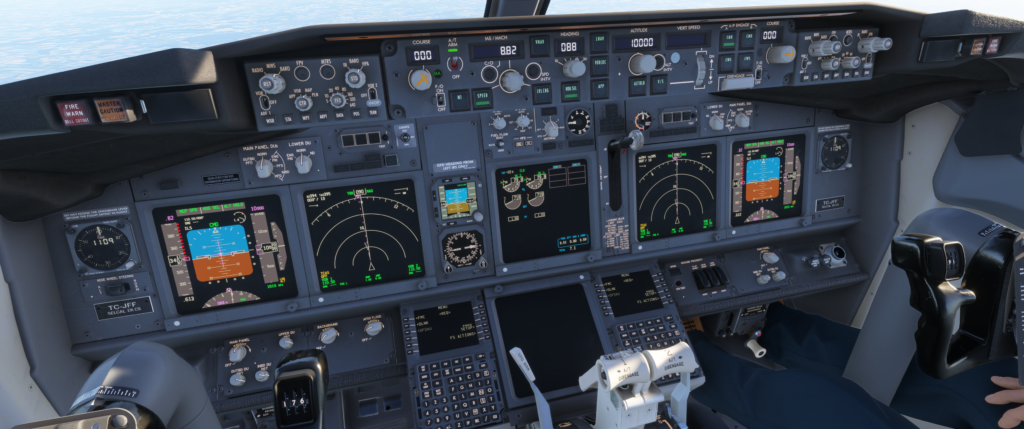
Why Your Aircraft Won’t Follow VNAV in MSFS 2024. If your aircraft refuses to descend, ignores altitude constraints, or stays far too high until the last minute, you’re not alone. VNAV behaviour in Microsoft Flight Simulator 2024 can feel inconsistent, especially when flying more advanced aircraft like the 737 or A320.

The good news is that in most cases, VNAV is not “broken” — it’s simply not being given the right information or timing to work properly. Once you understand how VNAV expects to operate, the problem becomes much easier to manage.

What VNAV Actually Does

VNAV (Vertical Navigation) is designed to manage your aircraft’s climb and descent automatically based on your flight plan. It calculates when to climb, when to level off, and when to begin descent, all while following altitude constraints along the route.

For VNAV to work correctly, it relies on:

Why Your Aircraft Won’t Follow VNAV in MSFS 2024

Why VNAV Doesn’t Work Properly

1. Incomplete or Incorrect Flight Plan

If your route does not include proper altitude constraints or is missing key waypoints, VNAV has nothing to follow. This often happens when flight plans are entered manually or not imported correctly.

  • Missing STAR (arrival procedures)
  • No altitude restrictions
  • Incorrect cruise level

2. Cruise Altitude Not Set Correctly

VNAV needs a defined cruise altitude to calculate descent. If this is not set in the FMC or flight computer, the system cannot determine when to begin descending.

3. Descent Started Too Late

This is one of the most common issues. VNAV calculates a smooth descent path, but if you are too close to the airport or too high, it simply cannot recover.

In these situations, the aircraft may:

  • Stay at cruise altitude too long
  • Descend very aggressively
  • Ignore constraints completely

4. VNAV Not Armed or Activated Properly

In many aircraft, VNAV must be armed before it becomes active. If LNAV or autopilot modes are not correctly set, VNAV may never engage.

5. Aircraft Limitations

Different aircraft behave differently. Some are more forgiving, while others require precise setup. Study-level aircraft in particular expect correct procedures.
Why Your Aircraft Won’t Follow VNAV in MSFS 2024  2

How to Fix VNAV Issues Step-by-Step

1. Use a Proper Flight Plan

Whenever possible, use a tool like SimBrief to generate a complete route with altitude constraints. This gives VNAV the data it needs to function correctly.

2. Set the Correct Cruise Altitude

Always confirm that your cruise altitude is entered correctly in the FMC. This is critical for VNAV calculations.

3. Monitor Top of Descent (TOD)

VNAV usually calculates a Top of Descent point. Keep an eye on this and prepare early.

4. Start Descent Earlier Than Expected

If you’ve noticed VNAV starting too late, you can manually begin descent slightly earlier using vertical speed mode. This helps avoid being too high on approach.

5. Use Vertical Speed (VS) as Backup

If VNAV is not behaving as expected, switch to VS mode and manage your descent manually.

  • Set a controlled descent rate
  • Monitor speed and altitude
  • Rejoin VNAV if possible

A Simple Rule That Helps

A reliable method used by many sim pilots is the “3:1 rule”:

  • For every 1,000 feet of altitude, allow 3 nautical miles to descend

Example:

  • 30,000 feet → start descent around 90 nautical miles from destination

This gives VNAV enough distance to work smoothly and avoids last-minute problems.

When VNAV Still Doesn’t Work

Even with everything set correctly, VNAV may not always behave perfectly. Simulator updates, aircraft differences, and add-ons can all influence how systems operate.

In these situations, the best approach is to:

  • Stay ahead of the aircraft
  • Monitor altitude trends
  • Be ready to take manual control

Final Thoughts

VNAV is a powerful tool, but it works best when you support it with good planning and timing. Once you understand how it thinks, you’ll find your descents become smoother, more predictable, and far more realistic.

In many cases, the solution is simply starting your descent earlier and giving the system enough distance to do its job properly.

With a little practice, VNAV becomes something you can rely on — rather than something you have to fight against.
WASM Crash in Microsoft Flight Simulator 2024

Troubleshooting

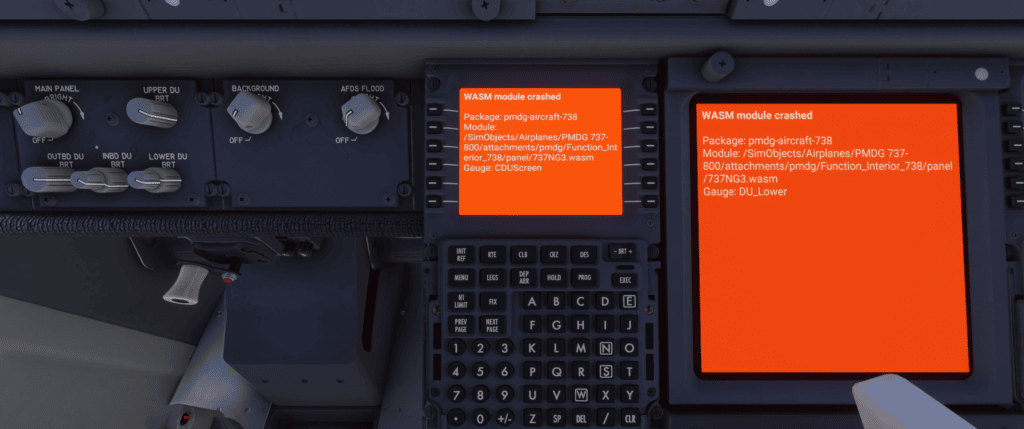
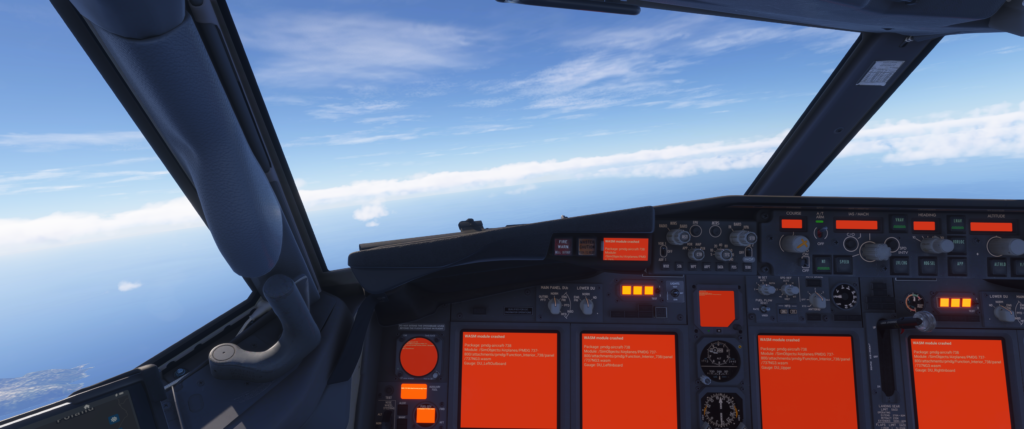
WASM Crash in Microsoft Flight Simulator 2024: What It Is and How to Fix It. If you’ve ever been flying along happily in Microsoft Flight Simulator 2024 and suddenly all your cockpit displays turn bright red with error messages like “WASM module crashed,” you’ve experienced one of the most frustrating issues in modern flight simulation.

This isn’t a normal system failure, and it’s not something you did wrong during startup. It’s a deeper problem tied to how advanced aircraft operate inside the simulator.

Let’s break it down clearly so you know exactly what’s happening—and how to avoid it.

What Is a WASM Crash?

Understanding WASM in Flight Simulation

WASM stands for WebAssembly, and in flight simulation, it’s a critical technology.

It allows high-end aircraft—like airliners and complex GA aircraft—to run their own internal systems independently of the core simulator.

This includes:

  • Flight displays (PFD, ND, EICAS)
  • FMC/CDU systems
  • Autopilot logic
  • Electrical and hydraulic simulations
  • Aircraft-specific behaviour and logic

Without WASM, aircraft like the PMDG 737 simply wouldn’t function at the level of realism we expect.

What Happens When WASM Fails

When the WASM module crashes:

  • All cockpit displays turn solid red
  • Error messages appear (e.g., “WASM module crashed”)
  • FMC becomes unusable
  • Switches may stop responding
  • The aircraft becomes unflyable

At that point, the simulation is effectively broken for that aircraft.

Why WASM Crashes Happen

WASM Crash in Microsoft Flight Simulator 2024

WASM crashes are usually caused by a combination of simulator limitations and complex aircraft systems pushing those limits.

Common Causes

Simulator Instability (FS2024)

Microsoft Flight Simulator 2024 is still evolving, and WASM handling can occasionally be unstable—especially with detailed add-ons.

Complex Aircraft Systems

Aircraft like the PMDG 737 rely heavily on WASM. The more systems being simulated, the greater the chance of a failure if something conflicts.

Aircraft Switching

Switching between aircraft without restarting the simulator can leave residual data in memory.

This is one of the most common triggers.

Flight Reloading

Using “Restart Flight” repeatedly instead of loading fresh can destabilise WASM.

SimBrief and Tablet Interactions

Importing flight plans or interacting quickly with onboard tablets during loading can occasionally trigger issues.

Performance and Memory Pressure

Heavy scenery, high settings, and complex aircraft all at once can overload the system.

WASM Crash vs Normal Aircraft Failures

Flight Simulator Cockpit Display WASM RED GLASS

It’s important to understand the difference:

Normal Failure (e.g., IRS not aligned)

  • Displays show flags or warnings
  • The aircraft still operates
  • Can be fixed in-flight

WASM Crash

  • Screens go completely red
  • Systems stop responding
  • No recovery possible

A WASM crash is not a simulation of real-world failure—it’s a system-level crash.

Can You Recover From a WASM Crash?

Unfortunately, no.

Once it happens:

  • You cannot reset the displays
  • You cannot recover the FMC
  • You cannot continue the flight

Your Only Options

  • Restart the flight
  • Reload the aircraft
  • Restart the simulator (recommended)

How to Prevent WASM Crashes

The good news is that you can significantly reduce the chances of this happening.

Best Practices for Stability

Start Fresh Every Flight

Always load your aircraft from the main menu.

Avoid:

  • Switching aircraft mid-session
  • Jumping between flights quickly

Allow the Aircraft to Fully Load

After loading into the cockpit:

  • Wait 20–30 seconds before interacting
  • Let all systems initialise properly

Avoid Rapid Inputs Early

Don’t rush to:

  • Import SimBrief
  • Power up systems immediately

Give the aircraft time to stabilise.

Keep Everything Updated

Ensure:

  • Simulator is up to date
  • Aircraft add-ons are updated

Version mismatches can cause instability.

Manage Performance

If you experience frequent crashes:

  • Lower graphics settings slightly
  • Avoid extremely heavy scenery during testing
  • Close background apps

Restart the Simulator Regularly

Long sessions increase the chance of memory-related issues.

A quick restart between flights can make a big difference.

A Simple, Reliable Workflow

Here’s a stable routine that works well:

  1. Start MSFS 2024 fresh
  2. Select aircraft and airport
  3. Load into the cockpit and wait
  4. Power up the aircraft slowly
  5. Import SimBrief after systems stabilise
  6. Proceed with normal setup

This alone will prevent most WASM-related problems.

Final Thoughts

A WASM crash can feel like a complete mystery the first time it happens—especially when everything suddenly turns red without warning.

But once you understand what’s going on, it becomes much easier to manage.

This isn’t a pilot error or a missed checklist item. It’s a limitation of how advanced aircraft interact with the simulator.

The key is simple:

  • Treat each flight as a fresh session
  • Give the aircraft time to initialise
  • Avoid rushing the setup

Do that, and you’ll spend far more time flying—and far less time staring at red screens.

MSFS VR Not Working – How to Fix It

Troubleshooting

MSFS VR is not working. Virtual Reality in Microsoft Flight Simulator 2024 is one of the most immersive ways to fly. Sitting inside a full-scale cockpit, judging depth on final approach, and scanning instruments naturally transforms the experience.

So when VR suddenly stops working — or refuses to start at all — it can be frustrating.

Common VR issues include:

This guide walks through the most common causes and how to fix them properly.

Virtual Reality Headset for Flight Simulations.
An immersive VR headset designed for realistic flight simulation experiences. Perfect for aviation enthusiasts and professional pilots.

Quick Summary

  • Most MSFS VR failures are caused by an incorrect OpenXR runtime or headset detection issues
  • Always start your VR software before launching MSFS
  • USB bandwidth and cable stability can cause black screens and crashes
  • Overlays and monitoring tools often conflict with VR
  • VR may crash if graphics settings are too aggressive for your system
  • Testing with an empty Community folder helps rule out add-on conflicts

Step 1: Confirm VR Is Enabled in MSFS

Go to:

Options → General → VR Mode

Make sure:

  • VR is enabled
  • The correct OpenXR runtime is selected

Then use the default shortcut:

  • Ctrl + Tab

If nothing happens, continue troubleshooting.

Step 2: Check OpenXR Runtime

MSFS uses OpenXR for VR. If the wrong runtime is active, VR will not launch.

Meta (Oculus)

  • Open the Oculus app
  • Settings → General
  • Set Oculus as the Active OpenXR Runtime

SteamVR

  • Open SteamVR
  • Settings → Developer
  • Set SteamVR as OpenXR Runtime

Windows Mixed Reality

  • Open Mixed Reality Portal
  • Ensure OpenXR is active

An incorrect OpenXR runtime is one of the most common VR failures.

Step 3: Restart VR Software Before Launching MSFS

Always:

  • Start your VR software first
  • Confirm the headset is detected
  • Then launch MSFS

Launching MSFS before the headset is active can prevent detection.

Step 4: Check USB and Cable Stability

VR relies heavily on stable USB bandwidth.

Check:

  • Headset connected directly to the motherboard USB
  • Avoid front panel ports
  • Avoid USB hubs
  • Use the recommended cable

Unstable USB connections can cause:

Step 5: Update Graphics Drivers

VR is extremely sensitive to driver versions.

Install:

  • The latest stable NVIDIA or AMD driver
  • Use a clean installation if possible

Restart the PC after updating.

Step 6: Disable Overlays and Monitoring Tools

VR conflicts frequently occur with:

  • MSI Afterburner
  • RivaTuner
  • GeForce Experience overlay
  • AMD overlay
  • Discord overlay

Disable these temporarily and test again.

Step 7: Reset Graphics Settings

If VR previously worked but now crashes:

  • Reset MSFS graphics settings
  • Lower Terrain LOD
  • Lower Object LOD
  • Reduce cloud quality

Excessive settings can trigger crashes when switching into VR.

Step 8: Check Windows Graphics Settings

Go to:

Windows Settings → System → Display → Graphics

Ensure:

Using the wrong GPU can prevent VR from launching properly.

Step 9: Verify Files or Repair Installation

Steam Version

Microsoft Store Version

  • Apps → MSFS → Advanced Options → Repair

Corrupted VR modules can prevent VR startup.

Step 10: Test Without the Community Folder

Some add-ons interfere with VR rendering.

Move all add-ons out of the Community folder and test again.

Common VR Scenarios

VR Button Greyed Out

Usually, the OpenXR runtime is not set correctly.

Headset Black Screen but Audio Works

Often a USB bandwidth issue or driver conflict.

Crash When Pressing Ctrl + Tab

Often caused by graphics settings being too high or an overlay conflict.

Extreme Stuttering in VR

Usually, CPU limitation or Terrain LOD is set too high.

VR Works, but Performance Is Terrible

Reduce:

  • Terrain LOD
  • Clouds
  • Glass cockpit refresh rate
  • AI traffic

VR requires more performance headroom than 2D mode.

VR Performance Quick Tips

For smoother VR:

  • Target a stable half headset refresh rate
  • Use DLSS or FSR on Quality
  • Lower Terrain LOD below 150
  • Use High clouds rather than Ultra
  • Reduce shadow quality

Smooth frame pacing matters more than maximum visual settings in VR.

Quick Fix Checklist

If you want a fast troubleshooting path:

  • Set the correct OpenXR runtime
  • Restart the VR software before launching MSFS
  • Update graphics drivers
  • Disable overlays
  • Lower graphics settings
  • Empty the Community folder

Most VR issues resolve within these steps.

When It’s a Known Update Issue

Occasionally:

  • A Sim Update breaks VR compatibility
  • Specific headset models experience bugs
  • An OpenXR update causes temporary instability

Check official forums before reinstalling everything.

Conclusion

If MSFS VR is not working, the issue is usually related to an incorrect OpenXR runtime, headset detection problems, driver conflicts or overly aggressive graphics settings. Start by verifying your VR runtime and updating drivers before adjusting performance settings. In most cases, VR can be restored quickly without reinstalling the simulator. A structured, step-by-step approach is the fastest way back into the cockpit.

Common VR issues

Troubleshooting

Common VR issues. Virtual Reality in Microsoft Flight Simulator 2024 is one of the most immersive ways to fly. Sitting inside a full-scale cockpit, judging depth on final approach, and scanning instruments naturally transforms the experience.

So when VR suddenly stops working — or refuses to start at all — it can be frustrating.

Common VR issues include:

This guide walks through the most common causes and how to fix them properly.

Virtual Reality Headset for Flight Simulations.
An immersive VR headset designed for realistic flight simulation experiences. Perfect for aviation enthusiasts and professional pilots.

Quick Summary

  • An incorrect OpenXR runtime or headset detection issues cause most MSFS VR failures
  • Always start your VR software before launching MSFS
  • USB bandwidth and cable stability can cause black screens and crashes
  • Overlays and monitoring tools often conflict with VR
  • VR may crash if graphics settings are too aggressive for your system
  • Testing with an empty Community folder helps rule out add-on conflicts

Step 1: Confirm VR Is Enabled in MSFS

Go to:

Options → General → VR Mode

Make sure:

  • VR is enabled
  • The correct OpenXR runtime is selected

Then use the default shortcut:

  • Ctrl + Tab

If nothing happens, continue troubleshooting.

Step 2: Check OpenXR Runtime

MSFS uses OpenXR for VR. If the wrong runtime is active, VR will not launch.

For Meta (Oculus)

  • Open the Oculus app
  • Settings → General
  • Set Oculus as the Active OpenXR Runtime

For SteamVR

  • Open SteamVR
  • Settings → Developer
  • Set SteamVR as OpenXR Runtime

And Windows Mixed Reality

  • Open Mixed Reality Portal
  • Ensure OpenXR is active

An incorrect OpenXR runtime is one of the most common VR failures.

Step 3: Restart VR Software Before Launching MSFS

Always:

  • Start your VR software first
  • Confirm the headset is detected
  • Then launch MSFS

Launching MSFS before the headset is active can prevent detection.

Step 4: Check USB and Cable Stability

VR relies heavily on stable USB bandwidth.

Check:

  • Headset connected directly to the motherboard USB
  • Avoid front panel ports
  • Avoid USB hubs
  • Use the recommended cable

Unstable USB connections can cause:

  • Black screen in the headset
  • VR disconnects
  • Simulator crashes when entering VR

Step 5: Update Graphics Drivers

VR is extremely sensitive to driver versions.

Install:

Restart the PC after updating.

Step 6: Disable Overlays and Monitoring Tools

VR conflicts frequently occur with:

  • MSI Afterburner
  • RivaTuner
  • GeForce Experience overlay
  • AMD overlay
  • Discord overlay

Disable these temporarily and test again.

Step 7: Reset Graphics Settings

If VR previously worked but now crashes:

  • Reset MSFS graphics settings
  • Lower Terrain LOD
  • Lower Object LOD
  • Reduce cloud quality

Excessive settings can trigger crashes when switching into VR.

Step 8: Check Windows Graphics Settings

Go to:

Windows Settings → System → Display → Graphics

Ensure:

Using the wrong GPU can prevent VR from launching properly.

Step 9: Verify Files or Repair Installation

Steam Version

  • Verify the integrity of game files

Microsoft Store Version

  • Apps → MSFS → Advanced Options → Repair

Corrupted VR modules can prevent VR startup.

Step 10: Test Without the Community Folder

Some add-ons interfere with VR rendering.

Move all add-ons out of the Community folder and test again.

Common VR Scenarios

VR Button Greyed Out

Usually, the OpenXR runtime is not set correctly.

Headset Black Screen but Audio Works

Often a USB bandwidth issue or driver conflict.

Crash When Pressing Ctrl + Tab

Often caused by graphics settings being too high or an overlay conflict.

Extreme Stuttering in VR

Usually, CPU limitation or Terrain LOD is set too high.

VR Works, but Performance Is Terrible

Reduce:

  • Terrain LOD
  • Clouds
  • Glass cockpit refresh rate
  • AI traffic

VR requires more performance headroom than 2D mode.

VR Performance Quick Tips

For smoother VR:

  • Target a stable half headset refresh rate
  • Use DLSS or FSR on Quality
  • Lower Terrain LOD below 150
  • Use High clouds rather than Ultra
  • Reduce shadow quality

Smooth frame pacing matters more than maximum visual settings in VR.

Quick Fix Checklist

If you want a fast troubleshooting path:

  • Set the correct OpenXR runtime
  • Restart VR software before launching MSFS
  • Update graphics drivers
  • Disable overlays
  • Lower graphics settings
  • Empty the Community folder

Most VR issues resolve within these steps.

When It’s a Known Update Issue

Occasionally:

Check official forums before reinstalling everything.

Conclusion

If MSFS VR is not working, the issue is usually related to an incorrect OpenXR runtime, headset detection problems, driver conflicts or overly aggressive graphics settings. Start by verifying your VR runtime and updating drivers before adjusting performance settings. In most cases, VR can be restored quickly without reinstalling the simulator. A structured, step-by-step approach is the fastest way back into the cockpit.

MSFS Multiplayer Not Working – How to Fix It

Troubleshooting

MSFS Multiplayer Not Working – How to Fix It. One of the most immersive parts of Microsoft Flight Simulator 2024 is flying alongside real pilots around the world. Whether you’re joining group flights, exploring busy hubs, or flying with friends, multiplayer brings the simulator to life.

So when multiplayer suddenly stops working — and the skies feel empty — it can be frustrating.

If you are experiencing problems such as:

  • No live players visible
  • Friends not appearing
  • Unable to join group flights
  • The multiplayer option greyed out
  • “Offline” status showing

Then the issue is usually related to online settings, Xbox services, or network configuration.

This guide walks through the most common causes and how to fix them quickly.

Quick Summary

  • Multiplayer requires Online Functionality enabled in MSFS settings
  • Incorrect server region selection can hide other players
  • Xbox account login and privacy settings often block multiplayer
  • Strict NAT or firewall settings may prevent online connectivity
  • A version mismatch between players can prevent visibility
  • Most multiplayer issues can be solved with a few simple checks

Step 1: Check Online Functionality Is Enabled

Multiplayer requires online services to be active.

Go to:

Options → General → Data

Ensure the following settings are turned ON:

  • Online Functionality
  • Multiplayer
  • Live Traffic (optional but useful for testing)
  • Photogrammetry (optional)

If Online Functionality is OFF, multiplayer will not work at all.

Step 2: Check Multiplayer Server Selection

Sometimes the simulator automatically connects you to a quiet server region.

In the top-right corner of the main menu, check your server region.

If it shows a region far from your location, switch to:

  • The closest server to you
  • Or a busy server, such as Europe West or US East, for testing

Switching servers often immediately restores visible players.

Step 3: Confirm Multiplayer Settings

Open the multiplayer settings by clicking your username in the top-right menu.

Check the following:

  • Multiplayer set to All Players
  • Traffic set to Live Players

If it is set to Group Only, you will not see random pilots.

Step 4: Check Xbox Account Connection

MSFS multiplayer depends on Xbox services, even when playing on PC.

Open the Xbox App and confirm:

  • You are signed in
  • Your status shows Online

If you are unsure:

  • Sign out of the Xbox app
  • Restart the PC
  • Sign back in

This often fixes silent authentication issues.

Step 5: Check Xbox Privacy Settings

Xbox privacy settings can block multiplayer without an obvious warning.

Visit:

account.xbox.com → Privacy & Online Safety

Ensure the following permissions are allowed:

  • You can join multiplayer games
  • Others can see your online status
  • You can communicate outside Xbox Live

If privacy restrictions are enabled, multiplayer may appear active but still not function.

Step 6: NAT Type and Firewall

Strict NAT types can block multiplayer connections.

On Windows:

Open Xbox Networking settings and check your NAT Type.

The preferred setting is:

Open NAT

If your NAT is Moderate or Strict:

  • Restart your router
  • Enable UPnP in router settings
  • Ensure Windows Firewall allows MSFS connections

Also, confirm that MSFS is allowed through:

Windows Firewall → Allow an app.

Step 7: Check for Server Outages

Sometimes the issue is not related to your system.

If:

  • No players are visible anywhere
  • Friends also report multiplayer issues
  • Marketplace services are unavailable

Then Microsoft servers may be experiencing problems.

Check:

  • Official MSFS forums
  • Xbox service status page

If the issue is server-side, waiting is the only solution.

Step 8: Community Folder Conflicts

Rarely, certain add-ons can interfere with multiplayer.

Some mods affect:

Temporarily empty the Community folder and test again.

Step 9: Version Mismatch

If you and a friend cannot see each other in multiplayer, verify that:

  • Both players are running the same simulator version
  • Both are connected to the same server region
  • Both have Multiplayer visibility set to All Players

Version mismatch prevents player visibility.

Step 10: Live Traffic vs Multiplayer Confusion

Many users are confused:

  • Live AI traffic
  • Real multiplayer players

If airports feel empty, verify that:

  • You are at a busy airport
  • Time of day is realistic
  • You are not flying in a remote region

Testing at a major airport such as Heathrow or LAX during peak hours can confirm whether multiplayer is working.

Common Multiplayer Scenarios

Cannot See Any Players

Usually caused by an incorrect server region or Online Functionality being disabled.

Friends Cannot See Each Other

Often due to different server regions or Xbox privacy settings.

Multiplayer Option Greyed Out

Typically related to Xbox login issues.

Players Flicker or Disappear

Often caused by an unstable internet connection.

Quick Fix Checklist

If you want the fastest troubleshooting sequence:

  • Turn Online Functionality ON
  • Set Multiplayer to All Players
  • Change server region
  • Sign out and back into the Xbox app
  • Check Xbox privacy settings
  • Restart your router

Most multiplayer problems resolve after these steps.

When It’s Not a Bug

Sometimes multiplayer is functioning normally, but appears empty because:

  • You are flying in a remote area
  • You are at an unpopular airport
  • You are flying in severe weather
  • Time zone differences reduce player activity

Try visiting a busy international hub to confirm multiplayer activity.

Conclusion

If MSFS multiplayer is not working, the issue is usually related to online settings, server region selection, Xbox authentication or privacy restrictions. Start by enabling Online Functionality and checking your server region before moving on to network troubleshooting. In most cases, multiplayer can be restored quickly without reinstalling the simulator.

MSFS 2024 Low GPU Usage – How to Fix It

Troubleshooting

You launch Microsoft Flight Simulator 2024 expecting your graphics card to be fully utilised — but instead you see only 40–60% GPU usage. Meanwhile, FPS is low, stutters occur, and performance feels inconsistent.

Low GPU usage in MSFS is not usually a GPU problem. It is almost always caused by a CPU bottleneck.

Understanding why this happens is the key to fixing it properly. In many cases, adjusting a few simulator settings can dramatically improve performance and allow your GPU to work as intended.

Quick Summary

  • Low GPU usage in MSFS 2024 is usually caused by a CPU bottleneck
  • The simulator may become MainThread limited, preventing the GPU from being fully utilised
  • High Terrain LOD and Object LOD settings can overload the CPU
  • AI traffic and glass cockpit refresh rates increase CPU load
  • Adjusting graphics settings can help balance CPU and GPU workload
  • Low GPU usage is only a problem if FPS is also low or unstable

Why GPU Usage Is Low in MSFS

Microsoft Flight Simulator is heavily CPU-dependent, especially when handling:

  • Terrain generation
  • Object streaming
  • Glass cockpit systems
  • AI traffic
  • Physics calculations

If your CPU cannot prepare frames quickly enough, the GPU waits for work and remains partially idle.

This situation is commonly referred to as being “MainThread limited.”

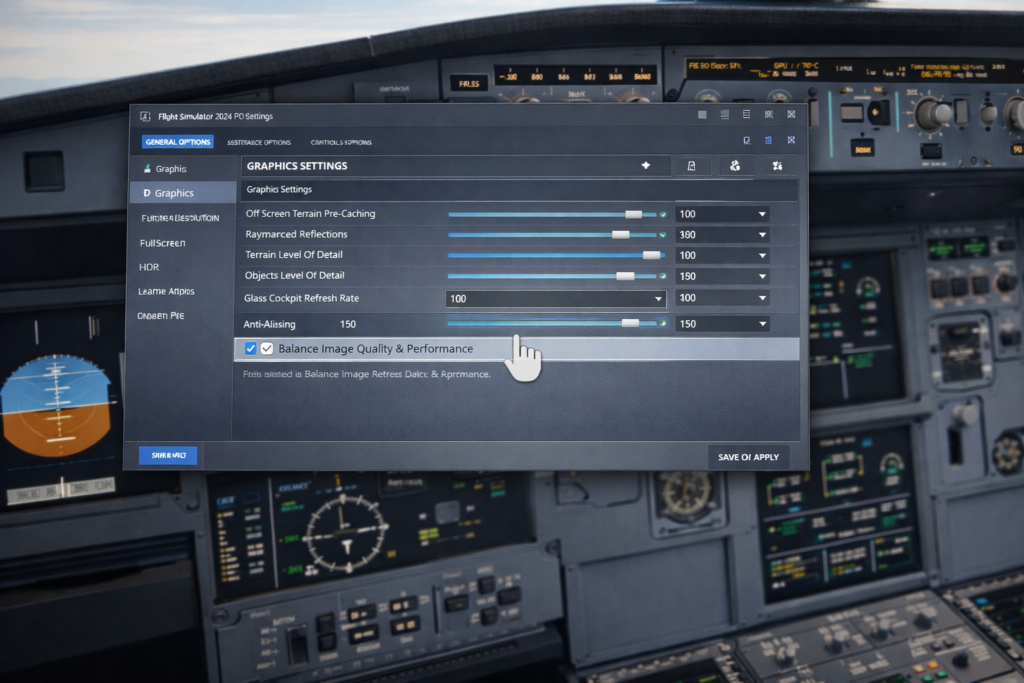
Customizing graphics settings in Microsoft Flight Simulator 2024 for optimal performance.
Adjusting graphics settings in Microsoft Flight Simulator 2024.

How to Confirm You Are CPU Limited

You can confirm this inside the simulator.

Enable Developer Mode:

Options → General → Developers → Developer Mode ON

Then activate the FPS counter.

If it shows:

Limited by MainThread

Your CPU is the bottleneck.

If it shows:

Limited by GPU

Then, graphics settings are the primary limitation.

Most cases of low GPU usage in MSFS show MainThread limitation.

Fix 1: Lower Terrain Level of Detail

Terrain Level of Detail (LOD) places heavy demand on the CPU.

Try:

  • Reducing Terrain LOD from 200 to around 120
  • Testing performance
  • Increasing gradually if performance improves

High Terrain LOD dramatically increases CPU workload even if your GPU is powerful.

Fix 2: Lower Object Level of Detail

Object LOD also significantly affects CPU workload.

Try reducing Object LOD from:

200 → 100–150

This often increases GPU usage because the CPU can deliver frames more efficiently.

Fix 3: Reduce AI Traffic and Ground Traffic

Traffic settings are extremely CPU-intensive.

Lower settings such as:

  • AI aircraft traffic
  • Airport ground vehicles
  • Worker density
  • Road vehicles

If you frequently fly airliners into busy airports, reducing these settings can noticeably improve performance.

Fix 4: Lower Glass Cockpit Refresh Rate

Glass cockpit instruments require frequent CPU updates.

Set the Glass Cockpit Refresh Rate to:

  • Medium
  • Low

This is especially important for:

  • Airliners
  • Study-level aircraft

Reducing this setting can significantly reduce CPU load.

Fix 5: Increase GPU Load Intentionally

If GPU usage is low but FPS is stable, you can safely increase GPU settings to balance the system.

Try increasing:

This shifts more work to the GPU.

Low GPU usage is only a problem if FPS is also low.

Fix 6: Enable Hardware-Accelerated GPU Scheduling

In Windows:

Settings → System → Display → Graphics → Default Graphics Settings

Turn ON:

Hardware-accelerated GPU scheduling

Restart your PC and test performance again.

Fix 7: Disable V-Sync or Frame Caps Temporarily

If FPS is capped too low, GPU usage may remain artificially low.

Test with:

  • V-Sync disabled
  • No frame rate cap

If GPU usage increases, your frame limit is restricting GPU utilisation.

Fix 8: Check Power Settings

Low GPU usage can sometimes be caused by power management limits.

In Windows:

  • Set Power Plan to High Performance

In the NVIDIA Control Panel:

  • Power Management Mode → Prefer Maximum Performance

The AMD Adrenalin:

This ensures the GPU runs at full performance levels.

Fix 9: Check Background CPU Usage

Background applications can reduce CPU performance.

Try:

  • Closing unnecessary applications
  • Disabling heavy startup programs
  • Checking CPU usage in Task Manager

MSFS relies heavily on single-core CPU performance, so background tasks can impact performance.

Fix 10: Understand Airport Load

Low GPU usage frequently occurs in CPU-heavy scenarios such as:

  • Large handcrafted airports
  • Busy traffic environments
  • Final approach into major hubs

These are naturally CPU-bound situations.

During cruise flight, GPU usage often increases automatically.

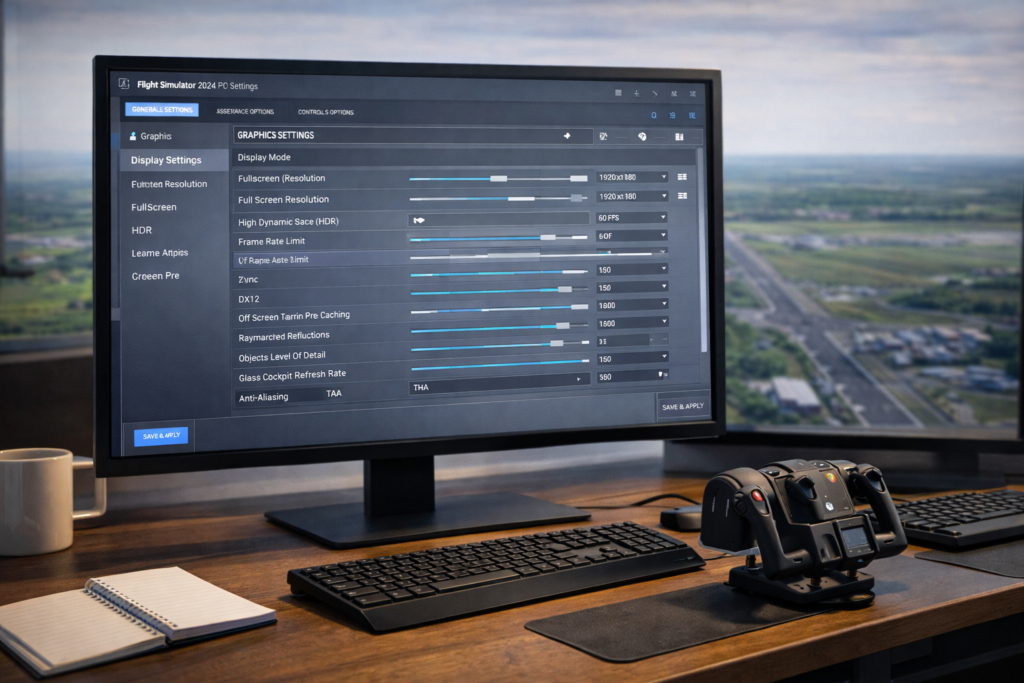
msfs-2024 Flight simulation setup with settings screen
A close-up of a flight simulation setup showing graphics and display settings for Microsoft Flight Simulator 2024.

Common Scenarios

Low GPU Usage with Low FPS

This almost always indicates a CPU bottleneck.

Low GPU Usage with High FPS

This is normal behaviour and not a problem.

GPU Usage Spikes Then Drops

Often caused by terrain streaming limitations.

Only One CPU Core at High Usage

This is normal. MSFS relies heavily on a single main thread.

Should You Upgrade Your GPU?

If your system is MainThread-limited, upgrading the GPU will not solve the problem.

Performance improvements may instead require:

  • A faster CPU
  • Better single-core performance
  • Higher RAM speed

MSFS benefits strongly from CPU speed and memory bandwidth.

Balanced System Example

For example, a system with:

RTX 4070 + older mid-range CPU

may show only 50–60% GPU usage at busy airports.

This is a normal CPU limitation.

Upgrading to a faster CPU would allow the GPU to work harder and improve FPS.

When Low GPU Usage Is Not a Problem

If:

  • FPS is stable
  • Frame pacing is smooth
  • There are no stutters

Then low GPU usage is not an issue.

It simply means your GPU still has available headroom.

Chasing 99% GPU usage is unnecessary.

Quick Fix Checklist

If you want a quick troubleshooting path:

  • Enable the FPS counter
  • Confirm if you are MainThread limited
  • Lower Terrain LOD
  • Reduce AI traffic
  • Lower glass cockpit refresh rate
  • Increase GPU settings slightly

Most cases of low GPU usage improve once CPU bottlenecks are reduced.

Conclusion

Low GPU usage in MSFS 2024 is usually caused by a CPU bottleneck rather than a graphics card limitation. Reducing Terrain LOD, traffic, and glass cockpit refresh rates often restores balance and allows the GPU to operate more effectively. Before upgrading hardware, confirm whether the simulator is MainThread limited. In many cases, improving CPU efficiency is the real solution to smoother performance.

MSFS Download Speed Slow – How to Fix It

Troubleshooting

Few things are more frustrating than watching Microsoft Flight Simulator 2024 download at 5 Mbps on a 100 Mbps internet connection. Whether you are installing the simulator for the first time or downloading a major Sim Update, slow download speeds can turn a quick update into an all-day process.

The good news is that slow MSFS download speeds are usually caused by network configuration, server routing, or bandwidth limits, and most of these issues can be resolved quickly.

This guide walks through the most common causes and how to fix them properly.

Quick Summary

  • Slow MSFS download speeds are usually caused by network configuration or routing issues
  • In-sim bandwidth limits may restrict download speed
  • VPN services often slow Microsoft CDN connections
  • Wi-Fi instability can reduce sustained download speeds
  • Changing DNS servers can improve routing to Microsoft servers
  • Server congestion during large updates can temporarily slow downloads

Why MSFS Downloads Are Sometimes Slow

Microsoft Flight Simulator downloads content through Microsoft’s content delivery network (CDN), not directly through Steam, even if you purchased the Steam version.

Slow download speeds are often caused by:

  • Microsoft server congestion
  • Incorrect Windows delivery optimisation settings
  • ISP routing issues
  • VPN interference
  • Bandwidth limits enabled in MSFS
  • Router configuration

Before assuming your internet connection is broken, it is worth checking the basic causes first.

Step 1: Restart Everything

Start with the simplest fix.

  • Close MSFS
  • Restart your PC
  • Restart your router
  • Relaunch the simulator

Temporary routing issues often resolve after a router reboot.

Step 2: Check the In-Sim Data Bandwidth Limit

Go to:

Options → General → Data

Make sure the following settings are disabled:

  • Data Limit OFF
  • Bandwidth Limit OFF

If bandwidth is capped, MSFS will not exceed that speed during downloads.

Step 3: Disable VPN

If you are using a VPN connection:

  • Turn it off temporarily
  • Restart MSFS

VPN routing frequently causes slower download speeds from Microsoft’s servers.

Step 4: Use Wired Ethernet Instead of Wi-Fi

Wi-Fi connections can introduce instability and packet loss.

If possible:

  • Connect your PC directly to your router using an Ethernet cable

This often provides a more stable connection and faster sustained downloads.

Step 5: Change Your DNS Server

Your ISP’s DNS server may route you inefficiently to Microsoft’s servers.

Try switching to one of the following:

Google DNS

  • 8.8.8.8
  • 8.8.4.4

Cloudflare DNS

  • 1.1.1.1
  • 1.0.0.1

After changing DNS:

  • Restart your PC
  • Test the download speed again

Improved DNS routing can sometimes increase download speed significantly.

Step 6: Check Windows Delivery Optimisation

Windows background delivery optimisation can interfere with MSFS downloads.

Go to:

Settings → Windows Update → Advanced Options → Delivery Optimisation

Turn OFF:

Allow downloads from other PCs

Also, make sure that no bandwidth limits are configured.

Step 7: Check for Windows Updates Running

If Windows Update is downloading updates in the background, it may be competing with MSFS for bandwidth.

Pause Windows updates temporarily and test the simulator download speed again.

Step 8: Check Steam Download Region (Steam Version Only)

Although MSFS uses Microsoft servers, the Steam client can still influence the initial connection.

In Steam:

Settings → Downloads

Try changing the Download Region and then restart Steam and MSFS.

Step 9: Disable IPv6 (Temporary Test)

Some users report improved speeds after disabling IPv6.

Open:

Network Adapter → Properties

Uncheck:

IPv6

Restart the computer and test the download speed.

If there is no improvement, you can re-enable IPv6.

Step 10: Peak Time Server Congestion

Major Sim Updates often create heavy server load.

If download speeds are slow only:

  • During a major update release
  • When many users report slow downloads

Then the issue may simply be server congestion.

Try:

  • Pausing the download
  • Waiting 30 minutes
  • Resuming the update

Speeds often improve later in the day.

Step 11: Check Router QoS Settings

Some routers prioritise streaming or gaming traffic over downloads.

Check your router settings for:

  • Quality of Service (QoS) rules
  • Bandwidth prioritisation

Disable restrictive limits temporarily and test the download again.

Step 12: Run a Speed Test Outside MSFS

Before continuing troubleshooting, confirm your normal internet speed.

Run a standard internet speed test.

If your connection speed is already slow outside MSFS, the problem is likely with your ISP or router rather than the simulator.

Common Scenarios

Download Stuck at Very Low Speed (1–5 Mbps)

Often caused by DNS routing problems or network configuration issues.

Download Speed Fluctuates Wildly

Usually caused by Wi-Fi instability or temporary server congestion.

Download Starts Fast Then Slows

Often related to CDN load balancing or ISP traffic shaping.

Steam Shows High Speed, but MSFS Shows Low Speed

This is normal because MSFS uses Microsoft’s CDN independently of Steam.

When Nothing Improves the Speed

If:

  • Your internet speed test is fast
  • You are using Ethernet
  • DNS has been changed
  • VPN is disabled
  • The router has been restarted

Then the slowdown is likely on Microsoft’s server side.

Unfortunately, there is no local fix for server congestion.

Quick Fix Checklist

If you want to try the fastest troubleshooting sequence:

  • Restart the router and PC
  • Disable bandwidth limits in MSFS
  • Turn off VPN
  • Use an Ethernet connection
  • Change DNS servers
  • Pause and resume the download

Most slow download issues improve after these steps.

Conclusion

Bandwidth limits, DNS routing issues, VPN interference or temporary server congestion during major updates usually cause slow MSFS download speeds. Start by disabling in-sim bandwidth caps and restarting your router before moving on to DNS changes or network adjustments. In many cases, the issue resolves quickly once routing or bandwidth conflicts are corrected.

MSFS 2024 Freezing After Update – How to Fix It

Troubleshooting

Major updates in Microsoft Flight Simulator 2024 often bring new features, improved performance, and fresh content. But occasionally, they also introduce freezing issues that did not exist before.

You may notice problems such as:

  • The simulator freezes during loading
  • The main menu is becoming unresponsive
  • The sim freezing mid-flight
  • Stutters that turn into complete lockups

The good news is that update-related freezing is usually caused by predictable issues. In many cases the problem can be fixed quickly without reinstalling the simulator.

This guide walks through the most common causes and the steps that typically resolve them.

msfs-2024 Flight simulation setup with settings screen

Quick Summary

  • Freezing after updates is often caused by add-on conflicts or corrupted cache files
  • Major updates force the simulator to rebuild shaders and internal caches
  • The Community folder is the most common source of freezing after updates
  • Clearing the rolling cache frequently resolves post-update instability
  • Graphics drivers may need updating after major simulator changes
  • Testing the simulator in a clean state is the fastest way to isolate the problem

Why MSFS Freezes After an Update

After a major simulator update, several things have changed internally:

  • Core simulator files are replaced
  • Shader caches must rebuild
  • Add-ons may become incompatible
  • Graphics drivers may conflict with the new code
  • The rolling cache may become corrupted

Freezing often occurs because something in the system no longer matches the new simulator version.

Step 1: Be Patient on First Launch

After a major update, the simulator may:

  • Recompile shaders
  • Rebuild cache data
  • Re-index installed packages

This can cause:

  • Long pauses
  • Apparent freezing
  • Temporary stuttering

Allow 10–15 minutes on the first launch before assuming something is broken.

If freezing continues beyond that, proceed with troubleshooting.

Step 2: Empty the Community Folder

This is the most common fix.

Major updates frequently break compatibility with:

  • Aircraft add-ons
  • Airport scenery
  • Utilities
  • Liveries

To test:

  • Move all contents of the Community folder to a temporary location
  • Restart MSFS

If freezing disappears, one of the add-ons is incompatible.

Reintroduce add-ons gradually in small groups to identify the cause.

Step 3: Clear the Rolling Cache

A corrupted rolling cache can cause freezing after updates.

To clear it:

Options → General → Data → Delete Rolling Cache

Restart the simulator afterwards.

If you cannot access the menu, manually delete:

RollingCache.ccc from the LocalCache folder.

Step 4: Update Graphics Drivers

Simulator updates sometimes rely on newer driver optimisations.

For NVIDIA GPUs:

  • Perform a clean driver installation

For AMD GPUs:

  • Use the factory reset installation option

After installing the driver, restart the PC and launch MSFS again.

Avoid using outdated drivers after a major simulator update.

Step 5: Delete Shader Cache

Old shader data may conflict with new rendering code.

To rebuild shaders:

  • Delete the DirectX shader cache using Windows Disk Cleanup
  • Or delete the MSFS shader cache folder if present

The simulator will regenerate shaders on the next launch.

Step 6: Reduce Graphics Settings Temporarily

Some updates increase system load.

Try temporarily lowering:

  • Terrain LOD
  • Object LOD
  • Cloud quality
  • AI traffic
  • Glass cockpit refresh rate

If freezing stops, the update may have increased system demand beyond your previous settings.

Step 7: Verify or Repair Installation

If files were corrupted during the update process, verifying them can fix the freezing.

For the Steam version:

Right-click MSFS → Properties → Verify integrity of game files

For the Microsoft Store version:

Apps → MSFS → Advanced Options → Repair

Step 8: Disable Background Overlays

After updates, overlays can sometimes conflict with the simulator.

Temporarily disable:

  • GeForce Experience overlay
  • AMD overlay
  • Discord overlay
  • MSI Afterburner
  • RivaTuner

Then launch the simulator again.

Step 9: Reset the User Configuration File

Occasionally, the graphics configuration file becomes unstable after updates.

To reset it:

  • Locate the UserCfg.opt file
  • Delete the file
  • Restart MSFS

Your graphics settings will reset to default.

Step 10: Check for Overclock Instability

Simulator updates can stress hardware differently.

If your CPU or GPU is overclocked:

  • Return hardware to stock settings
  • Test stability again

Overclock settings that were stable before may cause freezing after an update.

What If the Simulator Freezes Mid-Flight Only?

If freezing occurs during flight but not in menus, possible causes include:

  • Add-on airport conflicts
  • Heavy live traffic
  • Memory usage spikes
  • Excessive Terrain LOD

Try:

  • Lowering Terrain LOD
  • Reducing AI traffic
  • Turning off live traffic
  • Removing recently installed scenery

Freezing at 100% Loading

Often caused by an add-on conflict.

Freezing When Opening the World Map

Usually related to a corrupted rolling cache or incompatible scenery.

Freezing During Approach

Often due to heavy scenery load, combined with CPU limitations.

Random Freezes Every Few Minutes

Usually caused by driver conflicts or background processes.

Quick Recovery Checklist

If you want the fastest troubleshooting path:

  • Empty the Community folder
  • Delete rolling cache
  • Update graphics drivers
  • Verify simulator files
  • Lower Terrain LOD
  • Disable overlays

Most freezing problems after updates resolve with these steps.

When to Wait for a Hotfix

Sometimes the issue is not with your system.

If:

  • Multiple users report the same freezing
  • The issue began immediately after a major update
  • None of the usual fixes help

Then the problem may be a simulator bug that requires an official patch.

Check official forums before attempting a full reinstall.

Conclusion

MSFS 2024 freezing after an update is usually caused by add-on conflicts, corrupted cache files, outdated drivers or increased system demand. Start by emptying the Community folder and clearing the rolling cache before moving to deeper troubleshooting. In most cases the simulator can be stabilised quickly without reinstalling. A systematic approach is far more effective than drastic measures.

MSFS 2024 Black Screen on Startup

Troubleshooting

Few things are more frustrating than launching Microsoft Flight Simulator 2024 and being met with a black screen. No loading bar. No menu. Just a frozen display that refuses to move forward.

The good news is that a black screen on startup is usually caused by a small number of common issues — and most can be fixed quickly without reinstalling the entire simulator.

This guide walks through the most common causes and provides clear, step-by-step fixes.

Quick Summary

  • Black screens are usually caused by add-on conflicts, corrupted config files, driver issues, or cache corruption
  • After major updates, MSFS may appear black while it rebuilds shaders and validates files
  • The Community folder is a frequent cause of startup problems
  • Resetting UserCfg.opt can fix invalid display settings
  • Xbox services sign-in issues can prevent the sim from loading properly
  • Most fixes are quick and do not require a full reinstall

What Causes a Black Screen in MSFS 2024

Customizing graphics settings in Microsoft Flight Simulator 2024 for optimal performance.
Adjusting graphics settings in Microsoft Flight Simulator 2024

The issue is typically related to:

  • Corrupted configuration files
  • Add-on conflicts
  • Graphics driver problems
  • Rolling cache corruption
  • Incorrect display settings
  • Xbox services or account sync problems

Start with the simplest fixes first.

Step 1: Be Patient (First Launch After Update)

After a major update, MSFS may:

  • Rebuild shader cache
  • Re-optimise graphics
  • Validate packages

This can look like a black screen for several minutes.

Wait at least 5–10 minutes before assuming it is frozen.

If nothing changes after that, continue.

Step 2: Remove Community Folder Add-Ons

Add-ons are one of the most common causes.

To test:

  • Navigate to your Community folder
  • Move all add-ons to a temporary folder (for example, on your desktop)
  • Launch MSFS again

If the simulator loads normally, one of your add-ons is incompatible.

Add them back gradually in small batches to identify the culprit.

Step 3: Update or Reinstall Graphics Drivers

Outdated or corrupted drivers can cause black screens.

For NVIDIA:

  • Use the clean install option during driver update

For AMD:

After installing:

  • Restart your PC
  • Launch MSFS again

Avoid beta drivers unless necessary.

Step 4: Delete Rolling Cache

A corrupted rolling cache can prevent startup.

To fix:

  • Navigate to your MSFS LocalCache folder
  • Delete the RollingCache.ccc file

If you cannot access in-sim settings due to the black screen, deleting the file manually forces a rebuild.

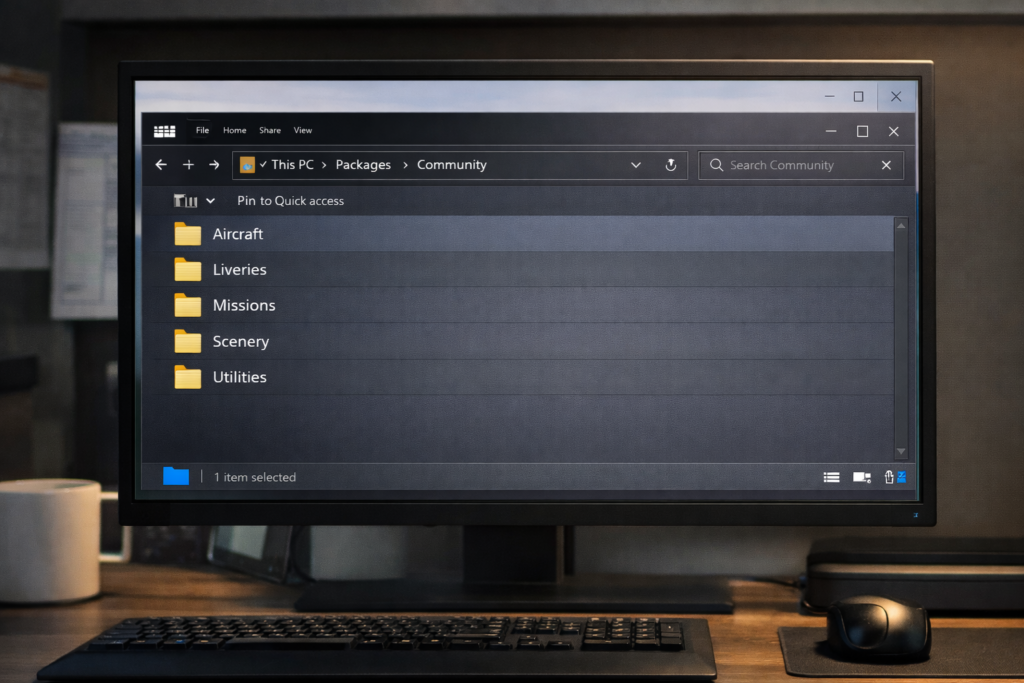
msfs-2024 File Explorer Community folder structure

Step 5: Reset Graphics Settings

Sometimes, display settings become invalid.

Try:

  • Forcing windowed mode
  • Reducing resolution
  • Switching monitor output

You can reset the config by:

  • Navigating to the UserCfg.opt file
  • Deleting it

MSFS will rebuild the file on the next launch.

Step 6: Check Display Configuration

A black screen can happen if:

  • Monitor refresh rate changed
  • HDR is misconfigured
  • GPU output is set incorrectly

Verify:

  • Monitor is set to the correct resolution
  • Windows HDR is OFF (temporarily test)
  • Correct GPU output is selected

If you use multiple monitors, disconnect secondary displays temporarily and test again.

msfs-2024 Flight simulation setup with settings screen

Step 7: Run MSFS as Administrator

Right-click the MSFS shortcut and select:

  • Run as Administrator

This can resolve permission conflicts.

Step 8: Check Xbox Services (Microsoft Store Version)

If you are using the Microsoft Store version:

If needed:

  • Sign out and sign back in
  • Restart the PC if the login fails silently

Step 9: Disable Overlays

Overlays can interfere with startup.

Disable temporarily:

  • GeForce Experience overlay
  • AMD overlay
  • Discord overlay
  • MSI Afterburner
  • RivaTuner

Restart the PC and test again.

Step 10: Repair or Verify Files

For the Steam version:

  • Right-click MSFS in Steam
  • Properties
  • Verify the integrity of game files

For the Microsoft Store version:

  • Apps → MSFS → Advanced Options → Repair

Avoid a full reinstall unless necessary.

Less Common Causes

Corrupt System Files

Run Windows system file check:

  • Open Command Prompt as Administrator
  • Type: sfc /scannow

Overclock Instability

If the CPU or GPU is overclocked:

  • Return to stock settings
  • Test stability again

Outdated Visual C++ Redistributables

Reinstall the latest Microsoft Visual C++ packages.

When Reinstalling Is Necessary

Only consider reinstalling if:

  • All steps above fail
  • The black screen persists across a clean boot
  • The installation path is corrupted

Even then, try Repair before a full uninstall.

Quick Checklist

If you want a fast workflow:

  • Remove Community folder add-ons
  • Update graphics drivers
  • Delete rolling cache
  • Reset UserCfg.opt
  • Disable overlays
  • Verify or repair files

Most black screen issues resolve within these steps.

Conclusion

A black screen on startup in MSFS 2024 is usually caused by add-on conflicts, corrupted cache files, driver issues or display configuration problems. Start with simple fixes like removing the Community folder and updating drivers before moving to deeper troubleshooting. In most cases, the simulator can be restored quickly without reinstalling. Methodical troubleshooting works better than drastic measures.