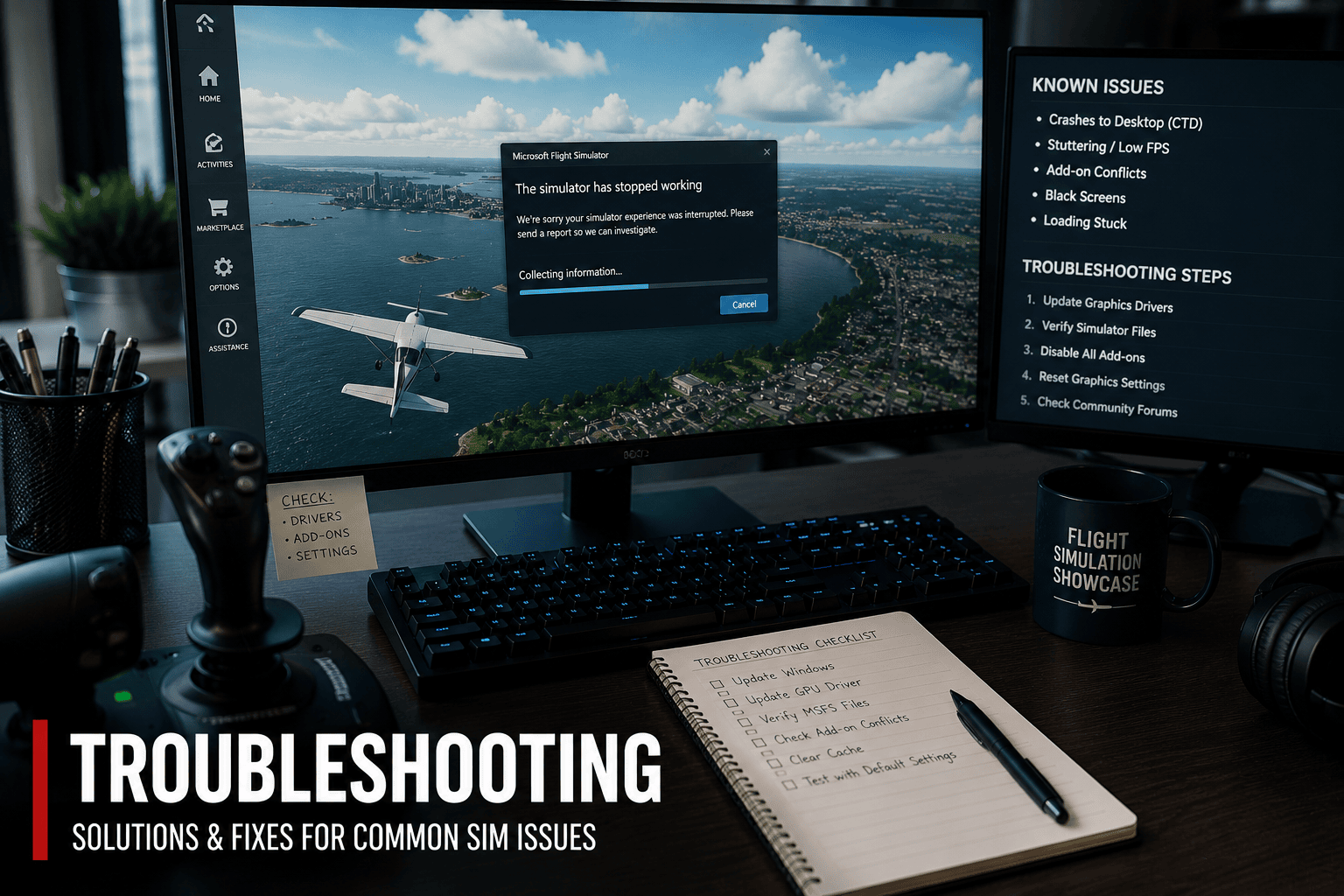
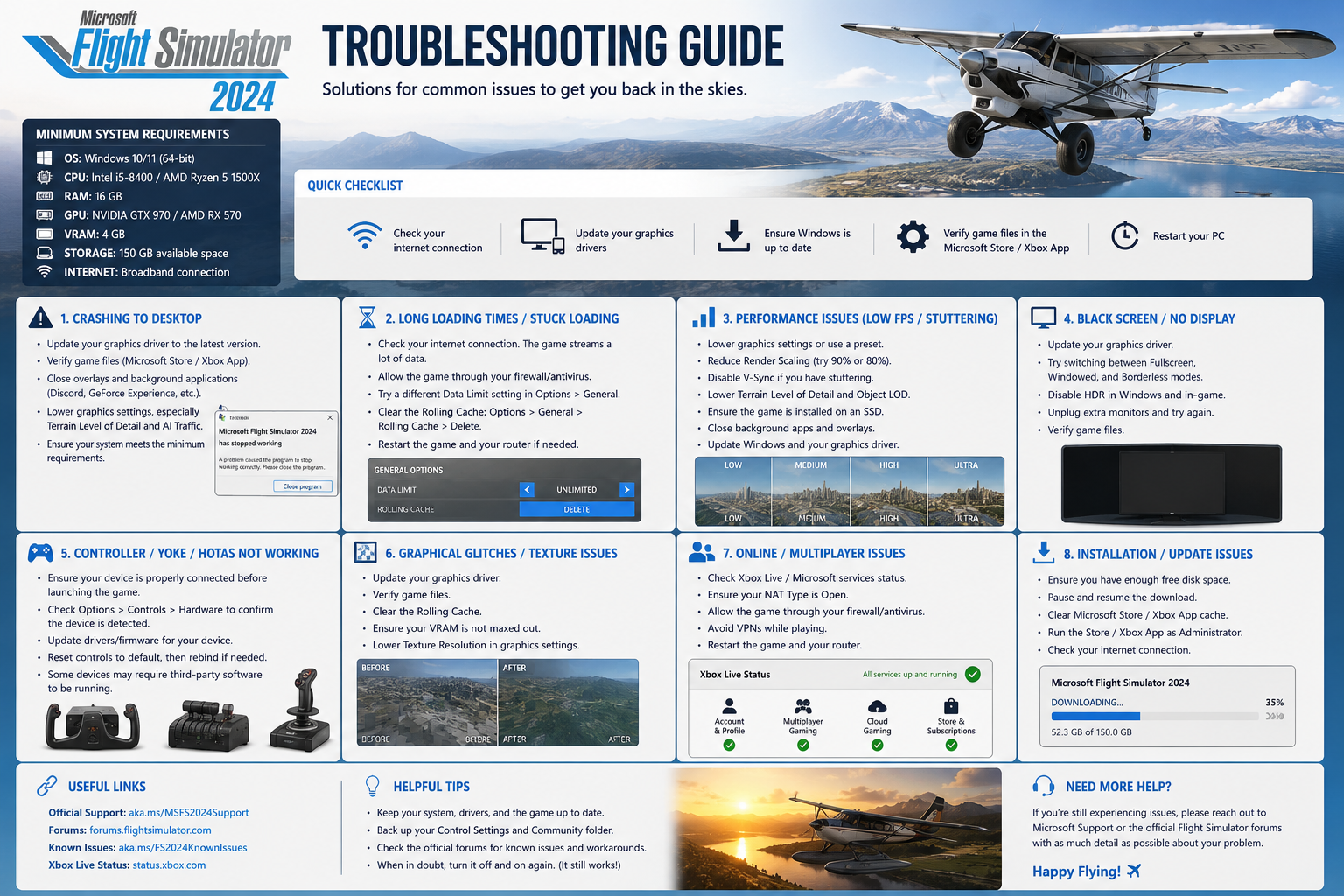
MSFS 2024 Troubleshooting Guide

Troubleshooting guide for flight simulation issues with Microsoft Flight Simulator 2024.

Fix Common Problems Fast and Get Back in the Air

Microsoft Flight Simulator is one of the most advanced consumer simulators available today. With real-time data streaming, detailed aircraft systems, and complex graphics, issues can occasionally appear—even on high-end systems.

The good news is that most problems are predictable and fixable once you understand the cause.

Before diving into specific issues, start with these quick checks:

  • Update your graphics drivers
  • Restart the simulator and your PC
  • Temporarily empty the Community folder
  • Clear the rolling cache
  • Lower Terrain Level of Detail (LOD)
  • Close background apps
  • Ensure Windows and MSFS are fully updated

These steps alone solve a surprising number of problems.
The Most Common Microsoft Flight Simulator Problems

Rather than repeating the same explanation, let’s break things down properly.

Crashing to Desktop (CTD)

Crashes are usually caused by:

What to do:

  • Empty Community folder first (always step one)
  • Update GPU drivers
  • Disable overclocks
  • Test with a default aircraft

Low FPS and Performance Problems

If performance is poor, the cause is usually settings vs hardware balance.

Common culprits:

  • Terrain LOD too high
  • CPU bottleneck (main thread limited)
  • Background apps
  • Heavy airports or aircraft

Fixes:

  • Lower Terrain LOD (this is the big one)
  • Use balanced settings, not Ultra everywhere
  • Monitor CPU vs GPU usage

Stuttering During Flight

This is different from low FPS.

  • Smooth but “jerky” → streaming issue
  • Stutter spikes → CPU / data loading

Fixes:

  • Check internet stability
  • Reduce photogrammetry if needed
  • Clear rolling cache
  • Use a wired or powerline connection (you’ve already gone this route

Simulator Stuck on Loading Screen

Usually caused by:

  • Corrupt cache
  • Add-ons
  • Server sync issues

Fixes:

  • Clear rolling cache
  • Remove the Community folder
  • Sign out/in of the Xbox account

Installation and Update Problems

Common causes:

  • Interrupted downloads
  • Microsoft Store/Xbox sync issues

Fixes:

  • Restart install process
  • Check that Xbox services are running
  • Ensure correct install path

Add-on Conflicts and Community Folder Issues

This is the number one cause of problems.

Symptoms:

  • CTDs
  • Missing aircraft
  • Broken avionics

Fix:

  • Empty Community folder
  • Reintroduce add-ons one at a time

Internet and Server Problems

Because the sim streams data, connection matters.

Symptoms:

  • Blurry scenery
  • “Melting buildings” (you’ve described this perfectly before)

Fixes:

  • Increase bandwidth if possible
  • Use a stable connection (Ethernet/powerline)
  • Check server status
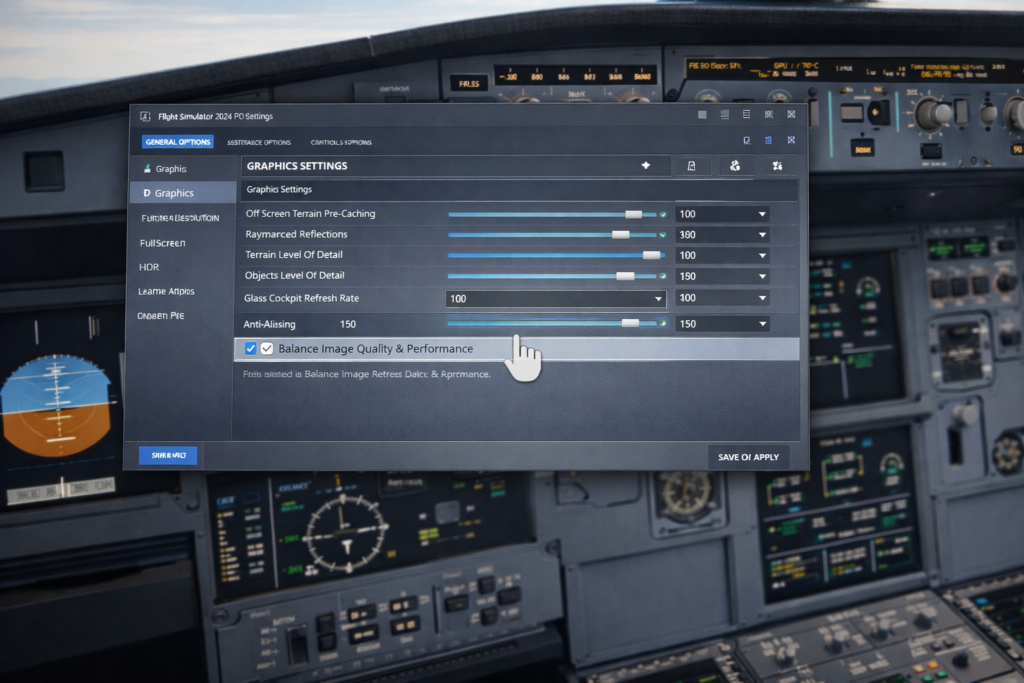
msfs-2024 Tuning graphics in the cockpit

Graphics Settings That Cause Problems

Ultra settings are not always your friend.

Problem settings:

Tip:
Balanced settings = smoother sim than maxed-out sliders.

Controller and Hardware Issues

Usually caused by:

  • Duplicate bindings
  • Incorrect profiles

Fixes:

  • Reset to the default profile
  • Remove duplicate bindings
  • Check sensitivity settings

Rolling Cache and Streaming Problems

A corrupted cache causes all sorts of strange behaviour.

Fix:

  • Delete and rebuild the rolling cache regularly

VR Performance Troubleshooting

VR is extremely demanding.

Fixes:

  • Lower resolution scale
  • Reduce LOD
  • Disable unnecessary effects

Audio and Sound Problems

Often overlooked.

Fixes:

  • Check the Windows sound device
  • Verify in-sim audio settings
  • Restart the SIM after device changes

Black Screen on Startup

Usually:

  • Driver issue
  • Corrupt config

Fix:

  • Update GPU drivers
  • Reset graphics settings

Marketplace Download Issues

Fixes:

  • Sign out/in of Xbox
  • Restart sim
  • Check the content manager

A Simple Method That Fixes Almost Anything

This is the most important part of the entire article.

  1. Change ONE thing at a time
  2. Test with the default aircraft
  3. Empty Community folder
  4. Restart after every change

This removes guesswork and quickly finds the real cause.

How to Prevent Problems

Good habits make a huge difference:

  • Don’t install lots of add-ons at once
  • Keep everything updated
  • Use balanced graphics settings
  • Keep the Community folder organised

Final Thoughts

Almost every MSFS problem has a logical cause.

Once you understand the patterns:

  • troubleshooting becomes simple
  • frustration drops massively
  • You spend more time flying

MSFS Mouse or Keyboard Interaction Problems

Troubleshooting

If you’re having MSFS Mouse or Keyboard Interaction problems, that can make even simple cockpit actions frustrating, especially when switches, knobs, or menus stop responding as expected. If you’re still becoming familiar with how controls and input systems work across different aircraft.

Our MSFS 2024 controls and hardware setup guide explains the core configuration steps that help prevent many of these interaction issues from appearing in the first place

MSFS Mouse or Keyboard Interaction Problems – Causes & Fixes

Some users experience situations where Microsoft Flight Simulator seems to be running normally, but mouse clicks, keyboard inputs, or UI interactions fail to register. Cockpit buttons won’t respond, menu items don’t highlight or act, and context clicks don’t seem to take effect. This can be confusing because the simulator appears loaded correctly, and sounds or aircraft responses may still work.

Microsoft Flight Simulator Beginner’s Guide

Input focus issues

One common cause for this behaviour is input focus issues. When Flight Simulator loses input focus. For example, if a background program has priority for keyboard or mouse signals. Your actions may not reach the simulator. Switching between applications before launching MSFS, or having background utilities that manage input devices, can cause a loss of focus. Closing all unnecessary background applications and relaunching MSFS often restores normal input behaviour.

Another frequent cause is conflicting input drivers or software. Many simmers use hardware utility software such as joystick managers, controller remappers, or macro programs. After updates, these utilities can intercept inputs before the simulator receives them. Disabling or temporarily uninstalling these utilities can help determine whether they are contributing.

Third-party add-on

Third-party add-ons that inject UI elements or overlay features may also interfere with mouse and keyboard interaction. Some weather or traffic utilities, HUD mods, or camera tools inject overlays that are not always compatible with the simulator UI. Removing these add-ons from the Community folder and testing again can identify whether the interaction issue is addon-related.

Sometimes the problem is specific to mouse mode. In MSFS, the behaviour of the mouse inside the cockpit can depend on cockpit mode or camera settings. Switching between cockpit view and external view, or toggling immersive mouse settings, can clarify whether the simulator is correctly receiving clicks. Ensuring the correct interaction mode in the options can restore expected behaviour.

Graphics

Graphics driver or display scaling issues can also affect input recognition. High DPI scaling settings in Windows or multi-monitor setups can cause misalignment between the cursor position and actual clickable hotspots. Ensuring Windows display scaling is consistent and updating graphics drivers to the latest version can help mitigate these problems.

If the issue appears immediately after a simulator update, it may be related to a new bug or a temporary regression in the UI code. In those cases, checking official update notes and community forums can clarify whether others are experiencing similar behaviour, and whether a patch or workaround is pending.

In most cases, simple troubleshooting — closing unnecessary programs, removing conflicting utilities, adjusting mouse interaction settings, and testing with a clean Community folder — will restore normal mouse and keyboard functionality. Once the source of conflict is identified, inputs typically return to expected behaviour.

Input and interaction behaviour in Microsoft Flight Simulator can also be influenced by control profiles, device drivers, and known simulator limitations. The official Microsoft Flight Simulator support pages often list current issues and recommended fixes, making them a useful reference when troubleshooting persistent interaction problems.

Still having trouble? Our full MSFS 2024 troubleshooting guide may help.

MSFS Stuck on “Checking for Updates”

Troubleshooting 2

MSFS mouse or keyboard interaction problems can make even simple cockpit actions frustrating. Especially when switches, knobs, or menus stop responding as expected.

If you’re still becoming familiar with how controls and input systems work across different aircraft. Our MSFS 2024 controls and hardware setup guide explains the core configuration steps that help prevent many of these interaction issues from appearing in the first place.

In many cases, the simulator itself is not broken. Connectivity problems, corrupted update data, or conflicts between the Microsoft Store, Xbox app, and the simulator usually cause the issue.

One common cause is a temporary failure to connect to Microsoft’s update servers. Even if your internet connection appears to be working, background services required by MSFS may not be communicating correctly. Restarting the simulator, the Microsoft Store, and the Xbox app can often restore proper connectivity.

Cached data

Cached data can also cause the update check to stall. Corrupted or outdated cache files may prevent the simulator from completing the update verification process. Restarting the system and launching the simulator again can clear temporary conflicts. But in some cases, the cache needs to be refreshed. Do that by signing out and back into the Microsoft Store and Xbox app.

The Xbox services themselves are another frequent factor. Microsoft Flight Simulator relies on multiple Xbox-related background services, even on PC. If any of these services fail to start correctly, the update check may never complete. Ensuring that Xbox Live services are running and properly signed in can resolve the issue.

Firewall

Firewall or antivirus software can also interfere. Security software may block background connections used during the update check, particularly after simulator or Windows updates. Temporarily disabling third-party antivirus software or allowing MSFS through the firewall can help determine whether this is the cause.

Installation location issues may also contribute. If MSFS is installed across multiple drives or if the installation path has changed. Then the simulator may struggle to verify update files. This can result in the update check looping indefinitely. Verifying that the installation path is intact and accessible can help resolve this.

Network

Network interruptions during previous updates can leave partial files behind. These incomplete files may cause the simulator to repeatedly attempt to verify updates without success. In such cases, repairing the installation through the Microsoft Store or Steam client can restore missing components without requiring a full reinstall.

Although it may be tempting to wait indefinitely. MSFS should not remain on the “Checking for Updates” screen for long periods. If no progress is visible after several minutes. Then the issue is almost always related to connectivity, services, or cached data rather than an active update process.

In most cases, resolving this issue does not require reinstalling the simulator. Once connectivity is restored and background services are functioning correctly, MSFS usually passes the update check and loads normally again.

Input and interaction behaviour in Microsoft Flight Simulator can also be influenced by control profiles. Device drivers and known simulator limitations. The official Microsoft Flight Simulator support pages often list current issues and recommended fixes. They make a useful reference when troubleshooting persistent interaction problems.

Also, for further help resolving simulator issues, see our complete troubleshooting guide.

MSFS Glass Cockpit Screens Black or Not Loading

Troubleshooting 2

Seeing MSFS glass cockpit screens black or not loading can make an aircraft impossible to fly, especially when key flight instruments and navigation displays fail to appear.

If you’re still learning how aircraft systems, graphics rendering, and simulator performance interact, our MSFS 2024 graphics settings guide explains the visual and performance settings that most often influence cockpit display behaviour and overall stability.

In many cases, the simulator has not crashed, and the aircraft itself is not broken. The problem is usually related to performance limits, graphics handling, or system resource management rather than a permanent fault.

CPU or GPU

One frequent cause is CPU or GPU overload. Glass cockpit displays are resource-intensive, and when system performance is pushed too far, MSFS may stop updating displays to maintain overall stability. This can happen at complex airports, during approach, or when traffic and scenery density are high. Reducing the terrain level of detail, traffic density, or cockpit refresh rate can help prevent screens from going black.

Graphics driver

Graphics driver issues are another common factor. After Windows or driver updates, incompatibilities can appear that affect display rendering. Performing a clean installation of graphics drivers often resolves display issues that appear suddenly without other obvious changes.

Memory usage

Memory usage can also contribute. Long flights, especially those that cross large scenery areas, can gradually consume system and video memory. By the time the aircraft reaches its destination, memory pressure may cause cockpit displays to fail. Restarting the simulator before long flights or reducing texture resolution can improve reliability.

Some aircraft are more sensitive than others. Complex airliners with advanced avionics place heavier demands on the simulator. If black screens occur only in specific aircraft, testing with a default aircraft can help determine whether the issue is aircraft-specific or system-wide.

Add-ons

Add-ons and utilities can also interfere with cockpit displays. Older avionics mods, conflicting add-ons, or outdated liveries may cause display problems, particularly after simulator updates. Temporarily removing add-ons from the Community folder and testing in a clean state can help isolate the cause.

Power management

Power management settings should not be overlooked. Aggressive CPU or GPU power-saving features can cause brief interruptions that affect display rendering. Ensuring that the system is set to a high-performance power profile can improve cockpit stability.

In some cases, the issue appears only after switching views or minimising the simulator. Returning to the cockpit view or reloading the flight may temporarily restore the displays, but this usually indicates an underlying performance or resource issue that needs addressing.

In most situations, black or non-loading cockpit screens are caused by performance limits, driver conflicts, or add-on interactions rather than a permanent simulator fault. Once system load is balanced and compatibility issues are resolved, cockpit displays typically behave normally again.

Display issues in glass cockpit aircraft are sometimes linked to known simulator bugs or compatibility problems introduced by updates. The official Microsoft Flight Simulator release notes provide details about recent fixes, known issues, and avionics-related improvements, making them a helpful reference when troubleshooting persistent cockpit display problems. Also, you can explore more solutions in our detailed MSFS 2024 troubleshooting guide.

Fixing MSFS altitude constraint issues

Troubleshooting 2

Troubleshooting and fixing MSFS altitude constraint issues is essential for pilots who want VNAV descents, climbs, and approach restrictions to behave correctly during managed flight.

If you’re still learning how navigation systems, flight planning, and aircraft configuration interact inside the simulator, our How to plan better flights guide explains the routing, altitude planning, and procedural steps that help prevent many constraint-related problems before they begin.

In most cases, nothing is broken. The way altitude constraints are interpreted by the avionics usually causes this behavior. It also depends on how the autopilot is being managed.

This guide explains why altitude constraints are sometimes ignored and what usually fixes it. Understanding these MSFS altitude constraint issues is crucial for a smoother flying experience.

Common Signs of This Problem

You notice one or more of the following.

• Plane levels off instead of continuing descent
• STAR altitude restrictions are not respected
• Airplane descends too early or too late
Autopilot remains in ALT HOLD unexpectedly
• VNAV appears armed but not active

These symptoms are almost always related to mode management or setup.

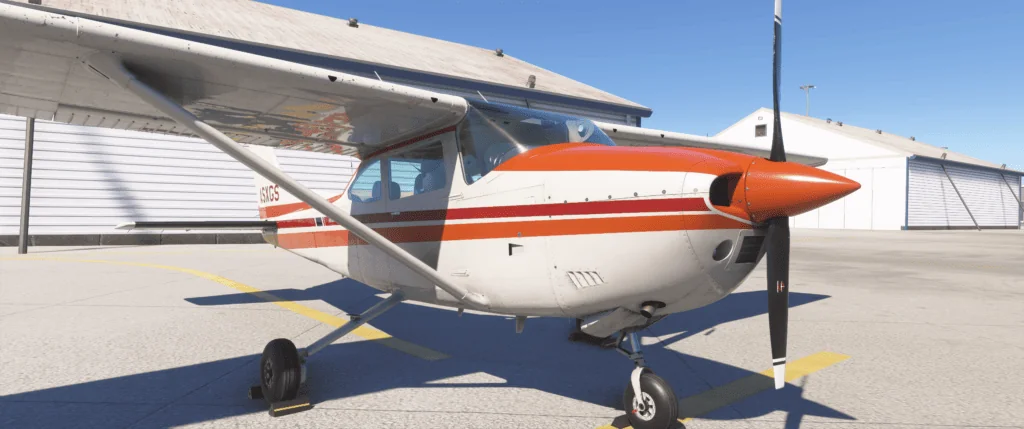
Cessna 182 RHS front close

Understand What Altitude Constraints Really Are

Altitude constraints in MSFS are advisory unless the plane’s avionics and autopilot are set up to follow them.

Many planes will show altitude constraints. Nevertheless, they will not automatically obey them. This occurs unless VNAV or a managed vertical mode is active.

Simply having a constraint in the flight plan does not guarantee the plane will follow it.

VNAV Must Be Available and Engaged

For altitude constraints to be followed automatically, VNAV must be active.

Check that.

• VNAV is available for the plane
• VNAV is engaged, not just armed
• A valid vertical profile exists

If VNAV is not active, the plane will often level off at the selected altitude instead.

The Selected Altitude Can Override Constraints

One of the most common causes is the selected altitude on the autopilot.

If the selected altitude is set lower or higher than the next constraint, the plane will ignore the restriction entirely.

Always set the selected altitude to allow the plane to descend through upcoming constraints.

In many cases, the selected altitude acts as a hard limit.

ALT HOLD Will Cancel Constraint After

If the plane enters ALT HOLD, it will stop tracking vertical guidance.

This can happen when.

• The plane captures a selected altitude
• Vertical speed is used incorrectly
• VNAV disengages silently

Once in ALT HOLD, the plane will ignore constraints until a vertical mode is re-engaged.

Descent Not Be Properly Planned

Altitude constraints often fail when descent is started too late.

If the plane is too high and too fast, it is physically incapable of meeting constraints. This can occur even though they are displayed.

Starting descent earlier and reducing speed improves the likelihood of constraint compliance.

Plane-Specific Limitations Apply

Not all planes handle altitude constraints the same way.

Some planes.

• Show constraints but do not follow them automatically
• Need manual intervention
• Have simplified VNAV logic

If the issue only occurs in one plane, this behavior is by design.

ATC Instructions Can Conflict With Constraints

In-game ATC assigns altitudes that conflict with published constraints.

When this happens.

• ATC instructions often override VNAV logic
• The aircraft may level off unexpectedly
• Constraints may be skipped

Following ATC blindly can prevent proper constraint management.

Test With a Default Aircraft

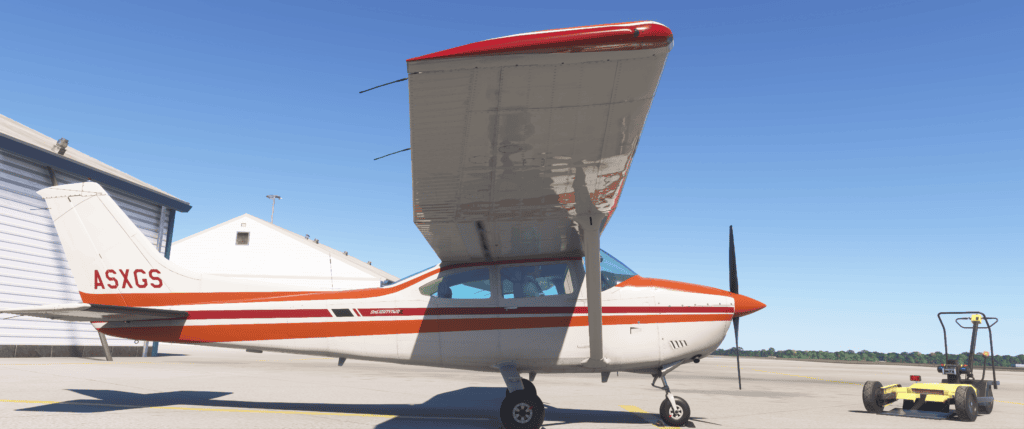
Cessna 182 RHS under wing RHS

To decide whether the issue is general or aircraft-specific, test the same route using a default aircraft.

If constraints are followed correctly, the issue is likely related to.

• Add-on avionics
Aircraft VNAV logic
• Procedure limitations

Why This Feels Inconsistent

Altitude constraint behavior depends on multiple systems working together, including VNAV logic, selected altitude, descent planning, and autopilot mode state.

A small mismatch in any of these can cause the plane to ignore constraints without an obvious warning.

Final Thoughts

If MSFS altitude constraints are not being followed, there are several possible causes. These include VNAV availability, selected altitude limits, ALT HOLD engagement, or late descent planning.

Understanding how the autopilot prioritizes selected altitude is crucial. It also prioritizes vertical modes. This knowledge will resolve most issues without changing the plane. There’s no need to reinstall the simulator either.

Altitude restrictions and VNAV behaviour in real aviation are governed by published procedures and navigation database accuracy. Resources such as the ICAO Procedures for Air Navigation Services documentation help explain how altitude constraints are designed and why aircraft must follow them precisely during departures, arrivals, and approaches.

Be aware that you can explore more solutions in our detailed MSFS 2024 troubleshooting guide.

Fix MSFS Glideslope Issues

Troubleshooting 2

Learning how to fix MSFS glideslope issues is essential for achieving stable ILS approaches and reliable autopilot guidance during landing. If you’re still becoming familiar with aircraft configuration, navigation setup, and approach procedures in Microsoft Flight Simulator.

Our How to Plan Better Flights guide explains the routing, altitude planning, and preparation steps that help prevent many glidepath capture problems before the aircraft even begins its descent.

If you’re still learning how navigation systems, flight planning, and aircraft configuration interact inside the simulator, our How to plan better flights guide explains the routing, altitude planning, and procedural steps that help prevent many constraint-related problems before they begin

In most cases, nothing is broken. The issue is usually related to approach setup, aircraft configuration, or autopilot mode sequencing rather than a simulator fault. This guide explains why descent and glideslope capture fail and what usually fixes it.

This guide also addresses common MSFS Glideslope Issues to help you better understand and resolve them.

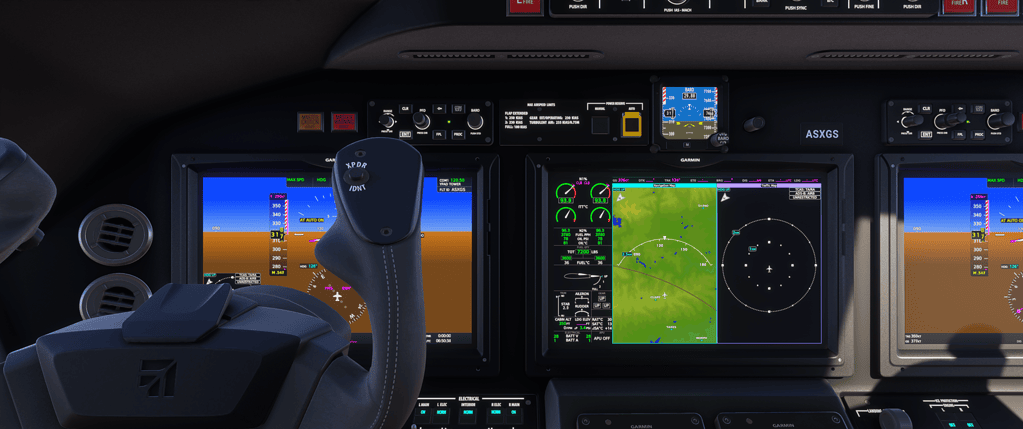
Microsoft Flight Simulator Longitude Businees Jet Nav panel

Common Signs of This Problem

You may notice one or more of the following.

• Aircraft stays level instead of descending
• Glideslope diamond never captures
• Aircraft descends too late or too early
• Autopilot remains in ALT or VS mode
• Approach looks correct, but never activates

These symptoms almost always point to a setup rather than a bug.

The Aircraft Must Be Below the Glideslope

This is the single most common reason glideslope capture fails.

An aircraft will not capture the glideslope from above. It must intercept the glideslope from below.

If you are too high on approach, the glideslope indicator may remain above the centre and never engage.

Ensuring proper descent planning before the approach is critical.

Approach Must Be Fully Loaded and Activated

The approach must be correctly loaded in the avionics.

Check that.

• The correct approach is selected
• The correct runway is chosen
• The approach is activated, not just loaded

Simply loading an approach without activating it can prevent proper guidance.

Navigation Source Must Be Correct

The aircraft must be using the correct navigation source.

Depending on the aircraft, this may be.

• ILS frequency tuned and identified
• NAV mode selected instead of GPS
• Localiser captured before glideslope

If the aircraft is still in GPS mode, it will not capture an ILS glideslope.

Aircraft Configuration Matters

Incorrect configuration can prevent descent or capture.

Before intercepting the glideslope, check that.

• Speed is appropriate for the approach
• Flaps are partially deployed
• Landing gear is down when required

Excessive speed can cause the aircraft to fly through the glideslope without capturing it.

Autopilot Mode Sequencing Is Important

Autopilot modes must be engaged in the correct order.

Common mistakes include.

• Staying in ALT HOLD instead of the arming approach
• Using vertical speed instead of approach mode
• Engaging approach mode too late

Approach mode should usually be armed before intercepting the localiser and glideslope.

Descent Planning Is Often the Root Cause

Many glideslope problems start well before the approach.

If descent is started too late, the aircraft may be too high and unable to capture the glideslope at all.

Using basic descent planning or following published STAR altitude constraints greatly improves success.

Aircraft-Specific Behaviour Can Differ

Some aircraft simulate approach logic more strictly than others.

This means.

• Certain speeds are required
• Specific modes must be engaged
• Timing matters more than expected

If the problem only occurs with one aircraft, reviewing its documentation is worthwhile.

Test With a Default Aircraft

If you’re unsure whether the issue is general or aircraft-specific, test the same approach using a default aircraft.

If it works correctly there, the issue is likely related to.

• Add-on avionics logic
• Aircraft-specific limitations
• Incorrect procedure for that aircraft

Why This Feels Random

Approach guidance depends on multiple systems working together at exactly the right time. A small setup error earlier in the flight often only becomes visible during the final approach.

Once the proper approach setup becomes routine, glideslope capture usually becomes consistent and predictable.

Final Thoughts

If your MSFS aircraft won’t descend or capture the glideslope, the cause is almost always being too high, an incorrect navigation source, improper approach activation, or autopilot mode sequencing.

Correct descent planning, proper approach setup, and correct mode selection will resolve most issues without changing aircraft or reinstalling the simulator.

Real-world glidepath capture and ILS behaviour follow strict approach design standards and radio-navigation procedures. Aviation training resources such as the FAA Instrument Flying Handbook explain how pilots intercept and track a glideslope correctly. In so doing, providing useful background knowledge when troubleshooting approach behaviour inside the simulator.

For step-by-step troubleshooting across common problems, read our full guide here.

Troubleshooting MSFS Aircraft Power Issues

Troubleshooting 2

Understanding and troubleshooting MSFS aircraft power issues is important when engines fail to start, batteries drain unexpectedly, or avionics refuse to power on during pre-flight. If you’re still becoming familiar with aircraft setup, electrical systems, and correct start-up procedures. Our Microsoft Flight Simulator beginner’s guide explains the essential preparation steps that help prevent many power-related problems before they occur.

In most cases, the aircraft is working correctly. The issue is usually related to aircraft state, electrical configuration, or how MSFS loads flights.

This guide explains why aircraft systems sometimes appear dead and what usually fixes them.

Common Signs of This Problem

You may notice one or more of the following.

Screens remain black
• Avionics do not respond
• Switches appear to do nothing
• Engines will not start
• Batteries appear ineffective

These symptoms almost always point to a power configuration issue.

Aircraft May Be in a Cold and Dark State

Many aircraft are loaded in a cold and dark configuration by default.

This means.

• Battery is off
• External power is disconnected
• Avionics are unpowered
• Engines are shut down

This is normal behaviour, especially for airliners and more complex add-ons.

Check the Battery and Electrical Switches First

The first step is always to confirm basic electrical power.

Check the following.

• Battery switch is on
• Electrical master is on
• Avionics master is on if applicable

Without battery power, nothing else will function.

External Power or Ground Power May Be Required

Some aircraft require external or ground power to initialise systems fully.

This is especially common for airliners.

Look for.

• Ground power option in the aircraft menu
• External power switch in the cockpit
• Tablet or EFB power options

Connecting ground power often brings avionics to life immediately.

APU Not Running or Not Supplying Power

If the aircraft uses an APU, it must be started to supply power.

Check that.

• APU is started correctly
• APU generator is selected
• Electrical system is sourcing power from the APU

Starting the APU without selecting its generator can leave the aircraft unpowered.

Avionics Load Order Matters

In some aircraft, the avionics will not initialise properly if powered on to early or too late

This can often happen when.

• Battery is switched on briefly, then off
• External power is connected too late
• Aircraft state can often change while being loaded

Reloading the aircraft and following a clean power-up sequence often resolves this.

Assistance or AI Control Can Interfere

Also, if AI assistance or co-pilot features are enabled, they can override cockpit controls.

Check that.

• AI piloting is disabled
• Assisted startup is not conflicting
• No automated checklist is fighting your inputs

These features can prevent switches from behaving as expected.

Aircraft-Specific Logic Is Important

Some aircraft simulate real-world electrical logic very closely.

This means.

•That certain buses must be powered before avionics work
• Some screens remain blank until engines or the APU are running
• Startup steps must be followed in sequence

Furthermore, If one aircraft behaves differently from another, this is usually by design.

Test With a Default Aircraft

If you’re unsure whether the issue is general or aircraft-specific, load a default aircraft.

If systems power up normally there, the issue is likely related to.

• Aircraft complexity
• Startup procedure
• Add-on documentation

This helps narrow the cause quickly.

Why This Feels Like a Bug

MSFS allows aircraft to load in realistic states, but does not always explain what state the aircraft is in. Also, without clear feedback, it can feel like systems are broken when they are simply unpowered.

Once the power logic is understood, this issue usually disappears permanently.

Final Thoughts

Furthermore, if aircraft systems in MSFS are not powering up, the cause is almost always battery or external power. Also, APU configuration, or aircraft state, rather than a simulator bug.

Checking electrical power first and understanding how the aircraft is meant to start will resolve most cases without reinstalling the sim or changing settings.

Real aircraft electrical and engine start procedures follow detailed manufacturer checklists and safety practices. Pilot training references such as the FAA Airplane Flying Handbook explain correct start-up sequencing, system checks, and power management. Furthermore, It also offers useful real-world context when diagnosing similar behaviour inside the simulator.

Additional fixes and diagnostics are covered in our MSFS 2024 troubleshooting guide.

MSFS Performance Degrades After Long Flights

Troubleshooting 2

When MSFS performance degrades after long flights, pilots may notice increasing stutters, falling frame rates, or micro-freezes that were not present earlier in the journey.

If you’re still learning how simulator optimisation, system resources, and graphics configuration affect stability over time, our MSFS 2024 performance settings guide explains the key adjustments that help maintain smooth performance throughout extended flights.

In most cases, nothing is wrong with your graphics settings or hardware. The problem is usually caused by resource build-up during long sessions rather than poor performance tuning.

This guide explains why performance degrades over time and what usually fixes it.

This phenomenon, known as MSFS Performance Degrades After Long Flights, can frustrate pilots and detract from the overall experience.

Common Signs of Long-Flight Performance Issues

You may notice one or more of the following.

• Smooth performance at departure, worsening later
• Stutters appearing during cruise or descent
• FPS dropping slowly rather than suddenly
• Micro-pauses when panning the camera
• Performance recovering after restarting the sim

These symptoms point to accumulation rather than a single fault.

Why Performance Drops Over Time

During long sessions, MSFS continuously loads and unloads scenery, weather data, traffic, and textures. Over time, this can lead to increased memory usage and background processing that does not fully clear.

Common contributors include.

Live weather updates
• AI traffic over multiple regions
• Scenery streaming
• Long sessions without restarting
• Complex aircraft systems running for hours

Even powerful systems can be affected.

Live Weather and Traffic Accumulation

Live weather and real-time traffic refresh repeatedly during a flight.

Over long periods, this can increase CPU and memory load, especially when flying across large distances or changing weather systems.

If performance degrades consistently on long flights, temporarily test with.

• Static weather
• Reduced AI traffic

can help confirm whether live services are contributing.

Rolling Cache Can Make Things Worse

The rolling cache is designed to improve performance, but in some cases, it can do the opposite during long sessions.

If the cache becomes inefficient or corrupted, it can cause stutters to increase over time instead of decreasing.

Clearing the rolling cache and restarting MSFS is often one of the most effective fixes for long-flight performance issues.

Camera Use and View Changes Add Load

Frequent camera changes can increase resource usage.

This includes.

• Extensive use of drone camera
• Rapid external view panning
• Repeated cockpit-to-external switching

During long flights, heavy camera use can contribute to gradual performance loss.

Add-ons Accumulate Load Over Time

Complex aircraft and scenery add-ons run systems continuously.

On long flights, this can result in.

• Increasing CPU load
• Growing memory usage
• Slower response over time

If performance issues only occur with certain aircraft, testing the same route using a default aircraft can help identify whether an add-on is contributing.

Why Restarting the Simulator Helps

Restarting MSFS clears accumulated memory, resets background processes, and reloads resources cleanly. That’s why performance often feels “magically fixed” after a restart.

This does not mean your settings are wrong — it simply resets long-session build-up.

For very long flights, restarting MSFS between legs can significantly improve stability.

System-Level Factors to Check

A few external factors can worsen long-session performance.

• Background applications are slowly consuming resources
• Thermal throttling after extended load
• Driver or system updates running in the background

Monitoring system performance during long flights can reveal gradual changes rather than sudden spikes.

Practical Ways to Reduce Long-Flight Degradation

To minimise performance loss on longer flights.

• Clear the rolling cache regularly
• Restart MSFS between long sessions
• Limit unnecessary camera movement
• Reduce AI traffic slightly on long routes
• Keep background applications to a minimum

These steps improve consistency more than lowering graphics settings.

Why This Is Still Common

MSFS is a complex, continuously streaming simulator. Long-haul flights push systems differently than short hops, and even well-optimised setups can show degradation over time.

This behaviour has improved with updates, but has not been eliminated.

Final Thoughts

Long-duration performance drops in simulation software are often linked to memory management, background processes, or known optimisation limitations rather than a single graphics setting. Official performance guidance and troubleshooting resources available through the Microsoft Flight Simulator support portal can provide additional technical insight when investigating persistent slowdowns during extended flights.

Clearing the rolling cache, restarting the simulator between sessions, and managing live services and add-ons will usually restore smooth performance without sacrificing visual quality. Refer to our MSFS 2024 troubleshooting guide for a full list of possible fixes.

MSFS SimBrief Flight Plan Not Importing or Not Updating

Troubleshooting 2

When an MSFS SimBrief flight plan not importing or not updating issue appears, it can prevent accurate routing, fuel planning, and navigation data from loading correctly inside the simulator. If you’re still learning how flight planning, routing, and navigation setup work together, our How to plan better flights guide explains the core preparation steps that help ensure flight plans transfer smoothly into Microsoft Flight Simulator..

In most cases, SimBrief itself is working correctly. The problem is usually caused by account linking, outdated data, or how the aircraft pulls SimBrief information.

This guide explains why SimBrief imports fail and what usually fixes it.

Common Signs of SimBrief Import Problems

You may notice one or more of the following.

• SimBrief route does not appear in the aircraft
• Old flight plan loads instead of the new one
• Fuel or payload values are incorrect
• Import button does nothing
• Waypoints are missing or incomplete

These issues are almost always configuration-related.

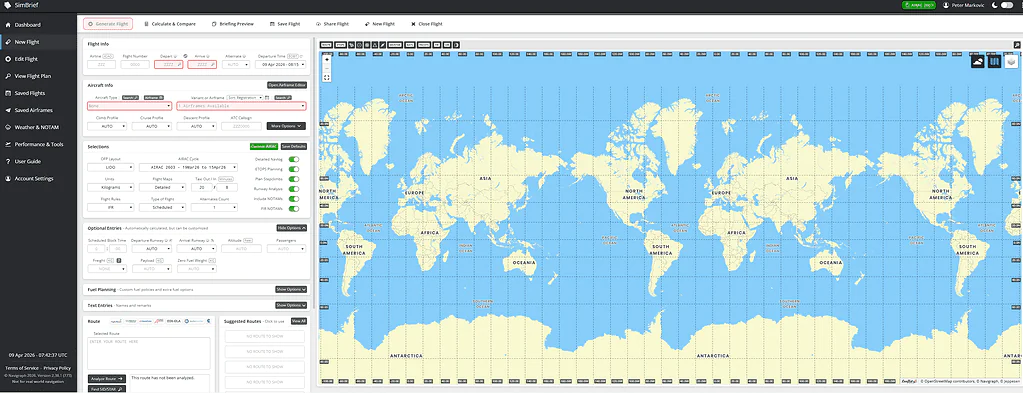
SimBrief Page view

Make Sure Your SimBrief Username Is Correct

The most common cause is an incorrect SimBrief username.

Many aircraft require your SimBrief username, not your email address.

Check the following.

• SimBrief username is entered correctly
• No extra spaces before or after the name
• Username matches exactly what SimBrief shows

If the username is wrong, the aircraft cannot retrieve the correct flight plan.

Refresh the Flight Plan in SimBrief

If you recently edited your flight plan, the aircraft may still be loading an older version.

Before importing, make sure you.

• Regenerate the flight in SimBrief
• Save the updated plan
• Confirm the correct aircraft and route

If the plan is not regenerated, the import may pull outdated data.

Aircraft Must Be in the Correct State

Some aircraft require specific conditions before SimBrief import works.

Common requirements include.

• Aircraft powered on
• Avionics or FMC fully initialised
• Engines off for cold and dark states

Trying to import too early can cause the process to fail silently.

Check Navigation Data Compatibility

If navigation data is out of sync, routes may not import correctly.

This can happen when.

• SimBrief uses newer AIRAC data
• The aircraft uses older navigation data
• Waypoints or procedures do not exist

Using the same AIRAC cycle in both SimBrief and the aircraft greatly improves reliability.

SimBrief Import Is Aircraft-Specific

Not all aircraft handle SimBrief imports the same way.

Some aircraft.

• Import only the route
• Ignore fuel and payload
• Require manual confirmation steps

If SimBrief works in one aircraft but not another, the issue is likely aircraft-specific rather than a general MSFS problem.

Restart the Aircraft or Simulator

SimBrief data can become cached.

If an import fails.

• Reload the aircraft
• Restart MSFS if necessary
• Try importing again

This often clears stale data and restores normal behaviour.

Online Services Must Be Active

SimBrief imports require an active internet connection.

Check that.

• Online services are enabled
• You are not in Offline Mode
• MSFS has not lost connectivity

Temporary connection drops can prevent imports without showing an error.

Test With a Default Aircraft

If you’re unsure where the issue lies, test with a default aircraft that supports SimBrief import.

If SimBrief works there, the issue is likely.

• Add-on specific
• FMC configuration related
• AIRAC related

This helps narrow down the cause quickly.

Why SimBrief Imports Feel Inconsistent

SimBrief imports depend on several systems working together, including online services, navigation data, aircraft state, and FMC logic. Small mismatches can cause imports to fail without clear feedback.

Once usernames, data cycles, and aircraft setup are correct, imports usually work reliably.

Final Thoughts

If your SimBrief flight plan is not importing or updating in MSFS, the cause is almost always a username mismatch, an outdated plan, an aircraft state issue, or a navigation data conflict.

Confirming the correct SimBrief username, regenerating the plan, and ensuring compatible navigation data will resolve most import problems without reinstalling the simulator.

Flight-plan import problems are often related to account linking, AIRAC cycle differences, or export settings rather than simulator faults.

The official SimBrief user guide and help pages provide detailed instructions on correct export formats and integration steps, making them a useful reference when troubleshooting persistent import or update issues.