MSFS Marketplace Purchases Not Downloading

Troubleshooting 2

If you’re still becoming familiar with installation paths, content management, and account setup in Microsoft Flight Simulator, our Microsoft Flight Simulator beginner’s guide explains the essential configuration steps that often resolve missing content issues more quickly.

In most cases, nothing is wrong with your account or the add-on itself. The issue is usually caused by Marketplace syncing, server communication, or how MSFS handles downloads in the background.

This guide explains why Marketplace downloads get stuck and what usually resolves the problem.

Common Signs of Marketplace Download Issues

You may notice one or more of the following.

• Purchased add-on shows as Owned but not installed
• Download stuck on Pending
• Download never starts or pauses indefinitely
• Add-on does not appear in Content Manager
• Restarting the sim does not immediately help

These symptoms are almost always related to syncing or download state issues.
Give the Marketplace Time to Sync

The Marketplace does not always sync purchases instantly.

After buying an add-on, the simulator may need time to refresh your ownership status. This is especially true during peak times or shortly after updates.

If a purchase shows as Owned but won’t download, wait a few minutes before taking further action.

Restart MSFS Completely

A full restart is often the simplest fix.

Do not return to the main menu. Fully close MSFS and restart it. On relaunch, go straight to the Marketplace or Content Manager and check whether the download begins.

This forces the simulator to refresh Marketplace data.

Check Content Manager Directly

Some Marketplace purchases do not automatically start downloading.

Open Content Manager and look for the add-on there. If it appears but is not installed, manually start the download from Content Manager rather than the Marketplace page.

This often bypasses a stuck Marketplace state.

Check Available Storage Space

Marketplace downloads will fail silently if there is not enough free disk space.

Make sure you have sufficient free space on the drive where MSFS content is installed. Remember that some add-ons require additional space during installation, not just their final size.

Low disk space can cause downloads to remain stuck without showing an error.

Online Services Must Be Active

Marketplace downloads require an active online connection.

Check the following.

• Online functionality is enabled
• Data connection is active
• You are not in Offline Mode
• Bing data is turned on

If MSFS temporarily loses connection to online services, downloads may stall.

Marketplace Servers Can Be Slow or Busy

During updates or sales, Marketplace servers can become overloaded.

In these situations.

• Downloads may queue silently
• Pending status can last longer than usual
• Progress may resume after restarting the sim later

If everything else looks correct, waiting and trying again later is sometimes the only fix.

Sign Out and Sign Back In

In some cases, your Marketplace session may desynchronise.

Signing out of your Microsoft account and signing back in can refresh ownership status and restart stuck downloads. After signing back in, restart MSFS and check Content Manager again.

Clear the Rolling Cache

A corrupted rolling cache can interfere with downloads.

If problems persist, clearing the rolling cache is worth trying. After clearing it, restart MSFS and attempt the download again.

Test Without Add-ons Running

Rarely, third-party tools or add-ons can interfere with Marketplace downloads.

If you suspect this.

• Launch MSFS in Safe Mode
• Avoid running external utilities
• Try downloading again

If the download works in Safe Mode, re-enable add-ons later.

Why Marketplace Issues Feel Random

Marketplace downloads rely on account syncing, online services, and background content management. When any of these are delayed or interrupted, downloads can stall without clear feedback.

Once the download state resets correctly, purchases usually install normally and do not need to be repurchased.

Final Thoughts

If an MSFS Marketplace purchase is not downloading or stuck pending, the cause is almost always syncing, server load, or download state issues rather than a faulty add-on.

Restarting the simulator, checking Content Manager, confirming online services, and allowing time for Marketplace servers to respond will resolve most cases without reinstalling MSFS or contacting support.

Marketplace download failures are sometimes linked to account authentication, server status, or licensing verification rather than local PC settings. Checking the official Microsoft Flight Simulator support portal can provide up-to-date troubleshooting steps and service information when investigating persistent download problems.
MSFS Camera Views Keep Resetting

Troubleshooting 2

When MSFS camera views keep resetting, it can interrupt immersion and make it difficult to maintain consistent cockpit or external perspectives during flight. If you’re still learning how control bindings, view settings, and simulator preferences interact, our MSFS 2024 controls and hardware setup guide explains the configuration steps that help stabilise camera behaviour and prevent unwanted resets.

This is a very common issue and usually isn’t a bug. In most cases, camera problems are caused by control bindings, view conflicts, or how MSFS handles camera presets.

The phenomenon of MSFS Camera Views Keep Resetting, or Jumping, affects many users, and understanding the reasons behind it is crucial for a smooth simulation experience.

This guide explains the most common causes and what usually fixes them.

Common Camera Problems

You may notice one or more of the following.

• Cockpit view keeps snapping back to centre
• Zoom level changes unexpectedly
• Camera jumps when using the mouse or controller
• Custom views do not stay saved
• External or drone camera switches unexpectedly

These issues are almost always input-related.

Multiple Devices Controlling the Camera

The most common cause of camera issues is more than one device controlling the same camera functions.

MSFS allows camera control from many sources, including.

• Mouse
• Keyboard
• Joystick or yoke
• Xbox controller
• Head tracking devices

If more than one device is bound to camera movement or zoom, the view may constantly reset or jump.

Check your control bindings and make sure camera controls are assigned only to the devices you actually use.

Hidden Camera Bindings on Controllers

Even if you don’t actively use a controller, it may still be sending camera inputs.

Common examples include.

• Xbox controller sticks control the view movement
• Joystick hats bound to camera pan
• Mouse wheel bound to zoom, and another device doing the same

Unbind camera controls on unused devices to prevent conflicts.

Head Tracking or Camera Add-ons

If you use head tracking or camera utilities, they can override the default camera behaviour.

This includes.

• Head tracking software
• External camera utilities
• Custom view managers

If camera behaviour changed after installing one of these, temporarily disable it and test again. If the issue disappears, review the add-on’s settings and calibration.

Camera Reset Triggered by Aircraft States

Some aircraft reset the camera when certain events occur.

This can happen when.

• Autopilot is engaged or disengaged
• Switching between cockpit and external view
• Loading a saved flight
• Changing aircraft systems or power state

Testing with a default aircraft can help determine whether the issue is aircraft-specific.

Custom Views Not Saving Properly

If your custom views do not stick, the issue is usually related to how they are saved.

Make sure you.

• Use the correct save-view command
• Save views after the aircraft is fully powered
• Avoid switching aircraft or reloading the flight immediately after saving

Saved views may not persist if the aircraft or flight state changes too quickly.

Zoom and Camera Speed Settings

Very high camera sensitivity or zoom speed can make views feel unstable.

Check the following.

• Camera movement speed
• Zoom sensitivity
• Mouse or controller sensitivity settings

Lowering camera speed and sensitivity often makes view changes smoother and more predictable.

Reset Camera Controls to Test

If camera issues persist, resetting camera bindings can help isolate the problem.

You can do this by.

• Creating a new control profile
• Resetting camera controls to default
• Rebinding only the camera functions you need

This removes hidden conflicts that are difficult to spot.

Why Camera Issues Feel Random

Camera behaviour in MSFS depends on multiple input systems working together. Even small inputs from unused devices can cause constant micro-adjustments that look like random camera jumps.

Once camera control is limited to a single, clean input source, the problem usually disappears.

Final Thoughts

If MSFS camera views keep resetting or jumping, the cause is almost always conflicting inputs, hidden bindings, or camera add-ons overriding default behaviour.

Cleaning up camera controls, unbinding unused devices, and simplifying your setup will usually restore smooth, predictable camera movement without reinstalling the simulator.

Camera configuration issues can sometimes be influenced by profile conflicts, input-device software, or known simulator limitations following updates.

The official Microsoft Flight Simulator support portal provides current troubleshooting advice and documented issues, making it a useful reference when persistent camera reset problems continue. Also, you can find our complete troubleshooting guide that may explain the most effective solutions in detail.

MSFS Autopilot Disconnects

Troubleshooting 2

When MSFS autopilot disconnects unexpectedly, it can quickly turn a stable cruise or approach into a challenging manual-flying situation. If you’re still becoming familiar with navigation modes, flight-planning setup, and aircraft configuration, our How to plan better flights guide explains the preparation steps that help ensure autopilot systems follow the intended route and remain stable throughout the flight.

In most cases, this is not a simulator bug or a broken aircraft. Autopilot disconnects are usually triggered by control inputs, flight mode conflicts, or aircraft configuration issues.

This guide explains the most common reasons autopilot disengages and what usually fixes it.

Understanding why MSFS Autopilot Disconnects Randomly will help pilots better manage their flight experience and troubleshoot issues as they arise.

Common Signs of Autopilot Disconnects

You may experience one or more of the following.

• Autopilot disconnects shortly after engagement
• Autopilot drops out during turns or climbs
• A warning tone or disconnect sound plays
• The aircraft suddenly pitches or rolls
• Autopilot will not re-engage

These symptoms almost always have a specific cause.

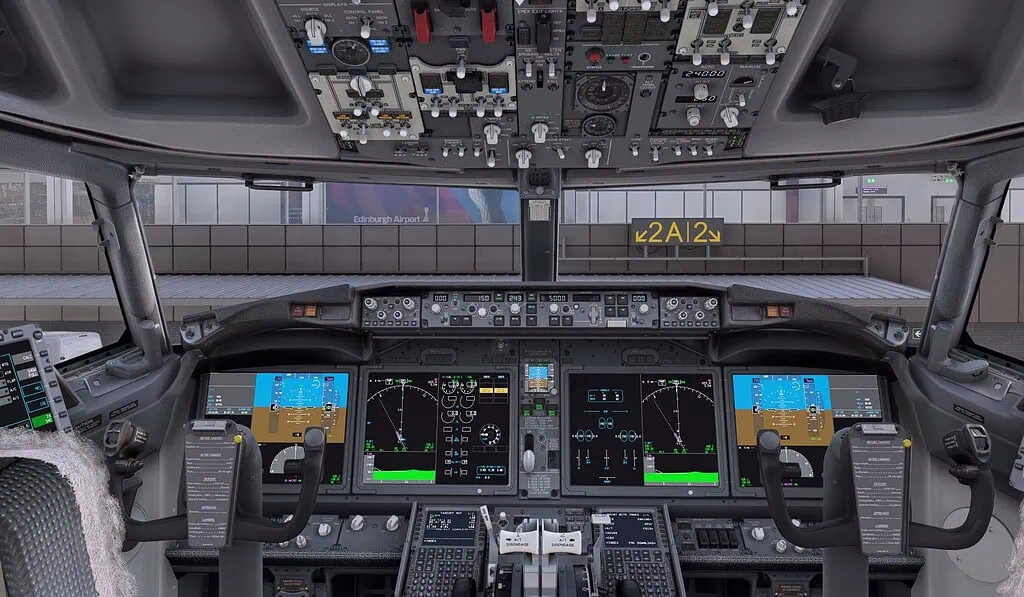
msfs 737 max jump seat

Accidental Control Input Is the Most Common Cause

Autopilot in MSFS will disconnect if it detects manual control input.

Even very small inputs can trigger this.

Common sources include.

• Slight pressure on the joystick or yoke
Rudder pedal movement
• Trim wheel or trim axis input
• Controller stick drift

Check your control axes in the sensitivity menu. If any axis is moving slightly without input, the autopilot will not stay engaged.

Trim Input Can Force Autopilot Off

Trim is a frequent and overlooked trigger.

If trim is bound to an axis or wheel that is constantly moving, the autopilot may immediately disconnect or refuse to engage.

Check for.

• Trim bound to a slider or rotary control
• Duplicate trim bindings across devices
• Trim wheels, sending constant input

Removing trim from analogue axes and using buttons instead often improves autopilot stability.

Conflicting Autopilot Modes

Autopilot logic depends on compatible modes being selected.

If incompatible modes are active at the same time, the autopilot may disengage.

Examples include.

• Engaging VNAV without a valid vertical profile
• Activating LNAV without a defined flight plan
• Selecting altitude modes without a target altitude

Always confirm that a valid flight plan and altitude are set before engaging autopilot.

Speed Protection and Flight Envelope Limits

Autopilot will disengage if the aircraft exceeds safe limits.

This can happen if.

• Airspeed becomes too high or too low
• The aircraft approaches a stall
• Excessive pitch or bank angle occurs

If the aircraft is not properly trimmed or configured, the autopilot may disconnect to protect the flight envelope.

Assistance and AI Controls Interfering

Some assistance features can fight against autopilot logic.

Check that the following are disabled.

• AI piloting assistance
• Auto-trim assistance
• Assisted with takeoff or landing options

Conflicting assistance systems can cause the autopilot to disengage unexpectedly.

Controller Conflicts and Duplicate Bindings

Multiple devices controlling the same inputs can cause autopilot dropouts.

Common conflicts include.

• Joystick and Xbox controller are active at the same time
• Keyboard inputs bound alongside hardware
• Duplicate bindings for pitch, roll, or yaw

Ensure only one device controls each primary flight axis.

Aircraft-Specific Behaviour

Not all aircraft behave the same.

Some add-ons simulate autopilot limitations more strictly than the default aircraft.

If the problem only occurs with one aircraft.

• Test the same flight using a default aircraft
• Review the aircraft’s documentation
• Check whether specific engagement conditions apply

This helps determine whether the issue is general or aircraft-specific.

Why Autopilot Feels Unreliable

Autopilot in MSFS reacts to real-time control inputs, flight conditions, and aircraft logic. Small configuration issues that are unnoticed during manual flight can become obvious when the autopilot is engaged.

Once control inputs are clean and modes are set correctly, autopilot behaviour usually becomes stable and predictable.

Final Thoughts

If MSFS autopilot disconnects randomly, the cause is almost always accidental control input, trim conflicts, incompatible modes, or assistance interference.

Cleaning up control bindings, checking trim behaviour, and ensuring valid autopilot modes are selected will resolve most disconnect issues without reinstalling the simulator.

Real-world autopilot behaviour is governed by strict operating procedures, mode logic, and aircraft limitations that pilots must understand during each phase of flight.

Training resources such as the FAA Instrument Flying Handbook provide detailed explanations of autopilot modes and proper usage, offering valuable real-world context when diagnosing similar behaviour inside the simulator. For a structured approach to diagnosing simulator problems, see the full guide.

MSFS Aircraft Won’t Taxi

Troubleshooting

When MSFS aircraft won’t taxi, it can often prevent even the simplest flight from getting started. This often results in leaving pilots stuck on the runway or parking stand despite correct throttle input.

If you’re still becoming familiar with control bindings, brake configuration, and ground-handling setup, our MSFS 2024 controls and hardware setup guide explains the essential configuration steps that often resolve taxi and movement issues quickly.

In most cases, nothing is broken. Furthermore, ground handling problems are usually caused by control inputs, assistance settings, or hardware configuration rather than a fault with the aircraft itself.

This guide explains why taxiing feels wrong and what usually fixes it.

Common Signs of Taxi Problems

You may notice one or more of the following.

• The aircraft veers left or right as soon as it starts moving
• Small rudder inputs cause large turns
• The aircraft feels overly sensitive on the ground
• The nose wheel does not respond as expected
• Taxiing requires constant correction

These symptoms are almost always configuration-related.

Check for Unintended Rudder or Steering Input

This is the most common cause.

Even a small, constant rudder or steering input can cause the aircraft to pull strongly to one side.

Check the following.

Rudder pedals or twist grip are centred
• No controller axis is partially engaged
• No duplicate bindings exist for rudder or steering

Open the control sensitivity page and watch the rudder axis. If it is moving slightly without input, this will affect taxiing.

Look for Duplicate Control Bindings

MSFS allows multiple devices to control the same function.

If more than one device is bound to rudder or nose wheel steering, inputs can conflict.

Common examples include.

• Rudder bound to both pedals and a joystick twist
• Steering bound to an Xbox controller and pedals
Keyboard rudder inputs are active alongside hardware

Remove duplicate bindings so only one device controls the rudder and steering.

Check Assistance and Auto-Rudder Settings

Assistance settings can interfere with manual ground control.

If auto-rudder or other assistance options are enabled, they can fight against your inputs and cause unexpected behaviour.

In the assistance options, check the following.

• Auto-rudder is disabled for realism
• Takeoff and landing assistance is off
• AI control is not active

For many users, disabling auto-rudder immediately improves taxi control.

Nose Wheel Steering Is Not Always Linked to Rudder

In some aircraft, nose wheel steering behaves differently from rudder control.

This can lead to confusion, especially when switching between aircraft types.

Be aware that.

• Some aircraft require small, gentle inputs
• Large aircraft often have limited steering authority at speed
• Steering sensitivity changes with taxi speed

Keeping taxi speed low makes steering far more predictable.

Taxi Speed Matters More Than You Think

Taxiing too fast exaggerates every steering input.

If the aircraft is moving quickly, even small rudder movements can cause sharp turns.

As a general rule.

• Use minimal throttle
Apply short bursts of power rather than constant thrust
• Use brakes to control speed, not steering

Slow taxi speeds dramatically improve ground handling.

Check Brake and Toe Brake Inputs

Stuck or uneven brakes can cause the aircraft to pull to one side.

Check the following.

• Toe brakes are fully released
• Brake axes are calibrated correctly
• No brake input is being applied unintentionally

Watching brake axis movement in the control settings can reveal hidden inputs.

Test With a Default Aircraft

If the issue only happens with one aircraft, test taxiing using a default aircraft.

This helps determine whether the problem is.

• Aircraft-specific
• Related to custom flight models
• Caused by your general control setup

If the default aircraft taxi normally, the issue may be related to that add-on’s ground handling logic.

Wind Can Affect Taxiing

Strong crosswinds can push aircraft on the ground, especially lighter aircraft.

If conditions are windy, try the following.

• Reduce wind strength temporarily
• Test taxiing in calm weather
• Compare behaviour at different airports

This helps rule out weather-related effects.

Why Taxiing Feels Inconsistent

Ground handling in MSFS depends on several systems working together, including physics, control inputs, assistance settings, and aircraft-specific behaviour. Small changes to any of these can dramatically affect how an aircraft behaves on the ground.

Once your controls are properly configured and assistance settings are consistent, taxiing usually becomes predictable and manageable.

Final Thoughts

If your MSFS aircraft won’t taxi properly or pulls to one side, the cause is almost always unintended control input, duplicate bindings, assistance interference, or excessive taxi speed.

Taking a few minutes to clean up control assignments and slow down taxi speed will usually fix the problem without reinstalling the simulator or changing aircraft.

Ground-handling behaviour in real aircraft depends on brake pressure, throttle response, and correct control configuration, all of which must be checked before taxi. Pilot training references such as the FAA Airplane Flying Handbook explain proper ground operations and braking techniques, providing helpful real-world context when troubleshooting similar taxi issues inside the simulator.

MSFS AI Traffic Not Showing

Troubleshooting

When MSFS AI traffic is not showing, airports can feel empty, and the overall realism of the simulator is reduced, even when live traffic or offline traffic options are enabled. If you’re still learning how simulator settings, online services, and traffic configuration interact. Our Best realistic settings for MSFS 2024 guide explains the key realism and environment options that influence how traffic and world activity appear during flight.

In most cases, AI traffic is not broken. It’s disabled, overridden, or limited by a combination of settings that are easy to miss.

This guide explains why AI traffic disappears and which settings actually make a difference.

Common Signs of AI Traffic Problems

You may notice one or more of the following.

• Airports feel empty even at major hubs
No aircraft taxiing, departing, or arriving
• Only a few static aircraft are parked at the gates
• Traffic appears sometimes but not consistently
ATC seems active, but no aircraft are visible

If this sounds familiar, the cause is usually configuration-related.

PMDG 737 800 underbelly

Understand the Different Traffic Types in MSFS

MSFS offers several traffic systems, and only one can be active at a time.

The main options are.

• Live Real-Time Online Traffic
• AI Offline Traffic
• Third-party traffic add-ons

Mixing these incorrectly or switching between them can result in very little traffic showing up.

Check Your Traffic Type Setting

This is the first setting to verify.

Open General Options and go to Traffic. Look for the Aircraft Traffic Type setting.

Make sure you have selected one of the following.

• Real-Time Online if you want live airline traffic
• AI Offline if you want simulated traffic without live data

If the traffic type is set incorrectly or disabled, airports will appear empty.

Increase AI Traffic Density

Even when AI traffic is enabled, density settings may be limiting it.

In the Traffic settings, check the following.

• Aircraft Traffic Density is set above low values
• Ground Aircraft Density is not set to zero
• Airport Vehicle Density is not masking aircraft visibility

Low-density settings are a very common reason for empty airports.

Live Traffic Requires an Online Connection

If you are using Real-Time Online traffic, MSFS must be connected to online services.

Check the following.

• Online functionality is enabled
• Data connection is active
• Bing data is turned on
• You are not in Offline Mode

If online services drop out, live traffic may stop appearing without warning.

Time of Day and Location Matter

AI traffic depends heavily on real-world schedules and airport activity.

Traffic will be sparse if.

• You are flying very early morning or late night
• The airport has little real-world traffic
• Weather or server data limits activity

Testing at a major airport during local daytime hours is the best way to confirm whether traffic is working.

Third-Party Traffic Add-ons Can Override Default AI

If you use third-party traffic add-ons, they may disable or replace default AI traffic.

This can result in.

• Fewer aircraft than expected
• Traffic only appears at certain airports
• No traffic at all if the add-on is misconfigured

If AI traffic suddenly disappeared after installing an add-on, temporarily disable it and test again.

Multiplayer Traffic Is Not AI Traffic

Multiplayer aircraft are real players, not AI.

If you rely on multiplayer traffic alone, airports may appear empty depending on server population.

For consistent traffic, AI traffic settings must be correctly configured even if multiplayer is enabled.

Restart the Simulator After Changing Traffic Settings

Traffic settings do not always apply immediately.

After making changes, it is best to.

• Fully close MSFS
Restart the simulator
• Load into a busy airport

This ensures all traffic systems initialise correctly.

Why AI Traffic Feels Inconsistent

AI traffic in MSFS depends on several live systems working together. Updates, server load, or changes to online services can temporarily reduce traffic levels.

Even when everything is configured correctly, traffic density may vary from day to day.

Final Thoughts

If MSFS AI traffic is not showing or feels too sparse, the cause is almost always related to traffic type selection, density settings, or online connectivity.

By confirming the correct traffic mode, increasing density, and avoiding conflicts with third-party add-ons, AI traffic usually returns without reinstalling the simulator.

AI and live traffic behaviour can sometimes be affected by server availability, data streaming status, or regional service interruptions rather than local simulator configuration.

Checking real-time aviation traffic sources such as Flightradar24 can help confirm whether aircraft are actively operating in the real world, providing useful context when diagnosing missing traffic inside the simulator.

MSFS Flight Plan Disappears

Troubleshooting

When an MSFS flight plan disappears in Microsoft Flight Simulator, navigation, VNAV guidance, and approach setup can all be affected. This guide explains the most common causes—such as aircraft systems, GPS mode changes, or sim bugs—and provides clear solutions to restore your full route and continue the flight normally.

This issue is surprisingly common and usually isn’t caused by a corrupted save or broken aircraft. In most cases, it comes down to how MSFS handles flight plans between the World Map, avionics, and in-cockpit systems.

This guide explains why it happens and what usually fixes it.

Understanding the phenomenon of ‘MSFS Flight Plan Disappears or Resets Mid-Flight’ is crucial for a smoother flying experience.

Common Signs of This Problem

You may notice one or more of the following.

• Waypoints disappear from the navigation display
Autopilot stops following the planned route
• The aircraft flies straight ahead instead of turning
• The FMC or MCDU shows an empty or partial flight plan
• ATC behaves as if no flight plan exists

Why Flight Plans Reset or Disappear in MSFS

Flight plans in MSFS are fragile because they exist in more than one place at the same time.

MSFS can store a flight plan in
• the World Map
• the aircraft’s FMC or MCDU
• the simulator’s internal navigation system

When these fall out of sync, the flight plan can partially or completely disappear.

Flight simulator cockpit with navigation screen and controls for realistic flying experience.

Most Common Causes

The following are the most frequent triggers.

• changing the flight plan in the World Map after loading into the cockpit
• using the World Map flight plan and also re-entering it in the FMC
• switching aircraft after creating a flight plan
• loading a saved flight mid-route
• ATC changing runways or approaches unexpectedly

Use One Flight Plan Method Only

This is the most important rule.

Choose one method and stick with it.

Option 1
Create the flight plan in the World Map and do not edit it in the FMC.

Option 2
Start with a parking stand or runway with no flight plan, then enter the entire route manually in the FMC or MCDU.

Mixing both methods is one of the main reasons flight plans disappear.

Avoid Editing the World Map After Loading

Once you are in the cockpit, avoid returning to the World Map and making changes.

Doing so can cause
• waypoints to reset
• approaches to be removed
• autopilot logic to break

If you need to change something major, it is often safer to restart the flight.

Be Careful With ATC-Assigned Changes

In some situations, in-game ATC can cause the flight plan to break.

This can happen when
• ATC assigns a new runway or approach
• ATC clears a direct-to waypoint
• the assigned approach conflicts with what is in the FMC

If you notice issues after an ATC instruction, check the flight plan pages in your avionics. Re-selecting the arrival or approach can often restore the route.

Loading Saved Flights Can Cause Issues

Loading a saved flight mid-air is another common trigger.

When a flight is saved, the simulator does not always restore
• FMC data correctly
• autopilot state
• navigation sequencing

If you frequently load mid-flight saves and see flight plans disappearing, this is likely the cause. Whenever possible, complete flights in one session.

Test With a Default Aircraft

If the issue happens repeatedly with one aircraft, test the same route using a default aircraft.

This helps determine whether the problem is
• aircraft-specific
• related to a third-party avionics system
• or a general MSFS behaviour

If the flight plan works correctly in a default aircraft, the issue may be related to that add-on’s FMC logic.

When the Flight Plan Is Already Gone

If your flight plan has already disappeared, try the following.

1 Check whether waypoints still exist in the FMC or MCDU
2 Re-select the arrival or approach
3 Use a direct-to waypoint to re-establish navigation
4 If all else fails, manually re-enter the remaining route

In many cases, the route can be recovered without restarting the flight.

Why This Issue Keeps Coming Back

MSFS continues to evolve, and the interaction between the World Map, avionics, and ATC is still imperfect. Updates can improve one area while temporarily affecting another.

Once you find a workflow that works, sticking to it consistently is the best way to avoid this problem.

Final Thoughts

Real-world navigation relies on verified routing data, updated navigation databases, and correct flight-management system setup to ensure routes remain active throughout a flight. Aviation navigation references such as the ICAO Global Air Navigation Plan help explain how routing data is structured and maintained, offering useful background when diagnosing similar issues inside the simulator.

MSFS ATC Audio Missing

Troubleshooting

When MSFS ATC audio is missing, pilots may see radio messages on screen but hear no controller voices, reducing immersion and making communication harder to follow.

If you’re still becoming familiar with simulator sound settings, device configuration, and communication options, our MSFS 2024 controls and hardware setup guide explains the essential setup steps that often restore proper audio behaviour quickly.

This guide walks through the fixes in the order that solves the issue for most people.

Try These Quick Checks First

Before changing deeper settings, start here.

1 Fully close Microsoft Flight Simulator and restart it
2 Make sure your headset or speakers are connected before launching the sim
3 Temporarily disable Bluetooth headsets and test with wired audio

If ATC audio is still missing or unreliable, continue with the steps below.

Home flight simulator cockpit setup with triple monitors, flight controls, and dedicated PC

Check the ATC Audio Output Device in MSFS

This is the single most common cause of missing ATC audio.

MSFS allows ATC audio to use a different output device than engine and cockpit sounds. If ATC is routed elsewhere, you will hear everything except ATC.

Inside MSFS, go to General Options and open Sound. Check the following.

1 ATC Output Device is set explicitly to your headset or speakers
2 ATC Volume is turned up high enough
3 Text-to-Speech Volume is not set too low

Avoid leaving the output device set to Default, as this often sends ATC audio to the wrong place.

Check Windows Audio Routing and Volume Mixer

Windows can override application audio without warning.

With MSFS running, open the Windows volume mixer and confirm the following.

1 Microsoft Flight Simulator is not muted
2 MSFS is using the correct output device
3 Volume levels are not unusually low

Then open Windows sound settings and verify that your preferred headset or speakers are set as the default output device. If you see unused devices such as HDMI audio or monitor speakers, temporarily disabling them can help prevent Windows from switching outputs automatically.

Fix Headset Communication Mode Issues

USB and Bluetooth headsets are a prevalent cause of ATC audio problems.

When MSFS uses microphone input, Windows may switch the headset into a communications or hands-free mode. This often causes the following.

• ATC audio becomes very quiet
• Audio quality drops noticeably
• ATC cuts in and out during flight

To fix this, open Windows sound settings and check the communications option. Set it to Do nothing so Windows does not automatically lower the volume. If your headset appears twice in the device list, such as a normal version and a hands-free version, disabling the hands-free version often stabilises ATC audio.

ATC Audio Cuts Out During the Flight

If ATC audio works at first but disappears later, the cause is usually related to device changes or power management.

Common triggers include the following.

• Alt-tabbing frequently
• Plugging or unplugging audio devices mid-flight
• USB power saving
• Switching between full screen and windowed mode

To reduce dropouts, disable USB power saving in Device Manager, avoid changing audio devices while the simulator is running, and consider using windowed or borderless mode instead of exclusive full screen.

Check Windows Text-to-Speech Settings

MSFS relies on Windows text-to-speech voices for ATC.

Open Windows speech settings and confirm the following.

1 An English voice is installed
2 The voice works correctly in Windows
3 Speech settings have not been disabled by an update

Switching to a different English voice and restarting MSFS can sometimes restore missing or unreliable ATC audio.

Test Without Add-ons

In some cases, third-party software interferes with ATC audio.

This can include the following.

• Audio enhancement software
• Virtual audio cables
• ATC or radio-related add-ons

Launching MSFS in Safe Mode with a default aircraft is the quickest way to test this. If ATC audio works normally in Safe Mode, re-enable add-ons one at a time until the issue returns.

Why This Happens So Often

ATC audio problems are common because MSFS separates audio channels and closely follows Windows audio routing rules. Even small changes, such as a Windows update, driver update, or headset swap, can disrupt how audio is handled.

Once the correct combination of settings is found, the issue usually remains fixed unless something changes again.

Final Thoughts

If MSFS ATC audio is missing, too quiet, or cutting out, the cause is almost always one of the following.

• ATC routed to the wrong output device
• Windows overriding audio settings
• Headset communication mode issues

Audio playback problems can sometimes be linked to Windows sound-device routing, simulator output selection, or known issues introduced by updates rather than in-sim settings alone. Microsoft’s official Windows sound troubleshooting guidance provides additional diagnostic steps that can help resolve persistent audio problems affecting applications such as Microsoft Flight Simulator.

MSFS Severe Stutters

Troubleshooting

Experiencing MSFS severe stutters can make flying uncomfortable, with sudden pauses, uneven frame pacing, or freezing that disrupts otherwise smooth performance. If you’re still learning how graphics configuration, system optimisation, and simulator settings affect overall smoothness, our MSFS 2024 performance settings guide explains the key adjustments that most often reduce stuttering and improve stability.

In most cases, the simulator is not struggling because of the aircraft itself, but because of sudden spike in data, scenery, and system load as the destination airport is streamed and rendered.

Scenery loading

One of the most common causes is scenery loading. As you approach an airport, MSFS loads high-detail terrain, buildings, airport objects, AI traffic, and ground vehicles simultaneously. If the terrain level of detail or object level of detail is set too high, the system can become overloaded at this stage of the flight.

Reducing these settings slightly can dramatically improve smoothness on approach without noticeably degrading visual quality elsewhere.

AI traffic loading

AI traffic is another frequent contributor. Live traffic, AI aircraft, and ground traffic all increase CPU load, particularly at busy airports. Reducing AI traffic density or temporarily disabling ground vehicles can help stabilise performance during approach and landing.

Memory usage

Memory usage also plays a significant role. Long flights can gradually consume system and video memory, especially when flying through multiple scenery regions. By the time the aircraft reaches its destination, memory usage may already be near its limits. Lowering texture resolution or restarting the simulator before long flights can reduce the likelihood of stutters late in the flight.

Add-ons

Add-ons can worsen this issue, particularly detailed airports, custom terrain meshes, and large photogrammetry cities. If stutters consistently occur when approaching a specific airport, testing the approach using default scenery can help confirm whether the issue is add-on related.

Rolling cache

Rolling cache behaviour can also affect performance. A corrupted or oversized rolling cache may cause pauses when scenery is loaded. Disabling the rolling cache or recreating it from scratch can resolve sudden freezing or stuttering near airports.

Network condition

Network conditions should not be ignored. MSFS streams large amounts of data streaming during approach, and any interruption or slowdown in data streaming can result in visible stutters. This can happen even on otherwise fast connections. Testing with photogrammetry disabled or flying in offline mode can help determine whether network streaming is a contributing factor.

Background applications

Background applications can also cause brief freezes when the system is under heavy load. Applications that access the disk or network, such as antivirus software or cloud syncing tools, can interfere at critical moments during approach. Closing unnecessary background processes before flying can help maintain smooth performance.

Severe stuttering in simulation software is often related to background processes, driver configuration, or hardware resource limits rather than a single in-sim setting. Graphics-driver guidance from manufacturers such as NVIDIA support can provide additional optimisation steps and troubleshooting advice when investigating persistent performance interruptions. Consult the MSFS 2024 troubleshooting guide for deeper investigation and fixes.

MSFS Controls Not Responding or Reset After Update

Troubleshooting

When MSFS controls are not responding or reset after an issue, pilots may find previously working yokes, throttles, or keyboard bindings suddenly unresponsive or returned to default settings. If you’re still becoming familiar with controller configuration, input profiles, and hardware setup inside the simulator, our MSFS 2024 controls and hardware setup guide explains the essential steps that help restore stable control behaviour and prevent future reset problems.

Flight simulator update

In most cases, the sim update has not permanently broken your controls. What has happened instead is that control profiles have been reset, overwritten, or confused by changes made during the update process. Understanding this concept can help you find why the MSFS Controls Not Responding or resetting after an update.

One of the most common causes is that MSFS creates a new default control profile after an update. When this happens, the SIM may switch away from your custom profile without clearly showing it. The controls may appear connected, but no longer respond as expected. Opening the Controls Options menu and confirming that your custom profile is selected for each device often resolves this immediately, fixing the issue known as MSFS Controls Not Responding or Resetting After Update.

Duplicate bindings

Another frequent cause is duplicate bindings. After an update, MSFS may assign default bindings on top of existing ones, especially if you have multiple controllers connected. When more than one device is bound to the same control input, the sim may ignore all inputs or behave erratically. Reviewing each connected device and removing duplicate assignments can restore normal operation.

Windows power management

Windows power management is another common culprit. Updates can re-enable USB power-saving features that allow Windows to suspend USB devices to save energy. When this happens, flight controls may disconnect or stop responding mid-session or fail to initialise properly at startup. Disabling USB power saving for all flight control devices in Windows Device Manager often fixes this problem permanently.

Control profiles

Control profiles can also become corrupted during updates. This may result in profiles disappearing, wont load, or resetting every time the sim starts. Creating a fresh profile and reassigning controls can resolve this, even though it is frustrating. Backing up control profiles before major updates can save significant time in the future.

In some cases, MSFS may misidentify a controller after an update. This can happen when device IDs change or when firmware updates occur automatically. The simulator may treat the controller as a new device, resulting in lost or mismatched bindings. Rebinding the controls or reconnecting the device to a different USB port can help the SIM recognise it correctly.

External software

External software can also interfere with control inputs after updates. Tools such as joystick managers, calibration utilities, or background controller software may conflict with MSFS, especially if they were not updated alongside the simulator. Temporarily disabling these tools can help determine whether they are causing the issue.

Occasionally, the issue is caused by the simulator loading before all USB devices have fully initialised. Starting MSFS after all controllers are connected and recognised by Windows, rather than plugging them in after the sim has launched, can prevent this behaviour.

Control-profile resets and input detection problems can sometimes be caused by driver updates, USB power management, or Windows device-configuration changes rather than simulator faults alone. Microsoft’s official Windows device troubleshooting documentation provides additional diagnostic steps that can help resolve persistent controller-recognition issues affecting applications such as Microsoft Flight Simulator.