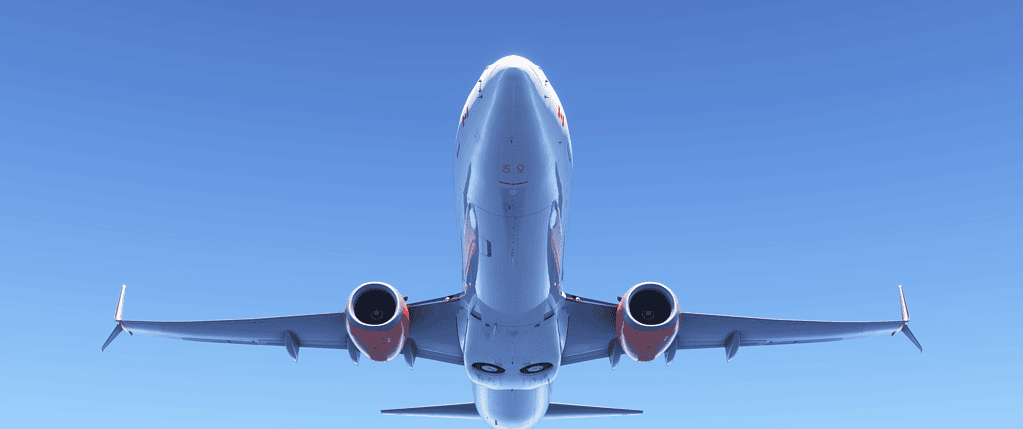
MSFS Loading Takes Forever

Troubleshooting

When MSFS loading takes forever, starting a flight can become frustrating, with long waits before reaching the main menu or entering the cockpit. If you’re still learning how system performance, storage speed, and simulator configuration influence startup times, our MSFS 2024 performance settings guide explains the key optimisation steps that can significantly reduce loading delays and improve overall responsiveness.

In most cases, the simulator has not crashed. It is stuck waiting for something in the background, and with the right steps, the problem can usually be resolved. For those experiencing problems, it is essential to recognise that the term ‘MSFS Loading Takes Forever or Freezes on Startup‘ captures the frustration many users endure, which can be resolved with appropriate troubleshooting.

Understanding the issue of MSFS Loading Takes Forever or Freezes on Startup can help users troubleshoot effectively.
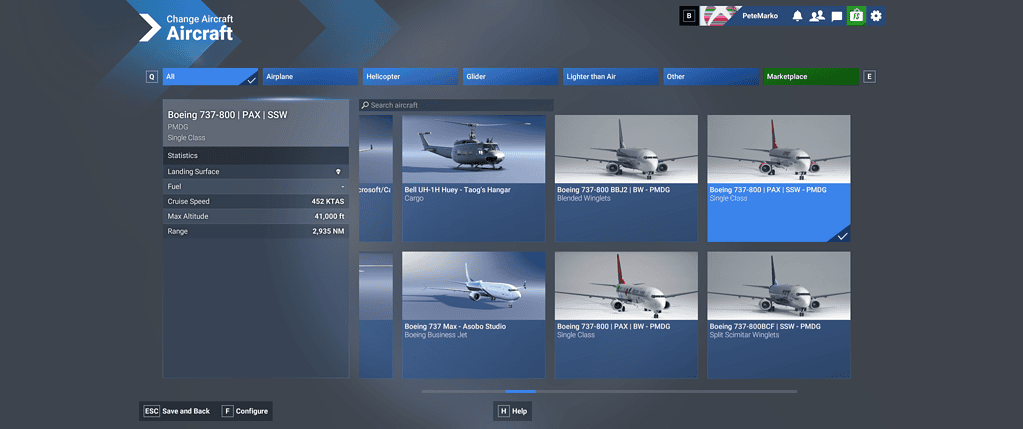
msfs-aircraft aircaft selection livieries

Add-ons

One of the most common causes is add-ons loading incorrectly. MSFS loads everything in the Community folder during startup, and a single outdated or broken add-on can cause the simulator to stall indefinitely. This is especially common after simulator updates. Temporarily removing all add-ons from the Community folder and starting the sim again is one of the fastest ways to confirm whether this is the cause. If the sim loads normally with an empty Community folder, the issue is almost certainly add-on related.

Rolling cache

Another frequent cause is the rolling cache. A corrupted rolling cache can slow loading dramatically or cause the simulator to appear frozen. Disabling the rolling cache in the simulator settings, restarting the sim, and then re-enabling it often resolves this issue. In some cases, leaving it disabled entirely produces better results, particularly on fast SSD systems.

Internet connectivity

Internet connectivity also plays a role during startup. MSFS streams data during loading, and slow, unstable, or interrupted connections can cause the sim to stall without showing an error. This can happen even if your internet connection appears to be working normally for web browsing. Restarting your router, temporarily disabling VPNs, or starting the sim in offline mode can help identify whether online services are contributing to the delay.

Internet connectivity

Internet connectivity issues are another common factor. After Windows updates or GPU driver updates, MSFS may take significantly longer to load or freeze entirely. Performing a clean installation of your graphics drivers and restarting the system can resolve these conflicts. Overclocked GPUs and CPUs can also cause instability during startup, even if they appear stable in other applications.

Sometimes the simulator is not actually frozen, but is processing a very large amount of data in the background. This is common after major updates when the simulator rebuilds caches or verifies content. Checking system activity using Task Manager can help determine whether MSFS is still actively using CPU, disk, or network resources. If activity is present, waiting a few extra minutes may allow the sim to finish loading.

Corrupted simulator files

Corrupted simulator files can also cause startup freezes. Running the built-in file verification through the Xbox app or Steam can detect and repair missing or damaged files. In more severe cases, deleting the local cache files while keeping the main installation intact can restore normal loading behaviour without requiring a full reinstall.

In rare cases, peripherals and controller drivers can interfere with startup. Faulty USB devices, outdated drivers, or duplicate controller profiles can cause the simulator to hang during initialisation. Disconnecting non-essential devices and testing again can help isolate this problem.

If none of these steps resolve the issue, restarting the system and launching the simulator with default settings is recommended. A full reinstall should be considered only as a last resort, as most loading and freezing issues can be traced to add-ons, cache problems, drivers, or connectivity rather than the simulator itself.

Extremely long loading times are often connected to disk performance, background applications, or corrupted cached data rather than graphics settings alone. Microsoft’s official Windows performance troubleshooting resources provide additional guidance on improving system responsiveness, which can also help reduce loading delays in demanding applications like Microsoft Flight Simulator.

MSFS Autopilot Not Following Flight Plan

When the MSFS autopilot is not following the flight plan becomes a problem; the aircraft may drift off course, ignore waypoints, or fail to track the programmed route correctly. If you’re still learning how navigation setup, routing logic, and aircraft configuration interact, our How to plan better flights guide explains the preparation steps that help ensure autopilot systems follow the intended flight path from departure to arrival.

In most cases, the autopilot is not broken. What is happening instead is that the aircraft is doing exactly what it has been told to do. Often, even if that is not what the pilot expected.

Autopilot common issues

One of the most common causes is that the autopilot is engaged but is following heading mode rather than navigation mode. When this happens, the aircraft will continue on the selected heading and completely ignore the flight plan.

To fix this, the navigation or LNAV mode must be engaged, and the navigation source must be set to GPS or FMS. If the display shows heading mode instead of navigation mode, the aircraft will not follow the magenta route. This can lead to the MSFS Autopilot Not Following Flight Plan issue.

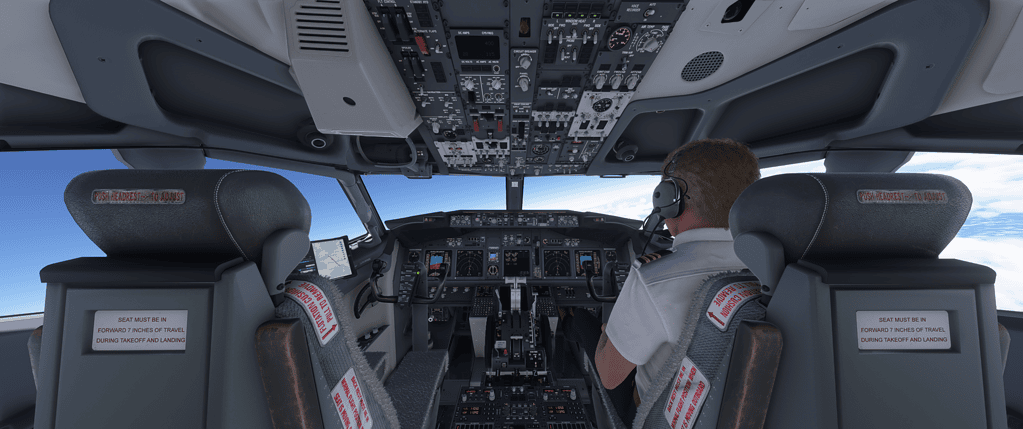
PMDG Boeing 737-800 Jumpseat

Autopilot too early

Another frequent cause is engaging the autopilot too early after takeoff. Many aircraft require a stable climb before the autopilot can correctly capture the flight plan. If the autopilot is activated while the aircraft is still accelerating, banking, or correcting pitch, it can behave erratically. Hand-flying the aircraft until it is stable and then engaging the autopilot usually resolves this.

Problems can also originate from the flight plan itself, especially when it is created in the World Map. Complex procedures, disconnected waypoints, or incompatible approaches can confuse the autopilot. Simplifying the flight plan, removing the approach, or flying direct to the first waypoint can help isolate whether the issue is route-related.

Autopilot logic

When flying advanced add-on aircraft, the autopilot logic often differs significantly from that of the default aircraft. Furthermore, these aircraft require the flight plan to be properly entered and activated in the flight management computer. And changes usually need to be executed before they take effect. If the route is not active in the FMC, the autopilot will not follow it, even if it appears correct on the map.

Navigation source

Another common issue is the navigation source being set incorrectly. Also, if the aircraft is set to follow a VOR or localiser rather than GPS or FMS. Furthermore, it will never track the programmed route. Checking the navigation source on the primary flight display is an important step whenever the autopilot does not behave as expected.

Hardware

Hardware can also interfere with the autopilot. Duplicate bindings, noisy axes, or trim inputs from yokes. Also, joysticks, or trim wheels, can override the autopilot without the user realising it. Removing duplicate bindings and temporarily disconnecting unused controllers can help identify this problem.

Simulator update

Real-world autopilot navigation depends on accurate flight-management system programming. Also, valid navigation databases and correct mode selection during each phase of flight. Aviation training references such as the FAA Instrument Flying Handbook explain how autopilot navigation should behave. That provides useful real-world context when diagnosing similar routing problems inside the simulator.

MSFS 2024 Long Loading Times

Experiencing MSFS 2024’s long loading times can delay the start of a flight and reduce overall enjoyment, especially when the simulator takes several minutes to reach the main menu or load into the cockpit. If you’re still learning how hardware performance, storage speed, and simulator configuration influence startup behaviour, our MSFS 2024 performance settings guide explains the optimisation steps that most often reduce loading delays and improve responsiveness.

Common experiences include:

  • Very long startup times
  • The simulator appears frozen on launch
  • A black screen appears before the main menu appears
  • The SIM eventually loads after several minutes

Because there’s often no clear indication of progress, it’s easy to assume something has gone wrong.

This article explains why long load times and black screens are common in MSFS 2024, what’s usually happening behind the scenes, and what has helped many users get through it.

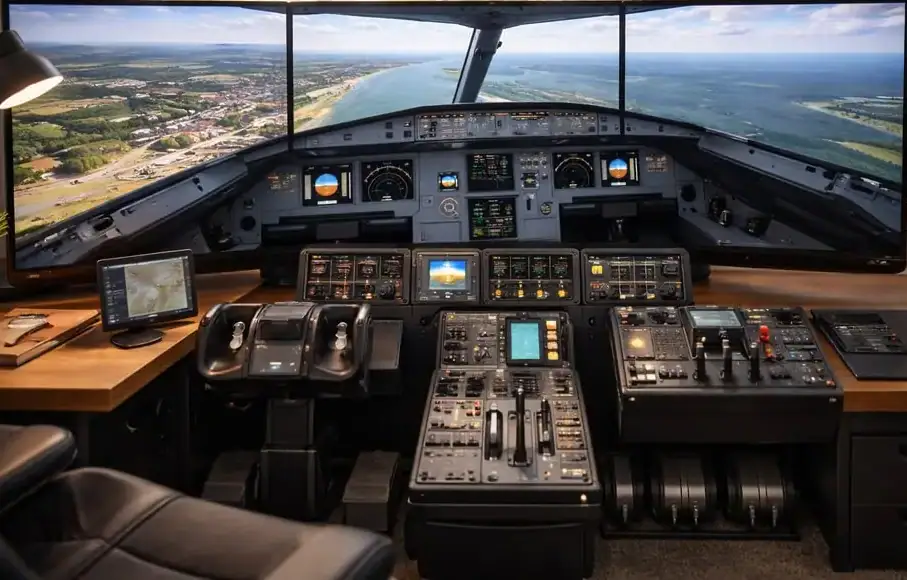
Home flight simulator cockpit setup with triple monitors, flight controls, and dedicated PC

A quick note before we start

Long loading times do not automatically mean the simulator is broken.

MSFS 2024 performs a significant amount of work during startup, including content checks, data validation, and background loading. Much of this activity isn’t clearly shown to the user.

The goal here is to help you understand what’s normal, what’s not, and when intervention is actually worthwhile.

Why does MSFS 2024 take so long to load

Compared to many games, MSFS 2024 does far more during startup.

At launch, the simulator may:

  • Check installed content and add-ons
  • Verify packages and licences
  • Initialise weather and online services
  • Prepare scenery and aircraft data

All of this can take time, especially after updates or configuration changes.

Common reasons a startup feels stuck

First launch after an update

The first launch after a simulator update is often the slowest. Content verification and background rebuilding can significantly increase load times.

Large numbers of add-ons

The more add-ons installed, the longer the simulator takes to scan and initialise them during startup.

Online services are initialising slowly

If online services are slow or temporarily unavailable, the simulator may pause while waiting for responses, even if no error is shown.

Cached data is being rebuilt

Occasionally, cached data is rebuilt during startup. This process can appear as a stall, even though progress is happening quietly.

System performance and storage speed

Startup performance is heavily influenced by storage speed. Slower drives can dramatically increase load times during data verification.

What has helped many users (but not all)

The following steps have helped a large number of users reduce startup delays or avoid black screens. Results vary, but these are sensible checks.

Be patient on first launch

If disk activity is visible, the simulator is often still working. Waiting a few extra minutes can sometimes be all that’s required.

Restart once if the startup truly stalls

If there’s no visible activity for an extended period, restarting the simulator can allow it to recover or proceed normally.

Test without add-ons

Temporarily removing add-ons can help determine whether startup delays are related to third-party content.

Avoid repeated forced restarts

Repeatedly closing and reopening the simulator can slow things down rather than help, especially during background checks.

Expect longer loads after changes

Updates, new add-ons, or configuration changes often increase load times temporarily.

Why does startup behaviour vary so much between users

Two systems with similar specifications can behave very differently due to:

  • Number and type of installed add-ons
  • Storage configuration
  • Network conditions
  • Previous installation history

This is why some users report instant loads while others wait several minutes.

When a black screen is probably not a crash

If:

  • The simulator eventually loads
  • No error messages appear
  • System activity continues

…it’s likely the SIM is still initialising rather than crashing.

True crashes usually result in the simulator closing completely.

A helpful way to think about startup delays

A useful mindset is this:

MSFS 2024 front-loads work that many games do later.

Understanding that makes long startup times less alarming — especially after updates.

Closing thought

Long loading times and black screens at startup can be frustrating, particularly when there’s little feedback from the simulator. In most cases, these delays are part of MSFS 2024 preparing a very complex environment rather than a sign of failure.

Persistent loading delays are frequently related to disk speed, background processes, or corrupted temporary data rather than graphics configuration alone. Microsoft’s official Windows storage and performance guidance provides additional troubleshooting steps that can help improve system responsiveness for demanding applications such as Microsoft Flight Simulator.

Your window seat to the skies.

Blurry or Washed-Out Graphics in MSFS 2024

Graphics & Performance

Experiencing blurry or washed-out graphics in MSFS 2024 can make scenery appear soft, colours look faded, and cockpit details lose clarity, reducing the overall visual realism of the simulator.

If you’re still learning how rendering options, resolution scaling, and image-quality settings interact, our MSFS 2024 graphics settings guide explains the key adjustments that most often restore sharp visuals and natural colour balance.

Many users report:

  • Distant scenery looks smeared
  • Cockpit text lacking sharpness
  • Colours appear washed out
  • The sim is looking worse than expected on good hardware

This can be particularly frustrating because MSFS 2024 is known for its visual quality — so when things don’t look right, it’s natural to assume something is broken.

This article explains why image softness and blur are common in MSFS 2024, what’s usually happening behind the scenes, and what has helped many users improve clarity.

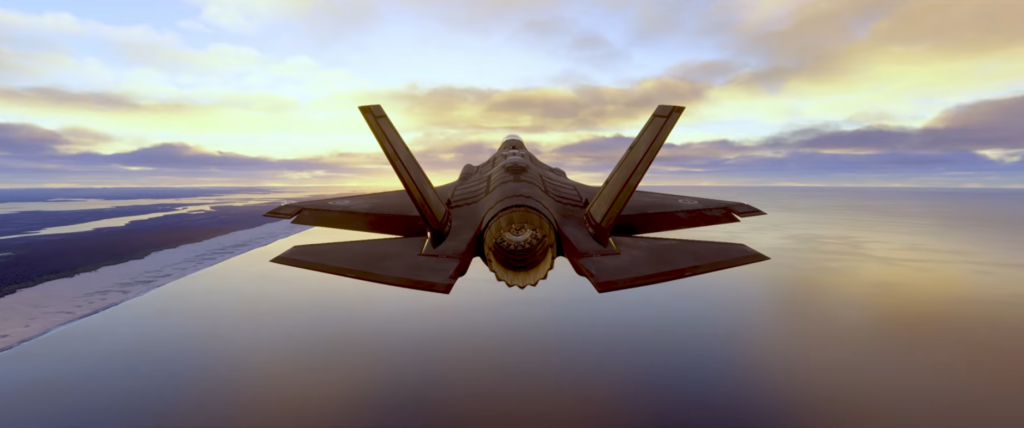
F-35 Jet in flight Rear View

A quick note before we start

There is no single “correct” visual setup.

Visual clarity depends on:

  • Resolution and scaling
  • Display type and size
  • Performance headroom
  • Personal preference

The goal isn’t maximum sharpness at all costs, but a clear, stable image that looks natural while flying.

Why MSFS 2024 can look blurry by default

Out of the box, MSFS 2024 prioritises smooth performance across a wide range of systems. To achieve that, it uses several techniques that can reduce sharpness under certain conditions.

These choices are sensible for performance, but they don’t always suit every setup.

Common reasons the image looks soft or washed out

Resolution scaling

If render scaling is set below 100%, the simulator renders the image at a lower resolution and scales it up. This can significantly reduce clarity, especially in cockpits.

Temporal upscaling and smoothing

Modern upscaling techniques improve performance, but they can introduce softness, particularly during movement or camera panning.

Anti-aliasing trade-offs

Some anti-aliasing methods reduce jagged edges at the cost of sharpness. The balance between smooth edges and crisp detail isn’t always ideal by default.

Display and colour settings

Monitor calibration, HDR, and colour profiles can dramatically affect how the simulator looks. Washed-out colours are often caused by display configuration rather than the simulator itself.

Performance constraints

When the simulator is under heavy load, visual compromises may increase dynamically to maintain frame rate.

What has helped many users (but not all)

The following adjustments have improved visual clarity for a large number of people. Results vary, but these are sensible areas to explore.

Check render scaling first

Ensuring render scaling is set to 100% is one of the most impactful changes for image clarity, especially in the cockpit.

Balance anti-aliasing carefully

Different anti-aliasing options suit different systems. Testing alternatives can improve sharpness without introducing distracting artefacts.

Avoid chasing extreme sharpness

Excessive sharpening can introduce shimmer and instability, especially during motion. Subtle improvements are usually more effective.

Verify display settings

Check that your monitor’s resolution, refresh rate, and colour settings match expectations. Incorrect display configuration can make even a perfectly rendered image look dull.

Make changes gradually

Small adjustments followed by short test flights are far more effective than changing many settings at once.

Why visuals sometimes change after updates

Simulator updates can:

This can make the sim look different overnight, even if you haven’t changed anything yourself.

Revisiting visual settings after major updates is often necessary.

A helpful way to think about visual clarity

A useful mindset is this:

MSFS 2024 trades absolute sharpness for stability and performance by default.

Understanding that makes it easier to tune the sim toward your own preferences rather than chasing someone else’s ideal settings.

When it’s best to stop tweaking

If:

…it’s often better to stop adjusting rather than endlessly chasing perfection.

Flight simulation visuals are about immersion, not pixel inspection.

Closing thought

Blur or softness in MSFS 2024 is rarely a fault with your hardware. In most cases, it’s the result of sensible default settings designed to suit a wide audience.

With a bit of understanding and gentle adjustment, most users can achieve a clear, pleasing image that makes flying enjoyable again.

Visual clarity issues can sometimes be influenced by graphics-driver settings, display calibration, or resolution scaling outside the simulator itself. Official optimisation and configuration guidance from NVIDIA support can provide additional steps for improving image sharpness and colour accuracy in demanding 3D applications such as Microsoft Flight Simulator.

Your window seat to the skies

MSFS 2024 Controls Feel Too Sensitive

Troubleshooting

When MSFS 2024 controls feel too sensitive, aircraft can become difficult to handle, with small inputs causing exaggerated pitch, roll, or yaw movements that reduce flying precision. If you’re still learning how sensitivity curves, dead zones, and controller calibration influence aircraft handling, our MSFS 2024 controls and hardware setup guide explains the key configuration steps that help achieve smoother, more realistic control response.

Many users report:

  • Aircraft reacting too quickly to small inputs
  • Difficulty holding altitude or heading
  • Over-correction during approach and landing
  • A general feeling that the aircraft is “nervous.”

This can be frustrating, especially if you’re using quality hardware and expect more realistic handling.

This article explains why control sensitivity issues are so common in MSFS 2024, what’s usually going on, and what has helped many users achieve smoother, more predictable control.

Flight Simulation Showcase - Home cockpit

A quick note before we start

There is no single perfect sensitivity setting.

Control behaviour depends on:

  • the type of controller you’re using
  • aircraft type
  • personal flying style
  • camera and view behaviour

The goal isn’t to eliminate all sensitivity — it’s to make the simulator feel controllable and natural.

Why MSFS 2024 controls feel twitchy by default

Out of the box, MSFS 2024 is designed to accommodate a wide range of hardware, from game controllers to full cockpit setups.

As a result, default sensitivity settings often:

  • Prioritise responsiveness
  • Assume limited controller travel
  • Favour casual users

For many flight sim enthusiasts, this leads to inputs feeling too aggressive.

Common reasons control inputs feel unstable

Short controller travel

Many joysticks and yokes have limited physical movement. Small real-world movements can translate into large control changes in the simulator.

Default sensitivity curves

Default curves are often linear, meaning the simulator responds equally across the entire range of movement. This can make fine adjustments difficult.

Aircraft behaviour differences

Some aircraft are naturally more responsive than others. A light aircraft will feel very different from a heavy jet, even with the same controller settings.

Camera and view movement

Camera shake or head movement can exaggerate the feeling of instability, making the aircraft seem harder to control than it actually is.

What has helped many users (but not all)

The steps below have helped a large number of simmers achieve smoother, more realistic control. Results vary, but these are sensible places to start.

Reduce sensitivity rather than increase dead zones

Lowering sensitivity allows for finer control around the centre without making the controls feel unresponsive.

Large dead zones can hide input rather than improve precision.

Use gentle response curves

Softer curves near the centre of travel help with small corrections while preserving full control authority at the extremes.

This is especially helpful during approach and landing.

Adjust per-aircraft if needed

Different aircraft often benefit from different sensitivity profiles. What feels right for a light aircraft may feel wrong for a jet.

Creating separate profiles can make a noticeable difference.

Check camera and head movement settings

Reducing camera shake or excessive head movement can make control inputs feel more stable and predictable.

Make one change at a time

Changing multiple settings at once makes it difficult to tell what actually helped. Small adjustments followed by short test flights are far more effective.

Why does online advice often conflicts

You’ll often see wildly different sensitivity recommendations online. That’s because:

  • Hardware varies greatly
  • Flying styles differ
  • Some users prefer responsiveness, others smoothness

What works perfectly for one setup may feel terrible on another.

When controls feel worse after updates

Occasionally, simulator updates can reset or subtly alter control behaviour. If controls suddenly feel different after an update, it’s worth revisiting sensitivity settings rather than assuming something has broken.

A helpful way to think about control tuning

A useful mindset is this:

You’re tuning feel, not chasing realism numbers.

If the aircraft feels controllable and predictable, the settings are doing their job — even if they don’t match someone else’s values.

Closing thought

Twitchy or overly sensitive controls in MSFS 2024 are rarely a fault with your hardware or technique. In most cases, they’re the result of generic default settings trying to suit too many users at once.

With a bit of adjustment and patience, most users can achieve smooth, confidence-inspiring control that makes flying far more enjoyable.

Control sensitivity in real aircraft is carefully balanced through aerodynamic design, trim systems, and pilot technique rather than software curves alone. Pilot training references such as the FAA Airplane Flying Handbook explain how control inputs should feel during normal flight, offering helpful real-world context when adjusting simulator sensitivity settings

Your window seat to the skies.

Fix MSFS 2024 Installation Stuck

Troubleshooting

Fix the MSFS 2024 installation stuck. If the Microsoft Flight Simulator 2024 installation becomes stuck or stops progressing, it can prevent you from launching the simulator at all. This guide explains the most common causes—such as network issues, corrupted downloads, or storage problems—and provides clear troubleshooting steps to complete the installation successfully.

Common experiences include:

For many users, it feels like the installer has simply broken — especially when there’s little feedback about what’s happening.

This article explains why installation issues are so common in MSFS 2024, what’s usually going on behind the scenes, and what has helped many users get through the process.

A quick note before we start

There is no single fix that works for everyone.

MSFS 2024’s installation process involves large downloads, decompression, verification, and streaming components. What looks like a failure is often the installer struggling — or taking longer than expected — rather than being completely stuck.

The aim here is to reduce frustration and help you decide when to wait, when to intervene, and when to try a different approach.

Why MSFS 2024 installation feels unreliable

Unlike many games, MSFS 2024 installs and verifies a huge amount of data dynamically.

During installation, the simulator may:

  • Download large packages
  • Decompress files in the background
  • Verify existing content
  • Pause visually while still working

Unfortunately, the installer does not always communicate this clearly, which makes normal behaviour look like a fault.

Common reasons installation appears stuck or loops

Decompression is taking longer than expected

After downloads complete, MSFS 2024 may spend a long time decompressing files. During this phase, progress bars can appear frozen even though disk activity is still ongoing.

On some systems, this stage can take far longer than expected.

Partial or corrupted downloads

If a file fails verification, the installer may silently retry it. This can create the impression of a loop, especially if the same package is repeatedly rechecked.

Background bandwidth or disk limitations

Other downloads, background applications, or slow storage can interrupt or delay installation. Even brief interruptions can force the installer to repeat steps.

Antivirus or security software interference

Some security tools interfere with file creation or verification, which can cause stalls or repeated retries during installation.

Existing content conflicts

Previous installations or partially removed content can confuse the installer, particularly if files are spread across multiple drives.

What has helped many users (but not all)

The steps below have helped a large number of people get past installation problems. Results vary, but these are sensible places to start.

Give it more time than you expect

If disk activity is ongoing, the installer is often still working even if progress appears frozen. Waiting can sometimes be the simplest solution.

Restart the installer calmly

If progress truly hasn’t changed for an extended period, closing and restarting the installer can allow it to resume or re-verify files correctly.

Pause other heavy activity

Temporarily stopping other downloads or disk-intensive tasks can help the installer complete verification and decompression stages.

Check available storage space

Ensure there is plenty of free space on the drive where MSFS 2024 is installing. Decompression often requires additional temporary space.

Temporarily disable aggressive antivirus scanning

Some users report improved installation reliability when real-time scanning is briefly paused. If you try this, re-enable protection immediately afterward.

Be cautious about reinstalling repeatedly reinstalling

Repeated full reinstalls can increase frustration without addressing the underlying issue. It’s often better to work with the existing installation first.

Why does installation behaviour vary so much

Two users with similar systems can have very different installation experiences due to:

  • internet stability
  • storage speed and configuration
  • background software
  • previous installation history

This is why advice online often seems contradictory — different systems encounter different bottlenecks.

When waiting is the right choice

If:

  • Progress is slow but not completely stalled
  • Disk or network activity is visible
  • The installer hasn’t thrown an error

…it’s often best to let the process continue rather than repeatedly interrupting it.

Many installations that look “stuck” eventually complete successfully.

A helpful way to think about an MSFS 2024 installation

A useful mindset is this:

If the installer is working silently, an interruption often causes more problems than patience.

Understanding that can prevent unnecessary reinstalls and repeated frustration.

Closing thought

Installing MSFS 2024 can be one of the most trying parts of the experience, especially when the installer’s feedback is limited.

While installation issues are understandably frustrating, they are rarely permanent. In most cases, a combination of patience, small adjustments, and careful restarts is enough to get things moving again. A full breakdown of common MSFS 2024 issues can be found in our troubleshooting guide.

Your window seat to the skies.

MSFS 2024 Add-ons Not Showing

Troubleshooting

When MSFS 2024 add-ons are not showing, installed aircraft, scenery, or liveries may fail to appear in the simulator, even though the files seem to be correctly downloaded. If you’re still becoming familiar with content installation, folder structure, and simulator configuration, our Microsoft Flight Simulator beginner’s guide explains the essential setup steps that often resolve missing add-on issues more quickly.

Add-on issues are one of the most common frustrations in MSFS 2024, particularly for users coming from earlier versions of the simulator.

This article explains why add-ons sometimes fail to appear or function, what’s usually going on behind the scenes, and what has helped many users get things working again.

A quick note before we start

There is no single fix that works for everyone.

MSFS 2024 handles add-ons differently from previous versions, and behaviour can vary depending on how content is installed, updated, and loaded.

The aim here isn’t to promise a guaranteed solution. It’s to help you understand the most common causes and work through them logically, without unnecessary frustration.

In most cases, missing or broken add-ons are not “gone” — they’re simply not being loaded.

This usually comes down to how MSFS 2024 manages content and compatibility.

Common reasons add-ons don’t show or don’t work

Add-on compatibility

Not all add-ons built for earlier simulator versions are immediately compatible with MSFS 2024.

After major updates, previously working aircraft or scenery may:

  • fail to load
  • partially load
  • cause features to break silently

This doesn’t necessarily mean the add-on is bad — it often just needs updating.

Installation location confusion

MSFS 2024 may use different content paths depending on how and where it was installed.

If add-ons are placed in the wrong folder, the simulator simply won’t see them.

This is especially common for users who:

  • reinstalled the sim
  • moved storage drives
  • migrated from an earlier version

Content manager vs Community add-ons

Some content is managed internally by the simulator, while other add-ons rely on external folders.

If content is disabled in the simulator’s content manager, it may appear “installed” but not load in flight.

Updates, resetting or changing behaviour

Simulator updates can temporarily disable or bypass certain add-ons while the system stabilises.

This can make it appear as though add-ons have disappeared, even though they’re still present.

Conflicts between add-ons

Occasionally, two add-ons try to modify the same system, airport, or aircraft behaviour.

When that happens, one may fail to load — or both may behave unpredictably.

What has helped many users (but not all)

The steps below have resolved add-on issues for a large number of people. Results vary, but these are sensible places to start.

Confirm add-on compatibility

Check whether the add-on has been updated specifically for MSFS 2024.

If it hasn’t, it may not function correctly until the developer releases a compatible version.

Verify installation paths

Make sure add-ons are installed in the correct location expected by MSFS 2024.

If you use an add-on manager, confirm it’s pointing to the correct folders.

Test with add-ons temporarily removed

Temporarily disabling add-ons can help determine whether the simulator itself is working correctly.

If the sim runs normally without add-ons, reintroducing them gradually can help identify the problem.

Check the simulator’s content manager

Ensure any installed content is enabled and up to date within the simulator itself.

Sometimes content appears installed but is inactive.

Restart between changes

MSFS 2024 does not always fully reload content within the same session.

Restarting between tests helps ensure results are accurate.

Why add-on behaviour feels inconsistent

Many users notice that:

  • One add-on works while another doesn’t
  • . The same add-on behaves differently after updates
  • Issues appear and disappear without obvious changes

This usually reflects changes in how the simulator loads content dynamically, rather than user error.

Because MSFS 2024 is constantly evolving, add-on compatibility is a moving target.

When it’s best to wait rather than troubleshoot

If add-ons:

  • stopped working immediately after a simulator update
  • previously worked without issue
  • show no obvious installation problems

…it’s often best to wait for updates rather than repeatedly reinstalling or reconfiguring.

Many issues resolve themselves once add-ons catch up with simulator changes.

A helpful way to think about add-ons in MSFS 2024

A useful mindset is this:

When add-ons don’t work, assume compatibility first — not installation failure.

Most problems are temporary mismatches rather than permanent breakage.

Closing thought

Add-ons are a huge part of what makes flight simulation enjoyable, but they also add complexity.

When something doesn’t appear or stops working in MSFS 2024, it’s rarely a personal mistake. More often, it’s the result of a complex system adjusting to change.

Missing add-ons are sometimes caused by incorrect Community folder locations, version mismatches, or permission restrictions rather than download failures alone. The official Microsoft Flight Simulator support portal provides updated troubleshooting guidance and installation advice, making it a useful reference when diagnosing persistent add-on visibility problems.

Your window seat to the skies.

MSFS 2024 Keeps Crashing to Desktop

Troubleshooting

When MSFS 2024 keeps crashing to the desktop, flights may end unexpectedly during loading, taxi, or cruise, making the simulator unreliable and frustrating to use. If you’re still learning how performance settings, add-on compatibility, and system stability interact, our MSFS 2024 performance settings guide explains the optimisation steps that most often reduce crashes and improve overall simulator reliability.

Crash-to-desktop issues (often shortened to CTDs) are one of the most frustrating problems in flight simulation. They feel abrupt, unpredictable, and difficult to diagnose — especially when everything seemed fine moments earlier.

This article explains what a CTD usually means in MSFS 2024, why crashes often feel random, and what has helped many users reduce or resolve them.

A quick note before we start

There is no single fix that works for everyone.

MSFS 2024 is a large, complex simulator that streams data, loads scenery dynamically, and interacts with drivers, add-ons, and background software. A CTD is rarely caused by just one thing.

The aim here isn’t to promise a guaranteed solution. It’s to help you understand the common causes and work through them logically, without endless trial and error.

Flight Simulation Showcase - Home cockpit

What a CTD actually is

A crash to desktop means the simulator has encountered something it can’t safely recover from, so it closes itself instead of continuing in an unstable state.

Importantly, a CTD does not always mean:

  • Your system is too weak
  • Your settings are “wrong.”
  • You did something incorrectly

Often, it simply means the simulator hit a conflict or error it wasn’t prepared to handle.

Why CTDs feel so random

Many users report crashes that:

  • happen at different points in a flight
  • occur only in certain locations
  • appear after an update
  • disappear and then return later

This unpredictability usually comes from the way MSFS 2024 loads content dynamically. Scenery, textures, traffic, weather, and add-ons are constantly being loaded and unloaded in the background. A problem may only surface when a very specific combination of data is encountered.

Common causes of CTDs in MSFS 2024

In practice, most crashes tend to fall into a few broad categories.

Add-ons and custom content

Add-ons are one of the most frequent contributors to CTDs. Even well-made add-ons can conflict with updates or with each other.

A crash may only occur:

  • at a specific airport
  • When a particular aircraft is loaded
  • during scenery streaming in certain regions

This can make the connection difficult to spot.

Scenery loading and streaming

Because MSFS 2024 streams large amounts of data, crashes sometimes occur during heavy scenery loading — particularly when flying low, fast, or over dense areas.

Internet stability, cached data, and temporary server hiccups can all play a role.

Memory and system pressure

Long flights, complex aircraft, or detailed environments can gradually increase memory usage. Even systems with plenty of RAM and VRAM can hit limits in certain scenarios, leading to instability.

Corrupted or outdated cached data

Occasionally, cached scenery or data becomes corrupted. This can cause repeat crashes in the same area or during similar phases of flight.

Driver or background software conflicts

Graphics drivers, overlays, monitoring tools, or background applications can sometimes interact poorly with the simulator, particularly after updates.

What has helped many users (but not all)

The steps below have helped a large number of people reduce or eliminate CTDs. Results vary, but these are sensible places to start.

Test without add-ons

Temporarily remove or disable add-ons and test the simulator in a clean state. If crashes stop, reintroduce add-ons gradually to identify the trigger.

This step alone resolves a significant number of CTD reports.

Restart the simulator between tests

MSFS 2024 does not always fully recover from errors within the same session. Restarting between tests helps ensure you’re seeing genuine results.

Avoid changing too many things at once

Making multiple changes at the same time makes it almost impossible to tell what helped. One change, one test, then move on.

Be patient after updates

CTDs sometimes increase briefly after major updates while third-party content catches up. In these cases, waiting for patches can be more effective than constant troubleshooting.

Pay attention to patterns

Even when crashes feel random, small patterns often emerge over time. Location, aircraft type, or phase of flight can provide valuable clues.

When it’s probably not worth chasing further

If crashes:

  • occur only occasionally
  • don’t happen in the same place every time
  • don’t worsen over time

…it may simply be a limitation or temporary issue within the simulator itself.

Endlessly chasing rare CTDs can quickly turn flying into troubleshooting. At some point, it’s reasonable to accept occasional instability and focus on enjoying the simulator when it behaves well.

A helpful way to think about CTDs

A useful mindset is this:

A CTD is usually a conflict, not a failure.

Most crashes are not a judgment on your hardware or your ability to configure the simulator. They’re the result of a complex system encountering something unexpected.

Closing thought

Crash-to-desktop issues in MSFS 2024 are frustrating precisely because they don’t come with clear explanations. The simulator is doing a huge amount of work behind the scenes, and sometimes things go wrong.

Crash-to-desktop events are often linked to driver conflicts, unstable add-ons, or system resource limits rather than a single simulator setting. Official troubleshooting guidance available through the Microsoft Flight Simulator support portal can provide updated diagnostic steps and known-issue reports when investigating persistent crashes.

Your window seat to the skies.

MSFS 2024 Looks Blurry

Graphics & Performance

If MSFS 2024 looks blurry, distant scenery, cockpit text, and terrain detail may appear soft or unclear, reducing the visual realism of the simulator. If you’re still learning how resolution scaling, anti-aliasing, and graphics configuration affect image clarity, our MSFS 2024 graphics settings guide explains the key adjustments that most often restore sharp visuals and improve overall visual quality.

Common complaints include:

  • Ground textures that look soft or muddy
  • Buildings pop into clarity only when very close
  • Cockpit labels that don’t look crisp
  • scenery that looks fine from altitude but blurry near the ground

Many users immediately assume something is wrong with their graphics settings. In reality, the situation is usually more nuanced.

This article explains why MSFS 2024 can look blurry, what’s typically happening behind the scenes, and what has helped many users improve clarity.

PMDG 737 800 underbelly

A quick clarification before we start

There is no single setting that magically fixes blurriness for everyone.

MSFS 2024 relies heavily on streamed data, dynamic resolution techniques, and real-time optimisation. Visual clarity depends on more than just raw graphics power.

The goal here is to understand the causes well enough to avoid unnecessary tweaking and frustration.

Why MSFS 2024 can look blurry even on good systems

Visual sharpness in MSFS 2024 is influenced by several interacting systems.

Streaming scenery and textures

Much of the world in MSFS 2024 is streamed on demand. When data hasn’t fully loaded, the simulator temporarily displays lower-resolution textures to keep things moving smoothly.

This can make terrain and buildings look blurry until higher-resolution data arrives.

Level of detail behaviour

Objects and terrain change detail levels based on distance, speed, and system load. When flying fast or low, the simulator may prioritise performance over visual sharpness, especially in dense areas.

This is why scenery can suddenly “snap” into clarity after a moment.

Resolution scaling and dynamic adjustments

MSFS 2024 may adjust internal resolution dynamically to maintain performance. Even if your display resolution is high, the simulator may be rendering parts of the scene at a lower internal resolution temporarily.

This can soften the image without being obvious in the settings menus.

Cockpit vs external views

Many users notice that cockpit textures look less sharp than expected. This is often intentional, as the simulator balances clarity, lighting, and performance differently inside the cockpit than in external views.

What has helped many users (but not all)

The steps below have helped a large number of people improve perceived sharpness. Results vary depending on the system and conditions.

Allow time for scenery to load

If you’ve just loaded into a complex area, give the simulator a little time. Flying in circles or pausing briefly can allow higher-resolution textures to stream in.

Be cautious with constant setting changes

Rapidly changing graphics settings can make it harder for the simulator to stabilise. Make one change at a time and test it in the same location.

Focus on consistency, not perfection

Chasing maximum sharpness everywhere often leads to disappointment. MSFS 2024 prioritises smooth flight and world scale over pin-sharp detail at all times.

Check expectations against altitude and speed

At low altitude and high speed, some softness is normal. The simulator simply cannot load and display ultra-high-resolution data instantly across vast areas.

Why do two users see very different results

Even systems with similar specifications can behave very differently, influenced by:

  • Background system activity
  • Internet and streaming conditions
  • How controls and cameras are used
  • The scenery density and environment being flown

This is why screenshots and videos don’t always match what you see on your own system.

When blurriness is probably normal

If scenery sharpens after a short delay, or looks crisp at altitude but softer close to the ground, this is usually expected behaviour rather than a fault.

MSFS 2024 is constantly balancing visual quality against performance and data availability.

A helpful way to think about visual quality in MSFS 2024

A useful mindset is this:

MSFS 2024 prioritises scale and continuity over perfect sharpness at every moment.

Once that’s understood, occasional softness becomes far less concerning.

Closing thought

Blurry visuals in MSFS 2024 are rarely the result of a single wrong setting. More often, they’re a side effect of how the simulator streams, prioritises, and manages an enormous world in real time.

Blurry visuals can sometimes be influenced by graphics-driver configuration, display scaling, or monitor resolution settings outside the simulator itself. Official optimisation guidance from NVIDIA support provides additional troubleshooting steps that may help improve image sharpness in demanding 3D applications such as Microsoft Flight Simulator.

Your window seat to the skies.