

If you’ve spent any time flying in Microsoft Flight Simulator 2024, you’ll know that default AI traffic can feel a bit… lifeless. Aircraft appear randomly, liveries are often generic, and the whole experience doesn’t quite match what you’d expect from a busy real-world airport.
This is where traffic injection completely changes the game.
Rather than relying on the simulator’s built-in system, traffic injection uses real-world data and high-quality aircraft models to place traffic into your sim in a much more realistic way. And the easiest way to get started is through the FlyByWire Installer.
What Is Traffic Injection?
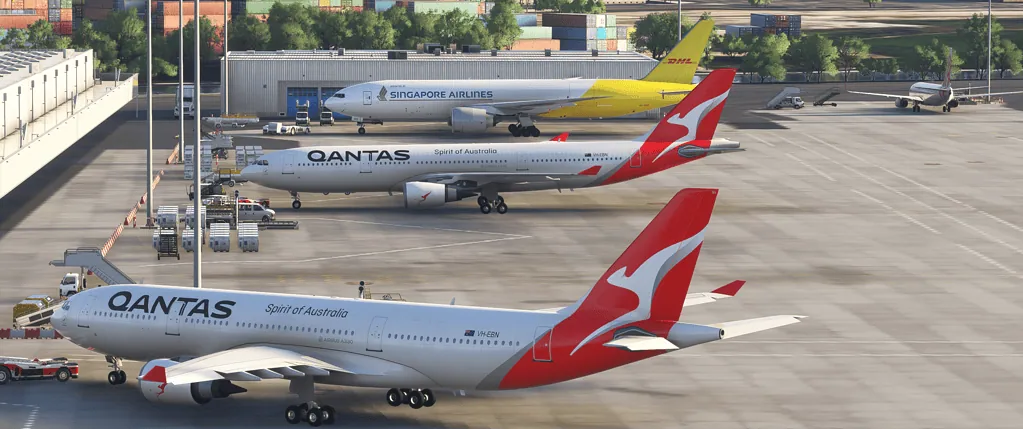
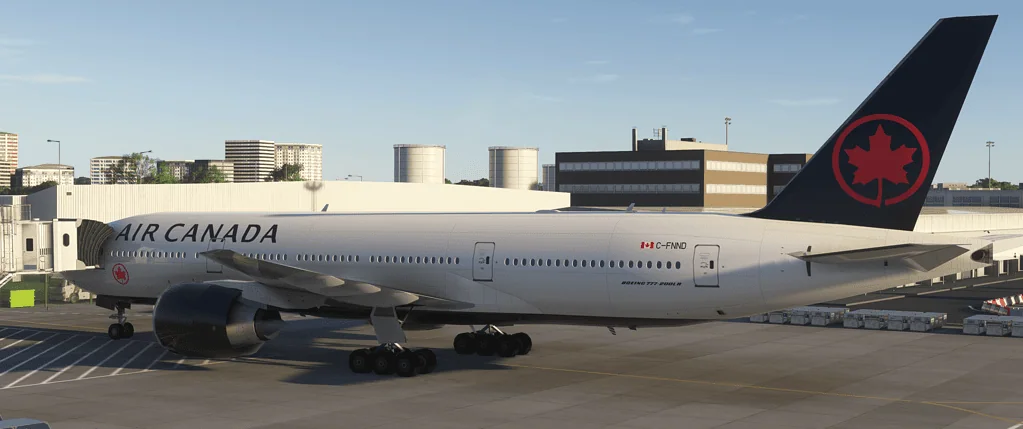
FSLTL Traffic Injector Airliners parked by FSLTL are ready for departure
Traffic injection is exactly what it sounds like: a system that injects live or simulated aircraft traffic directly into your simulator.
Instead of the sim “guessing” where planes should be, injection tools:
- Pull real-world flight data (often live)
- Match aircraft types correctly (737, A320, etc.)
- Use proper airline liveries
- Place aircraft at the correct airports, gates, and routes
The result is a much more believable environment—especially if you enjoy flying airliners like the 737.
Why Use the FlyByWire Installer?
The FlyByWire Installer is one of the simplest and most reliable ways to install traffic injection tools.
It gives you access to:
- FSLTL (FlyByWire’s traffic solution)
- Easy updates
- One-click installs
- A clean, managed setup
If you’ve ever manually installed mods and dealt with broken folders, you’ll appreciate how smooth this process is.
Installing Traffic Injection (Step-by-Step)
Step 1: Install the FlyByWire Installer
- Go to the official FlyByWire website
- Download and install the FlyByWire Installer
- Launch the installer
Once open, you’ll see a list of available tools and aircraft.
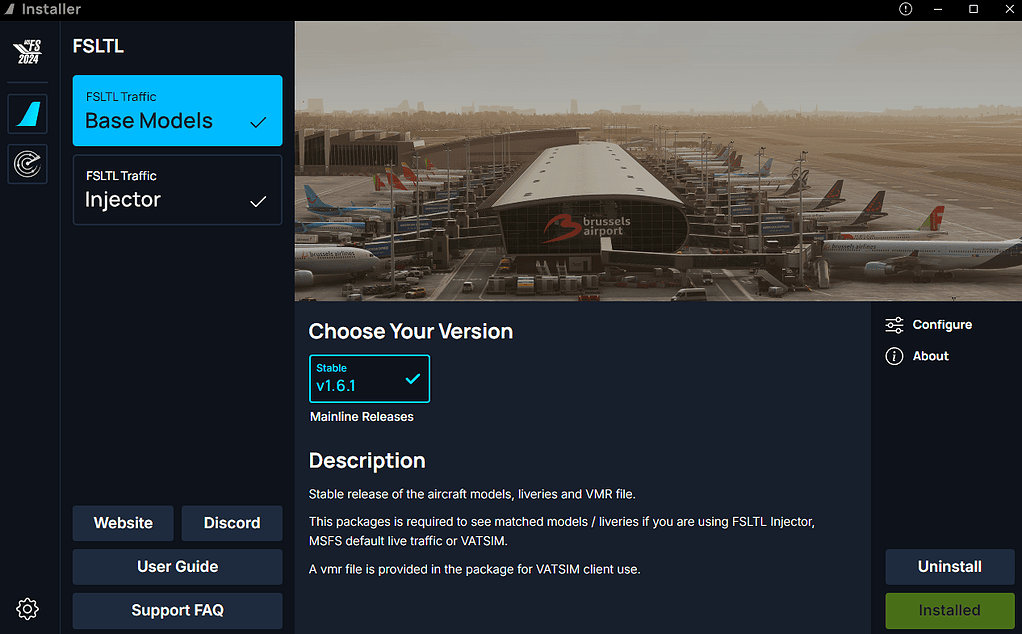
Step 2: Install FSLTL Traffic
Inside the installer:
- Locate FSLTL Traffic Base Models
- Click Install
Then install:
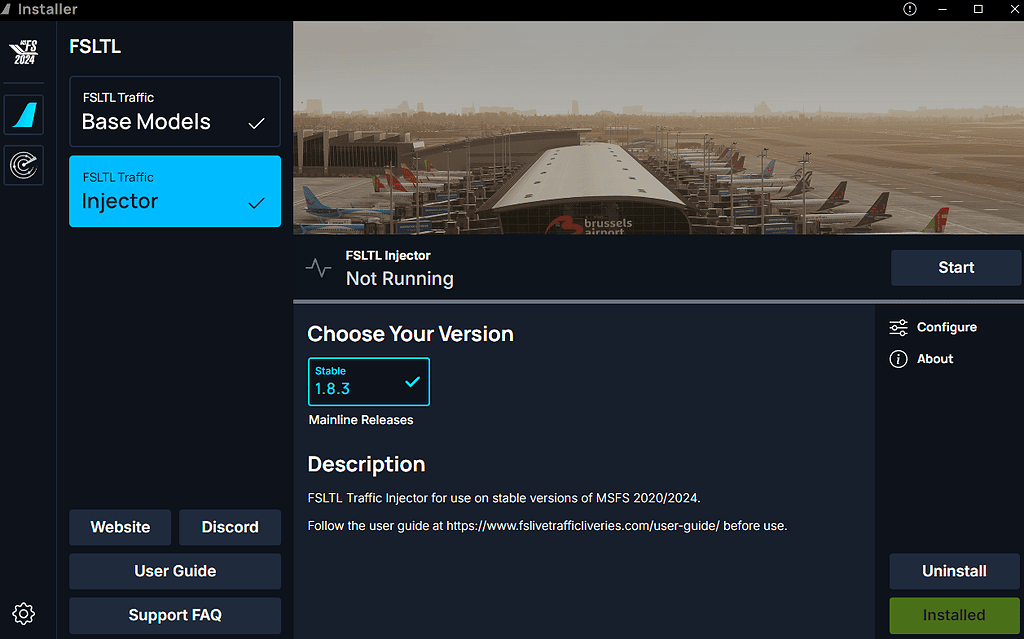
- FSLTL Traffic Injector
These are two separate components:
- Base Models = the aircraft and liveries
- Injector = the tool that places them into your sim
Step 3: Launch the Injector
Before starting your flight:
- Open the FSLTL Traffic Injector
- Set your options (more on that below)
- Click “Start”
Then launch MSFS 2024 (or already have it running)
The injector will begin populating your world with traffic.
Key Settings (That Actually Matter)
This is where things can make or break your experience.
IFR Traffic Density
Controls how many en route aircraft are injected.
Suggested starting point:
- 50–80 for a balanced experience
Higher values = more realism, but more CPU load.
VFR Traffic
General aviation traffic.
- Optional
- Can add immersion at smaller airports
- I usually keep this lower to avoid clutter
Parked Aircraft Density
Aircraft sitting at gates.
- 30–50 works well
- Too high can cause unrealistic overcrowding
Live Traffic vs Offline
- Live Traffic: Real-world flights (best for realism)
- Offline Mode: Simulated schedules
Live traffic is where this really shines.
How It Feels in the Sim
Once running properly, you’ll notice the difference straight away:
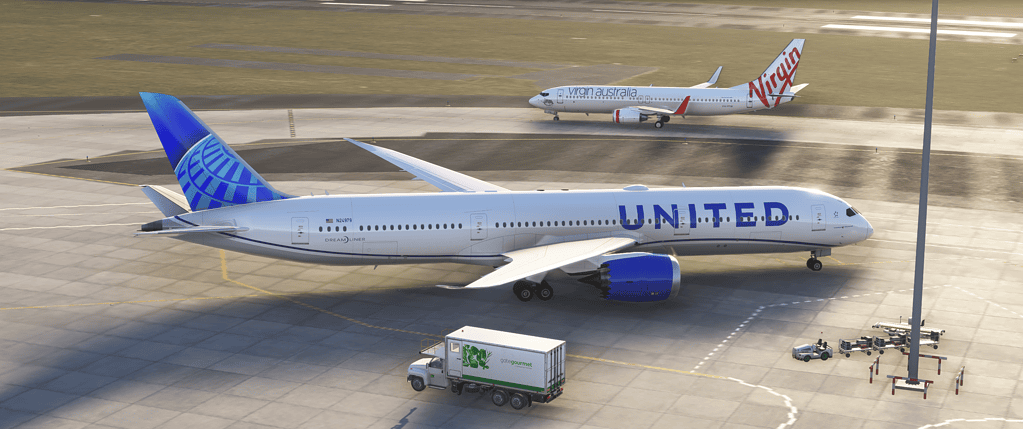
- Correct airline liveries at the gate
- Aircraft taxiing realistically
- Busy approach and departure flows
- ATC chatter that actually makes sense
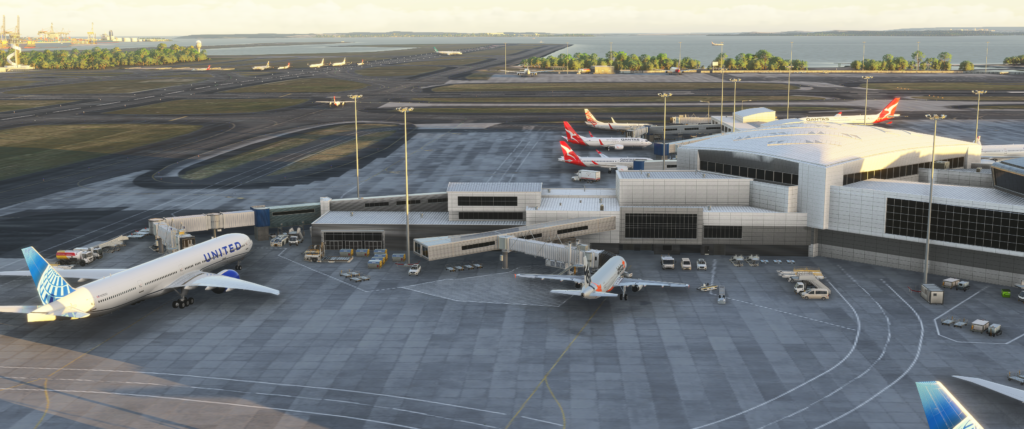
At a major airport, it finally feels alive.
If you’re flying something like a 737, lining up behind real-world traffic or being held short while another aircraft lands adds a level of immersion that the default sim just doesn’t deliver.
Performance Considerations
Traffic injection is one of the bigger performance hitters in the sim.
A few practical tips:
- Start with moderate settings (don’t max everything out)
- Watch your CPU usage
- Reduce traffic if you notice stutters
- Busy airports = biggest impact
It’s all about balance. A slightly lower traffic level that runs smoothly is far better than a packed airport that stutters.
Common Mistakes to Avoid
Running Default Live Traffic at the Same Time
Turn OFF MSFS default live traffic.
Running both causes:
- Duplicate aircraft
- Performance issues
- Weird behaviour
Overloading the Simulator
It’s tempting to crank everything up—but:
- Too much traffic can break immersion
- Taxiways become jammed
- FPS drops quickly
Forgetting to Start the Injector
Easy one to miss.
If nothing appears in the sim:
- Check that the injector is running
- Make sure it says “Connected.”
Where This Fits in Your Setup
For me, traffic injection sits right alongside:
- A good aircraft (like a solid 737)
- Proper ATC (BeyondATC or similar)
- Realistic sound environment
Once all three are working together, the sim stops feeling like a “game” and starts feeling like a real flight environment.
How to Use Traffic Injection (Simple Workflow)
This is the exact way I use it before every flight. Once you’ve done it a couple of times, it becomes second nature.
Before You Launch the Sim
- Open the FSLTL Traffic Injector
- Select:
- Live Traffic
- Set IFR around 60–70
- Parked aircraft around 30–40
- Click Start
You should see it connect and begin scanning for traffic.
Inside MSFS 2024
Before loading your flight:
- Go to Traffic settings
- Turn OFF:
- Live Traffic
- AI Offline Traffic
- Multiplayer Traffic (optional, but recommended for consistency)
This avoids conflicts and duplicate aircraft.
Load Your Flight
- Choose your airport and aircraft as normal
- Start at a gate or stand if possible
Once the sim loads in:
- Give it 10–30 seconds
- You’ll start seeing aircraft appear at gates and taxiways
During Taxi and Departure
This is where it really comes alive:
- Expect the aircraft ahead of you to be taxiing
- You may need to hold short for landing traffic
- ATC sequencing starts to make more sense
Just treat it like a real airport—be patient and follow the flow.
In Cruise
- You won’t see much visually (as expected)
- But traffic is still there around you in the system
Arrival and Approach
This is one of the best parts:
- Aircraft on approach ahead of you
- Realistic spacing
- Possible go-arounds or delays depending on traffic
If you’re using good ATC alongside this, it becomes very believable.
After the Flight
- Close the injector when finished
- No need to uninstall or reset anything
Next flight, just repeat the process.

- You Know You’re a Flight Simmer When… - 12 August 2026
- Pete’s Ultimate MSFS 2024 Graphics Settings Guide - 1 August 2026
- How to Use GSX with the PMDG 737-800 in MSFS 2024. - 20 July 2026