Best NVIDIA Settings for MSFS 2024

Graphics & Performance

Microsoft Flight Simulator 2024 is one of the most demanding PC games ever released. Even powerful RTX graphics cards can struggle if the NVIDIA Control Panel settings are not configured properly.

Many sim pilots focus only on in-sim graphics options and forget that NVIDIA driver settings can significantly affect performance, stuttering, frame pacing, and visual clarity.

This guide walks through the best NVIDIA Control Panel settings for MSFS 2024, explains what each setting does, and helps you optimise for smooth performance without sacrificing image quality.
Before You Start

Before adjusting NVIDIA settings, confirm a few basics:

Then open:

Right-click Desktop → NVIDIA Control Panel

Navigate to:

Manage 3D Settings → Program Settings → Select MSFS 2024

Always apply changes under Program Settings, not Global Settings.

Best NVIDIA Settings for MSFS 2024

Low Latency Mode

Set to On

This reduces render queue delay and improves responsiveness without hurting stability.

Avoid Ultra unless you are testing a CPU-limited system carefully.

Power Management Mode

Set to Prefer Maximum Performance

This prevents the GPU from downclocking during flight and helps reduce micro-stutters during long sessions.

Texture Filtering – Quality

Set to High Performance

MSFS manages texture quality internally, so this setting mainly reduces driver overhead and slightly improves stability.

Texture Filtering – Anisotropic Sample Optimization

Set to On

This provides a small performance improvement with virtually no visual difference.

Texture Filtering – Negative LOD Bias

Set to Clamp

This prevents excessive sharpening and reduces shimmering in distant scenery.

Threaded Optimization

Set to On

MSFS benefits from multi-threaded CPU processing, so this should remain enabled.

Vertical Sync (V-Sync)

Set to Use the 3D Application Setting

Control V-Sync inside MSFS instead of forcing it through the driver.

If you use G-Sync, leave V-Sync enabled in NVIDIA but manage frame limits properly in the simulator.
Max Frame Rate

Optional.

For smoother frame pacing, you can cap frame rate slightly below your monitor refresh rate.

Examples:

58 FPS for a 60Hz monitor
117 FPS for a 120Hz monitor

This helps reduce GPU spikes and improves overall smoothness.

Monitor Technology

If your monitor supports G-Sync, set it to:

G-Sync Compatible

Otherwise, leave the default setting.

Shader Cache Size

Set to Unlimited

MSFS generates large shader files, especially after updates. Limiting the cache can cause stuttering when shaders reload.

Antialiasing – Mode

Set to Application Controlled

MSFS handles anti-aliasing internally using TAA or DLSS.

Do not override this setting in the NVIDIA driver.

Image Scaling / Sharpening

Disable this in the NVIDIA Control Panel.

Use DLSS sharpening or in-sim sharpening instead.

Best In-Sim Settings to Pair with NVIDIA

Driver settings work best when combined with balanced in-sim settings.

DLSS

If you have RTX 20-series or newer:

Use DLSS

Recommended presets:

  • Quality for 1440p
  • Balanced for 4K

Terrain Level of Detail

Typical range:

100–200, depending on CPU performance

Higher values place a significant load on the CPU.

Object Level of Detail

Recommended range:

100–150

This maintains good scenery density while reducing CPU pressure.

Glass Cockpit Refresh Rate

If CPU is limited, set to:

Medium or Low

This improves performance in complex airliners.

Shadow Quality

Recommended:

Medium or High, depending on GPU capability

Ultra shadows can be expensive with minimal visual gain.
Common Performance Problems and Fixes

Stutters After 1–2 Hours

Possible causes:

  • GPU downclocking
  • Shader cache limitations
  • Background software

Fix:

  • Ensure Power Management Mode is Prefer Maximum Performance
  • Disable unnecessary background apps
  • Set Shader Cache Size to Unlimited

Blurry Image with DLSS

Possible causes:

  • DLSS preset is too aggressive
  • Render scale too low

Fix:

  • Increase DLSS preset to Quality
  • Increase render scale slightly

High FPS but Feels Unsmooth

Cause:

Frame pacing instability.

Fix:

  • Cap frame rate
  • Check monitor refresh rate
  • Enable G-Sync if supported

Performance Differences by GPU Tier

RTX 3060 / 3060 Ti

Best for:

  • 1080p or 1440p High settings
  • DLSS recommended

RTX 3070 / RTX 4070

Best for:

  • 1440p Ultra mixed settings
  • DLSS Quality works well

RTX 4080 / RTX 4090

Best for:

  • 4K High or Ultra settings
  • Frame cap is still recommended for smoothness

Remember that MSFS is heavily CPU-dependent, so upgrading the GPU alone will not always improve performance.

Should You Use NVIDIA GeForce Experience Auto-Optimize?

Generally no.

Manual tuning usually produces better results because:

  • Auto tools cannot detect simulator-specific bottlenecks
  • They often push GPU settings too high
  • They ignore CPU limitations

Manual optimisation almost always produces smoother results.

When to Reset Settings

After major MSFS updates, it can help to:

  • Clear the rolling cache
  • Allow shaders to rebuild
  • Avoid changing too many settings at once
  • Test adjustments gradually

Shader rebuilding after updates can temporarily cause stutters.

Summary

The best NVIDIA Control Panel settings for MSFS 2024 prioritise stability, consistent GPU clock speeds, and clean driver configuration rather than aggressive overrides. Set Power Management to Prefer Maximum Performance, enable Threaded Optimization, clamp negative LOD bias, leave anti-aliasing application controlled, and cap frame rate if necessary. Combined with balanced in-sim settings, these adjustments reduce stutters, improve frame pacing, and provide a smoother experience during long flights.

Best Business Jets in MSFS

Tutorials

For many sim pilots, flying a large airliner can feel heavy and procedural. At the other end of the spectrum, light piston aircraft are slow and limited in capability. Business jets sit in an exciting middle ground — high performance, fast cruise speeds, impressive climb rates, and the ability to fly long distances or hop country to country in style.

Business jets in Microsoft Flight Simulator 2024 offer superb performance, advanced avionics, and a different type of flying challenge that is both enjoyable and technically satisfying. This guide explores the best business jets in MSFS 2024, explains what makes each one appealing, and helps you decide which may suit your flying style.

What Makes a Great Business Jet

A great business jet usually combines several key characteristics:

  • High cruise speed (often 350+ knots)
  • Efficient climb performance
  • Comfortable long-distance capability
  • Advanced avionics such as FMS, VNAV, and autopilot
  • Good systems depth and realism
  • Stable handling at high speeds

These qualities make business jets both efficient and rewarding to fly in MSFS 2024.

Top Business Jets in MSFS 2024

Cessna Citation X / Citation Longitude

Why it’s great

  • Extremely fast cruise speed
  • Excellent climb performance
  • Strong long-range capability
  • Smooth Garmin-based avionics

Flight characteristics

  • Rapid climb to cruise altitude
  • Stable high-speed handling
  • Predictable autopilot and navigation behaviour

Ideal for

  • Long cross-country flights
  • High altitude cruise operations
  • Executive-style IFR flights

Flying tips

  • Manage speed carefully during descent
  • Begin descent planning early at high cruise speeds
  • Use VNAV when available to control vertical profile

Embraer Phenom 300E

Why it’s great

  • Excellent balance of performance and systems depth
  • Modern Garmin avionics suite
  • Very capable for both short and medium routes

Flight characteristics

  • Strong climb performance
  • Smooth and responsive handling
  • Reliable autopilot behaviour

Ideal for

Flying tips

  • Monitor winds at cruise altitude as they affect range
  • Select cruise altitude early during climb
  • Manage descent speed carefully near busy airspace

Dassault Falcon 7X

Why it’s great

  • Unique three-engine design
  • Excellent high-altitude capability
  • Very long range

Flight characteristics

  • Extremely stable at high flight levels
  • Efficient long-distance performance
  • Advanced avionics systems

Ideal for

  • Long international routes
  • High altitude cruise operations
  • Advanced jet procedure practice

Flying tips

  • Use VNAV to manage climb and descent profiles
  • Monitor fuel predictions during long routes
  • Begin descent planning well before the destination

Bombardier Global 7500

Why it’s great

  • One of the longest-range business jets available
  • Exceptional cruise performance
  • Highly capable for transcontinental missions

Flight characteristics

  • Fast cruise speeds even above FL400
  • Smooth autopilot transitions
  • Comfortable for long flights

Ideal for

  • Ultra-long-range flights
  • High altitude operations
  • Airline-style procedural flying

Flying tips

  • Plan descents early due to high cruise speed
  • Use step climbs when fuel weight decreases
  • Monitor fuel burn carefully on long legs

HondaJet Elite II (Payware or Freeware if Available)

Why it’s great

  • Smaller and more accessible business jet
  • Simpler systems for beginners
  • Fun and agile performance

Flight characteristics

  • Responsive handling
  • Excellent climb for its size
  • Efficient cruise speed for a light jet

Ideal for

  • Pilots new to jet aircraft
  • Short regional flights
  • Flexible VFR or IFR flying

Flying tips

  • Monitor speed carefully in terminal areas
  • Practice autothrottle and power management
  • Plan shorter legs to maximise efficiency

Business Jet Considerations in MSFS 2024

Avionics and Systems

Modern business jets often include advanced avionics systems such as:

  • Flight Management Systems (FMS)
  • LNAV and VNAV navigation modes
  • Flight directors and autopilot
  • Weather radar and traffic displays

These systems make business jets more capable but also require some learning time to use effectively.

Fuel Planning and Performance

Business jets travel fast and cover long distances quickly, but they burn significantly more fuel than piston aircraft.

Using a flight planner such as SimBrief helps ensure correct fuel loads and realistic flight profiles.

Runway Performance

Most business jets require moderate runway length, though many perform well at regional airports with paved runways.

Before departure, it is always wise to confirm:

  • Runway length
  • Airport elevation
  • Aircraft takeoff weight

These factors influence takeoff and landing performance.

Business jets offer an excellent balance between general aviation and airline operations.

Advantages include:

  • High cruise speeds without full airline complexity
  • Strong autopilot and navigation systems
  • Long-range capability
  • Ideal transition aircraft from turboprops
  • Great for both IFR and VFR flying

They also provide valuable practice in energy management, descent planning, and jet performance handling.

Conclusion

Business jets in Microsoft Flight Simulator 2024 offer an exciting combination of speed, range, advanced avionics, and enjoyable flying dynamics. Aircraft such as the Phenom 300E, Citation series, and Global 7500 provide different experiences depending on whether you prefer short regional flights or long high-altitude journeys. By learning their systems, planning your flights carefully, and managing speed effectively, business jets can become some of the most rewarding aircraft to fly in the simulator.

Best Bush Flying Aircraft in MSFS 2024

Tutorials

Bush flying is one of the most rewarding ways to experience Microsoft Flight Simulator 2024. Instead of smooth runways and large airports, bush flying takes you into remote strips, rugged terrain, grass airfields, and narrow mountain valleys where precision flying really matters.

In these environments, aircraft capability and pilot skill become far more important than automation. Short runways, uneven surfaces, and changing winds require careful control, good judgment, and the right aircraft.

The best bush aircraft combine strong short takeoff and landing (STOL) performance, forgiving handling, and excellent low-speed control. Whether you want scenic mountain flying, tight gravel strip landings, or exploration deep into remote regions, these aircraft make bush flying one of the most enjoyable parts of MSFS 2024.

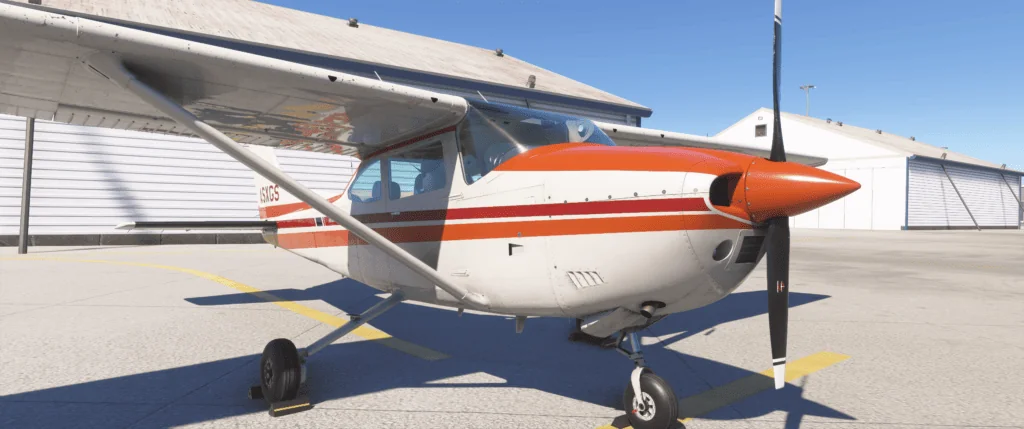
Cessna 182 RHS front close

What Makes a Great Bush Aircraft

Good bush aircraft share several important characteristics:

  • Excellent short-field performance
  • Strong low-speed stability
  • Responsive controls at slow speeds
  • Rugged landing gear and suspension
  • Good cockpit visibility
  • Flexible payload capability

These qualities allow you to handle steep climbs, narrow valleys, rough strips, and unpredictable wind conditions that are common in bush flying.

Best Bush Flying Aircraft in MSFS 2024

Cessna 208B Grand Caravan EX

Why it’s great

  • Excellent STOL capability for a larger aircraft
  • Reliable turboprop engine
  • Superb cockpit visibility
  • Strong payload capacity for longer flights

Ideal for

  • Remote charter-style flights
  • Mountain pass flying
  • Gravel and grass strip operations

Flying tips

  • Use higher flap settings for shorter approaches
  • Control descent speed carefully
  • Expect stable directional control during takeoff

De Havilland DHC-2 Beaver

Why it’s great

  • One of the most iconic bush aircraft ever built
  • Outstanding low-speed handling
  • Very capable short-field performance
  • Often available with floats or tundra tires

Ideal for

  • Lake and river landings
  • Scenic backcountry exploration
  • Remote mountain strips

Flying tips

  • Apply steady power during the early takeoff roll
  • Use coordinated rudder during low-speed turns
  • Maintain smooth control inputs during approach

Piper PA-18 Super Cub

Why it’s great

  • Extremely capable STOL aircraft
  • Excellent control at very low speeds
  • Lightweight and highly responsive
  • Pure fun for short strip flying

Ideal for

  • Tight clearings and small grass strips
  • Backcountry exploration
  • Low altitude VFR flights

Flying tips

  • Maintain precise airspeed control on approach
  • Use sideslip techniques for steeper descents
  • Avoid abrupt control inputs near stall speed

Quest Kodiak 100

Why it’s great

Ideal for

  • Mountain terrain operations
  • Remote supply runs
  • Challenging gravel strips

Flying tips

  • Use power effectively during steep climbs
  • Plan descents early when flying into narrow valleys
  • Manage weight carefully for short-field operations

Icon A5

Why it’s great

  • Lightweight amphibious aircraft
  • Extremely good visibility
  • Very forgiving handling
  • Can operate from water or runways

Ideal for

Flying tips

  • Monitor airspeed carefully — the aircraft is very light
  • Best flown in calm weather when learning
  • Maintain smooth control inputs during water landings

Extra Aircraft Worth Trying

Piper PA-28 Cherokee

Not a dedicated bush aircraft, but still capable for beginners exploring backcountry flying. Its forgiving handling makes it useful for training flights into simple grass strips.

Cessna 172 Skyhawk

While not designed for serious STOL work, the C172 is still a great platform for learning basic bush flying techniques and exploring remote airfields.

Bush Flying Tips for MSFS 2024

Bush flying success comes down to careful planning and precise control.

Plan Your Route

Use tools such as:

Choose routes that allow safe terrain clearance and realistic navigation points.

Watch Terrain and Elevation

Mountain terrain can change rapidly.

Pay attention to:

  • Pass elevations
  • Valley routes
  • Wind direction across ridges

Fly Smoothly and Conservatively

Bush flying rewards smooth flying.

  • Avoid aggressive control inputs
  • Keep airspeed stable
  • Maintain situational awareness near terrain

Master Short-Field Landings

The short-field technique is essential.

Typical approach techniques include:

  • Slower approach speeds
  • Flaps configured early
  • Slight power maintained before flare
  • Touchdown just above stall speed

Monitor Weather Carefully

The weather can change rapidly in mountainous terrain.

  • Valley winds can shift direction quickly
  • Gusts affect light aircraft strongly
  • Always check the weather before departure

Why Bush Flying Is So Rewarding

Bush flying develops important flying skills such as:

  • Energy management
  • Precision aircraft control
  • Terrain awareness
  • Navigation without heavy automation

Unlike high-altitude airline flying, bush flying brings you close to the terrain and environment. Every landing requires judgement and precision, making each successful flight feel genuinely rewarding.

Conclusion

Bush flying in Microsoft Flight Simulator 2024 offers some of the most exciting and immersive flying available in the simulator. Aircraft such as the DHC-2 Beaver, Cessna 208 Caravan, Piper Super Cub, and Quest Kodiak each provide unique capabilities suited to backcountry flying. By choosing the right aircraft, planning carefully, and mastering short-field techniques, you can explore some of the most beautiful and challenging locations the simulator has to offer.

SimBrief Step-by-Step Guide for MSFS 2024

Tutorials

If you want your flights in Microsoft Flight Simulator 2024 to feel structured, realistic, and professional, SimBrief is one of the most valuable tools you can use. Instead of simply choosing two airports and pressing Fly, SimBrief generates a realistic operational flight plan complete with routing, fuel calculations, cruise levels, alternates, and wind corrections.

The good news is that SimBrief is much easier to use than it first appears. Once you understand the basic workflow, you can generate a complete airline-style flight plan in just a few minutes.

This guide explains how to use SimBrief step by step, from creating an account to importing your flight plan into MSFS.

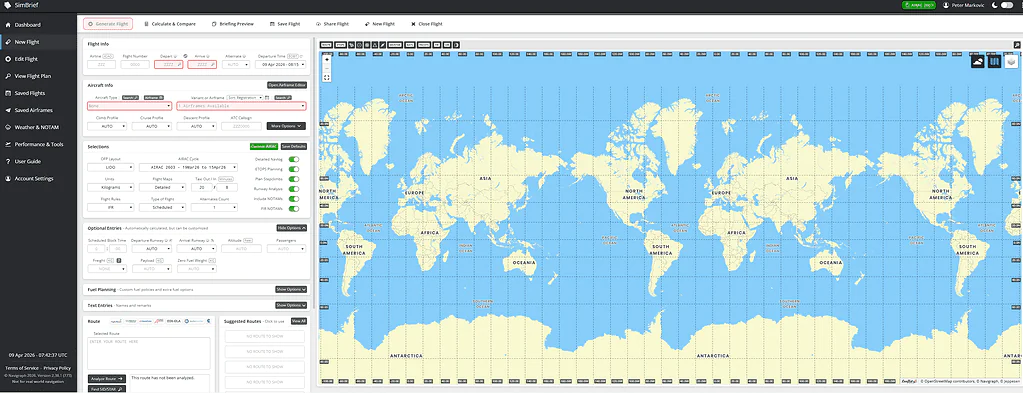
SimBrief Page view

What Is SimBrief

SimBrief is a free online flight planning system used by flight simmers and virtual airlines. It generates detailed operational flight plans that include:

  • Realistic IFR routes
  • Accurate fuel calculations
  • Recommended cruise altitude
  • Wind and weather corrections
  • Alternate airport planning
  • A full operational flight plan (OFP)

SimBrief integrates with many MSFS aircraft and works especially well if you also use Navigraph navigation data.

Step 1: Create a SimBrief Account

Visit the SimBrief website and create a free account.

After logging in:

  • Enter your basic profile information
  • Choose your preferred units (kilograms or pounds, feet or meters)
  • Set an optional airline or callsign

This setup only needs to be done once.

Step 2: Create a New Flight

On the SimBrief dashboard, click:

Create New Flight

You will see the main flight planning form.

Enter the following information:

Departure airport (ICAO code, for example, YSSY)
Destination airport (for example, NZAA)
Alternate airport (recommended but optional)
Aircraft type

Selecting the correct aircraft type is important because fuel calculations depend on aircraft performance profiles.

Step 3: Select the Correct Aircraft Profile

SimBrief uses aircraft performance profiles to estimate fuel burn and climb performance.

Examples include:

  • B738 for Boeing 737-800
  • A320 for Airbus A320
  • C172 for Cessna 172

Choose the closest profile to the aircraft you plan to fly in MSFS.

Using the wrong profile may result in:

  • Incorrect fuel calculations
  • Incorrect cruise altitude
  • Unrealistic flight time estimates

Step 4: Generate the Route

You have two main options for route planning.

Auto Route

Recommended for most users.

SimBrief automatically generates a realistic route including airways and waypoints.

Manual Route

Manual routes allow full control over airways and navigation fixes. This is typically used by experienced pilots or virtual airlines.

For most flights, simply choose Auto Route and click:

Generate Flight

SimBrief will generate the complete flight plan within seconds.

Step 5: Understanding the Flight Plan

After generation, several sections appear in the operational flight plan.

Route Section

This shows the complete routing, including:

  • SID (Standard Instrument Departure)
  • Airways and waypoints
  • STAR (Standard Terminal Arrival Route)

Fuel Section

This section includes:

  • Trip fuel
  • Contingency fuel
  • Alternate fuel
  • Final reserve fuel
  • Total fuel required

Cruise Level

SimBrief recommends a realistic cruise altitude based on:

  • Route distance
  • Winds aloft
  • Aircraft performance

When starting, focus mainly on the route and total fuel values.

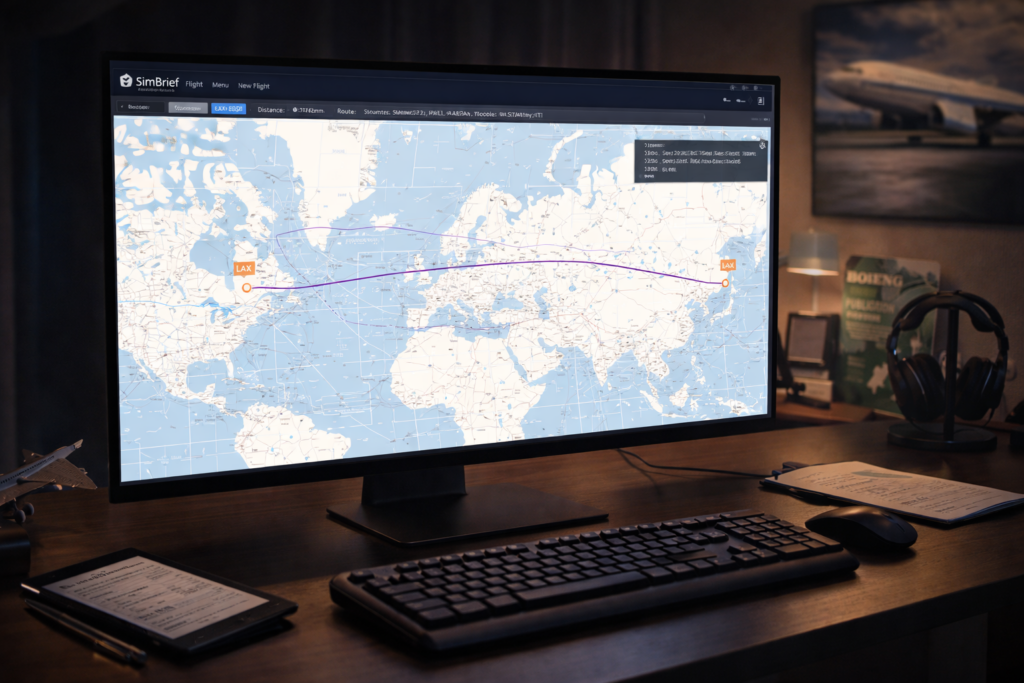
Flight simulation software displaying global flight routes on a computer screen.
A flight simulation program with a world map and flight path.

Step 6: Importing SimBrief into MSFS Aircraft

Many aircraft in MSFS 2024 support direct SimBrief integration.

Method 1: Direct Aircraft Import

In many modern aircraft:

Open the aircraft EFB (tablet)
Find the SimBrief section
Enter your SimBrief username
Press Import

The flight plan will load automatically into the aircraft’s flight management computer.

Method 2: Import Using a .PLN File

If the aircraft does not support direct SimBrief integration:

Download the flight plan in MSFS (.PLN) format.

Then:

Open the World Map in MSFS
Load the saved flight plan

This method works but is slightly less realistic than direct aircraft import.

Step 7: Cross-Check the Flight Plan

After importing the route into the aircraft, verify the following:

  • Departure runway
  • SID selection
  • Cruise altitude
  • STAR and approach
  • Total fuel quantity

Never assume everything is loaded perfectly. Always perform a quick cross-check before departure.

Step 8: Flying the SimBrief Plan

During the flight:

Follow the programmed route
Monitor fuel consumption
Compare the actual flight time with the estimated time

Before descent:

Review the STAR
Confirm the arrival runway
Prepare your approach if using Navigraph charts

SimBrief provides the structure, but you still manage the flight.

Common Beginner Mistakes

Using the Wrong Aircraft Profile

Incorrect aircraft profiles produce inaccurate fuel calculations.

Ignoring Alternate Airports

Planning alternatives adds realism and helps simulate real-world flight planning.

Runway Mismatch

Sometimes MSFS selects a different runway than SimBrief expected. Adjust your departure or arrival procedure accordingly.

Outdated Navigation Data

If using Navigraph, ensure that both your simulator and SimBrief navigation data are updated.

SimBrief for General Aviation

SimBrief is not only useful for airliners.

GA pilots can use it to:

  • Calculate fuel endurance
  • Estimate cruise altitude
  • Plan IFR routes
  • Estimate wind impact

Even short GA flights feel more organised with proper planning.

Why SimBrief Improves Realism

Using SimBrief introduces several real-world aviation concepts into your simulator flying:

  • Fuel planning
  • Operational decision making
  • Structured routing
  • Performance management
  • Professional flight workflow

Instead of guessing fuel and route choices, you plan them.

Simple SimBrief Workflow

The basic process becomes very simple with practice:

Enter departure and destination
Select aircraft profile
Generate route
Review fuel and cruise level
Import flight plan
Cross-check
Fly

After a few flights, this workflow becomes second nature.

Is SimBrief Worth Using?

SimBrief is especially valuable if you:

  • Fly airliners regularly
  • Enjoy structured operations
  • Want realistic fuel planning
  • Prefer IFR flight planning

If you mostly fly short sightseeing VFR flights, it may be optional, but still useful.

Conclusion

SimBrief transforms Microsoft Flight Simulator 2024 from simple point-to-point flying into structured, realistic flight operations. By generating professional flight plans, calculating fuel accurately, and integrating directly with many aircraft systems, it creates a workflow similar to real-world dispatch planning. Once you learn the generate-and-import process, SimBrief quickly becomes one of the most useful tools in your entire flight simulation setup.

Complete Guide to Navigraph in MSFS 2024

Tutorials

If you want to move beyond basic flying in Microsoft Flight Simulator 2024 and begin flying realistic IFR procedures, Navigraph is one of the most powerful tools available. It provides real-world aviation charts, up-to-date navigation data, airport diagrams, instrument approach plates, and seamless integration with modern avionics.

For many sim pilots, Navigraph acts as the bridge between casual flying and professional-style procedural aviation. Once you understand how to use it properly, your flight planning becomes structured, your approaches become more precise, and the overall realism of your simulator increases significantly.

This guide explains what Navigraph does, how it integrates with MSFS 2024, how to read and use its charts, and whether it is worth adding to your simulator setup.

What Is Navigraph

Navigraph is a subscription-based aviation data and chart service that provides:

  • Real-world IFR charts
  • Updated AIRAC navigation cycles
  • Airport diagrams
  • SID and STAR procedures
  • ILS, RNAV, and VOR approach plates
  • Enroute charts for low and high altitude routes
  • Integration with many MSFS aircraft systems

In simple terms, Navigraph gives you access to the same style of procedural information used by real-world airline and IFR pilots.

Flight simulation software displaying global flight routes on a computer screen.
A computer setup showing a flight simulation program with a world map and flight path, ideal for aviation enthusiasts and flight training.

Why Navigation Data Matters

Microsoft Flight Simulator includes navigation data by default, but it may not always match current real-world procedures.

Navigraph updates the simulator’s navigation database using the latest AIRAC cycle, ensuring that:

  • Waypoints match real-world charts
  • SID and STAR procedures align correctly
  • FMC route planning behaves accurately
  • SimBrief routes remain consistent with your aircraft

For pilots who regularly fly IFR procedures, this consistency becomes extremely important.

Navigraph Charts

One of the most powerful parts of Navigraph is its comprehensive chart system.

You gain access to several types of aviation charts.

Airport Diagrams

Airport diagrams show:

  • Runway layouts
  • Taxiways
  • Gates and parking positions
  • Frequencies
  • Airport elevation and important notes

These diagrams help you taxi correctly and understand airport layout before departure or after landing.

Departure Charts (SIDs)

Standard Instrument Departures guide you from the runway into the airway system.

These charts include:

  • Initial climb procedures
  • Waypoints
  • Altitude restrictions
  • Speed constraints

Arrival Charts (STARs)

Standard Terminal Arrival Routes guide aircraft from the airway structure into the approach phase near the destination airport.

STAR charts help manage traffic flow and altitude restrictions before reaching the approach segment.

Approach Plates

Approach charts provide detailed procedures for landing using:

  • ILS approaches
  • RNAV approaches
  • VOR approaches
  • Localizer approaches

Each chart includes critical information such as:

  • Minimum descent altitudes
  • Glide slope information
  • Missed approach procedures
  • Frequency data

How Navigraph Integrates with MSFS 2024

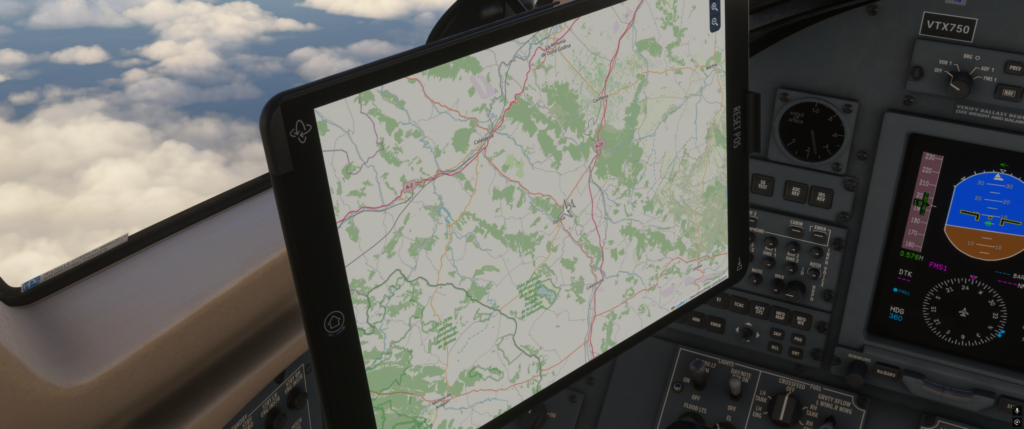
Flight simulator cockpit with navigation screen and controls for realistic flying experience.
Detailed cockpit view showing navigation tools and controls in Microsoft Flight Simulator 2024.

Navigraph integrates with the simulator in several useful ways.

Navigraph Nav Data Center

The Navigraph Nav Data Center installer updates your simulator’s navigation database.

This ensures your aircraft’s flight management systems use the same procedures shown on Navigraph charts.

SimBrief Integration

Navigraph integrates seamlessly with SimBrief.

When you generate a flight plan:

  • Routes match real-world airways
  • SID and STAR procedures remain accurate
  • Waypoints align with current navigation data

This keeps planning and execution consistent.

In-Cockpit Charts

Many modern aircraft in MSFS allow Navigraph charts to display directly on the aircraft’s EFB (Electronic Flight Bag) or cockpit display.

This allows you to:

  • View approach plates during descent
  • Display airport diagrams during taxi
  • Monitor STAR transitions during arrival

Having charts directly inside the cockpit dramatically improves realism.

How to Use Navigraph for an IFR Flight

A typical realistic workflow might look like this:

Plan your route using SimBrief
Check SID and STAR options in Navigraph charts
Confirm the expected departure runway
Load the route into the aircraft FMC
Cross-check procedures against the charts
During descent, open the STAR chart
Follow the approach plate precisely

This process transforms your flight from simple point-to-point navigation into structured procedural flying.

Understanding an Approach Plate

An ILS approach chart typically includes several sections.

Top Information Section

This includes:

  • ILS frequency
  • Final approach course
  • Glide slope angle
  • Decision altitude

Plan View

This map section shows:

  • Waypoints
  • Course lines
  • Altitude restrictions
  • Holding fixes

Side Profile

The vertical profile displays:

  • Step-down fixes
  • Glide slope intercept altitude
  • Descent profile

Missed Approach Procedure

If you cannot land, this section shows the procedure to follow for a safe climb and re-entry into controlled airspace.

Using the chart helps you understand exactly what the aircraft should be doing during each stage of the approach.

Taxiing with Navigraph

Airport diagrams are extremely helpful during taxi operations.

Instead of guessing the taxi layout, you can:

  • Identify the correct runway exit
  • Plan the taxi route to your gate
  • Follow the proper taxiway designations

This is particularly valuable at large international airports where taxiways can be complex.

Benefits for Different Types of Pilots

VFR Pilots

VFR pilots may not use full IFR procedures, but Navigraph still provides useful features such as airport diagrams and updated navigation data.

IFR GA Pilots

For general aviation IFR flying, Navigraph improves:

  • RNAV approaches
  • Procedure selection
  • Altitude planning
  • Navigation accuracy

Airliner Pilots

For airliner operations, Navigraph is often considered essential.

It provides:

Common Beginner Questions

Do you need Navigraph to enjoy MSFS?

No. The simulator works perfectly well without it.

Does Navigraph improve graphics or performance?

No. Navigraph improves navigation realism and procedural accuracy, not visual quality.

Is it difficult to learn?

Not really. Once you learn basic chart reading, using Navigraph becomes very natural.

Does it make flying more complicated?

It adds structure rather than complication.

Common Mistakes When Using Navigraph

Not Updating Navigation Data

If your charts and simulator navigation data are out of sync, procedures may not match correctly.

Ignoring Runway Selection

Always confirm the active runway before selecting departure or arrival procedures.

Trying to Learn Everything at Once

If you are new to IFR flying, learn one chart type at a time.

Start with airport diagrams, then departures, then approaches.

Is Navigraph Worth It?

Navigraph is most valuable if you:

  • Fly IFR frequently
  • Use airliners regularly
  • Enjoy structured aviation procedures
  • Want realistic navigation data

If you mainly:

Then Navigraph may be optional.

However, for realistic IFR operations, it is one of the most valuable tools available.

Conclusion

Navigraph brings real-world aviation procedures into Microsoft Flight Simulator 2024. With regularly updated navigation data, detailed IFR charts, SID and STAR procedures, and cockpit integration, it significantly improves realism for pilots who want structured operations. Whether you are flying complex airliners or practicing instrument approaches in general aviation aircraft, Navigraph transforms your simulator experience from casual flying into professional-style flight planning and navigation.

Complete Guide to GSX in MSFS 2024

Tutorials

If you want your airline flights in Microsoft Flight Simulator 2024 to feel truly realistic, GSX is one of the most transformative add-ons available. It replaces the basic default ground services with detailed, interactive, and immersive airport operations.

With GSX, you can manage pushback, passenger boarding, baggage loading, catering trucks, refuelling, and deboarding — all with far more realism than the default simulator offers. Because GSX adds many features, it can seem a little complex at first, but once you understand the workflow, it becomes very easy to use.

This guide explains everything you need to know, including installation, setup, pushback operations, aircraft profiles, common issues, and how to get the most out of GSX.

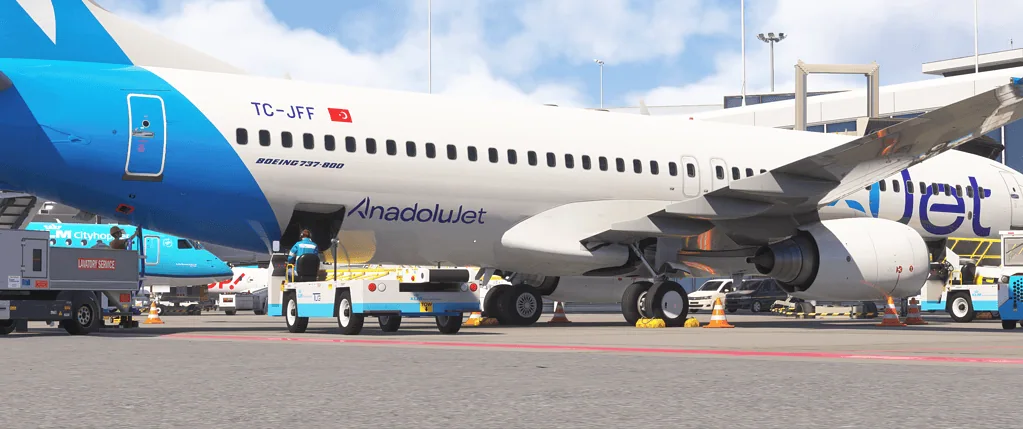
Aircraft at Flight Simulation Showcase with airline branding and ground support vehicles.
A detailed view of a commercial airplane at the Flight Simulation Showcase, highlighting realistic airline branding and airport ground support.

What Is GSX

GSX (Ground Services X) is a third-party utility add-on that enhances airport ground handling in Microsoft Flight Simulator.

It adds features such as:

  • Realistic pushback with full steering control
  • Passenger boarding animations
  • Baggage loading and unloading
  • Catering trucks
  • Ground power units (GPU)
  • Custom airport stand handling
  • Jetway control

Instead of simply clicking a basic “Request Pushback” option, GSX allows you to manage the entire ground operation around your aircraft.

Installation Overview

GSX installs outside the normal Community folder and connects to MSFS through its own installer and configuration system.

Typical installation steps include:

  • Download the GSX installer from your purchase account
  • Run the installer and point it to your MSFS installation folder
  • Allow the installer to scan the simulator and aircraft
  • Launch MSFS

After installation, you will see the GSX icon in the in-sim toolbar.

Important tip: if you encounter installation issues, run the installer as Administrator.

Initial Setup

The first time you run GSX inside MSFS:

  • Open the toolbar icon
  • Allow GSX to build its airport cache
  • Confirm that your aircraft is detected

GSX uses aircraft profiles to understand where doors and cargo holds are located.

Before your first flight, it is helpful to:

  • Confirm GSX recognises your aircraft
  • Check that aircraft doors are mapped correctly
  • Test pushback at a quiet airport stand
FSX for Fs2024

Using GSX for Pushback

Pushback is one of the most popular GSX features.

To perform a pushback:

  • Load your aircraft at a parking stand
  • Open the GSX menu from the toolbar
  • Select Request Pushback
  • Choose the direction or manually control the tug

Unlike the default MSFS pushback, GSX allows you to:

  • Steer the tug manually
  • Plan pushback routes
  • Stop exactly where you want

For smooth pushback:

  • Set the parking brake when instructed
  • Release the brake only when prompted
  • Follow the tug’s steering smoothly

Boarding and Deboarding

GSX simulates full passenger boarding procedures, including:

  • Passenger walking animations
  • Bus transport for remote stands
  • Jetway connections
  • Passenger stairs deployment

To start boarding:

  • Turn off engines
  • Set the parking brake
  • Open the correct aircraft doors
  • Request boarding from the GSX menu

Boarding speed can be adjusted in the GSX settings if it feels too slow.

Tip: Start boarding during your preflight preparation to make turnaround operations feel realistic.

Refuelling

GSX includes animated refuelling operations with:

  • Fuel truck arrival
  • Fuel hose connection
  • Gradual fuel loading

A typical workflow is:

  • Set the desired fuel quantity in the aircraft EFB or FMC
  • Request refuelling from the GSX menu
  • Monitor the fuel loading process

Avoid changing fuel settings mid-process unless necessary.

Aircraft Profiles

Aircraft profiles tell GSX where important aircraft components are located.

Profiles define:

  • Door locations
  • Cargo door positions
  • Jetway alignment
  • Pushback positioning

Many community-created profiles exist for popular aircraft.

To install a profile:

  • Download the profile for your aircraft
  • Import it using the GSX configuration tool
  • Test the door alignment

Good profiles significantly improve realism and prevent issues such as stairs connecting to the wrong door.

PMDG 737-800 Parked at airport (6)

Airport Profiles

Some airports require custom GSX configurations.

Without profiles, you may see issues such as:

  • Jetways are misaligned with aircraft doors
  • Stairs appearing in incorrect locations
  • Pushback vehicles clipping through scenery

Many airport profiles are available from the community.

Search for:

  • Airport ICAO + GSX profile

Then import it into the GSX configuration system.

Performance Considerations

GSX introduces:

  • Additional animated passengers
  • Extra vehicle models
  • Increased CPU activity

On lower-end systems, this may slightly affect frame rate during busy ground operations.

To reduce performance impact, you can:

  • Lower passenger density
  • Reduce animation complexity
  • Disable features you do not use

Common GSX Problems and Fixes

Jetway Not Connecting

Possible causes:

  • Incorrect aircraft profile
  • Airport conflict
  • Incorrect parking stand

Fix:

  • Check stand type
  • Try another parking stand
  • Verify aircraft profile installation

Pushback Not Moving

Possible causes:

  • Parking brake still engaged
  • Control conflicts
  • Ground collision issue

Fix:

  • Confirm brake release
  • Restart GSX services
  • Move the aircraft to another stand

Passengers Walking Through the Aircraft

Cause:

  • Incorrect door mapping

Fix:

  • Install the correct aircraft profile
  • Adjust door positions in the GSX configuration tool

GSX Toolbar Not Appearing

Fix:

Is GSX Worth It

GSX is most valuable if you:

  • Fly airliners regularly
  • Enjoy airline procedures
  • Want realistic aircraft turnaround operations
  • Like immersive airport environments

If you mainly:

  • Fly general aviation aircraft
  • Do bush flying
  • Skip ground operations

Then GSX may be less essential.

For airline-focused simmers, however, GSX is one of the most immersive add-ons available.

Best Practices for Realistic Airline Operations

Arrival

  • Taxi to the stand
  • Set the parking brake
  • Shut down engines
  • Request passenger deboarding
  • Open the correct doors

Departure

  • Request catering and fuel first
  • Start passenger boarding
  • Close doors when complete
  • Request pushback
  • Start engines during pushback

Following this workflow makes your flights feel structured and realistic.

Conclusion

GSX transforms airport ground handling in Microsoft Flight Simulator 2024 from simple menu selections into a fully animated airline turnaround experience. With realistic pushback control, passenger boarding, refuelling operations, and aircraft-specific profiles, it adds depth and immersion to every flight. While it requires a little setup and occasional profile adjustments, once configured correctly, GSX becomes a seamless and highly rewarding part of the flight simulation experience.

Best Utility Add-Ons for MSFS 2024

Add-ons VHHH Hong Kong Airport

Microsoft Flight Simulator 2024 is already an extremely powerful and immersive simulator, but utility add-ons can take the experience even further. While aircraft and scenery add-ons change what you fly or where you fly, utility tools improve how you fly, how much information you see, and how smoothly the simulator operates.

From advanced flight planning tools to immersive ground service systems, the right utilities can dramatically improve your overall workflow and realism. In this guide, we look at some of the most useful utility add-ons available for MSFS 2024, both free and premium, and explain why they can make flying more enjoyable and structured.

What Is a Utility Add-On

A utility add-on is software that improves the simulator’s functionality rather than adding new aircraft, scenery or missions.

Utility add-ons often integrate with existing systems and can:

  • Improve flight planning workflows
  • Enhance navigation and situational awareness
  • Add realistic airport ground handling
  • Simplify fuel and payload setup
  • Provide performance or flight analysis data

In simple terms, utility add-ons help you work more efficiently in the simulator so you can focus more on flying.

Top Utility Add-Ons for MSFS 2024

SimBrief Flight Planning

Flight simulation software displaying global flight routes on a computer screen.
A computer setup showing a flight simulation program with a world map and flight path.

SimBrief is one of the most widely used tools in the flight simulation world. It is more than just a route planner — it generates a complete operational flight plan including routing, fuel requirements, and wind calculations.

Why it’s useful

  • Realistic route and fuel planning
  • Professional operational flight plans
  • Compatible with many aircraft flight management systems
  • Free to use

Who should use it

SimBrief is useful for almost any pilot who wants structured route planning, especially those flying airliners or IFR routes.

Navigraph Charts and Navigation Data

Navigraph provides real-world aviation charts and regularly updated navigation data. It integrates with many modern aircraft and works closely with SimBrief.

Why it’s useful

  • Real-world IFR charts and airport diagrams
  • Updated navigation data through AIRAC cycles
  • Excellent training tool for instrument procedures
  • Seamless integration with SimBrief and avionics

Who should use it

Pilots who fly IFR regularly, use airliners, or want highly realistic navigation procedures.

GSX – Ground Services X

GSX replaces the default airport ground services with a much more immersive system.

It adds detailed ground operations such as:

  • Marshalling guidance
  • Passenger boarding and deboarding
  • Baggage loading vehicles
  • Catering trucks
  • Realistic pushback operations

Why it’s useful

  • Creates immersive airline-style ground operations
  • Adds realism to departures and arrivals
  • Makes airport operations feel more alive

Who should use it

Pilots who enjoy realistic airline workflows and immersive airport environments.

SimToolkitPro

SimToolkitPro is a companion application designed to enhance flight planning and simulator interaction.

Why it’s useful

  • Converts online flight plans into formats MSFS can use
  • Integrates with SimBrief
  • Helps manage route changes during flight
  • Includes airport and weather lookup tools

Who should use it

Pilots who want additional planning tools with a small system footprint.

Better Pushback

The default pushback system in MSFS can sometimes feel slow or awkward. Better Pushback improves the process by enabling smoother, more controlled tug movement.

Why it’s useful

  • Smoother pushback handling
  • More precise tug control
  • Faster and easier pushback operations

Who should use it

Anyone who finds the default pushback system frustrating.

EZdok Camera

EZdok improves camera movement and view control in the simulator, providing smoother transitions and more customisation options.

Why it’s useful

  • Smooth camera movements
  • Customisable cockpit and external views
  • Excellent for screenshots and cinematic flight videos

Who should use it

Pilots who enjoy creating videos, taking screenshots, or fine-tuning cockpit viewpoints.

Weather and Data Utilities

Active Sky Community Edition

Active Sky improves weather realism by enhancing how weather evolves inside the simulator.

Why it’s useful

  • More realistic wind layers
  • Improved turbulence modelling
  • Smoother weather transitions
  • Better precipitation behaviour

Who should use it

Pilots who enjoy challenging weather and realistic atmospheric conditions.

Traffic Global

Traffic Global enhances AI air traffic by adding more realistic flight schedules and airline operations.

Why it’s useful

  • More believable AI flight behaviour
  • Realistic airline schedules
  • Adds life to airports and airspace

Who should use it

Pilots who enjoy busy airports and a living world around them.

Airliner tablet

Performance and Navigation Tools

Little Navmap

Little Navmap is one of the most powerful free planning tools available for flight simulation.

Why it’s useful

  • Detailed route planning
  • Airport and navigation data
  • Excellent for pre-flight briefing and analysis
  • Works outside the simulator as a desktop tool

Who should use it

Pilots who want a powerful planning tool without relying solely on the in-sim map.

MSFS Companion Apps

A variety of companion apps exist that provide additional features such as:

  • Weight and balance calculators
  • Fuel planning tools
  • Weather overlays
  • ATC planning assistance

While these apps may not be as widely used as SimBrief or Navigraph, they can still improve certain workflows.

Tips for Using Utility Add-Ons

Install Carefully

Always read installation instructions and confirm compatibility with MSFS 2024. Restart the simulator after installing new utilities.

Avoid Conflicts

If multiple utilities modify the same system — for example, weather or flight plans — they may conflict. Be aware of overlapping features.

Learn One Tool at a Time

Instead of installing many utilities at once, learn how one tool works first. Mastering each add-on helps you get the most out of it.

Conclusion

Utility add-ons are some of the most impactful upgrades you can make to your Microsoft Flight Simulator 2024 experience. They do not add new aircraft or scenery, but instead improve how you plan flights, manage navigation, interact with ground services, and monitor performance. Tools such as SimBrief, Navigraph, and GSX can transform the simulator into a far more structured and realistic environment. By selecting the utilities that match your flying style, you can make every flight smoother, more immersive, and more enjoyable.

Best Aircraft for Short Haul Routes in MSFS 2024

Tutorials

Short-haul flying is one of the most enjoyable ways to experience Microsoft Flight Simulator 2024. Instead of committing to long multi-hour flights, short routes let you experience takeoff, climb, descent, and landing within 45 to 120 minutes.

But not every aircraft is suited to short sectors. Some are built for long-range efficiency, while others are optimised for quick turnarounds and regional operations.

This guide explores the best aircraft for short-haul routes, depending on whether you prefer realism, performance, or simplicity.

Boeing-737-MAX-

What Defines a Short Haul Route?

In MSFS, short haul typically means:

  • 100 to 800 nautical miles
  • 30 minutes to 2 hours
  • High airport density
  • Frequent climbs and descents

Short-haul aircraft are usually:

  • Narrow-body jets
  • Regional jets
  • Turboprops
  • Advanced piston twins

Best Narrow-Body Jet – Airbus A320neo

The A320neo is ideal for realistic short European or domestic routes.

Why it works well:

  • Efficient automation
  • Excellent short-field capability
  • Strong VNAV management
  • Typical real-world sectors under 2 hours

Ideal routes:

  • London to Paris
  • Sydney to Melbourne
  • Frankfurt to Rome

The A320 is perfect if you want airliner realism without committing to long haul.

Best Boeing Option – Boeing 737

The 737 family remains a short-haul classic.

Why it excels:

  • Excellent short runway performance
  • Hands-on flying experience
  • Highly active regional use worldwide

The 737 feels slightly more manual than the A320 and suits pilots who enjoy mode management.

Typical routes:

  • US domestic sectors
  • Regional European hops
  • Short Asian routes

Best Regional Jet – Embraer E-Jets

Regional jets are purpose-built for short sectors.

Advantages:

  • Faster turnaround
  • Shorter runway operations
  • Ideal for 300–600 NM routes

The Embraer E170/E175 or E190/E195 family is perfect for realistic regional airline operations.

Great for:

  • Smaller airports
  • Lower traffic routes
  • High-frequency schedules

Best Turboprop – ATR 72

For true regional immersion, turboprops shine.

Why the ATR is excellent:

  • Efficient at lower altitudes
  • Realistic for 200–400 NM
  • Excellent for challenging airports

Turboprops are slower but more engaging, especially in poor weather or mountainous terrain.

Best General Aviation Twin – DA62

If you prefer GA realism over airliners:

  • Cruise around 170 knots
  • Comfortable 300–600 NM
  • Excellent visibility

The DA62 bridges the gap between GA and light commercial flying.

Ideal for:

Best Classic Short Field Aircraft – Cessna 208 Caravan

For shorter, rugged routes:

Perfect for:

  • Papua New Guinea
  • Alaska
  • Indonesian islands

Best for Maximum Engagement – CRJ

Regional jets like the CRJ require more manual management than Airbus aircraft.

Why it’s rewarding:

  • Less automated VNAV
  • More pilot involvement
  • Realistic regional airline feel

Best for pilots who enjoy the workload.

Choosing the Right Aircraft for Your Style

  • If you want full automation
    Choose A320 or 737.
  • If you want regional realism
    Choose Embraer or CRJ.
  • If you want challenging landings
    Choose ATR or Caravan.
  • If you want scenic flexibility
    Choose DA62.

Route Examples by Aircraft Type

Under 200 NM

  • ATR 72
  • Caravan
  • DA62

200–500 NM

  • Embraer E175
  • CRJ
  • ATR 72

500–800 NM

  • A320neo
  • 737

Short-haul is about matching aircraft capability to route length.

Common Mistakes When Choosing Short-Haul Aircraft

  • Flying long-haul jets on 150 NM routes
    Aircraft like the 787 are inefficient for very short legs.
  • Using heavy aircraft on short runways
    Runway length matters.
  • Ignoring climb and descent time
    On short routes, you spend more time climbing and descending than cruising.

Short sectors offer:

You can complete multiple flights in one session.

This makes short-haul ideal for:

Summary

The best aircraft for short-haul routes in MSFS 2024 depends on your flying style and route length. Narrow-body jets like the A320 and 737 dominate realistic airline operations, while regional jets and turboprops provide authentic short-sector immersion. For scenic or business-style flying, aircraft like the DA62 or Caravan offer flexibility and engagement. Matching aircraft capability to route distance is the key to enjoyable and realistic short-haul flying.

Best Aircraft for Long Haul Flights in MSFS 2024

Tutorials

Best aircraft for long-haul flights MSFS-2024. Long-haul flying in Microsoft Flight Simulator 2024 is a completely different experience from short regional hops. Instead of quick climbs and frequent landings, long-haul operations demand careful planning, fuel management, cruise monitoring, and approach preparation hours later in a completely different environment.

The right aircraft makes all the difference.

Long-haul aircraft are built for:

  • Intercontinental range
  • High-altitude efficiency
  • Advanced automation
  • Stable cruise performance
  • Realistic step climbs
  • This guide explores the best aircraft for realistic long-haul flying in MSFS 2024.

What Defines Long Haul?

In the simulator, long haul typically means:

  • 1,500 to 8,000+ nautical miles
  • 3 to 15+ hours of flight time
  • Cruise altitudes above FL350
  • Complex arrival planning

Aircraft suited for this type of flying are almost always widebody jets.

Best Overall Long Haul Aircraft – Boeing 787

The Boeing 787 is one of the most capable long-range aircraft available in MSFS 2024.

Why it excels:

  • Long-range capability
  • Modern avionics
  • Efficient fuel burn
  • Smooth high-altitude performance
  • Advanced LNAV and VNAV

The 787 is ideal for:

  • Transatlantic flights
  • US to Europe
  • Europe to the Middle East
  • Medium ultra-long routes

It balances automation with Boeing-style pilot control.

Best Ultra Long Haul Aircraft – Airbus A350 or 787-10 Class

If available in your setup, modern widebodies designed for ultra-long range provide the most realistic experience for 10–15 hour routes.

Characteristics:

  • Efficient high-altitude cruise
  • Optimised long-range performance
  • Strong VNAV logic
  • Advanced FMS planning

Ideal for:

  • Europe to Asia
  • Australia to the US West Coast
  • US East Coast to the Middle East

For serious long-haul simulation, this category delivers the most immersion.

Best Classic Long Haul Experience – Boeing 747

The 747 remains iconic for long-distance flying.

Why it works well:

  • Massive range
  • Heavy aircraft handling
  • Classic widebody feel
  • High cruise altitude

Perfect for:

  • Cargo operations
  • Long Pacific routes
  • Heavy international hubs

The 747 feels powerful and demands careful descent planning due to its weight.

Best Airbus Widebody Experience – Airbus A330

The A330 family is extremely popular in real-world medium-to-long-haul operations.

Advantages:

  • Smooth Airbus automation
  • Efficient cruise
  • Comfortable 6–10 hour sectors

The Airbus managed mode philosophy makes long cruise segments relaxing and predictable.

Best Study-Level Long Haul (If Available)

For sim pilots who want maximum realism:

  • Fully simulated FMC
  • Detailed fuel modelling
  • Realistic step climbs
  • Accurate performance calculations

Study-level widebodies provide the deepest immersion but require more planning and system knowledge.

Why Long Haul Aircraft Are Different

Long-haul flying is not just about distance. It requires:

Aircraft designed for long haul handle:

  • Heavy takeoff weights
  • Long climb phases
  • High cruise altitudes

Smaller aircraft struggle on these routes.

Route Examples for Long Haul Aircraft

4–6 hours

  • New York to Los Angeles
  • London to Dubai

6–10 hours

  • Frankfurt to New York
  • Singapore to Tokyo

10+ hours

  • Sydney to Los Angeles
  • London to Singapore

Matching aircraft range to route length enhances realism.

Common Mistakes in Long Haul Flying

  • Ignoring step climbs
    As fuel burns off, climb to higher cruise levels for efficiency.
  • Descending too late
    Heavy widebodies require long descent planning.
  • Not monitoring fuel
    Long-haul flights demand careful fuel awareness.

How to Make Long Haul More Enjoyable

Long haul does not mean staring at the cruise for hours.

Ways to stay engaged:

  • Monitor fuel burn against plan
  • Adjust cruise altitude
  • Check winds aloft
  • Prepare for arrival well in advance
  • Practice manual landings after a long cruise

Even cruise segments require active monitoring.

Best Aircraft by Route Length

Up to 5 hours

  • 787
  • A330
  • 747

6–10 hours

  • 787
  • A350 class aircraft
  • 747

10+ hours

  • Ultra-long range variants of 787 or A350

Choose aircraft based on realistic operational use.

Why Long Haul Is Rewarding

Long-haul flights provide:

Arriving at sunrise after an overnight flight is one of the most satisfying experiences in MSFS.

Summary

The best aircraft for long-haul flights in MSFS 2024 are widebody jets such as the Boeing 787, Airbus A330 or 747. These aircraft are designed for high-altitude efficiency, long cruise segments, and realistic intercontinental operations. Choosing an aircraft that matches your route length enhances realism and performance. With proper planning and fuel management, long-haul flying becomes one of the most immersive experiences in the simulator.