
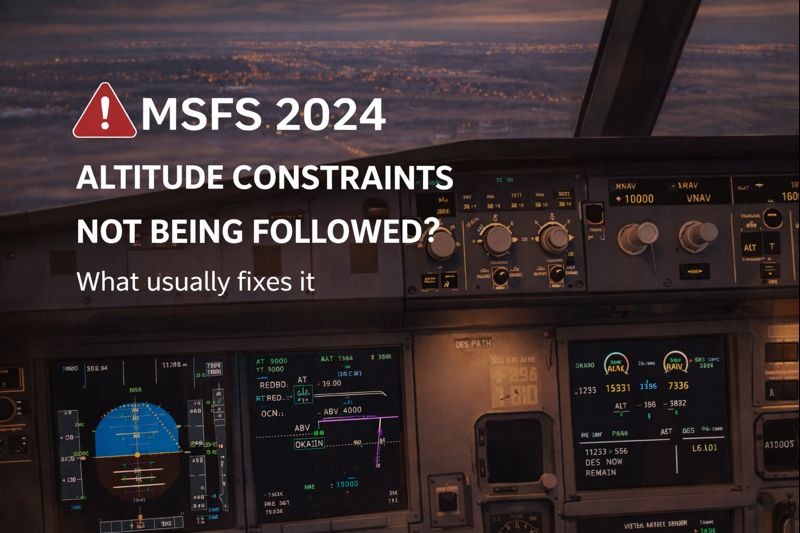
Troubleshooting and fixing MSFS altitude constraint issues is essential for pilots who want VNAV descents, climbs, and approach restrictions to behave correctly during managed flight.
If you’re still learning how navigation systems, flight planning, and aircraft configuration interact inside the simulator, our How to plan better flights guide explains the routing, altitude planning, and procedural steps that help prevent many constraint-related problems before they begin.
In most cases, nothing is broken. The way altitude constraints are interpreted by the avionics usually causes this behavior. It also depends on how the autopilot is being managed.
This guide explains why altitude constraints are sometimes ignored and what usually fixes it. Understanding these MSFS altitude constraint issues is crucial for a smoother flying experience.
Common Signs of This Problem
You notice one or more of the following.
• Plane levels off instead of continuing descent
• STAR altitude restrictions are not respected
• Airplane descends too early or too late
• Autopilot remains in ALT HOLD unexpectedly
• VNAV appears armed but not active
These symptoms are almost always related to mode management or setup.
Understand What Altitude Constraints Really Are
Altitude constraints in MSFS are advisory unless the plane’s avionics and autopilot are set up to follow them.
Many planes will show altitude constraints. Nevertheless, they will not automatically obey them. This occurs unless VNAV or a managed vertical mode is active.
Simply having a constraint in the flight plan does not guarantee the plane will follow it.
VNAV Must Be Available and Engaged
For altitude constraints to be followed automatically, VNAV must be active.
Check that.
• VNAV is available for the plane
• VNAV is engaged, not just armed
• A valid vertical profile exists
If VNAV is not active, the plane will often level off at the selected altitude instead.
The Selected Altitude Can Override Constraints
One of the most common causes is the selected altitude on the autopilot.
If the selected altitude is set lower or higher than the next constraint, the plane will ignore the restriction entirely.
Always set the selected altitude to allow the plane to descend through upcoming constraints.
In many cases, the selected altitude acts as a hard limit.
ALT HOLD Will Cancel Constraint After
If the plane enters ALT HOLD, it will stop tracking vertical guidance.
This can happen when.
• The plane captures a selected altitude
• Vertical speed is used incorrectly
• VNAV disengages silently
Once in ALT HOLD, the plane will ignore constraints until a vertical mode is re-engaged.
Descent Not Be Properly Planned
Altitude constraints often fail when descent is started too late.
If the plane is too high and too fast, it is physically incapable of meeting constraints. This can occur even though they are displayed.
Starting descent earlier and reducing speed improves the likelihood of constraint compliance.
Plane-Specific Limitations Apply
Not all planes handle altitude constraints the same way.
Some planes.
• Show constraints but do not follow them automatically
• Need manual intervention
• Have simplified VNAV logic
If the issue only occurs in one plane, this behavior is by design.
ATC Instructions Can Conflict With Constraints
In-game ATC assigns altitudes that conflict with published constraints.
When this happens.
• ATC instructions often override VNAV logic
• The aircraft may level off unexpectedly
• Constraints may be skipped
Following ATC blindly can prevent proper constraint management.
Test With a Default Aircraft
To decide whether the issue is general or aircraft-specific, test the same route using a default aircraft.
If constraints are followed correctly, the issue is likely related to.
• Add-on avionics
• Aircraft VNAV logic
• Procedure limitations
Why This Feels Inconsistent
Altitude constraint behavior depends on multiple systems working together, including VNAV logic, selected altitude, descent planning, and autopilot mode state.
A small mismatch in any of these can cause the plane to ignore constraints without an obvious warning.
Final Thoughts
If MSFS altitude constraints are not being followed, there are several possible causes. These include VNAV availability, selected altitude limits, ALT HOLD engagement, or late descent planning.
Understanding how the autopilot prioritizes selected altitude is crucial. It also prioritizes vertical modes. This knowledge will resolve most issues without changing the plane. There’s no need to reinstall the simulator either.
Altitude restrictions and VNAV behaviour in real aviation are governed by published procedures and navigation database accuracy. Resources such as the ICAO Procedures for Air Navigation Services documentation help explain how altitude constraints are designed and why aircraft must follow them precisely during departures, arrivals, and approaches.
Be aware that you can explore more solutions in our detailed MSFS 2024 troubleshooting guide.