
If you’re still becoming familiar with installation paths, content management, and account setup in Microsoft Flight Simulator, our Microsoft Flight Simulator beginner’s guide explains the essential configuration steps that often resolve missing content issues more quickly.
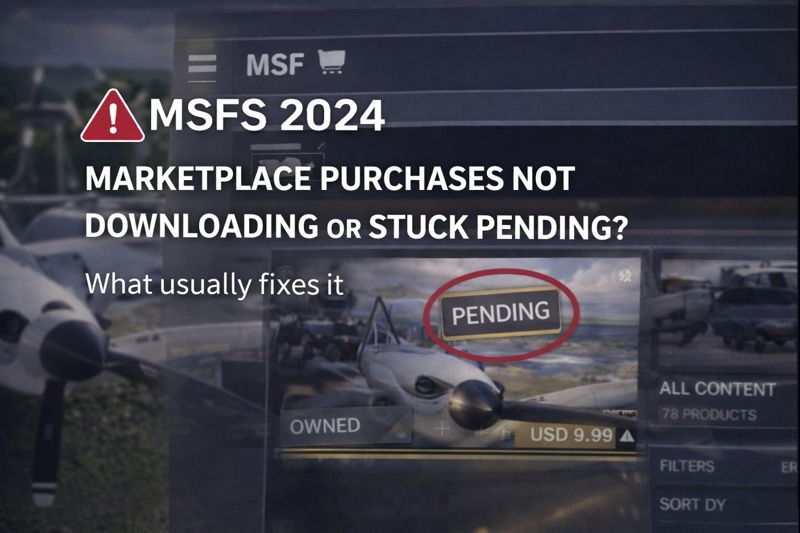
In most cases, nothing is wrong with your account or the add-on itself. The issue is usually caused by Marketplace syncing, server communication, or how MSFS handles downloads in the background.
This guide explains why Marketplace downloads get stuck and what usually resolves the problem.
Common Signs of Marketplace Download Issues
You may notice one or more of the following.
• Purchased add-on shows as Owned but not installed
• Download stuck on Pending
• Download never starts or pauses indefinitely
• Add-on does not appear in Content Manager
• Restarting the sim does not immediately help
These symptoms are almost always related to syncing or download state issues.
Give the Marketplace Time to Sync
The Marketplace does not always sync purchases instantly.
After buying an add-on, the simulator may need time to refresh your ownership status. This is especially true during peak times or shortly after updates.
If a purchase shows as Owned but won’t download, wait a few minutes before taking further action.
Restart MSFS Completely
A full restart is often the simplest fix.
Do not return to the main menu. Fully close MSFS and restart it. On relaunch, go straight to the Marketplace or Content Manager and check whether the download begins.
This forces the simulator to refresh Marketplace data.
Check Content Manager Directly
Some Marketplace purchases do not automatically start downloading.
Open Content Manager and look for the add-on there. If it appears but is not installed, manually start the download from Content Manager rather than the Marketplace page.
This often bypasses a stuck Marketplace state.
Check Available Storage Space
Marketplace downloads will fail silently if there is not enough free disk space.
Make sure you have sufficient free space on the drive where MSFS content is installed. Remember that some add-ons require additional space during installation, not just their final size.
Low disk space can cause downloads to remain stuck without showing an error.
Online Services Must Be Active
Marketplace downloads require an active online connection.
Check the following.
• Online functionality is enabled
• Data connection is active
• You are not in Offline Mode
• Bing data is turned on
If MSFS temporarily loses connection to online services, downloads may stall.
Marketplace Servers Can Be Slow or Busy
During updates or sales, Marketplace servers can become overloaded.
In these situations.
• Downloads may queue silently
• Pending status can last longer than usual
• Progress may resume after restarting the sim later
If everything else looks correct, waiting and trying again later is sometimes the only fix.
Sign Out and Sign Back In
In some cases, your Marketplace session may desynchronise.
Signing out of your Microsoft account and signing back in can refresh ownership status and restart stuck downloads. After signing back in, restart MSFS and check Content Manager again.
Clear the Rolling Cache
A corrupted rolling cache can interfere with downloads.
If problems persist, clearing the rolling cache is worth trying. After clearing it, restart MSFS and attempt the download again.
Test Without Add-ons Running
Rarely, third-party tools or add-ons can interfere with Marketplace downloads.
If you suspect this.
• Launch MSFS in Safe Mode
• Avoid running external utilities
• Try downloading again
If the download works in Safe Mode, re-enable add-ons later.
Why Marketplace Issues Feel Random
Marketplace downloads rely on account syncing, online services, and background content management. When any of these are delayed or interrupted, downloads can stall without clear feedback.
Once the download state resets correctly, purchases usually install normally and do not need to be repurchased.
Final Thoughts
If an MSFS Marketplace purchase is not downloading or stuck pending, the cause is almost always syncing, server load, or download state issues rather than a faulty add-on.
Restarting the simulator, checking Content Manager, confirming online services, and allowing time for Marketplace servers to respond will resolve most cases without reinstalling MSFS or contacting support.
Marketplace download failures are sometimes linked to account authentication, server status, or licensing verification rather than local PC settings. Checking the official Microsoft Flight Simulator support portal can provide up-to-date troubleshooting steps and service information when investigating persistent download problems.