
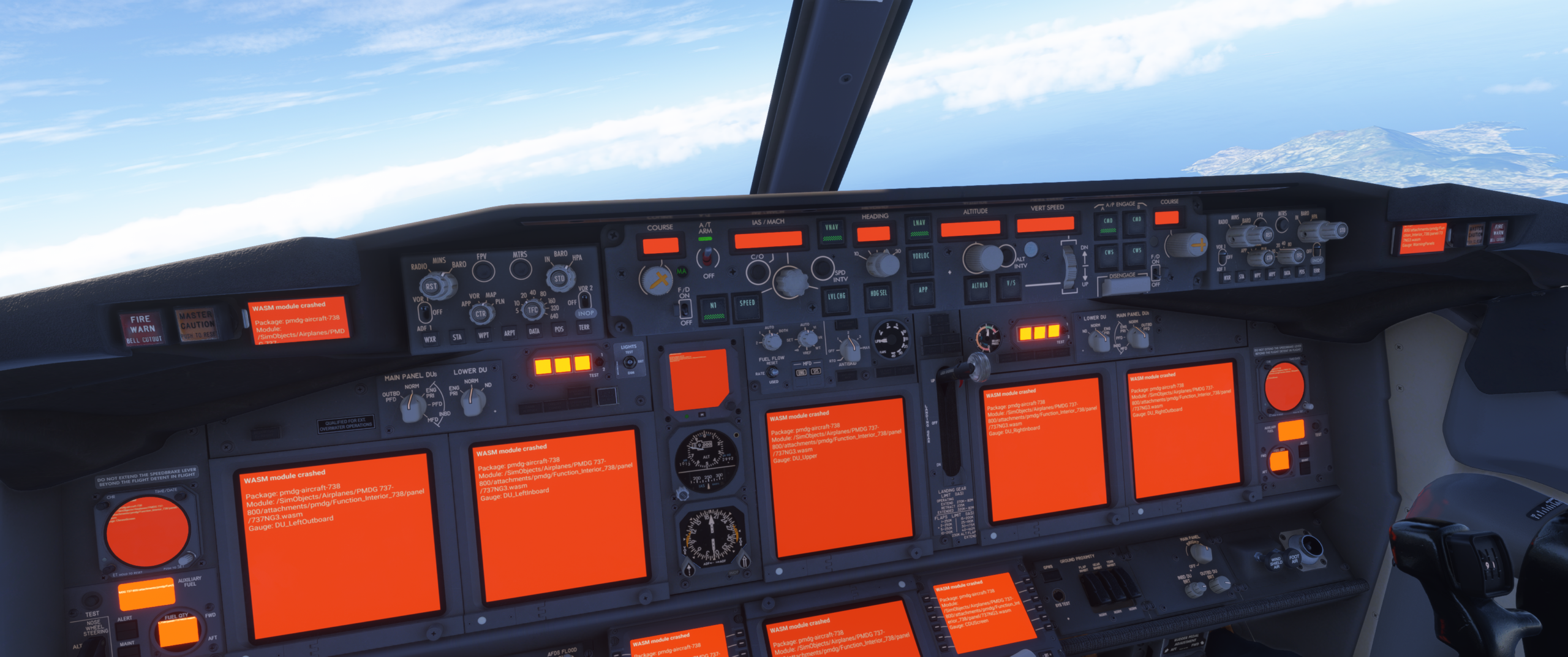
WASM Crash in Microsoft Flight Simulator 2024: What It Is and How to Fix It. If you’ve ever been flying along happily in Microsoft Flight Simulator 2024 and suddenly all your cockpit displays turn bright red with error messages like “WASM module crashed,” you’ve experienced one of the most frustrating issues in modern flight simulation.
This isn’t a normal system failure, and it’s not something you did wrong during startup. It’s a deeper problem tied to how advanced aircraft operate inside the simulator.
Let’s break it down clearly so you know exactly what’s happening—and how to avoid it.
What Is a WASM Crash?
Understanding WASM in Flight Simulation
WASM stands for WebAssembly, and in flight simulation, it’s a critical technology.
It allows high-end aircraft—like airliners and complex GA aircraft—to run their own internal systems independently of the core simulator.
This includes:
- Flight displays (PFD, ND, EICAS)
- FMC/CDU systems
- Autopilot logic
- Electrical and hydraulic simulations
- Aircraft-specific behaviour and logic
Without WASM, aircraft like the PMDG 737 simply wouldn’t function at the level of realism we expect.
What Happens When WASM Fails
When the WASM module crashes:
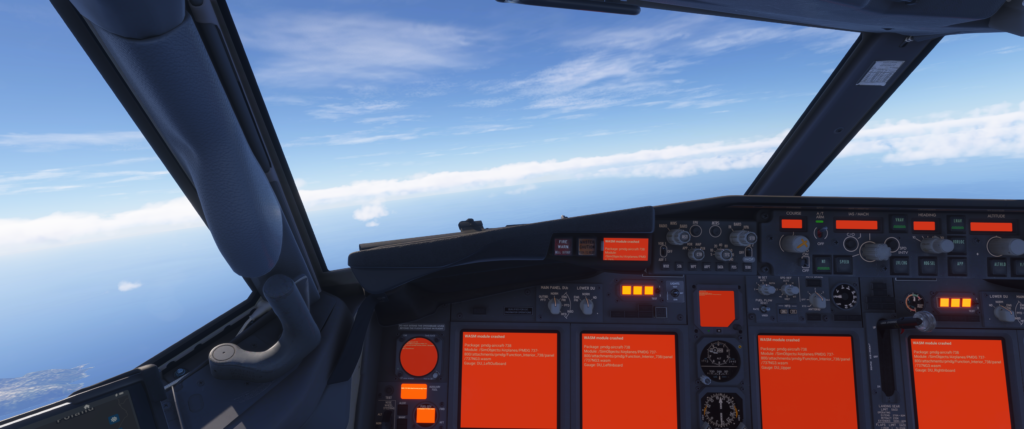
- All cockpit displays turn solid red
- Error messages appear (e.g., “WASM module crashed”)
- FMC becomes unusable
- Switches may stop responding
- The aircraft becomes unflyable
At that point, the simulation is effectively broken for that aircraft.
Why WASM Crashes Happen
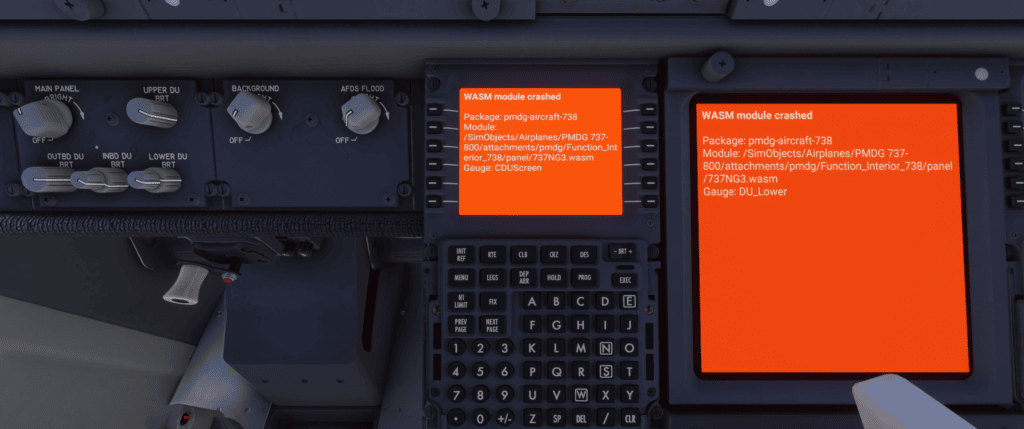
WASM crashes are usually caused by a combination of simulator limitations and complex aircraft systems pushing those limits.
Common Causes
Simulator Instability (FS2024)
Microsoft Flight Simulator 2024 is still evolving, and WASM handling can occasionally be unstable—especially with detailed add-ons.
Complex Aircraft Systems
Aircraft like the PMDG 737 rely heavily on WASM. The more systems being simulated, the greater the chance of a failure if something conflicts.
Aircraft Switching
Switching between aircraft without restarting the simulator can leave residual data in memory.
This is one of the most common triggers.
Flight Reloading
Using “Restart Flight” repeatedly instead of loading fresh can destabilise WASM.
SimBrief and Tablet Interactions
Importing flight plans or interacting quickly with onboard tablets during loading can occasionally trigger issues.
Performance and Memory Pressure
Heavy scenery, high settings, and complex aircraft all at once can overload the system.
WASM Crash vs Normal Aircraft Failures
It’s important to understand the difference:
Normal Failure (e.g., IRS not aligned)
- Displays show flags or warnings
- The aircraft still operates
- Can be fixed in-flight
WASM Crash
- Screens go completely red
- Systems stop responding
- No recovery possible
A WASM crash is not a simulation of real-world failure—it’s a system-level crash.
Can You Recover From a WASM Crash?
Unfortunately, no.
Once it happens:
- You cannot reset the displays
- You cannot recover the FMC
- You cannot continue the flight
Your Only Options
- Restart the flight
- Reload the aircraft
- Restart the simulator (recommended)
How to Prevent WASM Crashes
The good news is that you can significantly reduce the chances of this happening.
Best Practices for Stability
Start Fresh Every Flight
Always load your aircraft from the main menu.
Avoid:
- Switching aircraft mid-session
- Jumping between flights quickly
Allow the Aircraft to Fully Load
After loading into the cockpit:
- Wait 20–30 seconds before interacting
- Let all systems initialise properly
Avoid Rapid Inputs Early
Don’t rush to:
- Import SimBrief
- Power up systems immediately
Give the aircraft time to stabilise.
Keep Everything Updated
Ensure:
- Simulator is up to date
- Aircraft add-ons are updated
Version mismatches can cause instability.
Manage Performance
If you experience frequent crashes:
- Lower graphics settings slightly
- Avoid extremely heavy scenery during testing
- Close background apps
Restart the Simulator Regularly
Long sessions increase the chance of memory-related issues.
A quick restart between flights can make a big difference.
A Simple, Reliable Workflow
Here’s a stable routine that works well:
- Start MSFS 2024 fresh
- Select aircraft and airport
- Load into the cockpit and wait
- Power up the aircraft slowly
- Import SimBrief after systems stabilise
- Proceed with normal setup
This alone will prevent most WASM-related problems.
Final Thoughts
A WASM crash can feel like a complete mystery the first time it happens—especially when everything suddenly turns red without warning.
But once you understand what’s going on, it becomes much easier to manage.
This isn’t a pilot error or a missed checklist item. It’s a limitation of how advanced aircraft interact with the simulator.
The key is simple:
- Treat each flight as a fresh session
- Give the aircraft time to initialise
- Avoid rushing the setup
Do that, and you’ll spend far more time flying—and far less time staring at red screens.