
MSFS mouse or keyboard interaction problems can make even simple cockpit actions frustrating, especially when switches, knobs, or menus stop responding as expected.
If you’re still becoming familiar with how controls and input systems work across different aircraft, our MSFS 2024 controls and hardware setup guide explains the core configuration steps that help prevent many of these interaction issues from appearing in the first place.
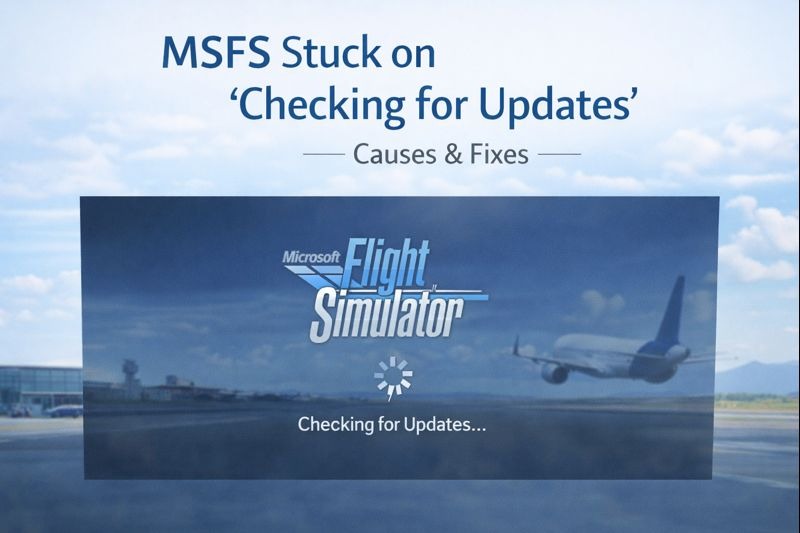
In many cases, the simulator itself is not broken. Connectivity problems, corrupted update data, or conflicts between the Microsoft Store, Xbox app, and the simulator usually cause the issue.
One common cause is a temporary failure to connect to Microsoft’s update servers. Even if your internet connection appears to be working, background services required by MSFS may not be communicating correctly. Restarting the simulator, the Microsoft Store, and the Xbox app can often restore proper connectivity.
Cached data
Cached data can also cause the update check to stall. Corrupted or outdated cache files may prevent the simulator from completing the update verification process. Restarting the system and launching the simulator again can clear temporary conflicts, but in some cases, the cache needs to be refreshed by signing out and back into the Microsoft Store and Xbox app.
The Xbox services themselves are another frequent factor. Microsoft Flight Simulator relies on multiple Xbox-related background services, even on PC. If any of these services fail to start correctly, the update check may never complete. Ensuring that Xbox Live services are running and properly signed in can resolve the issue.
Firewall
Firewall or antivirus software can also interfere. Security software may block background connections used during the update check, particularly after simulator or Windows updates. Temporarily disabling third-party antivirus software or allowing MSFS through the firewall can help determine whether this is the cause.
Installation location issues may also contribute. If MSFS is installed across multiple drives or if the installation path has changed, the simulator may struggle to verify update files. This can result in the update check looping indefinitely. Verifying that the installation path is intact and accessible can help resolve this.
Network
Network interruptions during previous updates can leave partial files behind. These incomplete files may cause the simulator to repeatedly attempt to verify updates without success. In such cases, repairing the installation through the Microsoft Store or Steam client can restore missing components without requiring a full reinstall.
Although it may be tempting to wait indefinitely, MSFS should not remain on the “Checking for Updates” screen for long periods. If no progress is visible after several minutes, the issue is almost always related to connectivity, services, or cached data rather than an active update process.
In most cases, resolving this issue does not require reinstalling the simulator. Once connectivity is restored and background services are functioning correctly, MSFS usually passes the update check and loads normally again.
Input and interaction behaviour in Microsoft Flight Simulator can also be influenced by control profiles, device drivers, and known simulator limitations. The official Microsoft Flight Simulator support pages often list current issues and recommended fixes, making them a useful reference when troubleshooting persistent interaction problems.
Also, for further help resolving simulator issues, see our complete troubleshooting guide.