
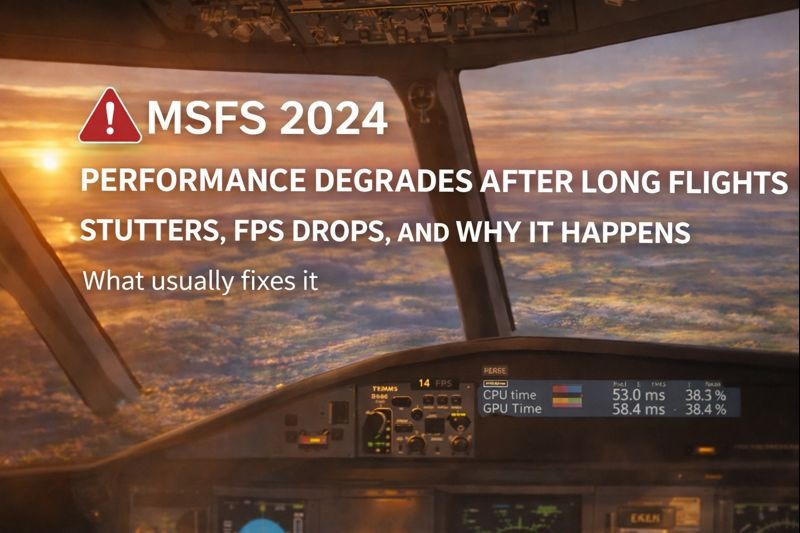
When MSFS performance degrades after long flights, pilots may notice increasing stutters, falling frame rates, or micro-freezes that were not present earlier in the journey.
If you’re still learning how simulator optimisation, system resources, and graphics configuration affect stability over time, our MSFS 2024 performance settings guide explains the key adjustments that help maintain smooth performance throughout extended flights.
In most cases, nothing is wrong with your graphics settings or hardware. The problem is usually caused by resource build-up during long sessions rather than poor performance tuning.
This guide explains why performance degrades over time and what usually fixes it.
This phenomenon, known as MSFS Performance Degrades After Long Flights, can frustrate pilots and detract from the overall experience.
Common Signs of Long-Flight Performance Issues
You may notice one or more of the following.
• Smooth performance at departure, worsening later
• Stutters appearing during cruise or descent
• FPS dropping slowly rather than suddenly
• Micro-pauses when panning the camera
• Performance recovering after restarting the sim
These symptoms point to accumulation rather than a single fault.
Why Performance Drops Over Time
During long sessions, MSFS continuously loads and unloads scenery, weather data, traffic, and textures. Over time, this can lead to increased memory usage and background processing that does not fully clear.
Common contributors include.
• Live weather updates
• AI traffic over multiple regions
• Scenery streaming
• Long sessions without restarting
• Complex aircraft systems running for hours
Even powerful systems can be affected.
Live Weather and Traffic Accumulation
Live weather and real-time traffic refresh repeatedly during a flight.
Over long periods, this can increase CPU and memory load, especially when flying across large distances or changing weather systems.
If performance degrades consistently on long flights, temporarily test with.
• Static weather
• Reduced AI traffic
can help confirm whether live services are contributing.
Rolling Cache Can Make Things Worse
The rolling cache is designed to improve performance, but in some cases, it can do the opposite during long sessions.
If the cache becomes inefficient or corrupted, it can cause stutters to increase over time instead of decreasing.
Clearing the rolling cache and restarting MSFS is often one of the most effective fixes for long-flight performance issues.
Camera Use and View Changes Add Load
Frequent camera changes can increase resource usage.
This includes.
• Extensive use of drone camera
• Rapid external view panning
• Repeated cockpit-to-external switching
During long flights, heavy camera use can contribute to gradual performance loss.
Add-ons Accumulate Load Over Time
Complex aircraft and scenery add-ons run systems continuously.
On long flights, this can result in.
• Increasing CPU load
• Growing memory usage
• Slower response over time
If performance issues only occur with certain aircraft, testing the same route using a default aircraft can help identify whether an add-on is contributing.
Why Restarting the Simulator Helps
Restarting MSFS clears accumulated memory, resets background processes, and reloads resources cleanly. That’s why performance often feels “magically fixed” after a restart.
This does not mean your settings are wrong — it simply resets long-session build-up.
For very long flights, restarting MSFS between legs can significantly improve stability.
System-Level Factors to Check
A few external factors can worsen long-session performance.
• Background applications are slowly consuming resources
• Thermal throttling after extended load
• Driver or system updates running in the background
Monitoring system performance during long flights can reveal gradual changes rather than sudden spikes.
Practical Ways to Reduce Long-Flight Degradation
To minimise performance loss on longer flights.
• Clear the rolling cache regularly
• Restart MSFS between long sessions
• Limit unnecessary camera movement
• Reduce AI traffic slightly on long routes
• Keep background applications to a minimum
These steps improve consistency more than lowering graphics settings.
Why This Is Still Common
MSFS is a complex, continuously streaming simulator. Long-haul flights push systems differently than short hops, and even well-optimised setups can show degradation over time.
This behaviour has improved with updates, but has not been eliminated.
Final Thoughts
Long-duration performance drops in simulation software are often linked to memory management, background processes, or known optimisation limitations rather than a single graphics setting. Official performance guidance and troubleshooting resources available through the Microsoft Flight Simulator support portal can provide additional technical insight when investigating persistent slowdowns during extended flights.
Clearing the rolling cache, restarting the simulator between sessions, and managing live services and add-ons will usually restore smooth performance without sacrificing visual quality. Refer to our MSFS 2024 troubleshooting guide for a full list of possible fixes.