
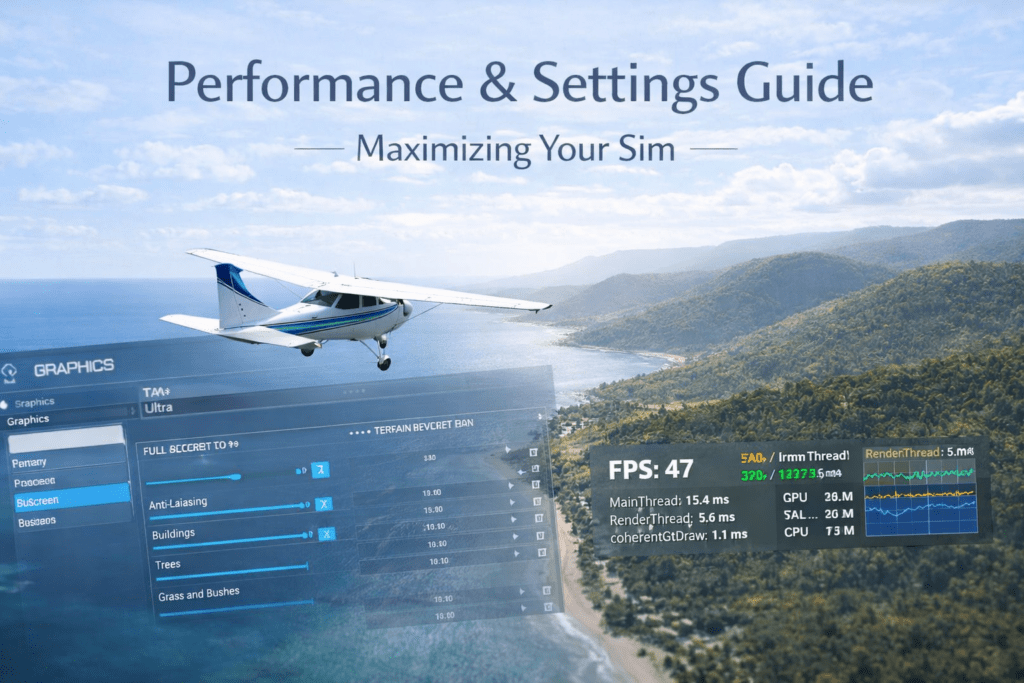
MSFS 2024 quality vs FPS.Microsoft Flight Simulator 2024 is one of the most visually stunning simulators ever created — and also one of the most demanding. Every pilot eventually faces the same question: should you push visuals higher for realism, or lower settings for smoother performance?
Chasing maximum FPS often results in a flat-looking simulator. Chasing ultra settings often results in stutters and instability. The real goal is balance.
This guide explains how MSFS performance actually works, which graphics settings matter most, and how to prioritise smoothness without destroying visual quality.
Quick Summary
- Smoothness in MSFS depends more on stable frame pacing than maximum FPS
- The simulator is often CPU-limited, especially in busy areas
- Use the Developer FPS counter to identify whether your bottleneck is CPU or GPU
- Terrain LOD, traffic and glass cockpit refresh heavily impact CPU performance
- Clouds, shadows, and render scaling primarily affect GPU load
- A stable 45–60 FPS with consistent frame timing usually feels smoother than an unstable higher FPS
Understanding What FPS Really Means
FPS (frames per second) measures how many images your system renders each second. Higher FPS generally feels smoother — but only up to a point.
In Microsoft Flight Simulator, smoothness depends more on:
- Frame consistency
- Frame pacing stability
- CPU workload
- GPU workload
For example, a locked 40–50 FPS with stable frame timing often feels smoother than 70 FPS with frequent stutters.
The Goal: Stable Frame Pacing
Instead of chasing the highest possible FPS, aim for:
- Stable frame time
- No sudden spikes
- Smooth motion when turning or panning
You can check performance using the in-sim Developer FPS counter.
If it shows:
Limited by MainThread
Your CPU is the bottleneck.
Limited by the GPU
Your graphics card is the limiting factor.
This information determines which settings you should adjust.
Step 1: Set a Realistic FPS Target
Choose a target based on your monitor or VR headset.
For a 60Hz monitor
- Aim for a stable 45–60 FPS
For a 144Hz monitor
- Stable 60–90 FPS is usually sufficient
And VR
- Target half refresh rate (for example, 45 FPS for a 90Hz headset)
Consistency matters far more than peak frame numbers.
Step 2: Identify CPU vs GPU Bottleneck
If You Are MainThread Limited (CPU)
Lower settings such as:
- Terrain Level of Detail
- Object Level of Detail
- AI traffic
- Glass cockpit refresh rate
If You Are GPU Limited
Lower settings such as:
- Render scaling
- Cloud quality
- Shadow resolution
- Ambient occlusion
- Reflection quality
Adjust only the settings related to your actual bottleneck.
Step 3: Prioritise High-Impact Visual Settings
Some settings dramatically improve visuals while having a moderate performance cost.
Settings are usually safe to keep higher:
- Texture resolution (High is usually safe)
- Anisotropic filtering
- Buildings quality
- Trees quality
Settings to reduce carefully:
- Cloud quality (Ultra is very demanding)
- Terrain LOD above 200
- Shadow maps
- Ambient occlusion
Ultra-terrain detail often costs far more performance than the visual improvement it provides.
Step 4: Use Upscaling Wisely
Upscaling can significantly improve performance.
If using NVIDIA RTX GPUs
- Use DLSS Quality for 1440p and above
- Use DLSS Balanced if GPU is limited
If using AMD GPUs
- Use FSR Quality or Balanced
Upscaling can provide:
- Large FPS gains
- Slight loss of sharpness
For cockpit readability, avoid aggressive scaling modes.
Step 5: Control Frame Rate
Capping frame rate can improve smoothness.
Examples:
- 58 FPS cap for a 60Hz monitor
- 117 FPS cap for a 120Hz monitor
Frame caps help reduce:
- GPU spikes
- Micro-stutters
- Temperature fluctuations
Stable frame timing improves smoothness more than higher peak FPS.
Step 6: Optimise for Your Flying Style
Different flying styles benefit from different settings.
Airliner Flying
Prioritise:
- Stable cockpit performance
- Lower glass cockpit refresh rate
- Moderate terrain LOD
- Reduced AI traffic
Bush Flying
Prioritise:
- Higher terrain LOD
- Good tree density
- Moderate cloud quality
Scenic VFR Flying
Prioritise:
- Terrain detail
- Building quality
- Balanced shadow settings
Adjust settings based on how you actually use the simulator.
Most Expensive Settings in MSFS
These settings usually have the largest performance impact:
- Terrain Level of Detail
- Ultra cloud quality
- High AI traffic
- Ultra shadow maps
- High glass cockpit refresh rate
If performance struggles, reduce these first.
Common Mistakes
Setting Everything to Ultra
Ultra rarely looks twice as good as High but can cost 20–30% performance.
Ignoring CPU Limitations
Many users upgrade their GPU but remain CPU-bottlenecked.
Changing Too Many Settings at Once
Adjust one variable at a time and test the results.
Comparing FPS to Other Users
Different systems, locations, and weather conditions produce different performance results.
Balanced Preset Example
Mid-Range System (RTX 3060 / RX 6600 XT)
- Terrain LOD: 120
- Object LOD: 100
- Clouds: High
- Textures: High
- Shadows: Medium
- DLSS / FSR: Quality
- Glass cockpit refresh: Medium
High-End System (RTX 4080 / RX 7900 XTX)
- Terrain LOD: 150–200
- Object LOD: 150
- Clouds: High
- Textures: Ultra
- Shadows: High
- Frame cap recommended
Always adjust gradually and test in real flight scenarios.
How to Know You’ve Found the Sweet Spot
You should notice:
- Smooth head movement and panning
- No major FPS drops at busy airports
- Stable performance during approach
- Minimal stutters during long flights
If performance remains stable during the final approach into a large airport, your settings balance is likely correct.
Quality vs FPS Philosophy
The best MSFS experience is not about achieving:
- The highest FPS
- Maximum Ultra graphics settings
Instead, focus on:
- Stable motion
- Clear cockpit instruments
- Consistent performance
- Realistic immersion
Smoothness always beats maximum detail.
Conclusion
Balancing quality versus FPS in MSFS 2024 requires understanding whether your system is CPU or GPU-limited and adjusting only the settings that affect that bottleneck. Prioritise stable frame pacing over chasing the highest FPS, use upscaling technologies carefully, and tailor graphics settings to your flying style. With a balanced configuration, you can achieve smooth performance while preserving the visual realism that makes Microsoft Flight Simulator so immersive.