
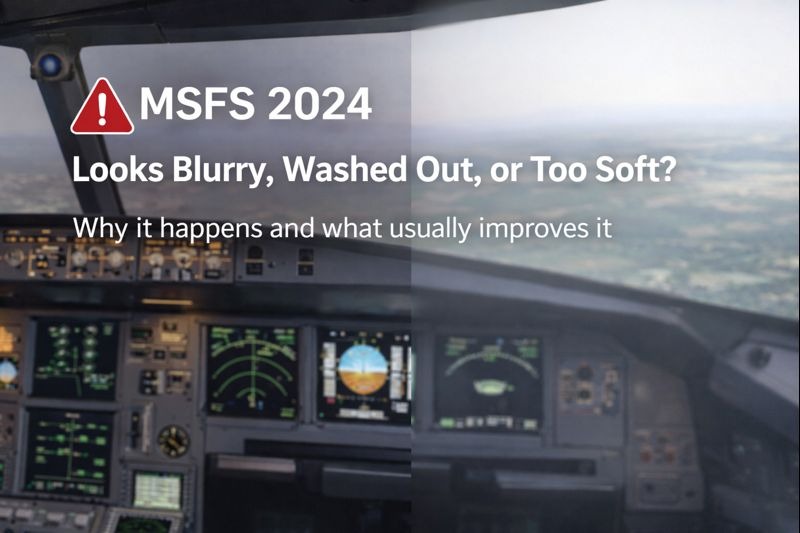
Experiencing blurry or washed-out graphics in MSFS 2024 can make scenery appear soft, colours look faded, and cockpit details lose clarity, reducing the overall visual realism of the simulator.
If you’re still learning how rendering options, resolution scaling, and image-quality settings interact, our MSFS 2024 graphics settings guide explains the key adjustments that most often restore sharp visuals and natural colour balance.
Many users report:
- Distant scenery looks smeared
- Cockpit text lacking sharpness
- Colours appear washed out
- The sim is looking worse than expected on good hardware
This can be particularly frustrating because MSFS 2024 is known for its visual quality — so when things don’t look right, it’s natural to assume something is broken.
This article explains why image softness and blur are common in MSFS 2024, what’s usually happening behind the scenes, and what has helped many users improve clarity.
A quick note before we start
There is no single “correct” visual setup.
Visual clarity depends on:
- Resolution and scaling
- Display type and size
- Performance headroom
- Personal preference
The goal isn’t maximum sharpness at all costs, but a clear, stable image that looks natural while flying.
Why MSFS 2024 can look blurry by default
Out of the box, MSFS 2024 prioritises smooth performance across a wide range of systems. To achieve that, it uses several techniques that can reduce sharpness under certain conditions.
These choices are sensible for performance, but they don’t always suit every setup.
Common reasons the image looks soft or washed out
Resolution scaling
If render scaling is set below 100%, the simulator renders the image at a lower resolution and scales it up. This can significantly reduce clarity, especially in cockpits.
Temporal upscaling and smoothing
Modern upscaling techniques improve performance, but they can introduce softness, particularly during movement or camera panning.
Anti-aliasing trade-offs
Some anti-aliasing methods reduce jagged edges at the cost of sharpness. The balance between smooth edges and crisp detail isn’t always ideal by default.
Display and colour settings
Monitor calibration, HDR, and colour profiles can dramatically affect how the simulator looks. Washed-out colours are often caused by display configuration rather than the simulator itself.
Performance constraints
When the simulator is under heavy load, visual compromises may increase dynamically to maintain frame rate.
What has helped many users (but not all)
The following adjustments have improved visual clarity for a large number of people. Results vary, but these are sensible areas to explore.
Check render scaling first
Ensuring render scaling is set to 100% is one of the most impactful changes for image clarity, especially in the cockpit.
Balance anti-aliasing carefully
Different anti-aliasing options suit different systems. Testing alternatives can improve sharpness without introducing distracting artefacts.
Avoid chasing extreme sharpness
Excessive sharpening can introduce shimmer and instability, especially during motion. Subtle improvements are usually more effective.
Verify display settings
Check that your monitor’s resolution, refresh rate, and colour settings match expectations. Incorrect display configuration can make even a perfectly rendered image look dull.
Make changes gradually
Small adjustments followed by short test flights are far more effective than changing many settings at once.
Why visuals sometimes change after updates
Simulator updates can:
- Alter rendering techniques
- Adjust default settings
- Rebalance performance priorities
This can make the sim look different overnight, even if you haven’t changed anything yourself.
Revisiting visual settings after major updates is often necessary.
A helpful way to think about visual clarity
A useful mindset is this:
MSFS 2024 trades absolute sharpness for stability and performance by default.
Understanding that makes it easier to tune the sim toward your own preferences rather than chasing someone else’s ideal settings.
When it’s best to stop tweaking
If:
- Performance is smooth
- Cockpit readability is good
- Visuals feel natural in motion
…it’s often better to stop adjusting rather than endlessly chasing perfection.
Flight simulation visuals are about immersion, not pixel inspection.
Closing thought
Blur or softness in MSFS 2024 is rarely a fault with your hardware. In most cases, it’s the result of sensible default settings designed to suit a wide audience.
With a bit of understanding and gentle adjustment, most users can achieve a clear, pleasing image that makes flying enjoyable again.
Visual clarity issues can sometimes be influenced by graphics-driver settings, display calibration, or resolution scaling outside the simulator itself. Official optimisation and configuration guidance from NVIDIA support can provide additional steps for improving image sharpness and colour accuracy in demanding 3D applications such as Microsoft Flight Simulator.
Your window seat to the skies