
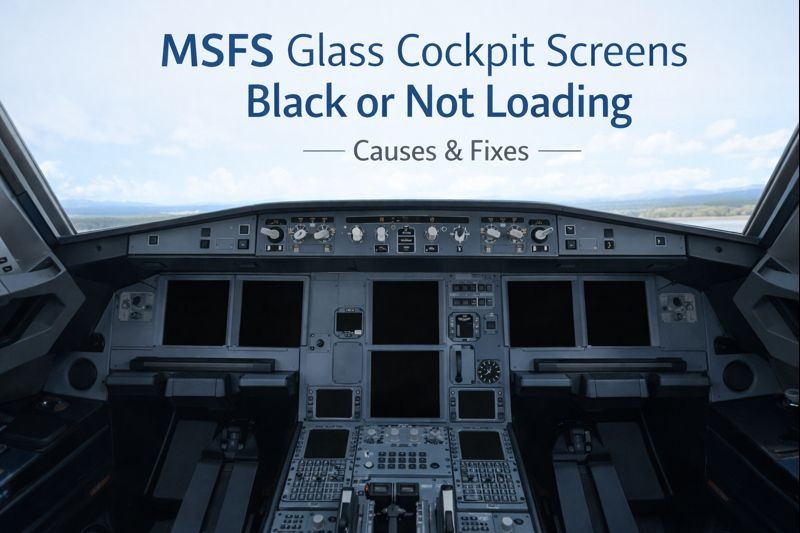
Seeing MSFS glass cockpit screens black or not loading can make an aircraft impossible to fly, especially when key flight instruments and navigation displays fail to appear.
If you’re still learning how aircraft systems, graphics rendering, and simulator performance interact, our MSFS 2024 graphics settings guide explains the visual and performance settings that most often influence cockpit display behaviour and overall stability.
In many cases, the simulator has not crashed, and the aircraft itself is not broken. The problem is usually related to performance limits, graphics handling, or system resource management rather than a permanent fault.
CPU or GPU
One frequent cause is CPU or GPU overload. Glass cockpit displays are resource-intensive, and when system performance is pushed too far, MSFS may stop updating displays to maintain overall stability. This can happen at complex airports, during approach, or when traffic and scenery density are high. Reducing the terrain level of detail, traffic density, or cockpit refresh rate can help prevent screens from going black.
Graphics driver
Graphics driver issues are another common factor. After Windows or driver updates, incompatibilities can appear that affect display rendering. Performing a clean installation of graphics drivers often resolves display issues that appear suddenly without other obvious changes.
Memory usage
Memory usage can also contribute. Long flights, especially those that cross large scenery areas, can gradually consume system and video memory. By the time the aircraft reaches its destination, memory pressure may cause cockpit displays to fail. Restarting the simulator before long flights or reducing texture resolution can improve reliability.
Some aircraft are more sensitive than others. Complex airliners with advanced avionics place heavier demands on the simulator. If black screens occur only in specific aircraft, testing with a default aircraft can help determine whether the issue is aircraft-specific or system-wide.
Add-ons
Add-ons and utilities can also interfere with cockpit displays. Older avionics mods, conflicting add-ons, or outdated liveries may cause display problems, particularly after simulator updates. Temporarily removing add-ons from the Community folder and testing in a clean state can help isolate the cause.
Power management
Power management settings should not be overlooked. Aggressive CPU or GPU power-saving features can cause brief interruptions that affect display rendering. Ensuring that the system is set to a high-performance power profile can improve cockpit stability.
In some cases, the issue appears only after switching views or minimising the simulator. Returning to the cockpit view or reloading the flight may temporarily restore the displays, but this usually indicates an underlying performance or resource issue that needs addressing.
In most situations, black or non-loading cockpit screens are caused by performance limits, driver conflicts, or add-on interactions rather than a permanent simulator fault. Once system load is balanced and compatibility issues are resolved, cockpit displays typically behave normally again.
Display issues in glass cockpit aircraft are sometimes linked to known simulator bugs or compatibility problems introduced by updates. The official Microsoft Flight Simulator release notes provide details about recent fixes, known issues, and avionics-related improvements, making them a helpful reference when troubleshooting persistent cockpit display problems. Also, you can explore more solutions in our detailed MSFS 2024 troubleshooting guide.