
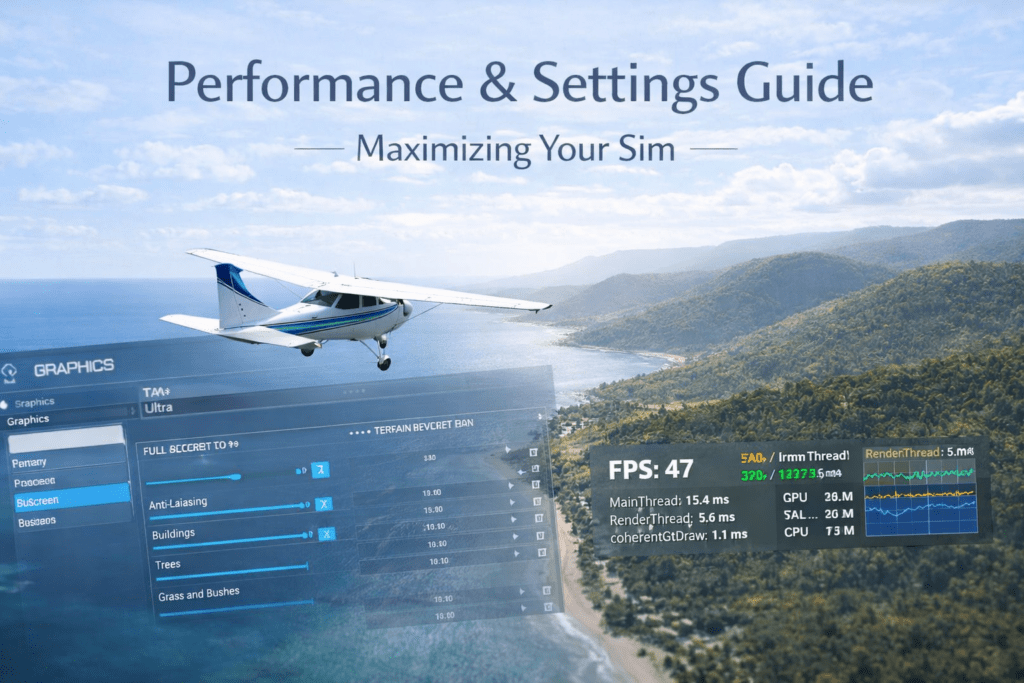
Virtual Reality in Microsoft Flight Simulator 2024 is one of the most immersive ways to fly. Sitting inside a full-scale cockpit, judging depth on final approach, and scanning instruments naturally transforms the experience.
So when VR suddenly stops working — or refuses to start at all — it can be frustrating.
Common VR issues include:
- Headset not detected
- VR mode greyed out
- Black screen inside the headset
- Simulator crashes when switching to VR
- Severe stuttering or unusable performance
- “Switch to VR” does nothing
This guide walks through the most common causes and how to fix them properly.
Quick Summary
- Most MSFS VR failures are caused by an incorrect OpenXR runtime or headset detection issues
- Always start your VR software before launching MSFS
- USB bandwidth and cable stability can cause black screens and crashes
- Overlays and monitoring tools often conflict with VR
- VR may crash if graphics settings are too aggressive for your system
- Testing with an empty Community folder helps rule out add-on conflicts
Step 1: Confirm VR Is Enabled in MSFS
Go to:
Options → General → VR Mode
Make sure:
- VR is enabled
- The correct OpenXR runtime is selected
Then use the default shortcut:
- Ctrl + Tab
If nothing happens, continue troubleshooting.
Step 2: Check OpenXR Runtime
MSFS uses OpenXR for VR. If the wrong runtime is active, VR will not launch.
For Meta (Oculus)
- Open the Oculus app
- Settings → General
- Set Oculus as the Active OpenXR Runtime
For SteamVR
- Open SteamVR
- Settings → Developer
- Set SteamVR as OpenXR Runtime
And Windows Mixed Reality
- Open Mixed Reality Portal
- Ensure OpenXR is active
An incorrect OpenXR runtime is one of the most common VR failures.
Step 3: Restart VR Software Before Launching MSFS
Always:
- Start your VR software first
- Confirm the headset is detected
- Then launch MSFS
Launching MSFS before the headset is active can prevent detection.
Step 4: Check USB and Cable Stability
VR relies heavily on stable USB bandwidth.
Check:
- Headset connected directly to the motherboard USB
- Avoid front panel ports
- Avoid USB hubs
- Use the recommended cable
Unstable USB connections can cause:
- Black screen in the headset
- VR disconnects
- Simulator crashes when entering VR
Step 5: Update Graphics Drivers
VR is extremely sensitive to driver versions.
Install:
- The latest stable NVIDIA or AMD driver
- Use a clean installation if possible
Restart the PC after updating.
Step 6: Disable Overlays and Monitoring Tools
VR conflicts frequently occur with:
- MSI Afterburner
- RivaTuner
- GeForce Experience overlay
- AMD overlay
- Discord overlay
Disable these temporarily and test again.
Step 7: Reset Graphics Settings
If VR previously worked but now crashes:
- Reset MSFS graphics settings
- Lower Terrain LOD
- Lower Object LOD
- Reduce cloud quality
Excessive settings can trigger crashes when switching into VR.
Step 8: Check Windows Graphics Settings
Go to:
Windows Settings → System → Display → Graphics
Ensure:
- MSFS is set to High Performance GPU
- The simulator is not using integrated graphics
Using the wrong GPU can prevent VR from launching properly.
Step 9: Verify Files or Repair Installation
Steam Version
- Verify the integrity of game files
Microsoft Store Version
- Apps → MSFS → Advanced Options → Repair
Corrupted VR modules can prevent VR startup.
Step 10: Test Without the Community Folder
Some add-ons interfere with VR rendering.
Move all add-ons out of the Community folder and test again.
Common VR Scenarios
VR Button Greyed Out
Usually, the OpenXR runtime is not set correctly.
Headset Black Screen but Audio Works
Often a USB bandwidth issue or driver conflict.
Crash When Pressing Ctrl + Tab
Often caused by graphics settings being too high or an overlay conflict.
Extreme Stuttering in VR
Usually, CPU limitation or Terrain LOD is set too high.
VR Works, but Performance Is Terrible
Reduce:
- Terrain LOD
- Clouds
- Glass cockpit refresh rate
- AI traffic
VR requires more performance headroom than 2D mode.
VR Performance Quick Tips
For smoother VR:
- Target a stable half headset refresh rate
- Use DLSS or FSR on Quality
- Lower Terrain LOD below 150
- Use High clouds rather than Ultra
- Reduce shadow quality
Smooth frame pacing matters more than maximum visual settings in VR.
Quick Fix Checklist
If you want a fast troubleshooting path:
- Set the correct OpenXR runtime
- Restart VR software before launching MSFS
- Update graphics drivers
- Disable overlays
- Lower graphics settings
- Empty the Community folder
Most VR issues resolve within these steps.
When It’s a Known Update Issue
Occasionally:
- A Sim Update breaks VR compatibility
- Specific headset models experience bugs
- An OpenXR update causes temporary instability
Check official forums before reinstalling everything.
Conclusion
If MSFS VR is not working, the issue is usually related to an incorrect OpenXR runtime, headset detection problems, driver conflicts or overly aggressive graphics settings. Start by verifying your VR runtime and updating drivers before adjusting performance settings. In most cases, VR can be restored quickly without reinstalling the simulator. A structured, step-by-step approach is the fastest way back into the cockpit.