
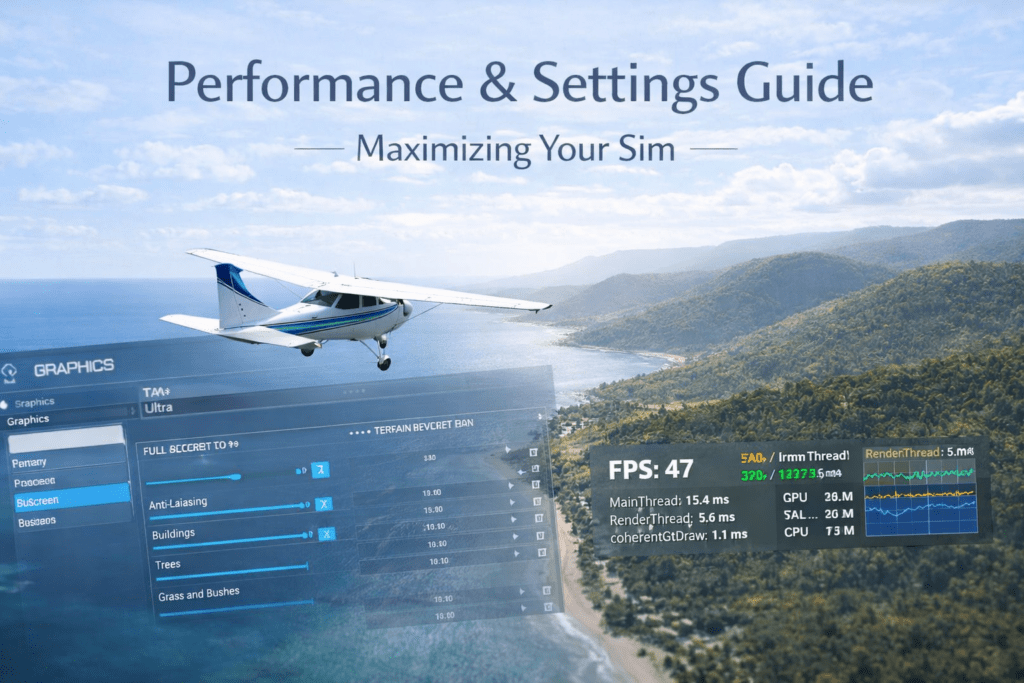
Flying Microsoft Flight Simulator 2024 in VR is one of the most immersive experiences available in gaming today. Sitting inside a fully rendered cockpit, judging flare height naturally, and scanning instruments in three dimensions transforms the simulator into something far closer to real flying.
However, VR is also extremely demanding. Even powerful PCs can struggle with stutters, blurry visuals or unstable frame pacing if settings are not tuned correctly.
This guide explains how VR performance works in MSFS 2024 and walks through the best settings to achieve smooth, immersive flight without sacrificing clarity.
Quick Summary
- VR requires significantly more performance than normal monitor mode
- Smooth VR depends on stable frame timing, not maximum FPS
- Terrain LOD and Object LOD heavily impact CPU performance
- Cloud quality and render scaling primarily affect GPU performance
- DLSS or FSR upscaling can greatly improve VR performance
- Stable half-refresh-rate performance is often the key to smooth VR
Why VR Is So Demanding
In standard monitor mode, your system renders one image. In VR, it renders two high-resolution images — one for each eye — often at high refresh rates.
VR performance depends on several factors:
- GPU power
- CPU performance
- VR headset resolution
- Refresh rate
- Frame timing stability
Smooth VR is less about reaching the highest FPS and more about maintaining consistent frame timing.
Understanding VR Frame Rates
VR smoothness usually depends on reaching specific frame targets.
For a headset running at 90Hz:
- Ideal: 90 FPS
- Acceptable with reprojection: 45 FPS
For a headset running at 72Hz:
- Ideal: 72 FPS
- Acceptable with reprojection: 36 FPS
Reprojection systems, such as ASW or Motion Reprojection, can smooth motion when your system cannot reach the headset’s full refresh rate.
Best In-Sim VR Graphics Settings
Switch to VR Mode in MSFS, then open:
Graphics → VR Settings
Render Scaling (VR)
Set between 70–100% depending on GPU capability.
Lower values:
- Improve performance
- Reduce image clarity
Higher values:
- Improve sharpness
- Increase GPU load
A good starting point is 80%, then adjust gradually.
Anti-Aliasing
Use:
- TAA, or
- DLSS (for NVIDIA RTX GPUs)
DLSS settings:
- Quality for stronger GPUs
- Balanced for mid-range systems
Avoid overly aggressive scaling, as cockpit readability is important in VR.
Terrain Level of Detail
Set between 80–150.
Higher values significantly increase CPU load. In VR, stable performance matters more than ultra-detailed terrain at long distances.
Object Level of Detail
Set between 80–120.
This helps reduce CPU load while maintaining good cockpit immersion.
Cloud Quality
Set to Medium or High.
Ultra clouds are extremely demanding in VR.
Shadows
Set to Medium.
High shadow resolution can significantly reduce performance.
Texture Resolution
Set to High.
VR relies heavily on cockpit texture clarity.
Glass Cockpit Refresh Rate
Set to Low or Medium.
This greatly reduces CPU load, especially when flying airliners.
Motion Blur
Disable.
Bloom
Optional, usually minimal performance impact.
Best NVIDIA Settings for VR
If using NVIDIA GPUs:
- Power Management Mode: Prefer Maximum Performance
- Low Latency Mode: On
- V-Sync: Application Controlled
DLSS works well with RTX 20, 30, and 40 series GPUs.
Best AMD Settings for VR
If using AMD GPUs:
- Radeon Anti-Lag: Enabled
- Radeon Chill: Disabled
- Radeon Boost: Disabled
Use FSR Quality or Balanced in MSFS.
VR is sensitive to unstable frame pacing, so avoid dynamic resolution features.
OpenXR and Headset Settings
Most modern VR headsets use OpenXR.
Within your headset software or OpenXR tools:
Adjust Refresh Rate
If your system struggles at 90Hz, try:
- 72Hz
- 80Hz
Lower refresh rates often stabilise VR performance significantly.
Enable Motion Reprojection
If your system cannot reach the full refresh rate, motion reprojection can smooth motion at half the refresh rate.
Adjust Resolution Scaling
Headset resolution scaling greatly affects performance. Reducing it slightly can provide a noticeable FPS improvement.
Performance Strategy by Hardware Tier
Mid-Range System (RTX 3060 / RX 6600 XT)
Recommended settings:
- VR Render Scale: 70–80%
- DLSS or FSR enabled
- Terrain LOD: ~100
- Clouds: Medium
High-End System (RTX 4080 / RX 7900 XTX)
Recommended settings:
- VR Render Scale: 90–100%
- Terrain LOD: 150–200
- Clouds: High
Even powerful systems benefit from frame caps and balanced settings.
Common VR Problems and Fixes
Blurry Cockpit Instruments
Possible causes:
- VR render scale is too low
- DLSS Balanced instead of Quality
- Headset resolution scaling is too low
Fix:
- Increase render scale slightly
- Use DLSS Quality
- Increase headset resolution gradually
Stuttering When Turning the Head
Possible causes:
- CPU bottleneck
- Terrain LOD too high
- Background applications running
Fix:
- Lower Terrain LOD
- Lower Object LOD
- Close background applications
Micro-Freezes in Airliners
Possible causes:
- Glass cockpit refresh rate too high
- CPU overload
Fix:
- Set the glass cockpit refresh rate to Low
- Reduce traffic settings
Overheating and Throttling
VR places a heavy load on hardware.
Monitor:
- GPU temperatures
- CPU temperatures
Ensure adequate cooling during long VR sessions.
VR Flying Tips
For smoother VR experiences:
- Avoid ultra graphics settings
- Prioritise smoothness over extreme detail
- Cap frame rate if necessary
- Reduce traffic density
- Keep graphics drivers updated
Immersion in VR comes from smooth head movement and stable cockpit clarity, not ultra-terrain detail.
Is VR Worth It in MSFS 2024?
VR is transformative if you value:
- True depth perception
- Natural flare judgment during landing
- Realistic cockpit scanning
- Immersive IFR flying
However, if you prefer:
- Maximum visual sharpness
- Cinematic external views
- Simpler setup with fewer performance tweaks
then monitor flying may remain more practical.
Conclusion
Optimising VR performance in MSFS 2024 is about balance. Lower terrain and object LOD slightly, use DLSS or FSR wisely, reduce cloud quality, and aim for stable frame pacing rather than chasing maximum FPS. Adjust headset refresh rate and resolution carefully, and prioritise smooth head movement above ultra-level graphics. When tuned properly, VR transforms MSFS 2024 into one of the most immersive flight experiences available.