
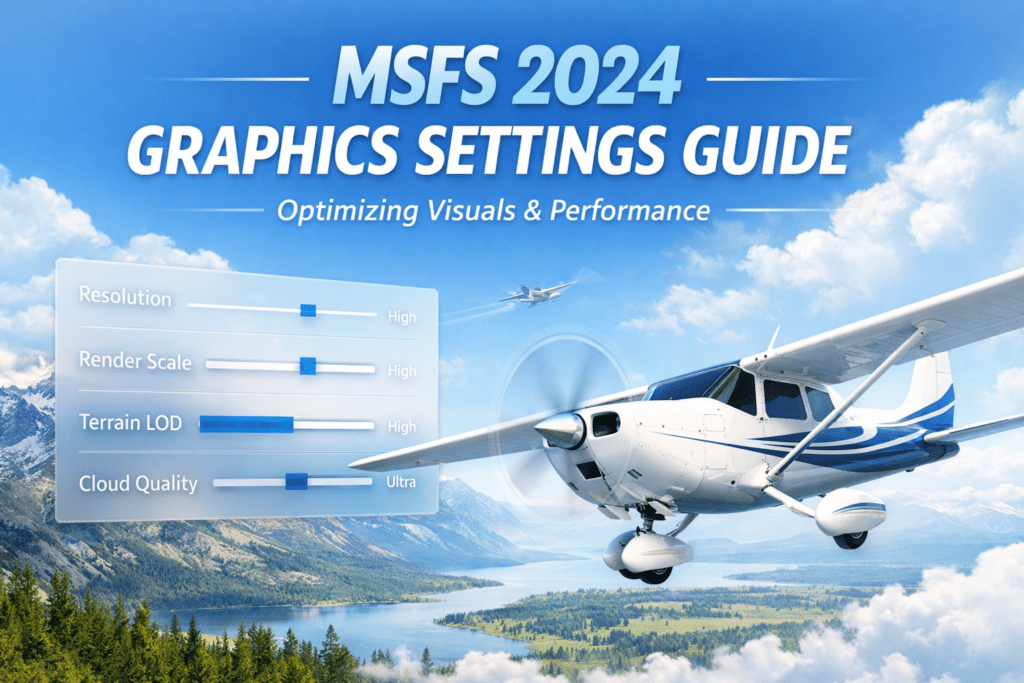
MSFS 2024 Graphics & Performance Guide: Microsoft Flight Simulator 2024 is one of the most demanding and visually impressive PC simulators ever released. It can deliver breathtaking scenery, rich cloud layers, highly detailed cockpits, realistic lighting, and a true sense of scale that few other games can match. When everything is working properly, it feels magical. When performance is poor, however, the experience can quickly become frustrating.
Stutters on final approach, low frame rates at large airports, blurry scenery, slow-loading terrain, and inconsistent performance between aircraft are all common complaints. The good news is that most of these issues can be improved with a better understanding of how the simulator works and which settings matter most.
Many users make one of two mistakes. The first is setting everything to Ultra and expecting the PC to cope. The second is lowering lots of settings randomly without understanding what each one actually does. Both approaches usually lead to disappointment. The best results come from tuning the simulator logically, in the right order, and with your own hardware in mind.
This guide is designed to help you do exactly that. We will look at performance in a practical and easy-to-follow way, beginning with the basics and moving gradually into deeper optimisation. You will learn:
- How Microsoft Flight Simulator 2024 uses your CPU, GPU, RAM, storage, and internet connection
- What are the most important graphics settings actually do
- Which settings affect the frame rate the most
- How to reduce stutters and inconsistent frame times
- How to tune the simulator for lower-end, mid-range, and high-end PCs
- What Windows, NVIDIA, and AMD settings are worth checking
- How to improve performance in VR
- Which hardware upgrades make the biggest real-world difference
The aim is not simply to chase the highest FPS number. In a flight simulator, smoothness, stability, and responsiveness matter just as much as visual quality. A locked and steady 35 FPS often feels much better than a wildly fluctuating 55 FPS. That is why the focus of this guide is balanced performance rather than unrealistic perfection.
If you are new to the simulator, this article will help you avoid a lot of trial and error. If you already have some experience, it should help you identify the settings and hardware limits that are holding your system back. And if you are planning future hardware upgrades, it will help you spend money in the areas that actually improve the sim.
Understanding Performance in Microsoft Flight Simulator 2024
Before changing any settings, it helps to understand what good performance actually means in a simulator like this.
Most people immediately look at frames per second, or FPS. That is understandable because it is a simple number that seems easy to judge. But in flight simulation, FPS by itself does not tell the whole story. Two systems can both show 40 FPS, yet one feels silky smooth, and the other feels rough and unpredictable. The difference usually comes down to frame pacing, bottlenecks, scenery loading, and overall consistency.
Why smoothness matters more than headline FPS
Flight simulation is different from a fast shooter or racing game. The movement is usually slower, and the camera changes more gently, especially in cruise flight. Because of that, a lower but stable frame rate can still feel very good. What tends to ruin the experience is not always low FPS, but:
- sudden pauses when scenery loads
- micro-stutters while panning around the cockpit
- frame drops close to the ground or on final approach
- heavy fluctuations when entering a city or airport
- laggy glass cockpit displays
That is why the real target should be consistent smoothness. In practical terms, many sim pilots are perfectly happy with:
- 25 to 30 FPS if it is stable and smooth
- 30 to 40 FPS is a very good real-world target
- 40 to 60 FPS is excellent if your system can hold it consistently
Anything above that is nice, but not necessary for enjoyable flying.
FPS vs frame time
FPS tells you how many frames are being rendered every second. Frame time tells you how long each frame takes to appear. Stable frame times are often the difference between a simulator that feels fluid and one that feels choppy.
For example, if your PC renders one frame quickly, then suddenly takes much longer on the next frame, you will feel that as a hitch or stutter, even if the average FPS still looks reasonable. This is why average FPS numbers alone can be misleading.
Why flight simulators are unusually demanding
Microsoft Flight Simulator 2024 is not just drawing a small game map. It is handling an enormous amount of information all at once, including:
- large terrain draw distances
- weather simulation and cloud rendering
- aircraft systems and avionics
- AI and traffic logic
- streamed world data
- lighting, shadows, reflections, and atmosphere
This means your PC is being asked to do many jobs at once. One setting may hit the CPU hard, another may stress the GPU, while another may mainly affect RAM or storage usage. That is why random tweaking often produces confusing results.
CPU limited vs GPU limited
One of the most important performance concepts is understanding whether your simulator is mainly limited by the CPU or the GPU.
When you are CPU-limited
If the CPU is the bottleneck, the processor is struggling to keep up with the simulation. This often happens with:
- complex airliners
- glass cockpit aircraft
- large airports
- dense traffic settings
- High Terrain Level of Detail
- photogrammetry-heavy cities
In this case, lowering pure graphics settings may not help much because the real problem is the amount of simulation and scenery management your processor is trying to handle.
When you are GPU-limited
If the GPU is the bottleneck, the graphics card is under the most strain. This often happens with:
- high display resolutions such as 1440p ultrawide or 4K
- heavy cloud rendering
- high render scaling
- demanding anti-aliasing or upscaling combinations
- VR flying
When you are GPU-limited, visual settings tend to have a more obvious effect on frame rate.

How Microsoft Flight Simulator 2024 Uses Your Hardware
To optimise the simulator properly, it helps to know what each major part of your PC is doing.
The CPU
The CPU is one of the most important components in Microsoft Flight Simulator 2024. It is responsible for much more than many users realise. It helps manage:
- flight model calculations
- aircraft systems and avionics
- AI aircraft and ground traffic
- terrain and scenery management
- glass cockpit updates
- parts of weather, navigation, and world simulation
This is why a sophisticated airliner with complex systems often performs worse than a simple general aviation aircraft in the same location. It is also why major airports can be demanding even before you leave the ground.
The GPU
The GPU renders the visual world. It is responsible for drawing:
- terrain textures
- cloud layers
- water effects
- shadows
- lighting and reflections
- ambient occlusion and post-processing
High resolutions, dense cloud scenes, strong anti-aliasing, high render scaling, and VR all place major demand on the graphics card.
RAM
RAM matters a great deal in flight simulation. Large scenery areas, detailed textures, airports, and complex aircraft all consume memory. In general:
- 16GB is a workable starting point for many users
- 32GB is a very comfortable target for serious simming
- More than 32GB can help in specific heavy-use scenarios, but usually brings smaller gains
If your system is short on memory, it may have to rely more on storage, which can contribute to stutters.
VRAM
VRAM is the memory on your graphics card. It becomes more important when using:
- high-resolution displays
- large texture settings
- dense airports and cities
- VR
A graphics card with more VRAM often handles demanding scenes more gracefully, especially at 1440p, ultrawide, or 4K.
Storage speed
A fast SSD is strongly recommended for Microsoft Flight Simulator 2024. Running it from an old mechanical hard drive is not ideal for a simulator this demanding. Fast storage improves:
- startup times
- aircraft loading times
- airport loading
- terrain data access
- rolling cache efficiency
An NVMe SSD is excellent, but even a good SATA SSD is a major improvement over a traditional HDD.
Internet connection and scenery streaming
Microsoft Flight Simulator also relies heavily on streamed data. Depending on your settings, the simulator may be pulling in:
- satellite imagery
- photogrammetry buildings
- weather data
- traffic data
- live world information
If your internet connection is unstable, or if the servers are under load, you may notice delayed scenery, stutters, or less detailed terrain appearing later than expected.
Microsoft Flight Simulator 2024 Graphics Settings Explained
This is the heart of the guide. Some settings have a huge impact on performance, while others can often stay high with little penalty. Understanding which is which is the key to sensible tuning.
Render Scaling
Render Scaling controls the internal resolution at which the simulator renders the image before it is shown on your display. At 100, the simulator renders at native resolution. Lowering this can improve performance, but also makes the image softer. Raising it above 100 can make the image sharper, but it costs GPU power quickly.
Useful guidance:
- 100 is the natural baseline
- 90 to 100 is often an excellent range
- Below 90 can help weaker systems, but reduces clarity
- Above 100 is mostly for strong GPUs with spare headroom
Anti-Aliasing
Anti-aliasing smooths jagged edges and affects both image quality and performance.
TAA
TAA is often the safest and most widely recommended all-round option. It tends to offer good image stability and cockpit readability.
DLSS
DLSS uses AI upscaling on supported NVIDIA graphics cards. It can improve performance significantly, especially at higher resolutions, though some users may notice changes in sharpness or readability depending on the setting and aircraft.
DLAA
DLAA aims more at image quality than performance. It can look excellent, but it is heavier than DLSS.
FSR
FSR is AMD’s upscaling option. It can help performance on a wider range of hardware, though image quality varies depending on the exact setup.
In general:
- TAA is a strong quality-first choice
- DLSS is attractive if you need more FPS on an NVIDIA card
- FSR is worth trying if you need extra performance on weaker hardware
Terrain Level of Detail
Terrain Level of Detail, usually called Terrain LOD, is one of the most important settings in the entire simulator. It controls how far detailed terrain is maintained from the aircraft.
This has a major effect on CPU usage. Higher values increase scenery detail over large distances, but they also increase the workload on the processor.
For many systems:
- 100 is a very sensible baseline
- 150 looks excellent on many mid-range and strong systems
- 200 and beyond can look wonderful, but can hit CPU performance hard
Object Level of Detail
Object LOD controls how far away buildings, trees, and various objects remain detailed. It affects both immersion and performance, especially in urban areas and around airports.
Like Terrain LOD, this is a setting where very high values can become expensive quickly.
Cloud Quality
Clouds are one of the visual highlights of Microsoft Flight Simulator 2024, but they are also one of the biggest GPU loads. If your system struggles in bad weather or overcast conditions, cloud quality is one of the first settings worth testing.
Typical advice:
- High often gives an excellent balance
- Ultra looks superb, but is more demanding
- Medium can help weaker systems noticeably
Texture Resolution
Texture Resolution affects the clarity of aircraft surfaces, cockpits, runway markings, and scenery textures. This setting depends more on available VRAM than on raw GPU speed alone.
If your graphics card has enough VRAM, high textures are often worth keeping because they improve visual quality noticeably without always destroying performance.
Anisotropic Filtering
Anisotropic Filtering improves the clarity of textures viewed at angles, especially ground textures stretching into the distance. On many modern GPUs this setting has a relatively modest cost, so it can often stay fairly high.
Ambient Occlusion
Ambient Occlusion adds depth and shadowing where surfaces meet, helping the scene look richer and less flat. It improves visual realism, especially in cockpits and around scenery, but it does cost some GPU performance.
Reflections
Reflections affect water, shiny aircraft surfaces, and other reflective materials. They add realism, but they also come at a performance cost. If you need extra GPU headroom, reflections are a reasonable setting to reduce slightly.
Shadow Maps and Shadow Quality
Shadows are often more expensive than people expect. They affect many parts of the scene and can hit the GPU significantly. Shadow quality, terrain shadows, and related shadow settings are worth testing carefully if you are GPU-limited.
Glass Cockpit Refresh Rate
This setting is especially important for users who fly airliners and advanced glass cockpit aircraft. It controls how often the cockpit displays refresh. On CPU-limited systems, lowering this can make a noticeable difference, especially on the ground at large airports.
Traffic Settings
Traffic is not strictly a graphics setting, but it is very important for performance. AI aircraft, airport workers, service vehicles, road traffic, and boats all add life to the world, but they also increase CPU load.
If your simulator feels rough at larger airports, reducing traffic can help more than lowering a small visual option elsewhere.
Best Microsoft Flight Simulator 2024 Graphics Settings for Different PCs
There is no universal best preset because every PC is different. Still, it helps to work from sensible starting points.
Best settings for lower-end systems
If your PC is older or closer to entry-level, the goal should be a stable and enjoyable experience rather than maximum visual glory.
Recommended priorities
- Keep Render Scaling around 80 to 90 if needed
- Use TAA or a performance-focused upscaling mode
- Set Terrain LOD around 70 to 100
- Keep Object LOD moderate
- Set Clouds to Medium
- reduce traffic
- Avoid very heavy shadow and reflection settings
If you fly mainly smaller aircraft in less crowded areas, you may be able to raise a few settings while still keeping the simulator smooth.
Best settings for mid-range systems
Mid-range systems are often the sweet spot for this simulator. With sensible tuning, they can look beautiful and still provide satisfying performance.
Strong starting point for many mid-range PCs
- Render Scaling around 90 to 100
- TAA, or DLSS on supported NVIDIA cards if you want more performance
- Terrain LOD around 100 to 150
- Object LOD around 100
- Clouds on High
- Textures on High
- Glass Cockpit Refresh Rate lowered if needed for airliners
- traffic reduced to sensible levels
This range usually gives a very good balance between image quality and smoothness.
Best settings for high-end systems
High-end systems can run the simulator very well, but even powerful hardware can be challenged by 4K, VR, dense weather, photogrammetry cities, advanced airliners, and large handcrafted airports all at once.
Good high-end starting point
- Render Scaling at 100
- TAA or DLSS Quality depending on card and preference
- Terrain LOD around 150 to 200
- Object LOD around 150
- Clouds on High or Ultra
- Textures on High or Ultra
- Most visual settings are high, but traffic is still kept sensible
Even on strong hardware, there is still value in avoiding settings that add little visible improvement for a large performance cost.
Best settings for 4K users
4K places a heavy load on the GPU. If you fly at 4K, the most important settings to watch are usually:
- Render Scaling
- anti-aliasing mode
- Cloud Quality
- shadows
- reflections
DLSS can be especially useful here on supported NVIDIA GPUs. At 4K, even small changes to cloud and shadow settings can recover useful headroom.
Best settings for an airliner flying
Airliner flying has a different performance profile from scenic VFR flying. It often involves:
- large complex airports
- busy terminal areas
- advanced systems
- glass cockpits
- dense scenery and traffic
For an airliner flying, priorities should often include:
- Glass Cockpit Refresh Rate
- traffic density
- Terrain and Object LOD balance
- cloud settings if GPU is limited
It is often better to reduce a little visual excess and gain smoother taxi, approach, and departure performance.
Best settings for scenic VFR flying
If you mainly enjoy smaller aircraft, sightseeing, and scenic flights, you may care more about terrain and atmosphere than ultra-busy airports. In that case, you can usually prioritise:
- Terrain LOD
- cloud quality
- lighting and atmospheric effects
- good texture quality
How to Fix Stutters in Microsoft Flight Simulator 2024
Stutters are one of the most common complaints in the simulator. A system can show acceptable FPS and still feel unpleasant because of hitching, pauses, or uneven frame pacing.
Common causes of stutters
- scenery streaming delays
- CPU bottlenecks
- memory pressure
- VRAM limits
- problematic add-ons
- background applications
- rolling cache issues
- very high Terrain LOD
Rolling Cache
The rolling cache stores scenery data locally so the simulator can reuse it rather than downloading it again. On some systems, this helps smooth out repeated visits to the same areas. On others, clearing or rebuilding the cache can help if it has become inefficient or corrupted.
If you notice repeated stutters in the same regions, the rolling cache is worth testing.
Reduce Terrain LOD slightly
Terrain LOD is a frequent cause of CPU-related stutters, particularly around cities and complex airports. Dropping it a little can sometimes make the sim feel much smoother with only a modest visual compromise.
Reduce traffic
Traffic settings can have a surprisingly large effect on smoothness. If the simulator stutters badly on the ground, try reducing:
- AI traffic
- airport workers
- service vehicles
- road traffic
Close unnecessary background applications
Browsers, RGB utilities, cloud sync programs, overlays, and software launchers can all consume resources or interfere with frame pacing. Before a long flight, keeping the PC tidy is a good habit.
Watch heavy add-ons
Some third-party airports and aircraft are simply more demanding than others. If performance suddenly worsens after installing a new add-on, test the simulator without it and compare the results.
Use SSD storage
Fast storage reduces loading pauses and improves general responsiveness. If the simulator is still running from a hard drive, moving it to an SSD is one of the most worthwhile improvements you can make.
Check internet stability
If stutters occur mainly when entering cities or streamed scenery areas, the problem may not be your GPU at all. It may be scenery streaming delays or server-side issues.
Best Windows Settings for Microsoft Flight Simulator 2024
Good simulator performance is not just about in-game settings. Windows also play a role.
Use an appropriate power plan
A power-saving mode is not ideal for a demanding simulator. A high-performance plan, or a balanced plan that allows full performance under load, is usually the better choice.
Enable Game Mode
Windows Game Mode is intended to prioritise gaming workloads. It is not a miracle setting, but it can help reduce background interference and is generally worth enabling.
Keep the system clean before flying
Before launching the simulator, it can help to close:
- large browser sessions
- unneeded launchers
- file sync activity
- Background monitoring tools you do not need
Install the simulator on an SSD
This is worth repeating because it matters so much. Microsoft Flight Simulator 2024 belongs on solid-state storage.
Be careful with internet “tweaks.”
There are endless tweak guides online promising huge FPS boosts. Some are useful, some are outdated, and some are simply bad advice. It is safer to make small changes one at a time and test them properly.
Best NVIDIA Settings for Microsoft Flight Simulator 2024
If you use an NVIDIA graphics card, a few sensible checks are worth making.
Keep drivers current
Up-to-date drivers can improve compatibility and stability. That said, if a brand-new driver causes an issue on your system, it is reasonable to step back and compare.
Power management
Using an appropriate power management mode can help the GPU maintain performance under load.
Low latency and extras
Low-latency features and sharpening options can sometimes help, but they are not guaranteed improvements in every setup. It is better to test them carefully than to assume they always help.
DLSS settings
If you use DLSS, try different quality modes and check cockpit readability, distant scenery, and overall smoothness rather than judging only by raw FPS.
Best AMD Settings for Microsoft Flight Simulator 2024
AMD users should follow the same general philosophy: keep drivers current, avoid stacking too many image-processing features, and test changes methodically.
Check FSR carefully
FSR can improve performance, especially on weaker systems, but image quality should be tested in real flying situations, including cockpit text and distant terrain.
Use practical, not extreme, tuning
The best results usually come from balanced settings rather than aggressive overlays or driver-level experiments.
VR Performance Tips for Microsoft Flight Simulator 2024
VR is one of the most immersive ways to experience flight simulation, but it is also one of the most demanding.
In VR, your system is typically rendering a high-resolution image for each eye while keeping head movement smooth and responsive. That means even strong PCs can struggle if settings are too ambitious.
Prioritise comfort and stability
In VR, unstable performance is more than just annoying. It can make the experience uncomfortable. For that reason, smoothness matters even more than on a monitor.
Best first settings to lower for VR
- Render Scaling
- Cloud Quality
- Terrain LOD
- shadow quality
- reflection quality
Keep expectations realistic
VR requires a stronger PC than standard monitor flying. If you are moving from a monitor to VR, expect to reduce some visual settings in exchange for immersion.
Use motion smoothing or reprojection carefully
Depending on your headset platform, motion smoothing or reprojection features may help the experience feel smoother. They are worth testing, but results vary by headset and system.
Hardware Upgrades That Improve Microsoft Flight Simulator 2024 the Most
If you have already tuned the simulator well and still want more performance, hardware may be the next step. The key is to upgrade the part that is actually limiting your system.
Upgrade the GPU if you are visually limited
If you fly at high resolution, want stronger cloud performance, or are interested in VR, the GPU is often the most important upgrade. Signs that the GPU is the main limitation include:
- Big performance drops when increasing resolution
- big drops in heavy weather
- large FPS gains when lowering cloud or shadow settings
- 4K or ultrawide performance is struggling even in simpler areas
Upgrade the CPU if you are simulation-limited
If your simulator struggles mainly in airliners, dense airports, and glass cockpit situations, the CPU may matter more. Signs include:
- limited gains when lowering visual settings
- Heavy stutters on the ground at large airports
- glass cockpit lag
- poor performance in CPU-heavy scenarios, even with a good GPU
Move to 32GB RAM if you are still on 16GB
For serious flight sim use, 32GB is a very comfortable amount of memory and often helps with smoothness in dense scenery and complex aircraft operations.
Use SSD storage
If you have not already moved the simulator to SSD storage, do that before chasing smaller upgrades. It improves the general experience far more than many people expect.
Think in terms of system balance
The best simulator systems are balanced systems. A very strong GPU paired with a weak CPU, or a fast CPU paired with a modest GPU, can still leave performance on the table. Try to understand which component is really limiting you before spending money.
Troubleshooting Microsoft Flight Simulator 2024 Performance Problems
If FPS is low everywhere
If frame rate is poor in almost all situations, begin with the basics:
- check display resolution
- Check Render Scaling
- test Cloud Quality
- Lower Terrain LOD
- Make sure the simulator is using the correct graphics card
If performance is only bad at big airports
This often points to CPU load, heavy traffic, demanding scenery, or complex aircraft systems rather than a pure GPU problem.
If performance is mostly bad in cities
This often suggests Terrain LOD, photogrammetry load, streaming issues, or memory pressure.
If cockpit displays feel slow
Reduce the Glass Cockpit Refresh Rate and check whether the issue improves, especially in advanced aircraft.
If the image looks blurry
Check Render Scaling, anti-aliasing mode, and upscaling settings. A fast image is not always a readable image. Cockpit clarity matters.
If stutters appear after installing add-ons
Test the simulator without the newest add-on and compare. Some third-party content is simply heavier or less well optimised than others.
Frequently Asked Questions
What is a good FPS for Microsoft Flight Simulator 2024?
For many sim pilots, a stable 30 to 40 FPS feels very good. Smoothness and consistency matter more than chasing very high numbers.
Is Microsoft Flight Simulator 2024 CPU-heavy or GPU-heavy?
It is both. CPU load often matters more at major airports, in advanced aircraft, and in glass cockpit operations. GPU load often matters more at high resolutions, in heavy weather, and in VR.
What setting improves FPS the most in MSFS 2024?
Terrain LOD, Cloud Quality, Render Scaling, and traffic settings are among the most influential, though the answer depends on whether you are CPU or GPU-limited.
Should I use TAA or DLSS?
TAA is often preferred for image stability and cockpit readability. DLSS can provide very useful performance gains on supported NVIDIA cards, especially at higher resolutions.
Does more RAM help Microsoft Flight Simulator 2024?
Yes, especially if you move from 16GB to 32GB and use heavy airports, dense scenery, and advanced aircraft.
Does an SSD help Microsoft Flight Simulator?
Absolutely. It improves loading times and generally helps the simulator feel more responsive and less prone to loading-related delays.
Is VR worth it in Microsoft Flight Simulator 2024?
For many users, yes. It can be incredibly immersive. But it also requires stronger hardware and more careful tuning than standard monitor flying.
Final Thoughts
Microsoft Flight Simulator 2024 can look absolutely stunning, but the best experience does not come from blindly selecting the highest settings. It comes from balance. It comes from understanding what your system is good at, where it struggles, and which settings are worth prioritising for the way you actually fly.
For some sim pilots, the priority is smooth airliner performance at large airports. For others, it is breathtaking VFR scenery and weather. For VR users, it is comfort and stability. There is no single preset that is perfect for everybody.
The most important things to remember are these:
- smoothness matters as much as raw FPS
- Terrain LOD and Cloud Quality are two of the most important settings to watch
- CPU and GPU bottlenecks are different and need different solutions
- glass cockpit aircraft and major airports are especially demanding
- Traffic settings can affect performance more than many users expect
- A balanced PC and sensible settings usually produce the best overall experience
If you tune the simulator patiently and logically, even a mid-range system can deliver a very enjoyable flying experience. Small adjustments often make a bigger difference than people expect. Once the sim feels stable and responsive, you stop thinking about settings and start enjoying the flying, which is exactly how it should be.
Whether you are exploring coastlines in a light aircraft, flying an IFR arrival into a busy city, or simply admiring the weather and terrain from the cockpit, the right performance setup can make Microsoft Flight Simulator 2024 feel smoother, more immersive, and much more rewarding.
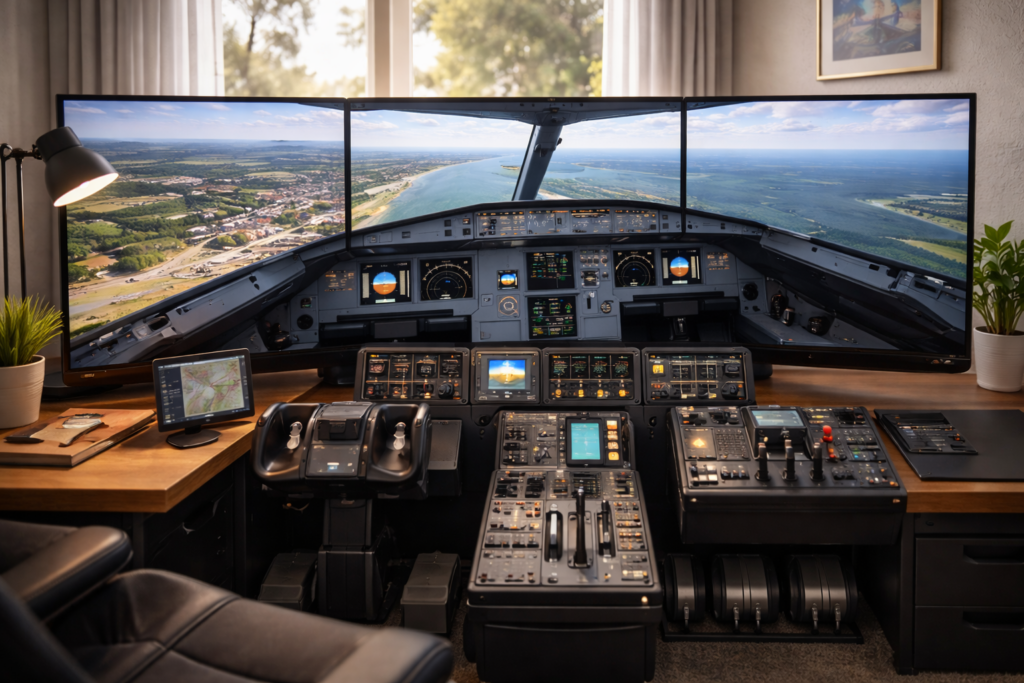
Elegant Microsoft Flight Simulator 2024 cockpit scene in soft daylight with performance and graphics optimisation theme
Suggested Internal Links
- Ultimate Flight Simulator Hardware Guide
- Microsoft Flight Simulator Beginner’s Guide
- Best Flight Simulator Setup for Home
Graphics, Visual Quality, and Performance Guides
These guides help you achieve the best balance between visual realism and smooth performance in Microsoft Flight Simulator 2024, covering everything from core settings to advanced visual enhancements.
Best Realistic Settings for MSFS 2024
Learn which graphics and realism options provide the most immersive experience without sacrificing performance or stability.
How to Make MSFS 2024 Look Photorealistic
Discover lighting, clarity, and rendering tweaks that dramatically improve scenery realism and overall visual fidelity.
MSFS 2024 Performance Settings Guide
Understand the key optimisation steps that improve frame rate, reduce stutters, and maintain consistent smoothness during flight.
Related Guides in This Section
- Best Realistic Settings for MSFS 2024
- How to Make MSFS 2024 Look Photorealistic
- MSFS 2024 Performance Settings Guide
- Blurry or Washed-Out Graphics Fix
Next article: Performance & Settings Guide