
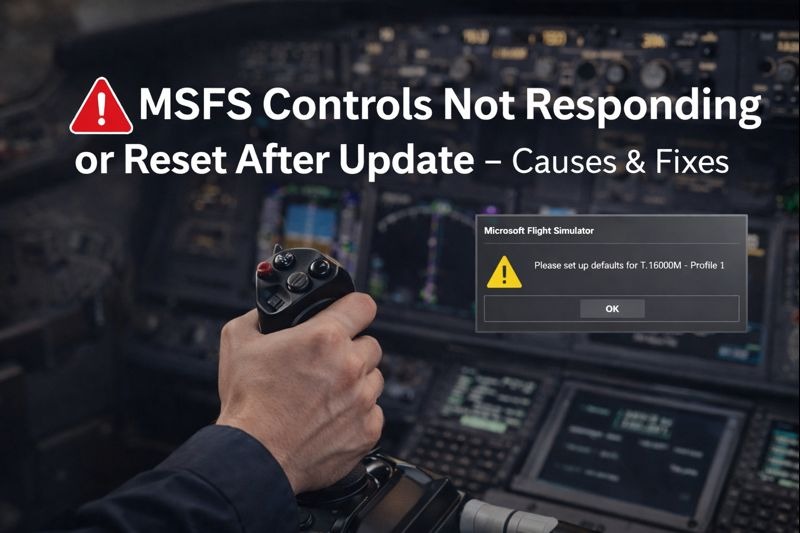
When MSFS controls are not responding or reset after an issue, pilots may find previously working yokes, throttles, or keyboard bindings suddenly unresponsive or returned to default settings. If you’re still becoming familiar with controller configuration, input profiles, and hardware setup inside the simulator, our MSFS 2024 controls and hardware setup guide explains the essential steps that help restore stable control behaviour and prevent future reset problems.
Flight simulator update
In most cases, the simulator update has not permanently broken your controls. What has happened instead is that control profiles have been reset, overwritten, or confused by changes made during the update process. Understanding this concept can help you troubleshoot the MSFS Controls Not Responding or Resetting After Update.
One of the most common causes is that MSFS creates a new default control profile after an update. When this happens, the simulator may switch away from your custom profile without clearly indicating it. The controls may appear connected, but no longer respond as expected. Opening the Controls Options menu and confirming that your custom profile is selected for each device often resolves this immediately, addressing the issue known as MSFS Controls Not Responding or Resetting After Update.
Duplicate bindings
Another frequent cause is duplicate bindings. After an update, MSFS may assign default bindings on top of existing ones, especially if you have multiple controllers connected. When more than one device is bound to the same control input, the simulator may ignore all inputs or behave erratically. Reviewing each connected device and removing duplicate assignments can restore normal operation.
Windows power management
Windows power management is another common culprit. Updates can re-enable USB power-saving features that allow Windows to suspend USB devices to save energy. When this happens, flight controls may disconnect or stop responding mid-session or fail to initialise properly at startup. Disabling USB power saving for all flight control devices in Windows Device Manager often fixes this problem permanently.
Control profiles
Control profiles can also become corrupted during updates. This may result in profiles disappearing, refusing to load, or resetting every time the simulator starts. Creating a fresh profile and reassigning controls can resolve this, even though it is frustrating. Backing up control profiles before major updates can save significant time in the future.
In some cases, MSFS may misidentify a controller after an update. This can happen when device IDs change or when firmware updates occur automatically. The simulator may treat the controller as a new device, resulting in lost or mismatched bindings. Rebinding the controls or reconnecting the device to a different USB port can help the simulator recognise it correctly.
External software
External software can also interfere with control inputs after updates. Tools such as joystick managers, calibration utilities, or background controller software may conflict with MSFS, especially if they were not updated alongside the simulator. Temporarily disabling these tools can help determine whether they are contributing to the issue.
Occasionally, the issue is caused by the simulator loading before all USB devices have fully initialised. Starting MSFS after all controllers are connected and recognised by Windows, rather than plugging them in after the sim has launched, can prevent this behaviour.
Control-profile resets and input detection problems can sometimes be caused by driver updates, USB power management, or Windows device-configuration changes rather than simulator faults alone. Microsoft’s official Windows device troubleshooting documentation provides additional diagnostic steps that can help resolve persistent controller-recognition issues affecting applications such as Microsoft Flight Simulator.