
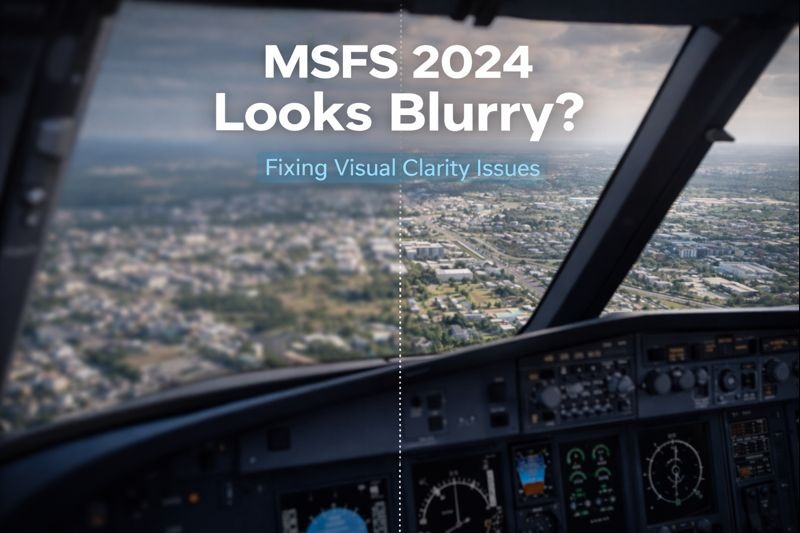
If MSFS 2024 looks blurry, distant scenery, cockpit text, and terrain detail may appear soft or unclear, reducing the visual realism of the simulator. If you’re still learning how resolution scaling, anti-aliasing, and graphics configuration affect image clarity, our MSFS 2024 graphics settings guide explains the key adjustments that most often restore sharp visuals and improve overall visual quality.
Common complaints include:
- Ground textures that look soft or muddy
- Buildings pop into clarity only when very close
- Cockpit labels that don’t look crisp
- scenery that looks fine from altitude but blurry near the ground
Many users immediately assume something is wrong with their graphics settings. In reality, the situation is usually more nuanced.
This article explains why MSFS 2024 can look blurry, what’s typically happening behind the scenes, and what has helped many users improve clarity.
A quick clarification before we start
There is no single setting that magically fixes blurriness for everyone.
MSFS 2024 relies heavily on streamed data, dynamic resolution techniques, and real-time optimisation. Visual clarity depends on more than just raw graphics power.
The goal here is to understand the causes well enough to avoid unnecessary tweaking and frustration.
Why MSFS 2024 can look blurry even on good systems
Visual sharpness in MSFS 2024 is influenced by several interacting systems.
Streaming scenery and textures
Much of the world in MSFS 2024 is streamed on demand. When data hasn’t fully loaded, the simulator temporarily displays lower-resolution textures to keep things moving smoothly.
This can make terrain and buildings look blurry until higher-resolution data arrives.
Level of detail behaviour
Objects and terrain change detail levels based on distance, speed, and system load. When flying fast or low, the simulator may prioritise performance over visual sharpness, especially in dense areas.
This is why scenery can suddenly “snap” into clarity after a moment.
Resolution scaling and dynamic adjustments
MSFS 2024 may adjust internal resolution dynamically to maintain performance. Even if your display resolution is high, the simulator may be rendering parts of the scene at a lower internal resolution temporarily.
This can soften the image without being obvious in the settings menus.
Cockpit vs external views
Many users notice that cockpit textures look less sharp than expected. This is often intentional, as the simulator balances clarity, lighting, and performance differently inside the cockpit than in external views.
What has helped many users (but not all)
The steps below have helped a large number of people improve perceived sharpness. Results vary depending on the system and conditions.
Allow time for scenery to load
If you’ve just loaded into a complex area, give the simulator a little time. Flying in circles or pausing briefly can allow higher-resolution textures to stream in.
Be cautious with constant setting changes
Rapidly changing graphics settings can make it harder for the simulator to stabilise. Make one change at a time and test it in the same location.
Focus on consistency, not perfection
Chasing maximum sharpness everywhere often leads to disappointment. MSFS 2024 prioritises smooth flight and world scale over pin-sharp detail at all times.
Check expectations against altitude and speed
At low altitude and high speed, some softness is normal. The simulator simply cannot load and display ultra-high-resolution data instantly across vast areas.
Why do two users see very different results
Even systems with similar specifications can behave very differently, influenced by:
- Background system activity
- Internet and streaming conditions
- How controls and cameras are used
- The scenery density and environment being flown
This is why screenshots and videos don’t always match what you see on your own system.
When blurriness is probably normal
If scenery sharpens after a short delay, or looks crisp at altitude but softer close to the ground, this is usually expected behaviour rather than a fault.
MSFS 2024 is constantly balancing visual quality against performance and data availability.
A helpful way to think about visual quality in MSFS 2024
A useful mindset is this:
MSFS 2024 prioritises scale and continuity over perfect sharpness at every moment.
Once that’s understood, occasional softness becomes far less concerning.
Closing thought
Blurry visuals in MSFS 2024 are rarely the result of a single wrong setting. More often, they’re a side effect of how the simulator streams, prioritises, and manages an enormous world in real time.
Blurry visuals can sometimes be influenced by graphics-driver configuration, display scaling, or monitor resolution settings outside the simulator itself. Official optimisation guidance from NVIDIA support provides additional troubleshooting steps that may help improve image sharpness in demanding 3D applications such as Microsoft Flight Simulator.
Your window seat to the skies.