
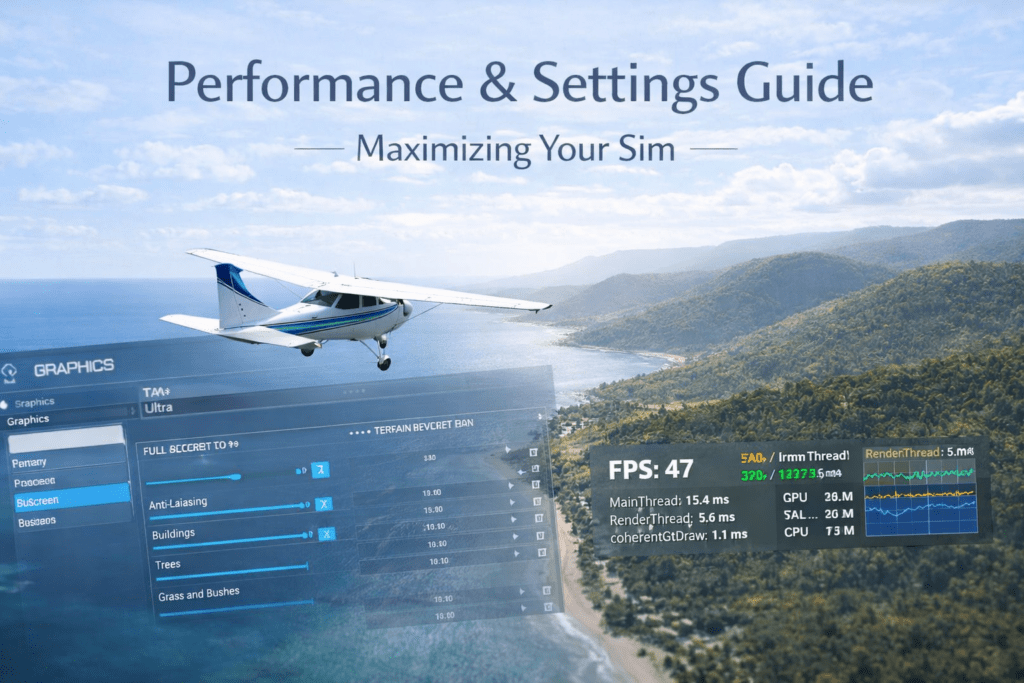
MSFS 2024 HDR settings: High Dynamic Range (HDR) can dramatically improve how Microsoft Flight Simulator 2024 looks — but only if it is configured correctly. When HDR is set up properly, sunsets glow naturally, cockpit lighting feels realistic, clouds gain depth, and bright runway lights no longer look flat.
When HDR is set up incorrectly, however, the simulator can appear washed out, overly bright, dull, or strangely grey.
This guide explains how HDR works in MSFS 2024, how to configure Windows and your monitor properly, and how to avoid common mistakes that cause poor colour or brightness.
Quick Summary
- HDR improves brightness, contrast, and colour depth in MSFS
- Your display must support true HDR capability for the best results
- Windows HDR must be enabled before MSFS can use it
- Incorrect Windows SDR brightness often causes washed-out colours
- Proper monitor calibration and 10-bit colour output improve HDR quality
- When configured correctly, HDR enhances sunsets, clouds and night lighting
What Is HDR
HDR allows your display to show:
- Brighter highlights
- Deeper blacks
- Wider colour range
- Better contrast between light and shadow
In MSFS 2024, HDR enhances:
- Sun glare
- Cloud depth
- Cockpit lighting
- Night runway lighting
- Reflections
However, HDR requires three things working together:
- An HDR-capable monitor or TV
- Windows HDR enabled
- Correct in-sim configuration
Without all three aligned, HDR may actually look worse than standard SDR.
Step 1: Confirm Your Display Supports Real HDR
Not all monitors labeled “HDR” provide the same experience.
True HDR displays usually include:
- Peak brightness of 600 nits or higher
- Strong contrast ratio
- Local dimming support
Entry-level HDR400 monitors often provide only minor visual improvement.
If your monitor is basic HDR, you may prefer SDR for consistency.
Step 2: Enable HDR in Windows
In Windows:
Settings → System → Display
Enable:
Use HDR
After enabling HDR:
- Adjust the SDR content brightness slider
- Start around 40–50%
If the SDR slider is set too high, the desktop and menus will look washed out.
Step 3: Configure Monitor Settings
On your monitor:
- Enable HDR mode
- Disable dynamic contrast enhancements
- Disable aggressive sharpening
- Set colour temperature to neutral or warm
Avoid “vivid” or artificial picture modes that distort colour accuracy.
Step 4: Enable HDR in MSFS 2024
Inside MSFS:
Open Graphics Settings
Enable:
HDR
If the HDR option does not appear:
- Confirm Windows HDR is enabled
- Restart the simulator
Step 5: Adjust Brightness and Contrast Carefully
In-sim brightness should remain close to default values.
Avoid:
- Increasing brightness excessively
- Increasing contrast aggressively
HDR relies on natural dynamic range rather than exaggerated settings.
Signs HDR is configured correctly:
- Cockpit shadows are deep but still visible
- Sunlight is bright without blowing out detail
- Clouds retain highlight detail
- Night lighting glows naturally without blooming
Common HDR Problems and Fixes
Washed-Out Image
Cause:
- SDR brightness slider too high
- Monitor HDR mode is poorly calibrated
Fix:
- Reduce SDR brightness in Windows
- Adjust monitor HDR brightness
Cockpit Too Dark
Cause:
- HDR peak brightness too low
- Monitor backlight too dim
Fix:
- Increase monitor brightness
- Check HDR picture mode
Whites Look Overexposed
Cause:
- Excessive contrast
- Dynamic contrast is enabled on the monitor
Fix:
- Disable dynamic contrast
- Reset monitor HDR settings
Colours Look Strange
Cause:
- Incorrect colour temperature
- GPU colour overrides
Fix:
- Reset monitor colour settings
- Reset GPU colour configuration
Best NVIDIA Settings for HDR
In NVIDIA Control Panel:
- Output colour format: RGB
- Output dynamic range: Full
- Colour depth: 10-bit (if supported)
10-bit output improves gradient smoothness in HDR scenes.
Best AMD Settings for HDR
In AMD Software:
- Enable 10-bit pixel format
- Use RGB Full range
- Disable driver-level colour overrides
Avoid excessive Radeon Image Sharpening when using HDR.
When HDR Looks Best in MSFS
HDR is most noticeable during:
- Golden hour flights
- Sunrise and sunset
- High contrast cloud layers
- Night city approaches
- Storm lighting
During overcast daylight, HDR improvements may be subtle.
HDR vs SDR for MSFS
HDR Advantages
- Brighter highlights
- Better sunset realism
- More dramatic lighting
- Improved immersion
SDR Advantages
- Simpler configuration
- More consistent across displays
- Often sharper on lower-quality HDR panels
If your monitor is HDR600 or higher, HDR is usually worthwhile.
If your display is basic HDR400, SDR may produce cleaner visuals.
HDR Calibration Tips
For the best results:
- Use the Windows HDR calibration tool
- Avoid maximum brightness settings
- Keep gamma neutral
- Maintain balanced in-sim exposure
- Avoid stacking heavy sharpening with HDR
HDR and Performance
HDR generally has minimal performance impact.
Possible effects include:
- Slightly higher bandwidth for 10-bit output
- Very small GPU load increase
On modern RTX and RX graphics cards, the impact is typically negligible.
Conclusion
Properly configured HDR in MSFS 2024 can dramatically improve lighting realism, contrast, and immersion. The key is aligning Windows HDR settings, monitor calibration, and in-sim brightness levels. Avoid excessive sharpening or exaggerated contrast, ensure 10-bit colour output if supported, and adjust SDR brightness carefully in Windows. When configured correctly, HDR makes sunsets glow, clouds gain depth, and night lighting feel far more lifelike without washing out the simulator.